

Delivery & Logistics Best Practices | Zeo Route Planner - Part 10

Latest Blog


More Articles

planning fastest route using Zeo Route Planner

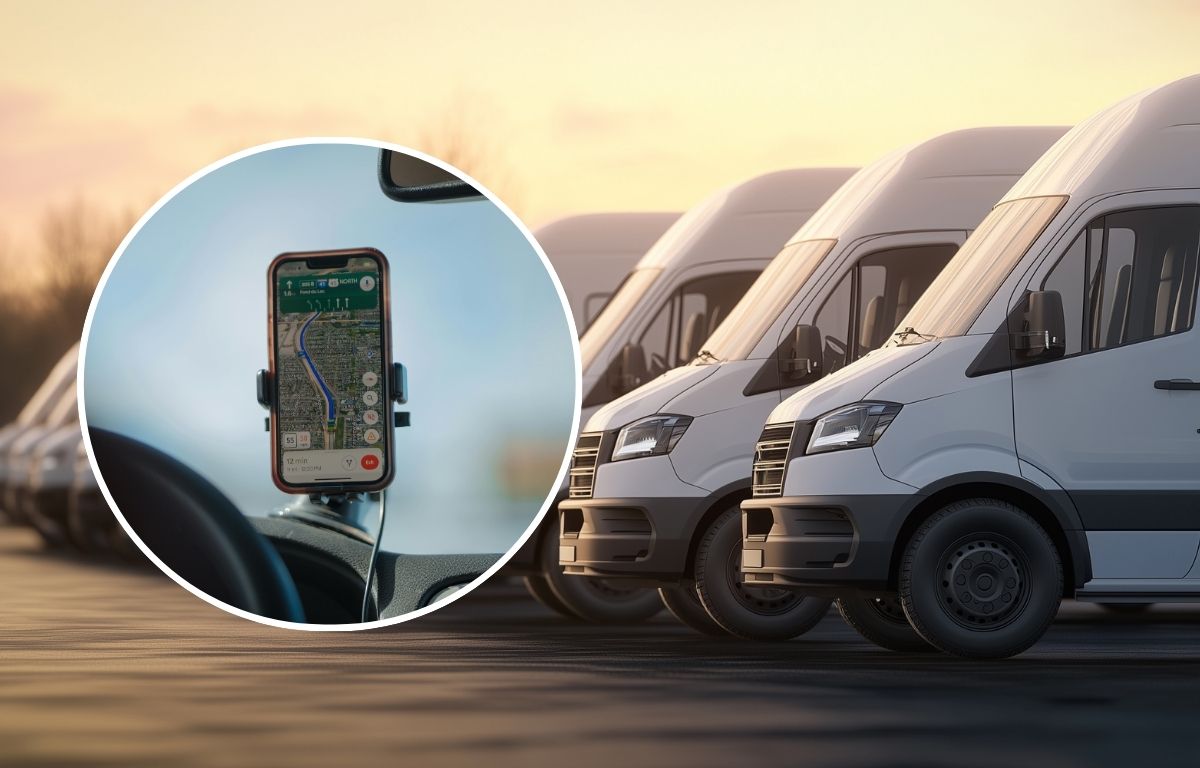
How to plan the fastest route for your delivery process

“`html Reading Time: 7 minutes TL;DR: The fastest delivery route is one that’s optimized for all your stops at once,
planning-routes-with-google-maps

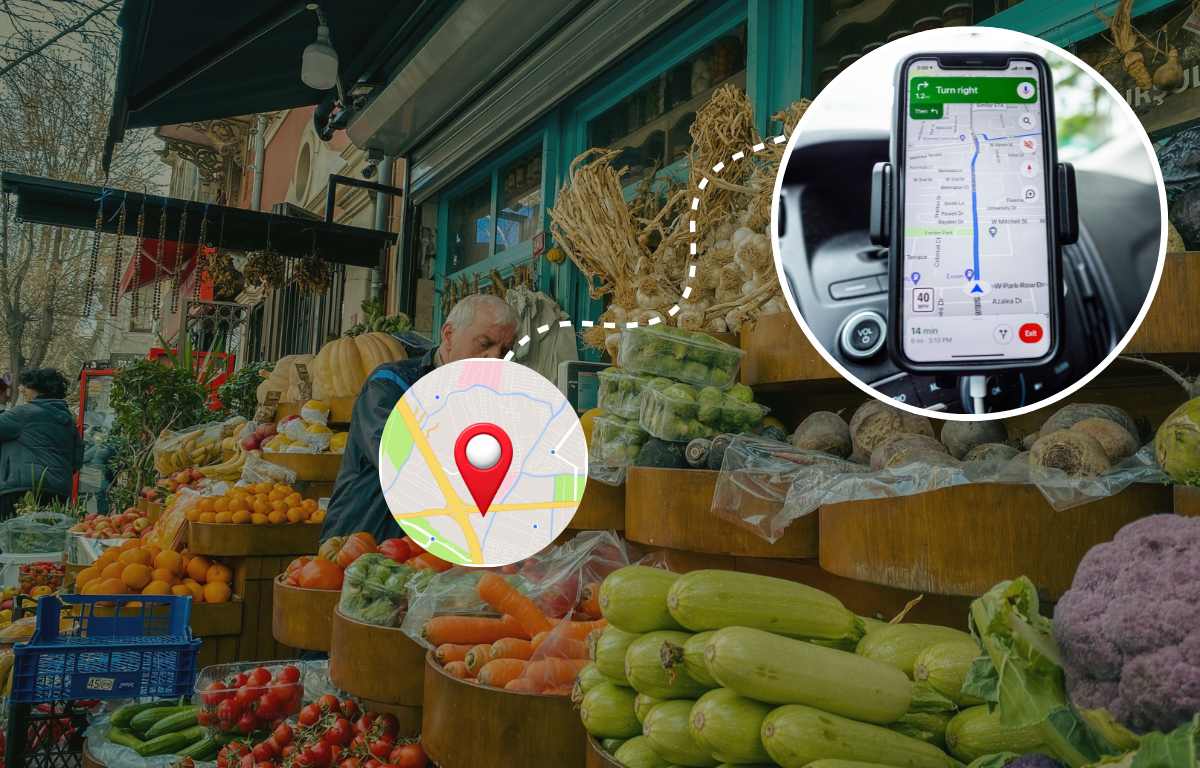
How to plan a route for multiple destinations in Google Maps

Reading Time: 5 minutes TL;DR: Zeo Route Planner is a leading multi-stop route optimization solution because it removes Google Maps’
same-day-delivery-with-zeo-route-planner

How to achieve same-day delivery with the help of Zeo Route Planner

“`html Reading Time: 5 minutes TL;DR: Same-day delivery is achievable when businesses combine smart route optimization with real-time tracking and
problem-with-postcode-based-route-planning

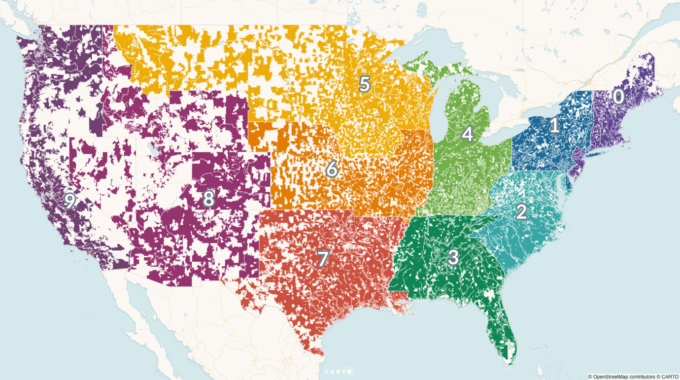
What is the issue with postcode based route planning

Reading Time: 5 minutes Reading Time: 4 minutes TL;DR: Postcode-based routing is inefficient because it groups stops by arbitrary boundaries
import-address-using-Bar-or-QR-code-scan

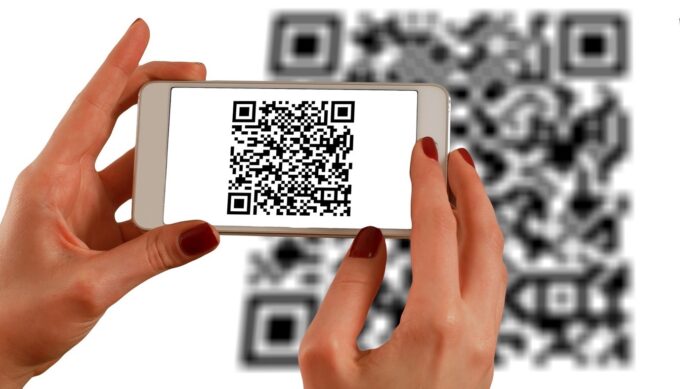
How to import address using Bar/QR code

Reading Time: 5 minutes TL;DR: You can import addresses directly from a package label by scanning its Bar/QR code in

proof-of-delivery-in-zeo-route-planner

How to enable Proof of Delivery in the Zeo Route Planner

Reading Time: 6 minutes TL;DR: You can enable Proof of Delivery in Zeo Route Planner through the App Settings menu
last-mile-delivery-with-the-zeo-route-app

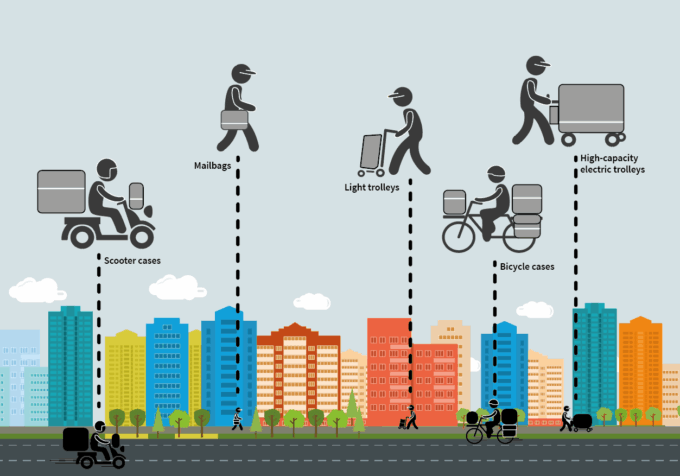
What individual drivers say about the Zeo Route Planner

Reading Time: 5 minutes TL;DR: Individual drivers say route optimization software cuts their daily driving time and helps them handle
delivery-management-with-zeo-route-planner

How to use a delivery management app to help drivers

Reading Time: 5 minutes TL;DR: A delivery management app helps drivers by combining route planning, order tracking, and proof-of-delivery into
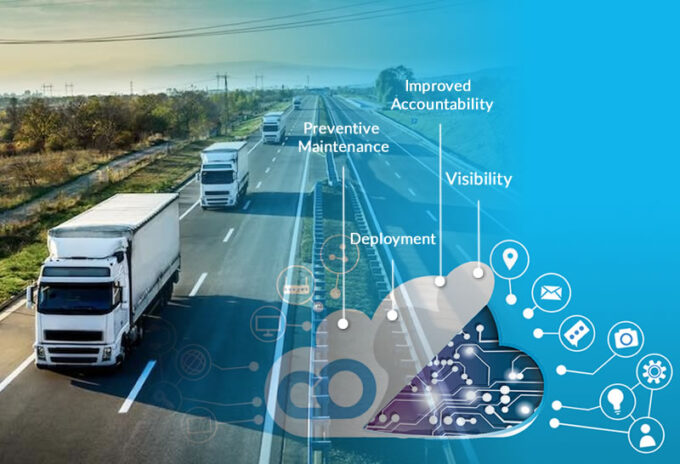
Ways-how-IoT-empowers-Fleet-management-in-Zeo-Route-Planner

Different ways in which IoT sensors can improve fleet performance

Reading Time: 6 minutes Reading Time: 6 minutes TL;DR: IoT sensors improve fleet performance by giving managers real-time visibility into
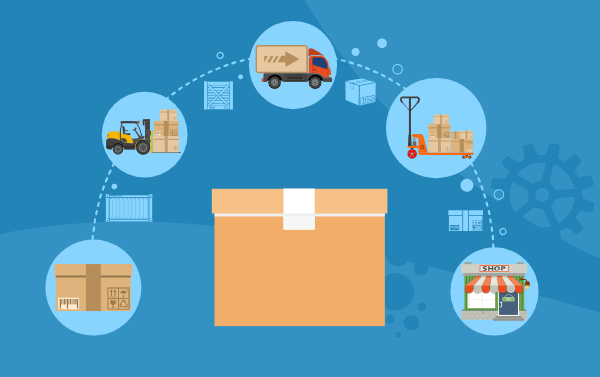
Last-Mile-Delivery-With-Zeo-Routing-App

How to reduce last-mile delivery costs

“`html Reading Time: 6 minutes TL;DR: You reduce last-mile delivery costs by improving route planning, matching vehicles to actual load


Zeo Questionnaire

Frequently
Asked
Questions

Know More

How do I add stop by typing and searching? Web

Follow these steps to add a stop by typing and searching:

  • Go to Playground Page. You will find a search box in top left.
  • Type in your desired stop and it will show search results as you type.
  • Select one of the search results to add the stop to list of unassigned stops.

How do I import stops in bulk from an excel file? Web

Follow these steps to add stops in bulk using an excel file:

  • Go to Playground Page.
  • In top right corner you will see import icon. Press on that icon & a modal will open.
  • If you already have an excel file, press the "Upload stops via flat file" button & a new window will open up.
  • If you don't have an existing file, you can download a sample file and input all your data accordingly, then upload it.
  • In the new window, upload your file and match the headers & confirm mappings.
  • Review your confirmed data and add the stop.

How do I import stops from an image? Mobile

Follow these steps to add stops in bulk by uploading an image:

  • Go to Zeo Route Planner App and open On Ride page.
  • Bottom bar has 3 icons in left. Press on image icon.
  • Select the image from gallery if you already have one or take a picture if you don't have existing.
  • Adjust the crop for the selected image & press crop.
  • Zeo will automatically detect the addresses from the image. Press on done and then save & optimize to create route.

How do I add a stop using Latitude and Longitude? Mobile

Follow these steps to add stop if you have Latitude & Longitude of the address:

  • Go to Zeo Route Planner App and open On Ride page.
  • You will see a icon. Press on that icon & press on New Route.
  • If you already have an excel file, press the "Upload stops via flat file" button & a new window will open up.
  • Below search bar, select the "by lat long" option and then enter the latitude and longitude in the search bar.
  • You will see results in the search, select one of them.
  • Select additional options according to your need & click on "Done adding stops".

How do I add stops using QR Code? Mobile

Follow these steps to add stop using QR Code:

  • Go to Zeo Route Planner App and open On Ride page.
  • You will see a icon. Press on that icon & press on New Route.
  • Bottom bar has 3 icons in left. Press on QR code icon.
  • It will open up a QR Code scanner. You can scan a normal QR code as well as a FedEx QR code, and it will automatically detect the address.
  • Add the stop to route with any additional options.

How do I delete a stop? Mobile

Follow these steps to delete a stop:

  • Go to Zeo Route Planner App and open On Ride page.
  • You will see a icon. Press on that icon & press on New Route.
  • Add some stops using any of the methods & click on Save & Optimize.
  • From the list of stops that you have, long press on any stop that you want to delete.
  • It will open window asking you to select the stops that you want to remove. Click on Remove button and it will delete the stop from your route.

Zeo Blogs

Explore our blog for insightful articles, expert advice, and inspiring content that keeps you informed.

Financial Document Delivery: A 2026 Compliance Guide

Learn how route optimization makes financial document delivery secure, time-definite, and audit-ready across multiple branches or client sites.

Construction Delivery Management: Beyond Scheduling (2026)

Learn how construction delivery management combines scheduling, route optimization, and live tracking to cut delays and prove every delivery.

Route Planner App: The Honest 2026 Comparison Guide

Compare the top route planner apps by features, pricing, and use case. Find out which tool fits your business before you sign up for another free trial.

Xlork is a developer-first data import platform. It lets you embed CSV, Excel, and Google Sheets import into any app with AI-powered column mapping and schema validation. Explore free developer tools like JSON-to-CSV converters and color palette generators. No more building import flows from scratch — just drop in the Xlork SDK, sign up free, and ship clean data in minutes.