Updated on: October 9, 2026
Reading Time: 6 minutes
TL;DR: The fastest way to add stops to your route is by typing addresses directly into the search bar, selecting the matching result from the dropdown, and letting the app handle the sequencing. Manual entry works best for routes with up to 20-25 stops where you also need to attach customer notes or special instructions. Route optimization tools like Zeo Route Planner support this with AI-powered route optimization and bulk address import for larger lists, helping field service and delivery teams save 2+ hours daily.
Zeo allows you to add stops easily
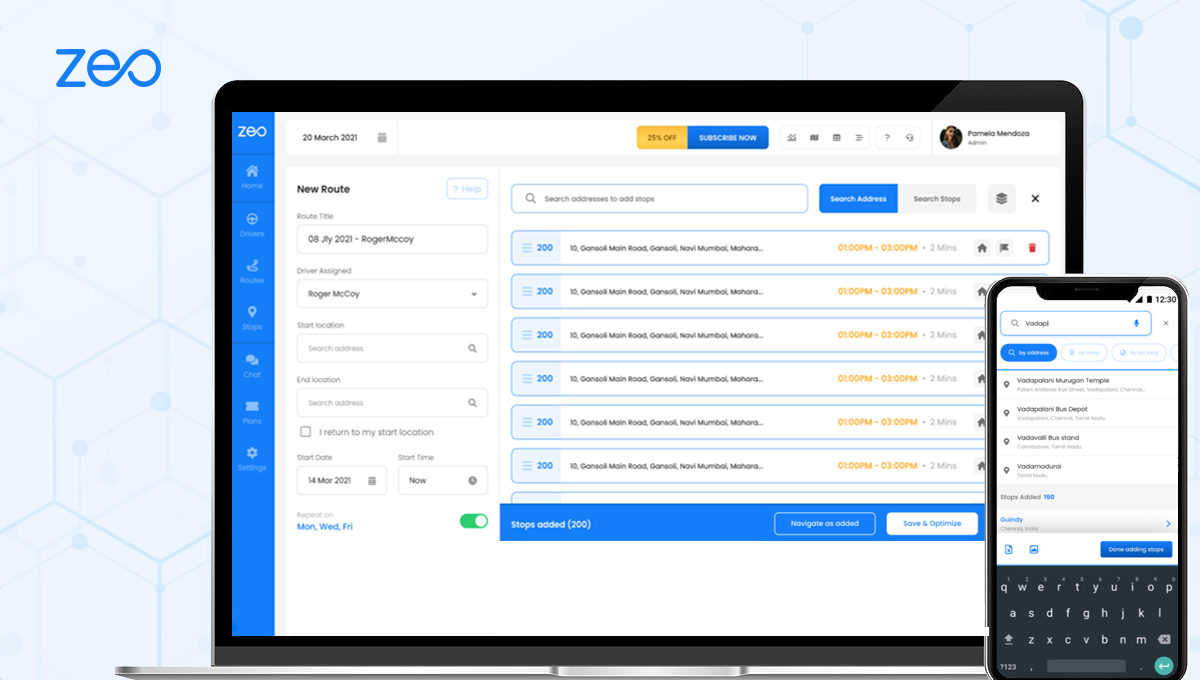
Zeo allows you to add stops easily. You get a wide range of options to import the addresses to the app. Adding stops via typing is one of the most common ways to add stops. This is how we do it.
Whether you’re managing HVAC service calls, planning pool cleaning routes, or organizing deliveries for your business, the ability to quickly add stops by typing addresses is fundamental to efficient route planning. This straightforward method gives you complete control over your route creation process.
Follow the simple steps below to add stops by typing in the search box provided:
- Open Zeo route Planner App on your phone and go to “History” tab
- Press “+ Add New Route”
- Press “Add Stop” button
- Type the address in search bar
- Select the address from the drop down
- Add the extra details (Notes, Customer details etc.)
- Type the next stop for adding more stop
- Click Done
- Enter your start and end location
- Press save and optimize
Tips for Accurate Address Entry
When typing addresses into Zeo’s search bar, accuracy is key to ensuring your routes are optimized correctly. Here are some best practices to follow:
Use Complete Addresses: Always include the full street address, city, and state when possible. This helps Zeo’s geocoding system pinpoint the exact location and reduces the chance of selecting the wrong address from the dropdown.
Check the Dropdown Suggestions: As you type, Zeo will display suggested addresses in a dropdown menu. Take a moment to review these suggestions carefully and select the one that matches your intended destination exactly.
Verify Location Details: After selecting an address, double-check that the location appears correctly on the map preview. If something looks off, you can always go back and re-enter the address.
Watch for Common Entry Errors: Mistyped zip codes, missing apartment or unit numbers, and ambiguous street names (like “1st Street” versus “1st Avenue”) are the most frequent causes of inaccurate geocoding. The USPS address verification standards are a useful reference if you’re ever unsure how an address should be formatted, particularly for rural routes or P.O. box deliveries.
Use Landmarks for New Construction: If you’re adding a stop for a newly built location that doesn’t yet appear in standard mapping databases, try searching for a nearby cross-street or landmark first, then adjust the pin manually once the map loads.
Adding Customer Details and Notes
One of the most valuable features when adding stops manually is the ability to include detailed customer information and notes. This functionality is particularly useful for service-based businesses like electricians looking to optimize their daily routes or delivery drivers who need specific instructions for each stop.
In the customer details section, you can add:
- Customer name and contact information
- Special delivery instructions
- Service notes or appointment details
- Package or equipment requirements
- Preferred time windows for visits
These details become invaluable when you’re out on the road, as they provide all the context you need for each stop without having to reference separate documents or systems.
For businesses handling time-sensitive appointments, pairing manual stop entry with time window constraints ensures each job stays on schedule. If a stop carries urgency — say, an emergency repair call or a same-day delivery request — you can flag it as a priority stop so it’s factored into the route sequence ahead of routine visits.
Benefits of Manual Stop Entry
While Zeo offers multiple ways to import addresses (including bulk uploads and integrations), typing stops manually offers several unique advantages:
Complete Control: You have full control over each address entry, ensuring accuracy and allowing you to add detailed notes as you go.
Real-time Verification: As you add each stop, you can immediately see it on the map and verify its location before moving to the next one.
Flexible Planning: You can easily modify, reorder, or remove stops during the planning process without having to go back to external files or systems.
Perfect for Small Routes: For routes with fewer stops, manual entry is often faster than preparing and uploading spreadsheets or CSV files.

increase fuel savings
Save 2 Hours on Deliveries, Everyday!
Optimize routes with our algorithm, reducing travel time and costs efficiently.
Get Started for Free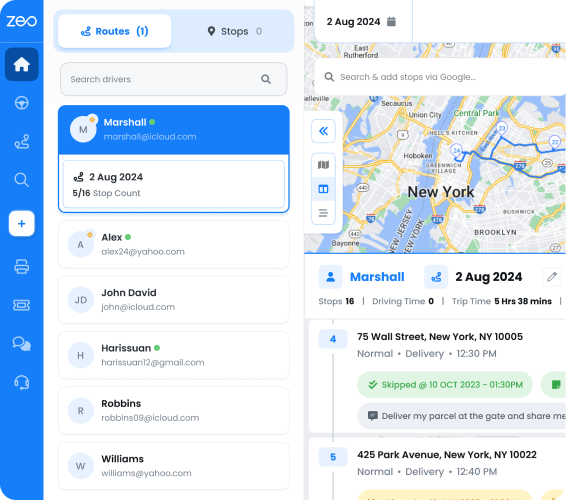
These advantages matter more than they might seem. According to the U.S. Bureau of Labor Statistics, delivery and driver-sales roles are among the most common occupations in the country, and route planning efficiency directly affects how many stops a single driver can realistically complete in a shift. Shaving even a few minutes off each stop’s setup time compounds quickly across a full day of deliveries or service calls.
When to Use Manual Entry vs. Other Methods
Manual stop entry works best in certain scenarios. If you’re planning routes with 5-15 stops and need to include specific details for each location, typing addresses is often the most efficient approach. This method is particularly popular among small business owners, independent contractors, and field service teams who value the hands-on control it provides.
For larger routes or recurring schedules, you might want to explore Zeo’s bulk import features or integration options, especially if you’re managing complex operations similar to those discussed in our dispatch system software guide. Bulk address import from Excel, CSV, or Google Sheets saves significant time when you’re juggling dozens of stops, while manual typing remains the better choice for quick, one-off additions or last-minute changes to an existing route.
It’s also worth considering how often your stops repeat. If you regularly visit the same set of addresses — a common pattern for route-based maintenance, subscription deliveries, or recurring service contracts — saving them as Favorites means you won’t need to retype them each time. You can then build a route directly from that saved list in just a few taps, which is especially useful once your stop list grows beyond what’s comfortable to enter by hand every session.
Combining Manual Entry With Route Optimization
Typing in your stops is only half the equation. Once your addresses are entered, Zeo’s AI-powered route optimization reorders them automatically to minimize drive time and distance, which is what ultimately saves 2+ hours daily for teams managing multiple stops. If you have a preferred sequence that you don’t want the system to change — for example, a route that follows a specific delivery contract or a driver’s established pattern — you can lock in that order instead of letting the app re-optimize it.
For routes that need to avoid certain road types, such as a box truck that can’t use low-clearance tunnels or a vehicle restricted from toll bridges, you can also set routing preferences to exclude highways, tunnels, or ferries before you optimize. This way, manual entry gives you precision over which stops are included, while optimization settings give you control over how the route gets you there.
Frequently Asked Questions
Q: How many stops can I add by typing addresses manually?
A: You can add as many stops as you need through manual typing. While there’s no specific limit, most users find that manually typing works best for routes with up to 20-25 stops. For larger routes, you might want to consider Zeo’s bulk import options for efficiency.
Q: What should I do if the address I’m looking for doesn’t appear in the dropdown suggestions?
A: If an address doesn’t appear in the dropdown, try entering it in a different format (e.g., spell out “Street” instead of using “St.”) or include more specific details like the zip code. You can also try entering just the street number and name first, then add the city and state.
Q: Can I edit the customer details and notes after I’ve added a stop?
A: Yes, you can edit stop details even after adding them to your route. Simply tap on the stop in your route list, and you’ll be able to modify the address, customer information, notes, and other details as needed.
Q: Will manually typed addresses be saved for future use?
A: Zeo remembers addresses you’ve used before and may suggest them in future route planning sessions. This feature helps speed up the process when you’re creating routes that include repeat customers or frequently visited locations.
Q: Can I change the order of stops after I’ve added them by typing?
A: Absolutely! After adding all your stops manually, Zeo will optimize the route order for you when you press “save and optimize.” You can also manually reorder stops by dragging and dropping them in your preferred sequence before optimization, or use a “navigate as added” setting if you want to preserve your exact typed order.
Q: Is there a faster way to add stops I use often without retyping them?
A: Yes. Saving frequently visited addresses to Favorites lets you skip manual typing altogether for repeat stops. You can even bulk upload a spreadsheet of addresses directly into your Favorites list, then pull from that list to build a new route in seconds whenever those same locations come up again.
Are you a fleet owner?
Want to manage your drivers and deliveries easily?
Grow your business effortlessly with Zeo Routes Planner – optimize routes and manage multiple drivers with ease.
increase fuel savings
Hassle Free Deliveries & Pickups!
Optimize routes with our algorithm, reducing travel time and costs efficiently.
Get Started for Free