Multi-Level Hierarchy | Zeo Route Planner
Fleet Platform

Manage Every Store From
One Fleet Account

Structure your business as a single Fleet Account with unlimited Stores underneath it — each with
its own drivers, delivery areas, and routes — plus a consolidated dashboard that rolls everything up.
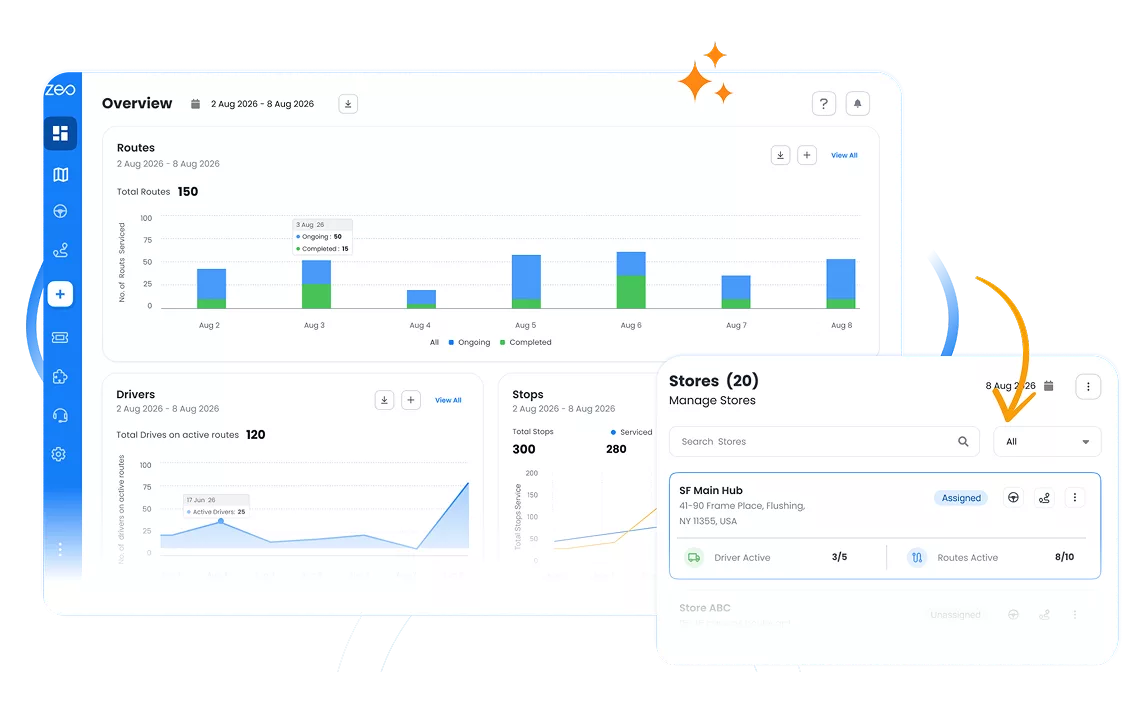
Zeo Overview dashboard with route, driver, and stop charts next to the Stores management panel
  • Unlimited

    White-label capable

  • 3

    Core dashboard metrics at a glance

  • 2

    Role-scoped map views

A Hierarchy That
Mirrors Your Business

Every account is structured in three levels, and every role sees only the level — and the branches — they’re supposed to.

Fleet Account

The top level of the hierarchy. One Fleet Account can contain any number of Stores, and is owned by Admin.

  • Company-wide payments and add-ons
  • Global map view across all stores
  • Weekly (same day each week)

Stores / Branches

Each Store has its own address, delivery area, notes, and roster of drivers and manage the ones assigned to them.

  • Search, export, and upload stores in bulk
  • Delivery area toggle per store
  • Drivers Active / Routes Active counters

Drivers & Seats

Drivers live inside a store and consume a paid seat once assigned.

  • Seat assigned / seat unassigned indicator
  • Scoped visibility by store affiliation

How the Hierarchy Comes Together

From a single store to a national network, in four steps.

1

Add Your Stores

Super Admin adds, imports, or uploads store locations with address and delivery area

2

Assign Roles & Scope

Give each user a role and one or more stores they’re responsible for

3

View the Dashboard

See drivers, routes, and stops rolled up across every store you’re scoped to

4

Drill Into a Store

Select a store from the Dashboard or Stores page to open its focused Playground

One Flat Account vs. a Real Hierarchy

See the difference a proper multi-store structure makes as you grow.


No, Zeo Route Planner


Flat, Single-Level Account

  • Every login sees every store’s drivers and routes
  • Playground gets cluttered as store count grows
  • No company-wide rollup of stops or completion rate
  • Manually tracking which drivers belong to which branch
  • No drill-down from a summary to a specific store


Yes, Zeo Route Planner


Zeo Multi-Level Hierarchy

  • Store-scoped visibility enforced automatically by role
  • Admin pick a store, then get a focused Playground
  • Dashboard shows drivers on route, stops serviced, and % completion company-wide
  • Drivers live under their store by default
  • Click “Stores Active” to drill into store-level performance

How Businesses
Structure Their Hierarchy

Real setups from multi-store fleets on Zeo

DELIVERY

500-Location Retail Chain

A national retailer uploads all 500 store locations in bulk, assigns a Store Manager to each, and gives three Admins regional oversight of clusters of stores. Admins retain full visibility.

FIELD SERVICE

Growing Field Service Company

A field service business starts with a single store, then adds branches one at a time as it expands into new cities — each new branch appearing instantly on the Admin’s global dashboard map.

Zeo Questionnaire

Frequently
Asked
Questions

Know More

How do I add stop by typing and searching? Web

Follow these steps to add a stop by typing and searching:

  • Go to Playground Page. You will find a search box in top left.
  • Type in your desired stop and it will show search results as you type.
  • Select one of the search results to add the stop to list of unassigned stops.

How do I import stops in bulk from an excel file? Web

Follow these steps to add stops in bulk using an excel file:

  • Go to Playground Page.
  • In top right corner you will see import icon. Press on that icon & a modal will open.
  • If you already have an excel file, press the "Upload stops via flat file" button & a new window will open up.
  • If you don't have an existing file, you can download a sample file and input all your data accordingly, then upload it.
  • In the new window, upload your file and match the headers & confirm mappings.
  • Review your confirmed data and add the stop.

How do I import stops from an image? Mobile

Follow these steps to add stops in bulk by uploading an image:

  • Go to Zeo Route Planner App and open On Ride page.
  • Bottom bar has 3 icons in left. Press on image icon.
  • Select the image from gallery if you already have one or take a picture if you don't have existing.
  • Adjust the crop for the selected image & press crop.
  • Zeo will automatically detect the addresses from the image. Press on done and then save & optimize to create route.

How do I add a stop using Latitude and Longitude? Mobile

Follow these steps to add stop if you have Latitude & Longitude of the address:

  • Go to Zeo Route Planner App and open On Ride page.
  • You will see a icon. Press on that icon & press on New Route.
  • If you already have an excel file, press the "Upload stops via flat file" button & a new window will open up.
  • Below search bar, select the "by lat long" option and then enter the latitude and longitude in the search bar.
  • You will see results in the search, select one of them.
  • Select additional options according to your need & click on "Done adding stops".

How do I add stops using QR Code? Mobile

Follow these steps to add stop using QR Code:

  • Go to Zeo Route Planner App and open On Ride page.
  • You will see a icon. Press on that icon & press on New Route.
  • Bottom bar has 3 icons in left. Press on QR code icon.
  • It will open up a QR Code scanner. You can scan a normal QR code as well as a FedEx QR code, and it will automatically detect the address.
  • Add the stop to route with any additional options.

How do I delete a stop? Mobile

Follow these steps to delete a stop:

  • Go to Zeo Route Planner App and open On Ride page.
  • You will see a icon. Press on that icon & press on New Route.
  • Add some stops using any of the methods & click on Save & Optimize.
  • From the list of stops that you have, long press on any stop that you want to delete.
  • It will open window asking you to select the stops that you want to remove. Click on Remove button and it will delete the stop from your route.

Zeo Blogs

Explore our blog for insightful articles, expert advice, and inspiring content that keeps you informed.

Delivery Optimization Success Stories: Real Fleet Results

Real delivery optimization success stories with verified KPIs by fleet size and industry, plus an ROI calculator to estimate your own savings.

Route Optimization Case Studies: Real SMB Results (2026)

Real route optimization case studies from small delivery and field service businesses—actual costs, timelines, and ROI. See what

How to Plan Propane Delivery Routes During Peak Season

Learn how to plan propane delivery routes during peak season with a week-by-week playbook, KPI checklist, and route optimization tips for winter demand.

Xlork is a developer-first data import platform. It lets you embed CSV, Excel, and Google Sheets import into any app with AI-powered column mapping and schema validation. Explore free developer tools like JSON-to-CSV converters and color palette generators. No more building import flows from scratch — just drop in the Xlork SDK, sign up free, and ship clean data in minutes.