Team Management System | Zeo Route Planner
Fleet Platform
Fleet Management

One Fleet Account.
Every Store. Total Control.

Run multiple stores or branches from a single corporate account with role-based
permissions, consolidated dashboards, and simple seat management — without
losing sight of a single driver or route.
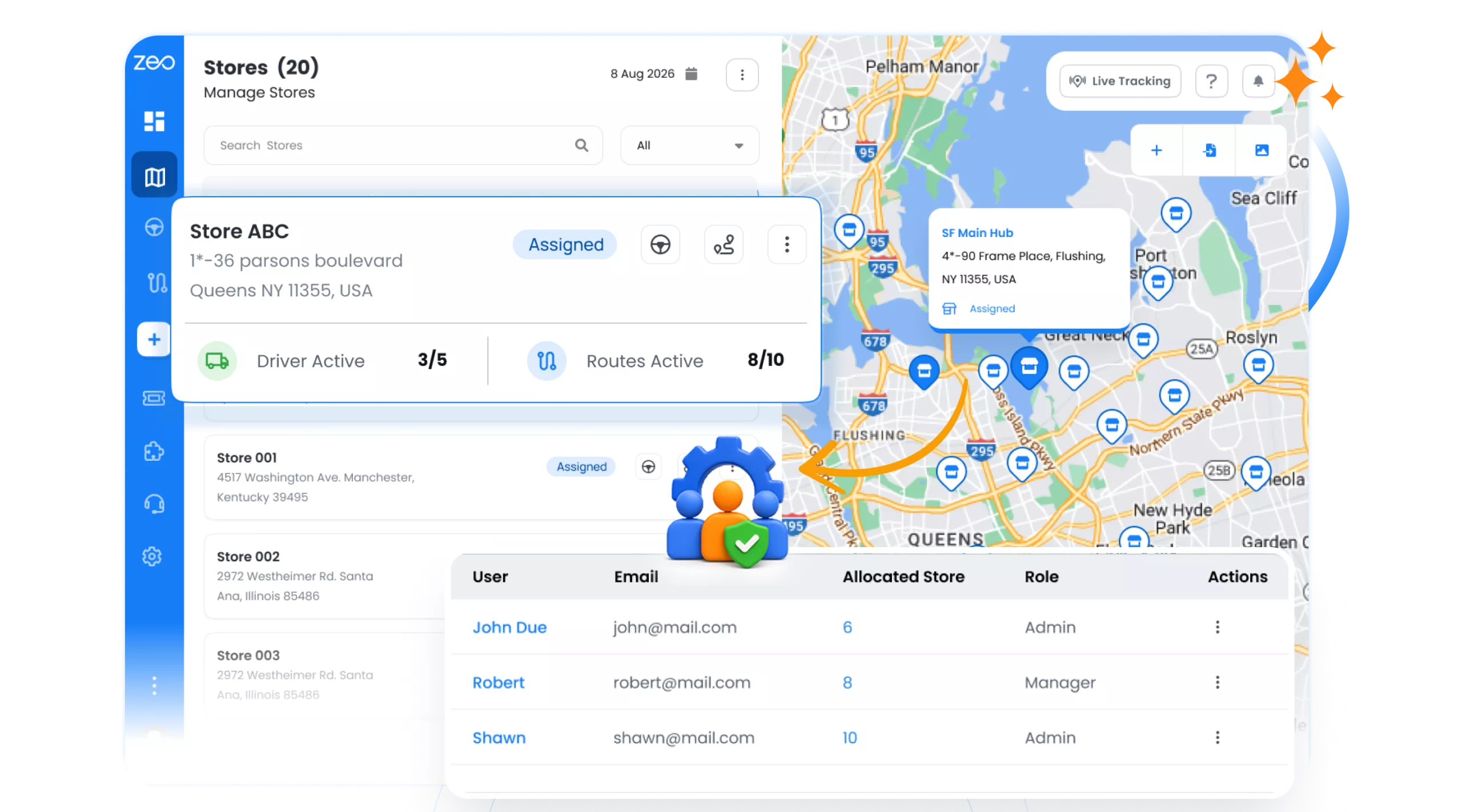
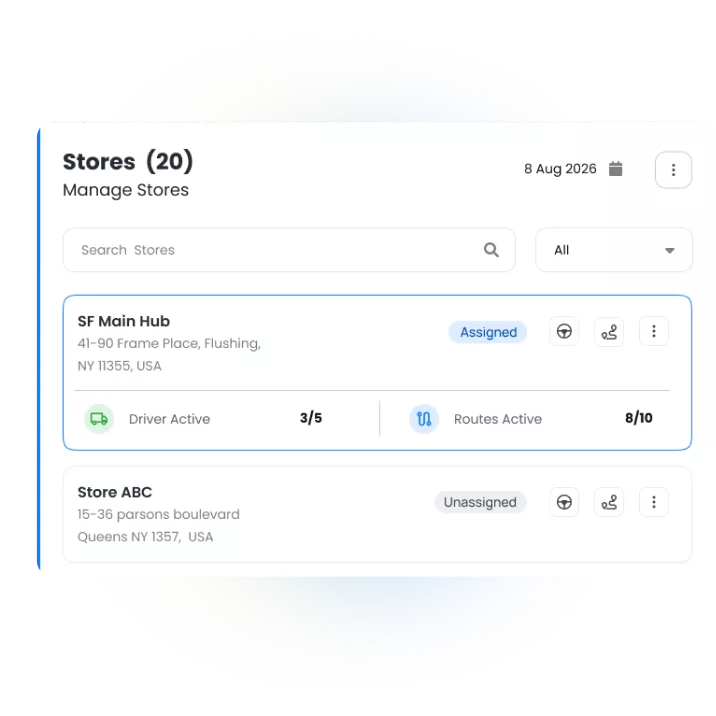
Zeo Stores dashboard showing store list, live map and user roles
  • 500+

    Stores managed from a single account

  • 2

    Role tiers: Admin, Store Manager

  • 100%

    Scoped visibility — no unauthorized access

Built for Fleets That Have
Outgrown a Single Store

As your operation grows from one location to dozens, Zeo scales your structure, your permissions, and your visibility right along with it.

Trusted by Delivery Teams
and Service Businesses.

Real results shared by teams who use us every day

Zeo Route Planner

Before this, every store manager could see every other store’s drivers and routes. Now each branch only sees what’s theirs, and I still get a single dashboard across all 40 locations.

Zeo Route Planner
Jennifer Blake
Operations Head, Regional Retail Group

Metrics You Can Track

Pre-built dashboard metrics for every store, roll up to the whole fleet.

Drivers on Route

How many drivers are actively servicing routes right now

Active Routes

Ongoing routes across every store you’re scoped to see

Stops Serviced

Total completed stops, updated live throughout the day

Stops Remaining

What’s still outstanding across active routes today

% Completion Rate

Stops serviced against total stops scheduled, per store

Failed Stop Analysis

Click through to drill into any store’s performance detail

NEW TO ZEO

Store Search: Find Anyone, Instantly

Search your entire fleet in seconds — any store, driver, or no digging through settings menus.

  • Search by store, or user name
  • Filter by role
  • Jump straight into a store’s Playground

Get Started for Free

Zeo Store Search feature

How Multi-Store Fleets Use
Team Management

From regional retail chains to franchise delivery networks.

DELIVERY

Regional Retail Chain

A retailer with 500 store locations gives each branch a Store Manager login scoped to that location, while Admins retain company-wide visibility and control seat purchasing centrally.

FIELD SERVICE

Franchise Service Network

A franchise assigns an Admin to oversee a cluster of locations in one region. The Admin approves new technicians added by local Store Managers before they can be scheduled.

DELIVERY

Distributor With Regional Managers

A meal delivery service analyzes historical route data to predict busy periods and staff accordingly. They use stop-level data to identify which neighborhoods have highest demand.

FIELD SERVICE

Growing Multi-Branch Startup

A fast-growing cleaning company scales from one store to a dozen, using seat requests from Store Managers to keep driver seat purchases aligned with actual headcount.

Zeo Questionnaire

Frequently
Asked
Questions

Know More

How do I add stop by typing and searching? Web

Follow these steps to add a stop by typing and searching:

  • Go to Playground Page. You will find a search box in top left.
  • Type in your desired stop and it will show search results as you type.
  • Select one of the search results to add the stop to list of unassigned stops.

How do I import stops in bulk from an excel file? Web

Follow these steps to add stops in bulk using an excel file:

  • Go to Playground Page.
  • In top right corner you will see import icon. Press on that icon & a modal will open.
  • If you already have an excel file, press the "Upload stops via flat file" button & a new window will open up.
  • If you don't have an existing file, you can download a sample file and input all your data accordingly, then upload it.
  • In the new window, upload your file and match the headers & confirm mappings.
  • Review your confirmed data and add the stop.

How do I import stops from an image? Mobile

Follow these steps to add stops in bulk by uploading an image:

  • Go to Zeo Route Planner App and open On Ride page.
  • Bottom bar has 3 icons in left. Press on image icon.
  • Select the image from gallery if you already have one or take a picture if you don't have existing.
  • Adjust the crop for the selected image & press crop.
  • Zeo will automatically detect the addresses from the image. Press on done and then save & optimize to create route.

How do I add a stop using Latitude and Longitude? Mobile

Follow these steps to add stop if you have Latitude & Longitude of the address:

  • Go to Zeo Route Planner App and open On Ride page.
  • You will see a icon. Press on that icon & press on New Route.
  • If you already have an excel file, press the "Upload stops via flat file" button & a new window will open up.
  • Below search bar, select the "by lat long" option and then enter the latitude and longitude in the search bar.
  • You will see results in the search, select one of them.
  • Select additional options according to your need & click on "Done adding stops".

How do I add stops using QR Code? Mobile

Follow these steps to add stop using QR Code:

  • Go to Zeo Route Planner App and open On Ride page.
  • You will see a icon. Press on that icon & press on New Route.
  • Bottom bar has 3 icons in left. Press on QR code icon.
  • It will open up a QR Code scanner. You can scan a normal QR code as well as a FedEx QR code, and it will automatically detect the address.
  • Add the stop to route with any additional options.

How do I delete a stop? Mobile

Follow these steps to delete a stop:

  • Go to Zeo Route Planner App and open On Ride page.
  • You will see a icon. Press on that icon & press on New Route.
  • Add some stops using any of the methods & click on Save & Optimize.
  • From the list of stops that you have, long press on any stop that you want to delete.
  • It will open window asking you to select the stops that you want to remove. Click on Remove button and it will delete the stop from your route.

Zeo Blogs

Explore our blog for insightful articles, expert advice, and inspiring content that keeps you informed.

Delivery Optimization Success Stories: Real Fleet Results

Real delivery optimization success stories with verified KPIs by fleet size and industry, plus an ROI calculator to estimate your own savings.

Route Optimization Case Studies: Real SMB Results (2026)

Real route optimization case studies from small delivery and field service businesses—actual costs, timelines, and ROI. See what

How to Plan Propane Delivery Routes During Peak Season

Learn how to plan propane delivery routes during peak season with a week-by-week playbook, KPI checklist, and route optimization tips for winter demand.

Xlork is a developer-first data import platform. It lets you embed CSV, Excel, and Google Sheets import into any app with AI-powered column mapping and schema validation. Explore free developer tools like JSON-to-CSV converters and color palette generators. No more building import flows from scratch — just drop in the Xlork SDK, sign up free, and ship clean data in minutes.