
Delivery Management & Optimization | Zeo Route Planner - Part 9

Latest Blog


More Articles

Zeo Route Planner: The Perfect Routing Partner for Amazon Relay Drivers

Reading Time: 3 minutesAs an Amazon Relay driver, your goal is clear: get the deliveries done on time, with precision, and at the
Challenges for Amazon Relay Drivers : Tips for Amazon Relay success

Reading Time: 5 minutesReading Time: 4 minutes TL;DR: Amazon Relay drivers face challenges with strict performance metrics, load availability fluctuations, app technical issues,
Amazon Relay

Key Benefits of Joining Amazon Relay for Freight Carriers

Reading Time: 5 minutesReading Time: 3 minutes TL;DR: Amazon Relay provides freight carriers with consistent work opportunities, flexible scheduling, transparent payments, and advanced
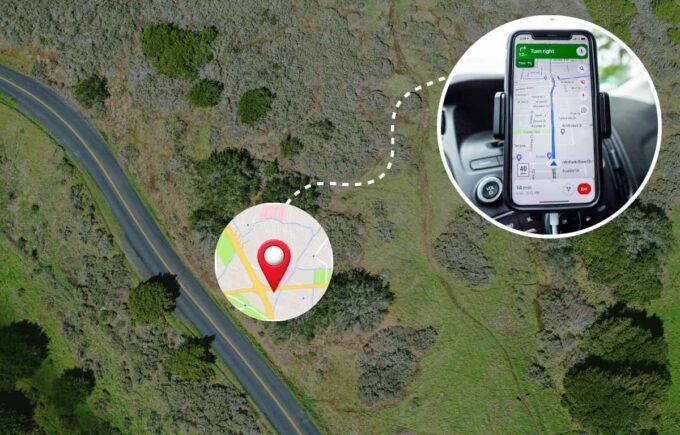
Drawing Radius and Circles on Google Maps: A Complete Guide

Reading Time: 4 minutesA Comprehensive Guide to Drawing Circles and Radii on Google Maps From logistics business to catering services efficient route planning

Automotive Logistics

The Future Of Automotive Logistics: Trends To Look Out For In 2025

Reading Time: 6 minutesReading Time: 4 minutes TL;DR: Automotive logistics in 2026 will be defined by AI-powered route optimization, electric fleet management, and
Fleet management

Navigating the Challenges of AI-powered Logistics

Reading Time: 5 minutesReading Time: 3 minutes TL;DR: AI-powered logistics faces four main challenges: data quality issues, system integration problems, scalability limitations, and
How Late Do UPS

Delivery Timelines: How Late Do UPS, FedEx, DHL, and USPS Deliver?

Reading Time: 6 minutesReading Time: 5 minutes TL;DR: Major carriers like UPS, FedEx, DHL, and USPS typically deliver between 5:00 p.m. and 8:00

Real-Time Communication

Achieving Unmatched Fleet Success with AI-powered Logistics

Reading Time: 3 minutesWhat are the factors that dictate success in the logistics industry? Is it delivery speed? Is it delivery precision? Is

Efficient Inventory Distribution

Strategies for Efficient Inventory Distribution and Route Planning

Reading Time: 4 minutesEfficient inventory distribution and strategic route planning are crucial across various industries, each with its unique set of challenges and

Driver Retention

Boost Driver Retention in 2026 : Key Strategies for Fleet Managers

Reading Time: 3 minutesLogistics success depends on driver skills as much as it depends on fleet management. While fleet managers have to ensure

Zeo Questionnaire

Frequently
Asked
Questions

Know More

How do I add stop by typing and searching? Web

Follow these steps to add a stop by typing and searching:

  • Go to Playground Page. You will find a search box in top left.
  • Type in your desired stop and it will show search results as you type.
  • Select one of the search results to add the stop to list of unassigned stops.

How do I import stops in bulk from an excel file? Web

Follow these steps to add stops in bulk using an excel file:

  • Go to Playground Page.
  • In top right corner you will see import icon. Press on that icon & a modal will open.
  • If you already have an excel file, press the "Upload stops via flat file" button & a new window will open up.
  • If you don't have an existing file, you can download a sample file and input all your data accordingly, then upload it.
  • In the new window, upload your file and match the headers & confirm mappings.
  • Review your confirmed data and add the stop.

How do I import stops from an image? Mobile

Follow these steps to add stops in bulk by uploading an image:

  • Go to Zeo Route Planner App and open On Ride page.
  • Bottom bar has 3 icons in left. Press on image icon.
  • Select the image from gallery if you already have one or take a picture if you don't have existing.
  • Adjust the crop for the selected image & press crop.
  • Zeo will automatically detect the addresses from the image. Press on done and then save & optimize to create route.

How do I add a stop using Latitude and Longitude? Mobile

Follow these steps to add stop if you have Latitude & Longitude of the address:

  • Go to Zeo Route Planner App and open On Ride page.
  • You will see a icon. Press on that icon & press on New Route.
  • If you already have an excel file, press the "Upload stops via flat file" button & a new window will open up.
  • Below search bar, select the "by lat long" option and then enter the latitude and longitude in the search bar.
  • You will see results in the search, select one of them.
  • Select additional options according to your need & click on "Done adding stops".

How do I add stops using QR Code? Mobile

Follow these steps to add stop using QR Code:

  • Go to Zeo Route Planner App and open On Ride page.
  • You will see a icon. Press on that icon & press on New Route.
  • Bottom bar has 3 icons in left. Press on QR code icon.
  • It will open up a QR Code scanner. You can scan a normal QR code as well as a FedEx QR code, and it will automatically detect the address.
  • Add the stop to route with any additional options.

How do I delete a stop? Mobile

Follow these steps to delete a stop:

  • Go to Zeo Route Planner App and open On Ride page.
  • You will see a icon. Press on that icon & press on New Route.
  • Add some stops using any of the methods & click on save & optimize.
  • From the list of stops that you have, long press on any stop that you want to delete.
  • It will open window asking you to select the stops that you want to remove. Click on Remove button and it will delete the stop from your route.

Zeo Blogs

Explore our blog for insightful articles, expert advice, and inspiring content that keeps you informed.

Own Restaurant Delivery vs Uber Eats: Complete 2026 Guide

Reading Time: 6 minutesCut Uber Eats commissions with your own delivery service. Complete guide to building profitable restaurant delivery that competes with third-party platforms.

Government Route Optimization Case Study: Proven ROI Results

Reading Time: 6 minutesReal government route optimization case studies showing 35%+ savings. Get RFP templates, ROI calculators, and implementation blueprints for public fleets.

Furniture Delivery Scheduling Challenges: Complete Solutions Guide

Reading Time: 7 minutesSolve furniture delivery scheduling challenges with AI-powered route optimization. Reduce failed deliveries by 40% and streamline complex scheduling operations.

Xlork is a developer-first data import platform. It lets you embed CSV, Excel, and Google Sheets import into any app with AI-powered column mapping and schema validation. Explore free developer tools like JSON-to-CSV converters and color palette generators. No more building import flows from scratch — just drop in the Xlork SDK, sign up free, and ship clean data in minutes.