...

How to Create Multi-Stop Routes in Apple Maps on Your iPhone?

Reading Time: 7 minutes

Updated on: April 16, 2026

Reading Time: 5 minutes

TL;DR: Apple Maps allows you to create multi-stop routes on iPhone by tapping “Add Stop” after entering your first destination, accommodating up to 14 stops total. However, Apple Maps lacks route optimization, requiring manual arrangement of stops which can lead to inefficient routing. Route optimization tools like Zeo Route Planner address this with AI-powered route optimization, helping delivery teams save 2+ hours daily.

Ever found yourself juggling multiple stops during a single trip and wishing there was a simpler way to organize it all? Whether you’re a delivery driver, small business owner, or someone running a series of errands, planning multiple stops can be a real headache. The good news? Apple Maps has Multi-Stop Routes, making it easier to streamline your journey. But is Apple Maps the perfect solution for all users, or are there better tools out there?

Let’s dive into how you can create Multi-Stop Routes in Apple Maps on your iPhone and explore the benefits, limitations, and possible alternatives for a smoother trip.

Why Use Multi-Stop Routes in Apple Maps?

Creating multi-stop routes isn’t just about planning a trip, it’s about improving the efficiency of your trip. For businesses and individuals, the ability to map out multiple stops in a single journey can save time, fuel, and even frustration.

  • Convenience for Personal Errands
    From grocery shopping to picking up packages, mapping out your day with Multi-Stop Routes helps you avoid backtracking and wasting time. You can plan your route in a way that maximizes convenience, letting you reach all your stops without the hassle of constantly analyzing your journey on the go.
  • Simplified Delivery for Small Businesses
    For small retail businesses or independent couriers, Multi-Stop Routes in Apple Maps offers a free and easy-to-use solution for managing deliveries. Instead of relying on separate apps or written notes, you can integrate all your stops in one seamless route, ensuring your goods reach customers faster.
  • Minimizes Driver Fatigue
    When your route is planned out in advance, drivers can focus on the road instead of constantly adjusting directions. This not only reduces the chance of getting lost but also minimizes driver stress, leading to more efficient and safer deliveries.

Also Read: How to add multiple destinations and customize your route using Google Maps

The Business Impact of Efficient Route Planning

According to the U.S. Bureau of Transportation Statistics, transportation costs account for approximately 10-15% of total business expenses across industries. Inefficient routing directly impacts these costs through increased fuel consumption, extended delivery times, and higher labor expenses. For delivery-based businesses, even a 10% improvement in route efficiency can translate to thousands of dollars in annual savings.

The ripple effects extend beyond cost savings. When delivery routes are optimized, customer satisfaction increases due to more reliable delivery windows and faster service. This improvement becomes particularly crucial in 2026’s competitive market, where consumers expect real-time updates and precise delivery estimates. Businesses that fail to meet these expectations often see decreased customer retention and negative reviews that impact long-term growth.

How to Add Multiple Stops in Apple Maps (Step-by-Step Guide)

Now that we’ve discussed why you’d want to use Multi-Stop Routes in Apple Maps, let’s get into the ‘how.’ You don’t need to be tech-savvy to figure out that Apple Maps makes the process simple and user-friendly. Here’s a quick guide to get you started.

  1. Open Apple Maps on Your iPhone
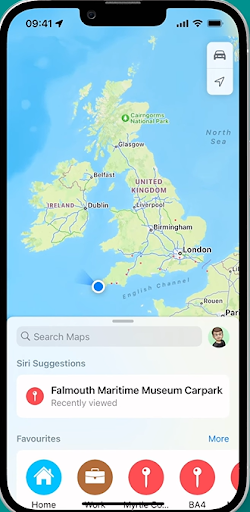
    Start by launching Apple Maps from your home screen. This is your base for creating a well-organized multi-stop journey.How to Create Multi-Stop Routes in Apple Maps on Your iPhone?, Zeo Route Planner
  2. Enter Your First Stop
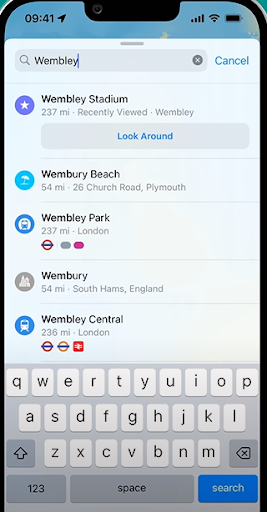
    In the search bar, type the first location you want to visit.How to Create Multi-Stop Routes in Apple Maps on Your iPhone?, Zeo Route Planner
  3. Add a Stop
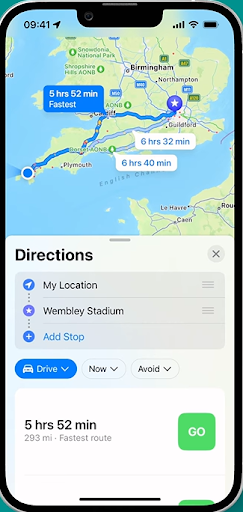
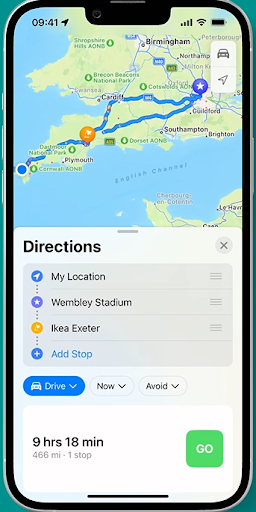
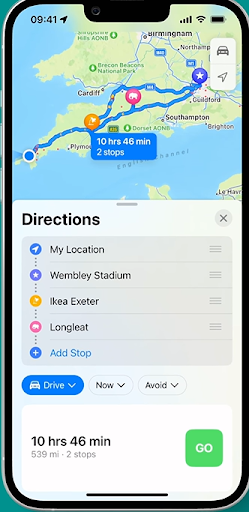
    After setting the first destination, tap the “Add Stop” button. This feature allows you to include more locations along your route, making it easy to string together multiple stops.How to Create Multi-Stop Routes in Apple Maps on Your iPhone?, Zeo Route PlannerHow to Create Multi-Stop Routes in Apple Maps on Your iPhone?, Zeo Route PlannerHow to Create Multi-Stop Routes in Apple Maps on Your iPhone?, Zeo Route Planner
  4. Rearrange Stops
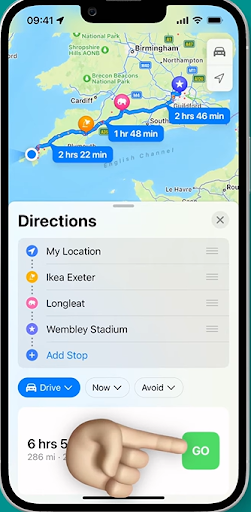
    Hold down on the stops and drag them into the most efficient sequence, reducing unnecessary travel time.How to Create Multi-Stop Routes in Apple Maps on Your iPhone?, Zeo Route Planner
  5. Start Your Journey
    Once you’ve added all your stops and arranged them in the desired order, tap “Go.” Now, Apple Maps will guide you through your journey, turn-by-turn, ensuring a smooth trip from start to finish.How to Create Multi-Stop Routes in Apple Maps on Your iPhone?, Zeo Route Planner

Common Challenges with Manual Route Sequencing

While Apple Maps provides the basic functionality to create multi-stop routes, the manual nature of arranging stops presents several challenges. Research from the Department of Transportation indicates that inefficient routing can increase travel distance by 20-25% compared to optimized routes.

The challenge intensifies when dealing with time-sensitive deliveries or service appointments. Without considering factors like traffic patterns, delivery time windows, and vehicle capacity constraints, even well-intentioned manual routing often results in missed appointments and customer dissatisfaction. Professional route planners address these challenges through comprehensive route optimization algorithms that consider multiple variables simultaneously.

Limitations of Multi-Stop Routing in Apple Maps

While Apple Maps provides a basic multi-stop feature, it has some limitations that can hold back both individuals and businesses who need more advanced routing capabilities.

  • Limited Number of Stops
    One of the biggest drawbacks is the limited number of stops (up to 14 stops) you can add. Apple Maps is fine for short trips or small deliveries but becomes a major hurdle for businesses managing extensive deliveries in a single route.
  • No Route Optimization
    Unlike specialized route planners, Apple Maps doesn’t optimize routes for efficiency. You’ll have to manually arrange the stops in the best order, which can lead to backtracking and wasted time if you’re unfamiliar with the area.
  • No Dynamic Route Adjustments
    The lack of dynamic adjustments can result in unnecessary delays, especially for users with multiple stops, making it harder to navigate through changing traffic or road closures.
  • Lack of Integration with Business Tools
    For small retail businesses managing deliveries, Apple Maps offers no integration with order management systems or customer notifications. This makes it harder to track deliveries and keep customers informed, leading to potential miscommunications and delays.

Zeo – The Best Alternative to Apple Maps for Multi-Stop Routing

Apple Maps is ideal for handling basic navigation. However, when it comes to complex routing needs, Zeo Route Planner takes efficiency to the next level. Zeo offers multi-stop route optimization to eliminate the hassle of route planning. It ensures you spend less time on the road and save on fuel costs. Moreover, Zeo helps you make every minute count, which positions it as a perfect routing solution for businesses with tight delivery windows.

How to Create Multi-Stop Routes in Apple Maps on Your iPhone?, Zeo Route Planner
increase fuel savings

Hassle Free Deliveries & Pickups!

Optimize routes with our algorithm, reducing travel time and costs efficiently.

Get Started for Free
How to Create Multi-Stop Routes in Apple Maps on Your iPhone?, Zeo Route Planner

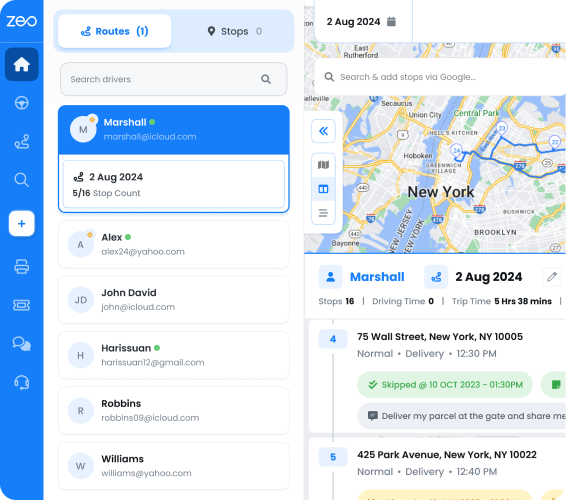
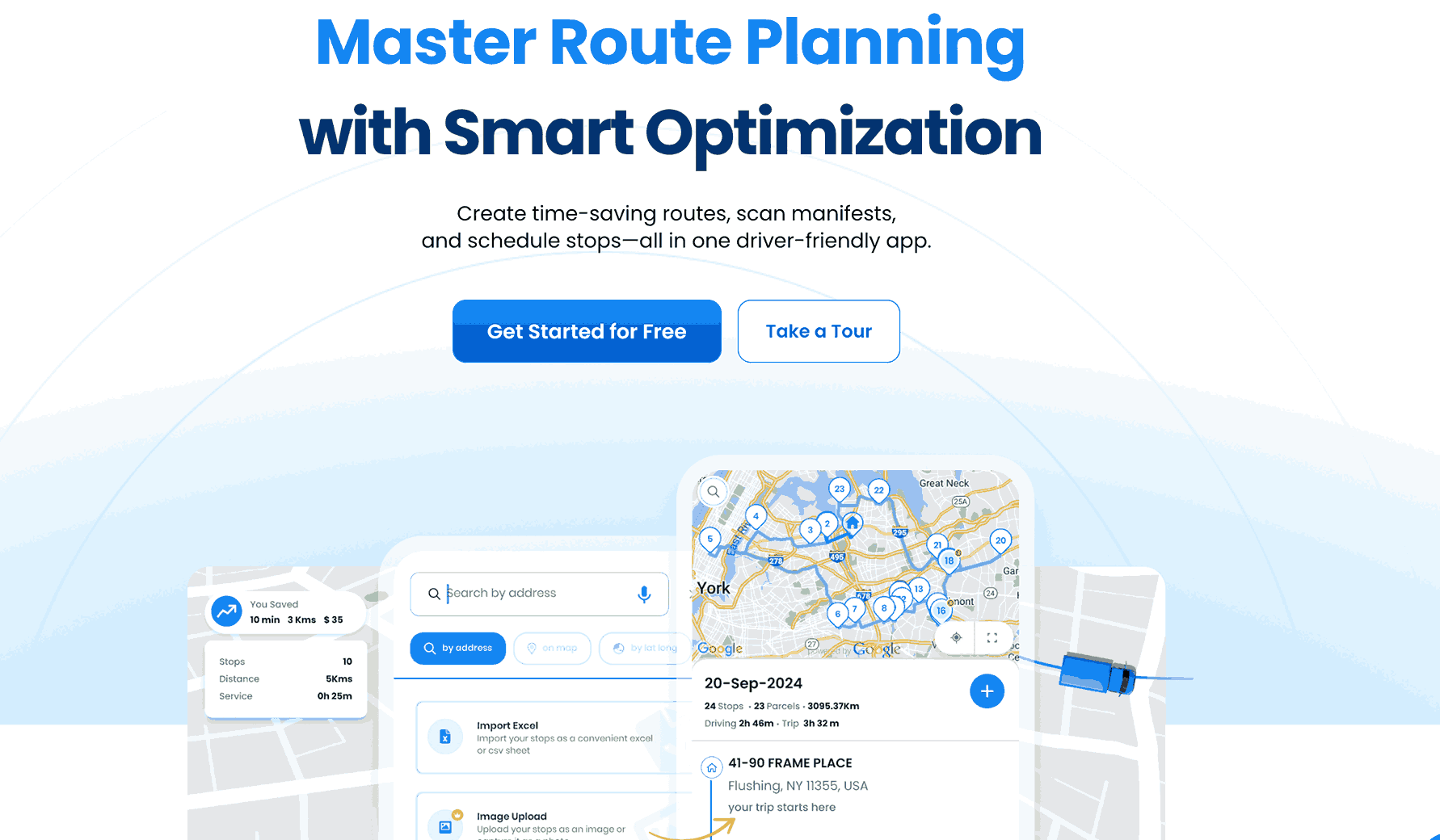
What sets Zeo apart is its seamless integration with your existing business tools. You can centralize delivery management, automate customer notifications, and eliminate communication errors. Unlike Apple Maps, which caps your stops, Zeo offers unlimited stops. The multi-stop routing capability makes it the go-to solution for delivery drivers and fleet managers handling large-scale operations.

Advanced Features That Drive Business Growth

Modern route planning extends far beyond basic navigation. Successful delivery operations require features like real-time tracking, customer communication, and performance analytics. These capabilities become essential when scaling from individual deliveries to fleet management operations.

For businesses serving government contracts or large enterprise clients, proven ROI results from route optimization demonstrate significant cost savings and improved service quality. These case studies show how proper route planning impacts everything from fuel consumption to customer satisfaction scores.

Conclusion – The Strategic Edge with Zeo

Switching from Apple Maps to Zeo Route Planner is a strategic move for businesses aiming for growth and efficiency. Zeo doesn’t just streamline routes, it transforms operations. With Zeo, you can explore the untapped growth potential for your fleets and optimize every delivery without compromising on service quality and resources. These advantages translate into faster service, reduced operational overhead, and the ability to scale delivery operations with ease.

Ultimately, choosing Zeo means empowering your business to deliver more while making every mile count towards profitability and success. Schedule a free demo with Zeo experts to understand how.

Frequently Asked Questions

Can I save multi-stop routes in Apple Maps for future use?

Apple Maps does not currently offer a feature to save multi-stop routes for repeated use. Each time you need the same route sequence, you must manually recreate it by adding stops individually. For businesses with recurring delivery routes or service schedules, this limitation can significantly impact daily productivity.

How does route optimization actually save fuel costs?

Route optimization reduces fuel consumption by eliminating unnecessary mileage, minimizing backtracking, and considering traffic patterns to avoid congested areas. Studies show that optimized routing can reduce total travel distance by 20-30%, directly translating to proportional fuel savings. This becomes especially significant for fleets running multiple routes daily.

What’s the difference between basic navigation and professional route planning?

Basic navigation provides turn-by-turn directions between predetermined points, while professional route planning uses algorithms to determine the most efficient sequence of stops. Professional tools also consider factors like vehicle capacity, time windows, driver schedules, and real-time traffic conditions. Zeo Route Planner combines these elements with features like customer notifications and proof of delivery, used by teams across 150+ countries.

Can Apple Maps handle delivery time windows for appointments?

Apple Maps does not support delivery time windows or appointment scheduling features. The app treats all stops equally without considering when customers are available to receive deliveries or services. This limitation can lead to missed appointments and requires manual coordination outside the mapping application.

How do businesses track driver performance without built-in analytics?

Without integrated analytics, businesses must rely on manual tracking methods like driver logs, separate mileage tracking apps, or GPS devices. This fragmented approach makes it difficult to identify efficiency improvements or monitor driver adherence to planned routes. Professional route planning solutions provide comprehensive analytics that help businesses optimize both routes and driver performance over time.

Rate this post:

😡 0😐 0😊 0❤️ 0
In This Article
increase fuel savings

Hassle Free Deliveries & Pickups!

Optimize routes with our algorithm, reducing travel time and costs efficiently.

Get Started for Free
Join our newsletter

Get our latest updates, expert articles, guides and much more in your inbox!

    By subscribing, you agree to receive emails from Zeo and to our privacy policy.

    Zeo Questionnaire

    Frequently
    Asked
    Questions

    Know More

    How do I add stop by typing and searching? Web

    Follow these steps to add a stop by typing and searching:

    • Go to Playground Page. You will find a search box in top left.
    • Type in your desired stop and it will show search results as you type.
    • Select one of the search results to add the stop to list of unassigned stops.

    How do I import stops in bulk from an excel file? Web

    Follow these steps to add stops in bulk using an excel file:

    • Go to Playground Page.
    • In top right corner you will see import icon. Press on that icon & a modal will open.
    • If you already have an excel file, press the "Upload stops via flat file" button & a new window will open up.
    • If you don't have an existing file, you can download a sample file and input all your data accordingly, then upload it.
    • In the new window, upload your file and match the headers & confirm mappings.
    • Review your confirmed data and add the stop.

    How do I import stops from an image? Mobile

    Follow these steps to add stops in bulk by uploading an image:

    • Go to Zeo Route Planner App and open On Ride page.
    • Bottom bar has 3 icons in left. Press on image icon.
    • Select the image from gallery if you already have one or take a picture if you don't have existing.
    • Adjust the crop for the selected image & press crop.
    • Zeo will automatically detect the addresses from the image. Press on done and then save & optimize to create route.

    How do I add a stop using Latitude and Longitude? Mobile

    Follow these steps to add stop if you have Latitude & Longitude of the address:

    • Go to Zeo Route Planner App and open On Ride page.
    • You will see a icon. Press on that icon & press on New Route.
    • If you already have an excel file, press the "Upload stops via flat file" button & a new window will open up.
    • Below search bar, select the "by lat long" option and then enter the latitude and longitude in the search bar.
    • You will see results in the search, select one of them.
    • Select additional options according to your need & click on "Done adding stops".

    How do I add stops using QR Code? Mobile

    Follow these steps to add stop using QR Code:

    • Go to Zeo Route Planner App and open On Ride page.
    • You will see a icon. Press on that icon & press on New Route.
    • Bottom bar has 3 icons in left. Press on QR code icon.
    • It will open up a QR Code scanner. You can scan normal QR code as well as FedEx QR code and it will automatically detect address.
    • Add the stop to route with any additional options.

    How do I delete a stop? Mobile

    Follow these steps to delete a stop:

    • Go to Zeo Route Planner App and open On Ride page.
    • You will see a icon. Press on that icon & press on New Route.
    • Add some stops using any of the methods & click on save & optimize.
    • From the list of stops that you have, long press on any stop that you want to delete.
    • It will open window asking you to select the stops that you want to remove. Click on Remove button and it will delete the stop from your route.

    Xlork is a developer-first data import platform. It lets you embed CSV, Excel, and Google Sheets import into any app with AI-powered column mapping and schema validation. Explore free developer tools like JSON-to-CSV converters and color palette generators. No more building import flows from scratch — just drop in the Xlork SDK, sign up free, and ship clean data in minutes.