

# Route Planner: The Complete Guide to Multi-Stop Route Optimization
> TL;DR: A route planner automatically sequences multiple stops into the most efficient order, cutting what takes 45 minutes of manual planning down to under 5 minutes. Unlike Google Maps, which caps at 10 stops and ignores time windows or vehicle capacity, dedicated route planner software like Zeo Route Planner factors in live traffic, capacity limits, and priority stops — helping delivery and field service teams save 2+ hours daily.
If you’re copy-pasting addresses into Google Maps every morning, you already know the problem. One stop at a time, dragging pins around, hoping you didn’t forget anyone. By the time you’re done, you’ve burned an hour you didn’t have.
A route planner fixes this. It takes your list of stops and instantly builds the most efficient sequence, factoring in traffic, time windows, and driver capacity. What takes you 45 minutes by hand takes a route planner under 5 minutes.
This guide walks through what route planners actually do, how the optimization works, and how to choose between free tools, Google Maps, and dedicated software like Zeo Route Planner. By the end, you’ll know exactly which option fits your team size and budget.
What Is a Route Planner (and How Is It Different From Just Using Google Maps)
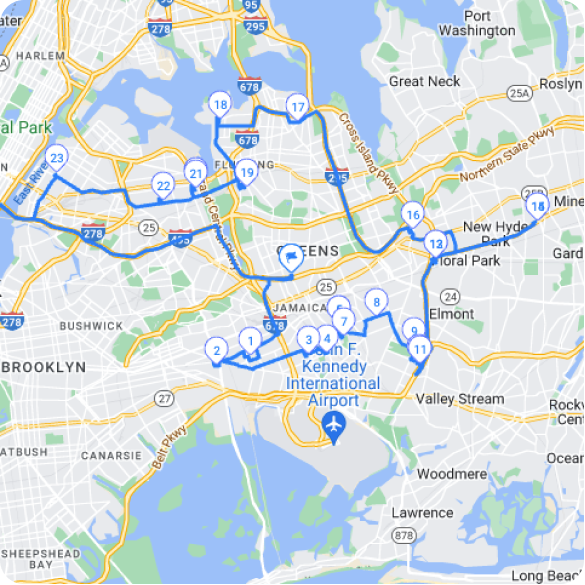
A route planner is software that calculates the most efficient order to visit multiple stops. You enter your addresses, set any constraints like delivery windows, and it generates an optimized route in seconds.
Google Maps is a navigation tool, not a route planner. It’s great for turn-by-turn directions between two points. But it caps you at 10 stops, won’t factor in time windows or vehicle capacity, and makes you manually enter each address one at a time.
Here’s the real difference: Google Maps shows you how to get from A to B. A route planner decides what order A, B, C, D, and Z should even be visited in — then hands you the directions.
For a pest control technician with 15 appointments, or a delivery driver with 40 packages, that distinction matters. A dedicated route planner like Zeo also adds proof of delivery, live GPS tracking, and customer notifications — none of which Google Maps offers.
How Route Optimization Actually Works: The Algorithm Behind the Best Route
Route optimization is a math problem with a long history. It’s a variation of what computer scientists call the “traveling salesman problem” — finding the shortest possible route that visits a set of locations exactly once.
With just 10 stops, there are over 3.6 million possible route combinations. At 20 stops, that number balloons past 60 quintillion. No dispatcher is solving that with a spreadsheet, and even Google Maps isn’t built to try.
Route planning software uses optimization algorithms to narrow this down in seconds. Here’s what typically factors into the calculation:
- Distance and drive time between every stop
- Live traffic data to avoid delays
- Time windows (customer only available 2-4pm)
- Vehicle capacity (weight or volume limits)
- Stop priority (urgent vs. flexible appointments)
- Driver skills (certifications, language, equipment)
Zeo’s AI-powered route optimization runs these calculations automatically, factoring in all of the above to build a route that would take a human hours to piece together manually. The result: routes that save drivers 2+ hours daily compared to manual planning.
This matters beyond convenience. The Federal Highway Administration’s congestion data shows that traffic congestion costs the economy billions annually in wasted fuel and labor hours — much of it from inefficient trip planning. A good algorithm doesn’t just save time; it reduces real operating costs.
Who Needs a Route Planner: Delivery, Field Service, Sales, and Fleet Use Cases
If you’re manually sequencing more than 5 stops a day, you’ve likely outgrown ad-hoc planning. Here’s how that shows up across industries:
Delivery and courier businesses dealing with dozens of daily drop-offs need route planners to hit delivery windows and keep customers updated with live ETAs. A bakery doing 30 wholesale deliveries before 9am can’t afford a drivers wasting time backtracking across town.
Field service businesses — HVAC technicians, pool cleaning companies, pest control, plumbing — need routing that accounts for appointment windows and technician skills. A pool cleaning company with recurring weekly routes needs stops sequenced the same efficient way every time, not re-planned from scratch each morning.
Sales teams running territory visits need routes that minimize windshield time between prospect meetings, so reps spend more time selling and less time driving.
Fleet managers overseeing 10-50 drivers need something bigger: a way to build routes for the whole team, assign them by skill or vehicle, and see where every driver is in real time.
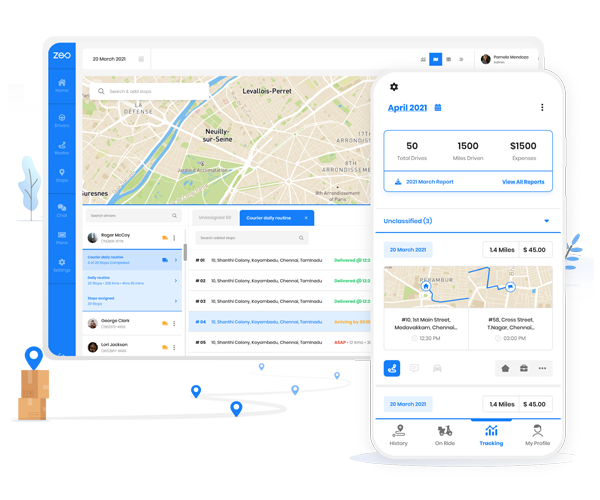
This is where Zeo works as one platform with two experiences. Fleet managers use the Zeo web dashboard to build routes, assign stops by driver skill or vehicle capacity, and set time windows — all from one screen. Drivers then receive their optimized stops instantly on the Zeo mobile app, complete with turn-by-turn navigation in Google Maps, Waze, or Apple Maps, proof-of-delivery capture, and live status updates sent back to the dispatcher.
A solo pest control tech can use the same app to plan their own day. A 30-driver delivery fleet uses the exact same system, just with the manager controlling assignments centrally. You don’t need to switch tools as you grow.
Step-by-Step: How to Plan an Optimized Multi-Stop Route in Under 5 Minutes
Here’s how the process actually works with dedicated route planning software:
1. Import your stops. Upload addresses via spreadsheet (Excel, CSV, Google Sheets), pull from Favorites if you have recurring stops, or add them individually. Zeo also supports pulling stops from images or Google Search results.
2. Set your constraints. Add time windows for appointments, mark priority stops as ASAP, and set vehicle capacity limits if you’re hauling freight or equipment.
3. Let the software optimize. The algorithm calculates the most efficient sequence in seconds, factoring in live traffic and all your constraints.
4. Assign routes to drivers (if managing a team). From the Zeo web dashboard, assign optimized routes to specific drivers based on their skills, assigned vehicle, or home store location.
5. Drivers navigate from the app. Each driver opens the Zeo mobile app and sees their stops in order, with one-tap navigation in their preferred app. No manual re-entry, no guesswork.
6. Capture proof and track progress. As drivers complete stops, they capture photos, signatures, or delivery notes directly in the app. Dispatchers see real-time status updates and live GPS location on the web dashboard.
For a solo HVAC technician, this whole process takes under 5 minutes each morning. For a fleet manager assigning routes to 20 technicians, it might take 15-20 minutes to build and assign the full day’s routes — still a fraction of the hours spent manually sequencing stops in Google Maps.
Route Planner Comparison: Free Tools vs Google Maps vs Dedicated Software
Not every business needs the same tool. Here’s an honest breakdown:
Google Maps (free)
Best for: Single trips with under 10 stops, no recurring routing needs.
Limitations: No optimization for more than 10 stops, no proof of delivery, no customer notifications, no fleet visibility. See a full Zeo vs Google Maps comparison for specifics.
Spreadsheets + manual planning (free)
Best for: Businesses with 1-5 stops per day and no growth plans.
Limitations: Extremely time-consuming, no live tracking, high risk of human error, doesn’t scale past a handful of stops.
Free route planning apps
Best for: Solo drivers testing whether route optimization is worth paying for.
Limitations: Usually capped on stops per route, limited or no proof of delivery, minimal customer communication features, no fleet dashboard for teams.
Dedicated route planning software (Zeo, Circuit, Route4Me, OptimoRoute)
Best for: Businesses with 5+ daily stops, recurring routes, or multiple drivers needing coordination.
Among dedicated tools, the differences come down to fit and flexibility:
- Zeo Route Planner offers both a free trial and scalable fleet plans, serving solo drivers up to 50+ driver fleets with one platform. It includes AI optimization, live tracking, proof of delivery, customer notifications, and integrations with Shopify, WooCommerce, and Zapier — used by 1.5M+ users across 150+ countries.
- Circuit is popular with solo delivery drivers but has more limited fleet management features for larger teams.
- Route4Me offers strong route optimization but can require more setup time and a steeper learning curve for new users.
- OptimoRoute is geared toward larger enterprise operations and can be priced out of reach for small field service teams.
The right choice depends on where you are today — and where you’re headed. If you’re a solo driver now but expect to hire technicians or drivers within the year, starting with a tool that scales (like Zeo) avoids a painful software switch later.
Must-Have Features: What to Look For Beyond Just ‘Fastest Route’
Fastest route is table stakes. Here’s what actually separates a good route planner from a great one:

increase fuel savings
Save 2 Hours on Deliveries, Everyday!
Optimize routes with our algorithm, reducing travel time and costs efficiently.
Get Started for Free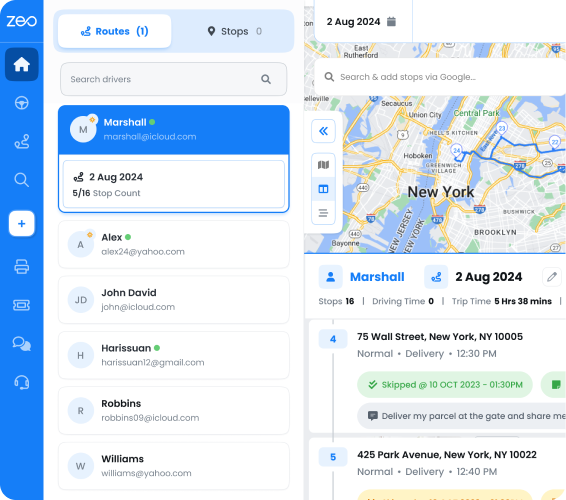
Real-time GPS tracking. You should know where every driver is, not just where they’re supposed to be. This matters when a customer calls asking “where’s my delivery?”
Live ETA updates for customers. Reduces the volume of “are you almost here?” calls and texts your team fields daily.
Proof of delivery or service. Photo capture, digital signatures, and delivery notes protect you when a customer disputes a completed job. For field service businesses, this documentation also helps resolve billing disputes.
Time window and priority support. If a customer needs a delivery between 2-4pm, or a job is marked urgent, your planner needs to respect that — not just find the shortest path.
Capacity-based routing. If you’re hauling limited inventory or equipment, routes need to respect vehicle weight and volume limits, not overload one driver while another runs half-empty.
Skill-based assignment. A technician certified for commercial HVAC shouldn’t get routed to a job requiring a different certification.
Dynamic adjustments. When a driver calls in sick or a rush order comes in mid-shift, you need to reassign stops without rebuilding the whole day.
Customer notifications. SMS, email, and live tracking links reduce missed deliveries and no-shows.
Zeo includes all of the above, plus a branded tracking page so customers see your company name and logo — not a generic tracking link — reinforcing your brand at every touchpoint.
Real Results: Time, Fuel, and Cost Savings From Route Optimization
The numbers behind route optimization are significant. Businesses using Zeo’s AI-powered routing save 2+ hours daily per driver compared to manual planning — time that goes back into completing more jobs or deliveries.
Fuel savings add up too. EPA data on driving efficiency shows that aggressive driving and inefficient routes can lower fuel economy significantly, particularly in stop-and-go conditions common to delivery and field service routes. Cutting unnecessary mileage through better sequencing directly reduces fuel spend.
Consider a pool cleaning company running 15 technicians, each visiting 12 pools daily. Manual planning might add 20-30 minutes of unnecessary driving per technician, per day, from poor stop sequencing. Across 15 technicians, that’s 5-7 hours of wasted drive time daily — compounding into real fuel and labor costs over a month.
McKinsey’s research on last-mile delivery has pointed to route optimization as one of the most effective levers for reducing per-stop delivery costs, particularly as fuel and labor costs continue rising. For field service and delivery businesses alike, the math is straightforward: less driving means lower costs and more completed jobs per day.
Beyond time and fuel, route planners reduce missed appointments. Live ETA updates and customer notifications cut down on “driver never showed” complaints — a common source of churn for subscription-based field service businesses like lawn care or pest control.
FAQ: Common Route Planning Questions Answered
Is Zeo Route Planner free?
Zeo offers a free trial with no credit card required, so you can test optimized routing before committing to a paid plan. Pricing scales based on team size, from solo drivers to 50+ driver fleets.
Can Google Maps optimize multiple stops?
Google Maps supports route optimization for up to 10 stops, but doesn’t account for time windows, vehicle capacity, or proof of delivery. For more stops or business-specific constraints, dedicated software is necessary.
How many stops can a route planner handle?
This varies by tool. Dedicated software like Zeo handles dozens of stops per route and can manage entire fleets with hundreds of stops across multiple drivers simultaneously.
Do I need a route planner if I only have 1-2 drivers?
If you’re managing 5 or more daily stops with any time constraints, yes. Even solo drivers save significant time daily with optimized routing versus manual planning in Google Maps.
What’s the difference between a route planner app and fleet software?
A route planner app (like the Zeo mobile app) is built for individual drivers to receive and navigate routes. Fleet software (the Zeo web dashboard) lets managers build routes, assign them across multiple drivers, and track the whole team in real time. Zeo offers both, working together as one system.
Can customers track their delivery in real time?
Yes. Zeo provides live tracking links sent via SMS or email, along with live ETA updates, so customers know exactly when to expect their delivery or technician.
Does route planning software integrate with my existing tools?
Zeo integrates with Shopify and WooCommerce for automatic order import, plus Zapier and HubSpot for connecting to thousands of other business tools. An API is also available for custom integrations.
Frequently Asked Questions
Q: How far in advance should I plan a multi-stop route?
For daily operations, most businesses plan routes the morning of or the night before, since last-minute orders and cancellations are common. Recurring routes (like weekly pool service or trash pickup) can be scheduled in advance and adjusted as needed. Zeo’s scheduled and recurring route feature lets you set up a route once and reuse the optimized sequence on repeat days, rather than rebuilding it each time.
Q: Why does my optimized route look different from the shortest route on a map?
A route planner optimizes for total time and efficiency, not just distance — it factors in live traffic, time windows, and stop priority, which can mean a slightly longer route on paper is actually faster in practice. The “shortest” route by miles often isn’t the fastest if it hits rush-hour traffic or ignores a customer’s delivery window. This is also why manually dragging pins in a free map tool rarely beats an algorithm-driven sequence.
Q: Can a route planner handle same-day or last-minute stop changes?
Yes, dedicated route planning software supports dynamic adjustments so dispatchers can add a rush stop or reassign a job mid-shift without rebuilding the entire day’s route. Zeo supports dynamic route adjustments, letting managers insert urgent stops or reassign them to a different available driver in real time. This matters most for field service teams fielding same-day emergency calls.
Q: Do route planners work for walking or biking routes, not just vehicles?
Most dedicated route planners, including Zeo, are built primarily around vehicle-based routing with driving directions through Google Maps, Waze, or Apple Maps. Some lightweight free tools exist specifically for walking routes, but they typically lack the time windows, capacity limits, and proof-of-delivery features that delivery and field service businesses need.
Q: What happens if a route planner loses GPS signal or internet connection?
This depends on the software, but most mobile route planning apps cache the day’s route locally so drivers can still see their stop list and navigate even with a weak connection, syncing updates once service returns. It’s worth checking this specifically if your team regularly works in rural areas or parking garages with poor signal, since not all tools handle offline access the same way.
—
If you’re still copy-pasting addresses into Google Maps every morning, it’s time to stop. Start a free trial of Zeo Route Planner — no credit card required — and plan your first optimized multi-stop route in minutes. Managing a larger team? Book a demo to see how Zeo’s fleet dashboard handles routing, driver assignment, and tracking for teams of any size.
Are you a fleet owner?
Want to manage your drivers and deliveries easily?
Grow your business effortlessly with Zeo Routes Planner – optimize routes and manage multiple drivers with ease.
increase fuel savings
Hassle Free Deliveries & Pickups!
Optimize routes with our algorithm, reducing travel time and costs efficiently.
Get Started for Free