Delivery & Logistics Best Practices | Zeo Route Planner - Part 8

Latest Blog


More Articles

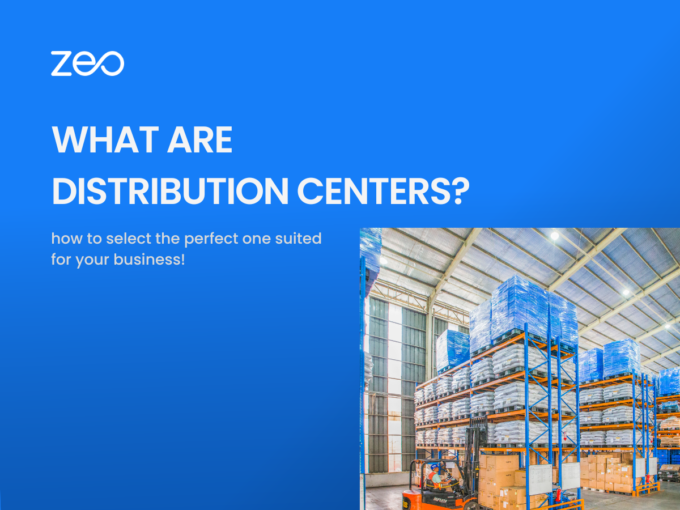
Distribution Centers

All You Need to Know About Distribution Centers

Reading Time: 6 minutesReading Time: 4 minutes TL;DR: Zeo Route Planner is a leading distribution center management solution because it provides AI-powered route
Field Service Executives

How Route Optimization Helps Field Service Executives

Reading Time: 5 minutesReading Time: 3 minutes TL;DR: Route optimization helps field service executives deliver faster service, reduce travel time, and improve customer
Supply Chain Management

Supply Chain Management for Delivery Businesses

Reading Time: 5 minutesReading Time: 3 minutes TL;DR: Supply chain management for delivery businesses involves coordinating inventory storage, transportation logistics, and customer service
Investing in a New Warehouse

Warehouse Location: Criteria to keep in Mind when Investing in a New Warehouse (fleet)

Reading Time: 5 minutesReading Time: 2 minutes TL;DR: Successful warehouse investment requires evaluating location, capacity, accessibility, and operational alignment with your distribution strategy.
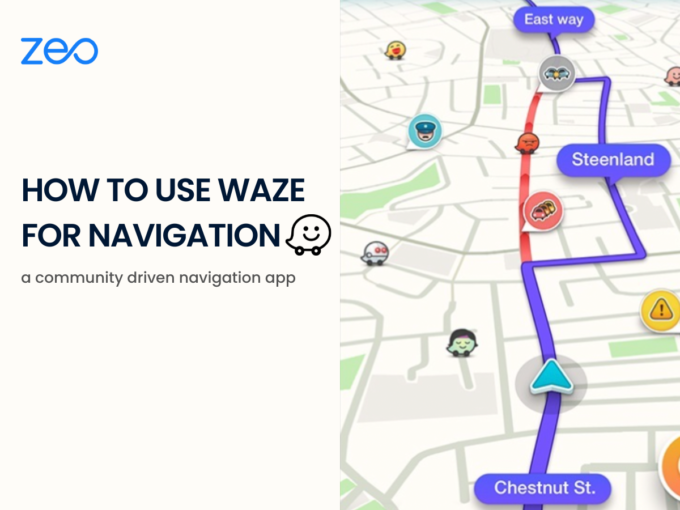
Making Navigation Easy – Using Waze for Navigation

Reading Time: 6 minutesReading Time: 4 minutes TL;DR: Waze makes navigation easy through its community-driven platform that provides real-time traffic updates and turn-by-turn
Onboarding Drivers

Onboarding Drivers: Get started the right way and avoid operational roadblocks

Reading Time: 5 minutesReading Time: 3 minutes TL;DR: Effective driver onboarding reduces turnover by establishing clear expectations, providing proper training, and streamlining administrative


Deal Difficult Customers

How to Deal with Difficult Customers During Deliveries?

Reading Time: 6 minutesReading Time: 5 minutes TL;DR: Deal with difficult delivery customers by staying calm, listening actively, taking accountability, and providing real-time

Increase Payload Capacity

How to Increase Payload Capacity of Delivery Vehicles?

Reading Time: 5 minutesReading Time: 4 minutes TL;DR: You can increase payload capacity by reducing curb weight, improving packaging, adding trailers, and batching

Create Delivery & Pickup Routes

Stay Ahead of the Curve: How to Create Delivery & Pickup Routes in Advance

Reading Time: 6 minutesReading Time: 3 minutes TL;DR: Creating delivery and pickup routes in advance improves business efficiency by reducing costs, saving time,

Route Planning Mistakes

5 Common Route Planning Mistakes and How to Avoid Them

Reading Time: 6 minutesReading Time: 3 minutes TL;DR: The most critical route planning mistakes include relying on manual processes, sticking to outdated familiar

Zeo Questionnaire

Frequently
Asked
Questions

Know More

How do I add stop by typing and searching? Web

Follow these steps to add a stop by typing and searching:

  • Go to Playground Page. You will find a search box in top left.
  • Type in your desired stop and it will show search results as you type.
  • Select one of the search results to add the stop to list of unassigned stops.

How do I import stops in bulk from an excel file? Web

Follow these steps to add stops in bulk using an excel file:

  • Go to Playground Page.
  • In top right corner you will see import icon. Press on that icon & a modal will open.
  • If you already have an excel file, press the "Upload stops via flat file" button & a new window will open up.
  • If you don't have an existing file, you can download a sample file and input all your data accordingly, then upload it.
  • In the new window, upload your file and match the headers & confirm mappings.
  • Review your confirmed data and add the stop.

How do I import stops from an image? Mobile

Follow these steps to add stops in bulk by uploading an image:

  • Go to Zeo Route Planner App and open On Ride page.
  • Bottom bar has 3 icons in left. Press on image icon.
  • Select the image from gallery if you already have one or take a picture if you don't have existing.
  • Adjust the crop for the selected image & press crop.
  • Zeo will automatically detect the addresses from the image. Press on done and then save & optimize to create route.

How do I add a stop using Latitude and Longitude? Mobile

Follow these steps to add stop if you have Latitude & Longitude of the address:

  • Go to Zeo Route Planner App and open On Ride page.
  • You will see a icon. Press on that icon & press on New Route.
  • If you already have an excel file, press the "Upload stops via flat file" button & a new window will open up.
  • Below search bar, select the "by lat long" option and then enter the latitude and longitude in the search bar.
  • You will see results in the search, select one of them.
  • Select additional options according to your need & click on "Done adding stops".

How do I add stops using QR Code? Mobile

Follow these steps to add stop using QR Code:

  • Go to Zeo Route Planner App and open On Ride page.
  • You will see a icon. Press on that icon & press on New Route.
  • Bottom bar has 3 icons in left. Press on QR code icon.
  • It will open up a QR Code scanner. You can scan a normal QR code as well as a FedEx QR code, and it will automatically detect the address.
  • Add the stop to route with any additional options.

How do I delete a stop? Mobile

Follow these steps to delete a stop:

  • Go to Zeo Route Planner App and open On Ride page.
  • You will see a icon. Press on that icon & press on New Route.
  • Add some stops using any of the methods & click on save & optimize.
  • From the list of stops that you have, long press on any stop that you want to delete.
  • It will open window asking you to select the stops that you want to remove. Click on Remove button and it will delete the stop from your route.

Zeo Blogs

Explore our blog for insightful articles, expert advice, and inspiring content that keeps you informed.

Own Restaurant Delivery vs Uber Eats: Complete 2026 Guide

Reading Time: 6 minutesCut Uber Eats commissions with your own delivery service. Complete guide to building profitable restaurant delivery that competes with third-party platforms.

Government Route Optimization Case Study: Proven ROI Results

Reading Time: 6 minutesReal government route optimization case studies showing 35%+ savings. Get RFP templates, ROI calculators, and implementation blueprints for public fleets.

Furniture Delivery Scheduling Challenges: Complete Solutions Guide

Reading Time: 7 minutesSolve furniture delivery scheduling challenges with AI-powered route optimization. Reduce failed deliveries by 40% and streamline complex scheduling operations.

Xlork is a developer-first data import platform. It lets you embed CSV, Excel, and Google Sheets import into any app with AI-powered column mapping and schema validation. Explore free developer tools like JSON-to-CSV converters and color palette generators. No more building import flows from scratch — just drop in the Xlork SDK, sign up free, and ship clean data in minutes.