# Equipment Delivery Management: The Complete Workflow Guide
> TL;DR: Equipment delivery management requires tighter time windows, capacity-aware routing, and documented proof of condition — not the volume-first tools built for standard parcel delivery. Missed installation windows and overloaded trucks are two of the most common failure points for equipment delivery teams. Route optimization tools like Zeo Route Planner address this with capacity-based routing and photo/signature proof of delivery, helping field and delivery teams save 2+ hours daily on planning.
Equipment delivery management is harder than standard parcel delivery, and most software doesn’t account for that. You’re not just dropping a box on a porch. You’re scheduling around customer availability, tracking rentals that need pickup later, and making sure a $15,000 generator arrives without damage.
If you’re running deliveries with spreadsheets or basic delivery apps, you’ve probably felt the gaps. Missed installation windows. Trucks that show up overweight. Disputes over what condition equipment was in when it left your warehouse.
This guide breaks down what makes equipment delivery different, where teams lose time and money, and how to build a workflow that actually fits your operation.
What Is Equipment Delivery Management (And Why It’s Different From Standard Delivery)
Equipment delivery management is the process of planning, routing, and tracking deliveries of bulky, high-value, or rental equipment — from order intake through proof of delivery.
Think forklifts, generators, scaffolding, HVAC units, or construction machinery. These items aren’t like a package left at a front door — they often require the kind of careful handling associated with white glove delivery service.
Here’s what makes them different:
- Scheduling constraints. Customers often need a specific delivery window because they need staff on-site to receive or install the equipment.
- Vehicle capacity limits. Weight and volume matter. Overload a truck and you risk safety violations or damaged goods.
- Two-way logistics. Rental equipment needs pickup routing too, not just drop-off.
- Condition verification. Drivers need to confirm and document equipment condition at delivery, not just get a signature.
- Higher stakes per stop. One failed delivery on a $20,000 unit costs far more than one missed parcel.
Standard delivery software is built for volume — lots of small stops, loose time windows, low value per package. Equipment delivery needs the opposite: fewer stops, tighter windows, and more verification per stop.
The Real Challenges Slowing Down Equipment Delivery Teams
Most operations managers we talk to run into the same five problems, regardless of industry.
1. Manual scheduling creates bottlenecks.
Coordinators spend hours matching customer availability, driver schedules, and vehicle capacity in spreadsheets. One change — a customer reschedules, a truck breaks down — and the whole day’s plan needs rework.
2. Capacity mismatches cause failed deliveries.
Without visibility into vehicle weight and volume limits, dispatchers sometimes assign more equipment than a truck can safely carry. Capacity-based routing that accounts for these limits upfront helps avoid the second trip, wasted fuel, and frustrated customer waiting on gear they were promised.
3. Delivery and pickup logistics collide.
Rental businesses juggle drop-offs and pickups on the same routes. Planning these manually often means drivers backtrack across the same territory twice in one day.
4. Proof of delivery gaps lead to disputes.
When a customer claims equipment arrived damaged or late, and there’s no photo or signature on file, it becomes a liability problem. The Council of Supply Chain Management Professionals has noted that documentation gaps are among the top drivers of delivery-related disputes in logistics operations.
5. Drivers lack real-time support.
When a driver arrives and can’t access a loading dock, or the customer isn’t there, there’s often no fast way to flag the issue and get direction from the office.
Each of these problems compounds. A scheduling error leads to a capacity mismatch. A capacity mismatch leads to a missed window. A missed window leads to a dispute over who’s at fault. This is exactly why equipment delivery management needs a system built for these variables — not a generic delivery tool retrofitted to handle them.
Manual Scheduling vs. Software-Driven Delivery Management: What Changes
Here’s a direct comparison of what shifts when you move from spreadsheets to route optimization software.
Route planning
- Manual: A dispatcher manually sequences stops based on gut feel or rough geography, often taking 1-2 hours per day.
- Software-driven: AI-powered route optimization builds efficient multi-stop routes in minutes, factoring in time windows and stop priority.
Vehicle capacity
- Manual: Dispatchers estimate weight and volume, risking overloaded trucks.
- Software-driven: Capacity-based routing accounts for vehicle weight and volume limits when assigning stops, reducing the risk of failed trips.
Time windows
- Manual: Time commitments are tracked in a separate calendar or notebook, easy to overlook.
- Software-driven: Time window constraints are built into the route, so drivers arrive when customers expect them.
Driver-manager communication
- Manual: Phone calls and texts, often missed during driving hours.
- Software-driven: In-app chat lets drivers flag issues (like a blocked loading dock) directly from the field.
Proof of delivery
- Manual: Paper delivery slips, easily lost or illegible.
- Software-driven: Photo capture, digital signatures, and delivery notes are logged and stored per stop.
Customer visibility
- Manual: Customers call to ask “where’s my delivery,” tying up phone lines.
- Software-driven: Live ETA updates and tracking links reduce inbound status calls.
The common thread: manual processes rely on someone remembering or checking manually. Software-driven processes build the constraint into the system, so it’s handled by default.
Step-by-Step: Building an Efficient Equipment Delivery Workflow
Here’s a practical workflow you can implement this week.
Step 1: Centralize order intake.
Pull orders from wherever they come in — Shopify, WooCommerce, a CRM like HubSpot, or manual entry — into one system. Zeo’s integrations, including Zapier connections to thousands of apps, let you funnel orders in automatically instead of re-entering data by hand.
Step 2: Import stops in bulk.
For daily batches of deliveries and pickups, use bulk address import from Excel, CSV, or Google Sheets. This avoids manually typing addresses one at a time — a common source of routing errors.
Step 3: Set constraints upfront.
Before optimizing, define what matters for each stop: time window (e.g., customer only available 10am-12pm), priority (ASAP vs. Normal), and any skill requirements (e.g., only certain drivers are trained to handle installation confirmation).
Step 4: Optimize the route.
Run the route through Zeo’s AI-powered optimization engine, which builds the most efficient sequence based on your constraints. Fleet managers report this step alone saves 2+ hours daily that would otherwise go into manual planning.
Step 5: Assign by capacity and skill.
For equipment deliveries, don’t just assign by proximity. Use capacity-based routing so drivers aren’t sent out with more weight or volume than their vehicle can handle. Combine this with skill-based job assignment for jobs that need specific driver training.
Step 6: Push routes to drivers instantly.
Optimize routes with our algorithm, reducing travel time and costs efficiently.
increase fuel savings
Save 2 Hours on Deliveries, Everyday!
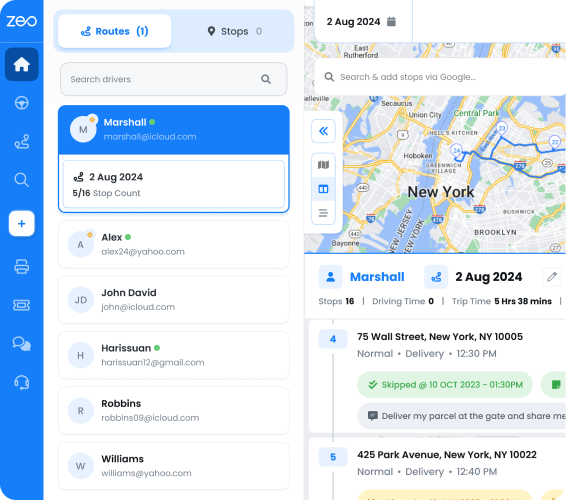
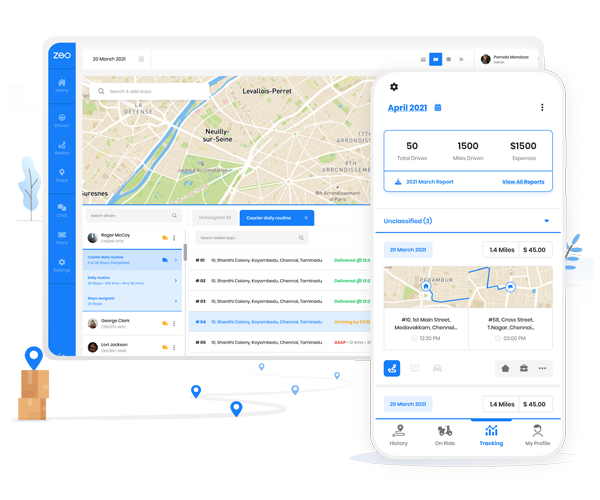
Once the route is built and assigned on the web platform, it’s sent straight to the driver’s phone through the Zeo mobile app — no manual handoff needed.
Step 7: Track in real time.
Use live GPS tracking to monitor progress throughout the day. If a delivery is running behind, live ETA updates keep the customer informed without a phone call from your team.
Step 8: Capture proof of delivery on-site.
Drivers document each delivery with photo capture, a digital signature, and delivery notes — critical for equipment where condition and installation confirmation matter.
Step 9: Review performance data.
After the day wraps, use route analytics and driver performance reports to spot patterns — recurring late stops, drivers who consistently run under time, or routes that need adjusting.
This workflow turns a process that used to depend on memory and phone calls into one where each step is documented and repeatable.
How Drivers Experience It: The Mobile App Side of Equipment Delivery
All the planning in the world doesn’t matter if it’s hard for drivers to execute in the field. This is where the fleet-to-app connection matters most.
Once a manager builds and assigns equipment delivery routes on the Zeo web platform, drivers receive them instantly on the Zeo mobile app. There’s no printed manifest, no separate phone call to explain the day’s stops.
Here’s what that looks like for a technician delivering an industrial air compressor:
They open the app and see their optimized route with customer details and time windows already loaded. They navigate using their preferred app — Google Maps, Waze, or Apple Maps — without switching between tools.
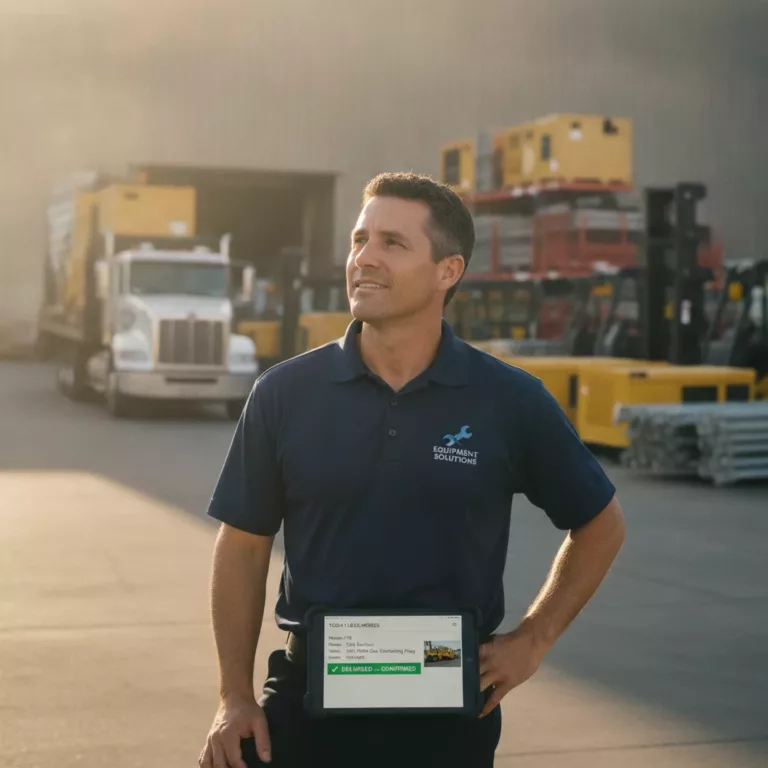
At the delivery site, they capture a photo of the equipment before handoff and collect a digital signature confirming receipt. If the customer requested installation, the driver logs a delivery note confirming setup and condition — protecting both the company and the customer if a dispute comes up later.
If the driver arrives and the loading dock is blocked, or the site can’t accommodate the truck size, they message the manager directly through in-app chat instead of guessing what to do next. That real-time link between the field and the office is often what separates a wasted trip from a quick reschedule.
For rental businesses, this same app workflow covers pickups too — drivers confirm equipment condition on return, which matters when damage disputes come up later.
Measuring the Impact: Time, Cost, and Customer Satisfaction Gains
The value of a better equipment delivery workflow shows up in three places: time, cost, and customer experience.
Time savings.
Manual route planning for a fleet of 10-15 vehicles can eat up 1-2 hours of dispatcher time daily. AI-powered optimization compresses that into minutes, and Zeo customers report saving 2+ hours daily on planning and coordination alone. Multiply that across a five-day week and you’re recovering a full workday every week.
Fewer failed deliveries.
Failed deliveries are expensive. The U.S. Department of Transportation has highlighted that inefficient routing and scheduling contribute significantly to wasted fuel and vehicle miles in commercial fleets. Capacity-based routing and accurate time windows reduce the number of trips that end in “we’ll have to reschedule.”
Lower dispute rates.
Photo capture, digital signatures, and delivery notes create a documented record for every stop. When a customer questions the condition or timing of a delivery, you have evidence instead of a “he said, she said” conversation.
Better customer satisfaction.
Live ETA updates and tracking links reduce the number of “where’s my delivery” calls your team fields. According to research published by the American Customer Satisfaction Index, delivery transparency is one of the strongest predictors of repeat business in logistics-heavy industries.
More accurate cost tracking.
Miles tracking gives you clean records for expense reports and tax filing, which matters for fleets running daily multi-stop routes across a region.
None of these gains require guesswork. They come from replacing manual, memory-dependent processes with a system that documents and optimizes every stop.
Frequently Asked Questions
Q: How is equipment delivery different from furniture or appliance delivery?
Equipment delivery often involves higher-value items like generators or industrial machinery, stricter time windows because customers need staff on-site, and sometimes a rental pickup leg that furniture delivery doesn’t require. Furniture and appliance delivery can share some challenges — like scheduling and condition verification — but equipment delivery typically has tighter capacity constraints tied to vehicle weight limits.
Q: What information should a driver document when delivering equipment?
Drivers should capture a photo of the equipment’s condition on arrival, collect a signature confirming receipt, and log any delivery notes about installation or setup. Zeo Route Planner’s proof of delivery tools — photo capture, digital signatures, and delivery notes — let drivers document all three from the mobile app at each stop.
Q: How do you handle equipment pickups and drop-offs on the same route?
The most efficient approach is planning pickups and drop-offs together in one optimized route rather than as separate trips, since drivers are often covering the same territory for both. Route optimization software that supports two-way stops helps avoid the backtracking that comes with manually sequencing rental logistics.
Q: What causes failed equipment deliveries most often?
The most common causes are scheduling mismatches (customer not available for a specific window), capacity issues (truck doesn’t have room for the load), and access problems like blocked loading docks. Building time windows and vehicle capacity limits into route planning upfront reduces how often these issues turn into a failed trip.
Q: How can dispatchers reduce disputes over equipment condition?
Disputes usually come down to a lack of documentation — no photo or signature showing the equipment’s state at delivery. Zeo Route Planner’s photo capture and digital signature features create a timestamped record at every stop, giving dispatchers evidence to reference if a customer questions damage or delivery timing later.
Start Managing Equipment Deliveries Like a System, Not a Scramble
Equipment delivery doesn’t have to mean spreadsheet chaos, overloaded trucks, or disputes over delivery condition. With the right workflow — centralized order intake, capacity-aware routing, and built-in proof of delivery — your team can move faster and with fewer costly mistakes.
Start a free Zeo Route Planner trial to build your first optimized equipment delivery route in minutes, or book a demo to see fleet-level features like capacity-based routing and proof of delivery in action.
Are you a fleet owner?
Want to manage your drivers and deliveries easily?
Grow your business effortlessly with Zeo Routes Planner – optimize routes and manage multiple drivers with ease.
increase fuel savings
Hassle Free Deliveries & Pickups!
Optimize routes with our algorithm, reducing travel time and costs efficiently.
Get Started for Free