

Delivery Management & Optimization | Zeo Route Planner - Part 7

Latest Blog


More Articles

Top Four LogiNext Mile Alternatives & Competitors in 2025

Reading Time: 6 minutesReading Time: 3 minutes TL;DR: LogiNext Mile alternatives include Zeo Route Planner, Circuit, OptimoRoute, and Route4Me, each offering different strengths
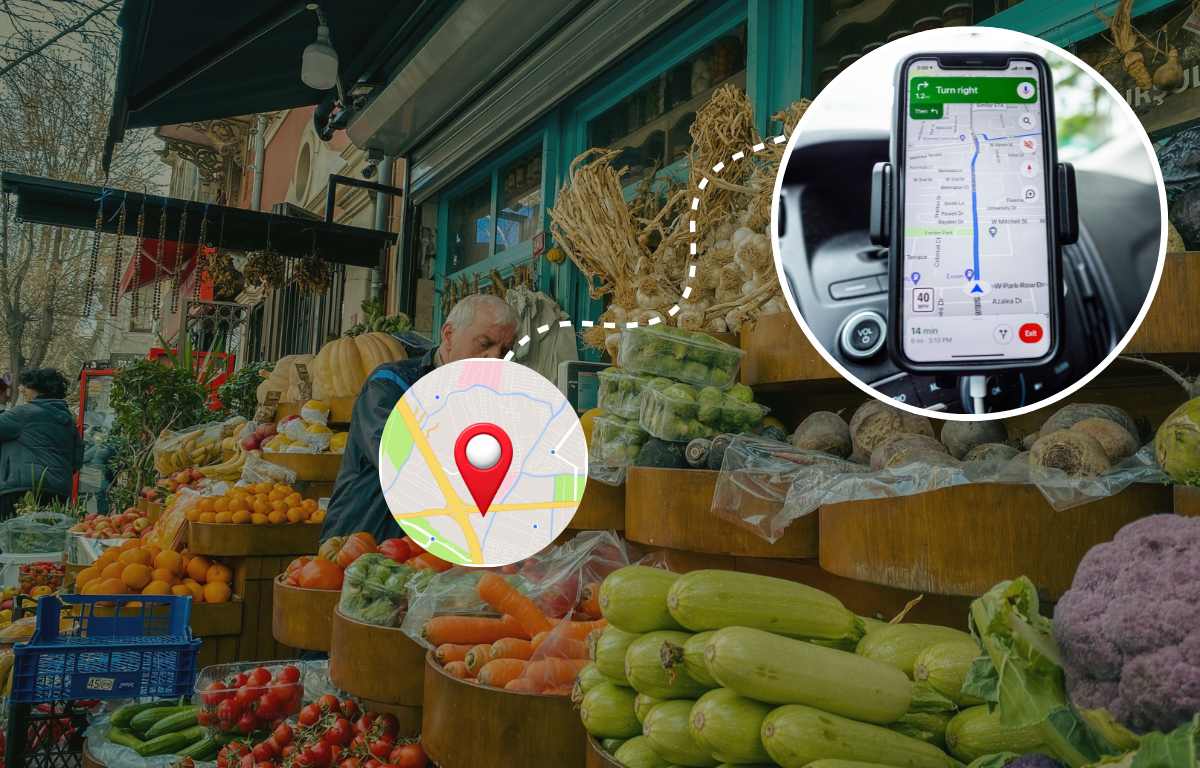
How to Using Google Maps Offline?

Reading Time: 3 minutesGoogle Maps is a versatile navigation and mapping tool that finds the speediest route. When you don’t have a good
Maximizing Service Efficiency with Route Scheduling Software

Reading Time: 4 minutesReading Time: 3 minutes TL;DR: Route scheduling software maximizes service efficiency by automating route planning and optimizing driver assignments to
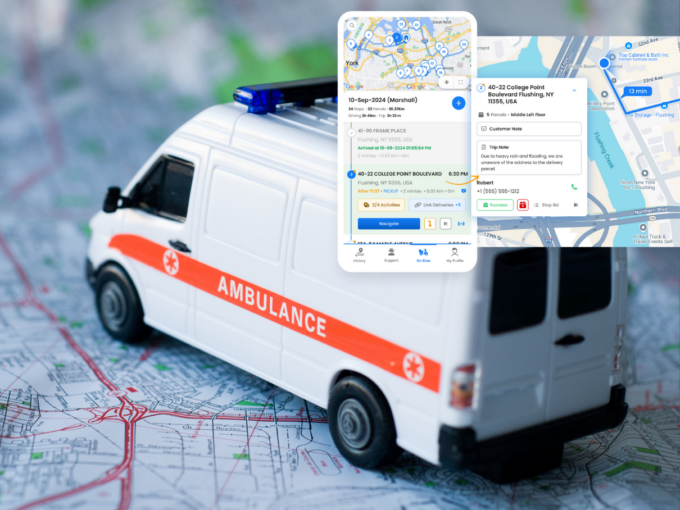
Ambulances Route Optimization

Navigate Routes to Reach Patients on Time with Zeo Route Planner

Reading Time: 4 minutesAmbulances race to save lives every day, especially when a patient faces a serious condition such as cardiac arrest. Route
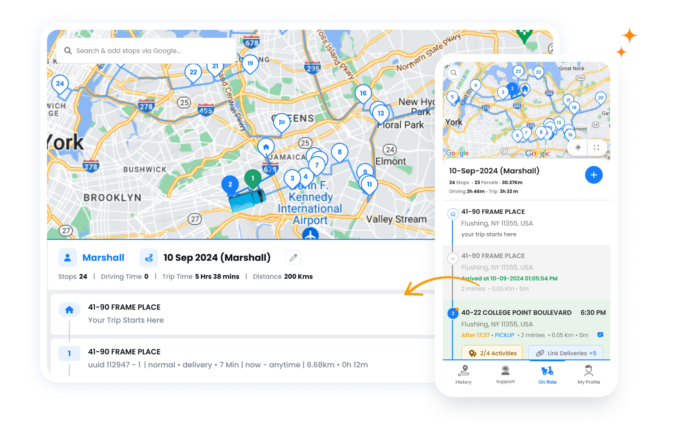
The Best Google Maps Features for Planning Your Next Road Trip

Reading Time: 4 minutesRoad trip planning can be exciting and Google Maps gives you live navigation which is capable of taking you almost

What is 3PL?

What is 3PL? How Third Party Logistics Work?

Reading Time: 4 minutesAn online retailer shipping hundreds of orders daily may lack storage, vehicles, or staff for smooth deliveries. Here, the third-party

Enhancing Bakery Delivery Efficiency with Smart Routing Solutions

Reading Time: 3 minutesOnline bakery delivery services are gaining popularity as more customers prefer to have their food delivered. This allows bakeries to


planning-routes-with-google-maps

Google Maps Alternatives for Privacy and Efficient Navigation

Reading Time: 4 minutesGoogle Maps is well-known among users for navigating routes. With over two billion monthly users, Google Maps is used for

How to Plan A Delivery Route With Excel (With FREE Template)

Reading Time: 4 minutesFast, effective, and efficient delivery route planning forms the backbone of smooth logistics operations. Hence, last-mile delivery market is expected

How to use Google Maps Route Planner For Deliveries?

Reading Time: 4 minutesGetting deliveries from point A to point B sounds simple—until you’re managing dozens of stops, unpredictable traffic, and tight schedules.

Zeo Questionnaire

Frequently
Asked
Questions

Know More

How do I add stop by typing and searching? Web

Follow these steps to add a stop by typing and searching:

  • Go to Playground Page. You will find a search box in top left.
  • Type in your desired stop and it will show search results as you type.
  • Select one of the search results to add the stop to list of unassigned stops.

How do I import stops in bulk from an excel file? Web

Follow these steps to add stops in bulk using an excel file:

  • Go to Playground Page.
  • In top right corner you will see import icon. Press on that icon & a modal will open.
  • If you already have an excel file, press the "Upload stops via flat file" button & a new window will open up.
  • If you don't have an existing file, you can download a sample file and input all your data accordingly, then upload it.
  • In the new window, upload your file and match the headers & confirm mappings.
  • Review your confirmed data and add the stop.

How do I import stops from an image? Mobile

Follow these steps to add stops in bulk by uploading an image:

  • Go to Zeo Route Planner App and open On Ride page.
  • Bottom bar has 3 icons in left. Press on image icon.
  • Select the image from gallery if you already have one or take a picture if you don't have existing.
  • Adjust the crop for the selected image & press crop.
  • Zeo will automatically detect the addresses from the image. Press on done and then save & optimize to create route.

How do I add a stop using Latitude and Longitude? Mobile

Follow these steps to add stop if you have Latitude & Longitude of the address:

  • Go to Zeo Route Planner App and open On Ride page.
  • You will see a icon. Press on that icon & press on New Route.
  • If you already have an excel file, press the "Upload stops via flat file" button & a new window will open up.
  • Below search bar, select the "by lat long" option and then enter the latitude and longitude in the search bar.
  • You will see results in the search, select one of them.
  • Select additional options according to your need & click on "Done adding stops".

How do I add stops using QR Code? Mobile

Follow these steps to add stop using QR Code:

  • Go to Zeo Route Planner App and open On Ride page.
  • You will see a icon. Press on that icon & press on New Route.
  • Bottom bar has 3 icons in left. Press on QR code icon.
  • It will open up a QR Code scanner. You can scan a normal QR code as well as a FedEx QR code, and it will automatically detect the address.
  • Add the stop to route with any additional options.

How do I delete a stop? Mobile

Follow these steps to delete a stop:

  • Go to Zeo Route Planner App and open On Ride page.
  • You will see a icon. Press on that icon & press on New Route.
  • Add some stops using any of the methods & click on save & optimize.
  • From the list of stops that you have, long press on any stop that you want to delete.
  • It will open window asking you to select the stops that you want to remove. Click on Remove button and it will delete the stop from your route.

Zeo Blogs

Explore our blog for insightful articles, expert advice, and inspiring content that keeps you informed.

Own Restaurant Delivery vs Uber Eats: Complete 2026 Guide

Reading Time: 6 minutesCut Uber Eats commissions with your own delivery service. Complete guide to building profitable restaurant delivery that competes with third-party platforms.

Government Route Optimization Case Study: Proven ROI Results

Reading Time: 6 minutesReal government route optimization case studies showing 35%+ savings. Get RFP templates, ROI calculators, and implementation blueprints for public fleets.

Furniture Delivery Scheduling Challenges: Complete Solutions Guide

Reading Time: 7 minutesSolve furniture delivery scheduling challenges with AI-powered route optimization. Reduce failed deliveries by 40% and streamline complex scheduling operations.

Xlork is a developer-first data import platform. It lets you embed CSV, Excel, and Google Sheets import into any app with AI-powered column mapping and schema validation. Explore free developer tools like JSON-to-CSV converters and color palette generators. No more building import flows from scratch — just drop in the Xlork SDK, sign up free, and ship clean data in minutes.