# Route Planner App: The Complete Buying Guide for Solo Drivers and Fleets
> TL;DR: The right route planner app depends entirely on your team size — solo drivers need optimization and navigation, while fleets need dispatching, tracking, and proof of delivery on top of that. A route planner app can solve routes with millions of possible stop combinations in seconds, something no human or basic map app can do manually. Zeo Route Planner addresses this with the same mobile app scaling from solo use to full fleet dispatching, helping teams save 2+ hours daily without switching platforms as they grow.
If you’re searching for a route planner app, you’ve probably hit a wall. Some apps only handle one driver. Others claim to manage a whole fleet but bury you in confusing pricing tiers. And most comparison articles online are written for solo delivery drivers, not operations managers trying to route 10, 20, or 50 people a day.
This guide fixes that. You’ll learn exactly what separates a basic route planner app from a fleet-grade platform, see real ROI numbers on time and fuel savings, and get a feature checklist based on your actual team size. By the end, you’ll know exactly what to buy—and what to skip.
What Is a Route Planner App (and How Is It Different From Google Maps)?
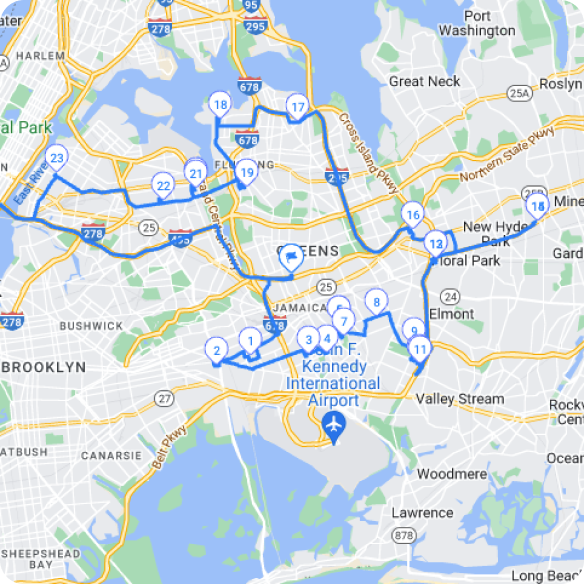
A route planner app calculates the most efficient order to visit multiple stops. Google Maps gives you directions from Point A to Point B. A route planner app solves a much harder problem: the best sequence for 10, 20, or 100 stops at once.
This matters more than it sounds. The classic “traveling salesman problem” shows that even with just 10 stops, there are over 3.6 million possible route combinations. A human—or a basic map app—can’t calculate that. A route planner app uses algorithms to find the most efficient path in seconds.
Google Maps also caps you at around 10 waypoints per trip and doesn’t account for real business constraints. It can’t factor in delivery time windows, driver skills, vehicle capacity, or which stops are urgent. A dedicated route planner app does.
Here’s the practical difference:
- Google Maps: Manual entry, no optimization logic, no multi-driver support, no proof of delivery.
- Route planner app: Automatic stop sequencing, time window support, capacity planning, and (for fleet tools) driver assignment and tracking.
If you’re routing more than 4-5 stops a day, or managing any drivers beyond yourself, a route planner app pays for itself fast. We’ll show you exactly how in the ROI section below.
Route Planner App vs. Fleet Management Software: Which Do You Need?
This is the question most buyers get stuck on. Here’s a simple way to self-identify.
You need a solo route planner app if:
- You’re an independent driver, technician, or small business owner
- You’re the only one running routes (no dispatching involved)
- You just need your own stops optimized and navigated
You need fleet-grade route planning software if:
- You manage 3 or more drivers or technicians
- You need to assign routes to different people from a central dashboard
- You need real-time visibility into where your team is, backed by driver tracking software
- You want customers to get live ETA updates and tracking links
- You need proof of delivery or service records for accountability
The confusion happens because most tools force you to pick a lane early. You start as a solo user, then outgrow the app the moment you hire your second driver. Or you buy an expensive fleet platform when you only need basic routing.
This is where Zeo Route Planner works differently. It’s built on the same core routing technology whether you’re a single driver or dispatching 50 technicians. You start with the app as an individual, and if you grow into a team, you add the web-based fleet platform without switching tools or re-learning a system. Your historical data, favorite stops, and workflows carry over.
A practical example: a two-person pool cleaning business often starts with one technician using a route planner app solo. Six months later, they hire two more techs. Instead of migrating to new software, they add drivers on Zeo’s fleet platform, assign routes from a desktop dashboard, and their technicians keep using the same mobile app they already know—now with routes assigned to them instead of self-planned.
Real ROI: How Much Time and Fuel a Route Planner App Actually Saves
Numbers matter more than feature lists. Here’s what route optimization actually delivers.
Time savings: Zeo’s AI-powered route optimization saves drivers and dispatchers 2+ hours daily. For a business with 10 drivers, that’s 20 hours a day reclaimed—time that goes back into more stops, more jobs, or simply ending shifts earlier.
Fuel and mileage savings: The U.S. Department of Energy’s fuel economy research estimates that inefficient routing and idling can waste up to 30% of fuel used in stop-and-go delivery driving. Optimized routes reduce backtracking, unnecessary mileage, and idle time at intersections.
Labor cost impact: According to Bureau of Labor Statistics data on transportation and warehousing wages, delivery and field service labor costs continue to rise year over year. Every hour saved through better routing directly reduces overtime and lets existing staff handle more volume without new hires.
Customer service impact: A field service business running 15 jobs a day per technician, multiplied across a 10-person team, means 150 daily appointments. If poor routing causes even a 10% miss rate on time windows, that’s 15 frustrated customers a day. Live ETA updates and accurate routing directly reduce that number.
Here’s a simple way to estimate your own ROI: multiply your driver count by 2 hours saved daily, then multiply by your average hourly labor cost. For a 10-driver team at $20/hour, that’s $400 in reclaimed labor value per day—before counting fuel savings or extra completed stops. Industry benchmarks from the American Transportation Research Institute’s operational cost studies show similar patterns across trucking and delivery fleets nationwide.
Must-Have Features Checklist by Business Size
Not every business needs every feature. Here’s what actually matters at each stage.
Solo Driver or Owner-Operator
- Multi-stop route optimization
- Turn-by-turn navigation (with support for Google Maps, Waze, or Apple Maps)
- Bulk address import from Excel or Google Sheets
- Favorites for frequently visited stops
- Mileage tracking for tax and expense records
Small Team (2-10 Drivers)
Everything above, plus:
- Driver assignment from a central dashboard
- Real-time GPS tracking for each driver
- Customer notifications (SMS, email, live tracking link)
- Proof of delivery (photo, signature, notes)
- Time window and priority stop support
Growing Fleet (10-50 Drivers)
Everything above, plus:
- Skill-based driver assignment (matching the right tech to the right job)
- Capacity-based routing for vehicle weight or volume limits
- In-app chat between managers and drivers
- Driver performance analytics and reporting
- CRM and e-commerce integrations (Shopify, WooCommerce, HubSpot)
- Branded customer tracking pages
A common mistake: growing fleets buy a bare-bones app because it’s cheap, then realize they have no visibility into driver performance or no way to notify customers of delays. Match your feature list to where your business is heading in the next 12 months, not just where it is today.
Head-to-Head Comparison: Zeo vs. Route4Me vs. Circuit vs. OptimoRoute vs. Google Maps
| Feature | Zeo | Route4Me | Circuit | OptimoRoute | Google Maps |
|—|—|—|—|—|—|
| Solo route optimization | Yes | Yes | Yes | Yes | Manual only |
| Fleet dispatching (multi-driver) | Yes | Yes | Limited | Yes | No |
| Real-time GPS tracking | Yes | Yes | Yes | Yes | No |
| Proof of delivery | Yes | Yes | Limited | Yes | No |
| Customer live tracking link | Yes | Limited | Yes | Limited | No |
| Skill-based assignment | Yes | Limited | No | Yes | No |
| Same app for solo + fleet | Yes | No | No | No | N/A |
| Shopify/WooCommerce integration | Yes | Limited | Yes | Limited | No |
| Users served | 1.5M+ | Smaller base | Mid-size | Mid-size | N/A |
The key differentiator is the last row that’s easy to overlook: whether the same app scales with you. Most competitors force a hard switch between their “personal” product and their “business” product—different logins, different data, sometimes different companies entirely after an acquisition. See our full breakdown of Route4Me alternatives for a deeper comparison.
Zeo Route Planner is built so the mobile app you use as a solo driver is the exact same app your technicians use once you’re dispatching a full team. Fleet managers plan and assign on the web platform; drivers receive, navigate, and complete routes—including proof of delivery—on the mobile app. Nothing gets rebuilt when you grow.
How to Set Up Multi-Stop Routes With Driver Assignment (Step-by-Step Walkthrough)
Here’s how it actually works, whether you’re routing solo or dispatching a team.
Optimize routes with our algorithm, reducing travel time and costs efficiently.
increase fuel savings
Hassle Free Deliveries & Pickups!
Step 1: Import your stops.
Upload addresses via Excel, CSV, or Google Sheets, or connect Shopify/WooCommerce for automatic order import. For a landscaping company with 40 recurring stops, this takes minutes instead of manually typing addresses.
Step 2: Set constraints.
Add time windows for stops that need a specific arrival window, mark priority stops as ASAP, and set vehicle capacity limits if you’re carrying weight- or volume-restricted loads.
Step 3: Let the AI optimize.
Zeo’s route optimization engine calculates the most efficient stop sequence in seconds, factoring in traffic, distance, and your constraints.
Step 4: Assign routes to drivers (fleet users).
On the web platform, fleet managers assign optimized routes to specific drivers based on skills, location, or vehicle. A pest control company, for example, might assign termite-certified technicians only to jobs requiring that certification.
Step 5: Drivers receive and navigate.
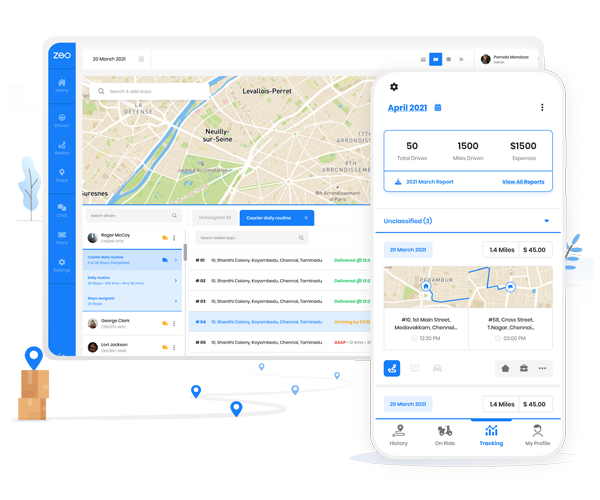
Here’s where the fleet and app connection matters most. Your technicians receive their optimized routes directly on their phones via the Zeo app, complete with turn-by-turn navigation and customer details. It’s the same app a solo user would use—just populated with routes assigned by a manager instead of self-planned.
Step 6: Complete stops with proof.
At each stop, drivers capture photos, collect signatures, or add delivery notes. Managers see completion status in real time from the web dashboard.
Step 7: Review performance.
After the day ends, review route analytics and driver performance reports to spot bottlenecks or repeat delays.
This entire flow—from import to completion—typically takes less time to set up than building a single day’s route manually in a spreadsheet.
Connecting Your Route Planner to CRM, Shopify, and Other Tools
A route planner app that lives in isolation creates extra manual work. The goal is connecting it to the tools you already use.
Shopify and WooCommerce: Orders import automatically as stops, eliminating manual data entry. An e-commerce business shipping 60 local orders a day can skip the copy-paste step entirely and route directly from new orders.
HubSpot CRM: Sync customer and appointment data so your field service team’s schedule stays aligned with your sales and account records.
Zapier: Connect Zeo to thousands of other apps—accounting software, scheduling tools, communication platforms—without needing custom development. See how the Zeo Zapier integration works in practice.
API access: For businesses with existing internal systems, Zeo’s API allows custom integrations tailored to specific workflows.
The practical benefit: less duplicate data entry, fewer missed orders, and a single source of truth for where your team needs to be. A plumbing company using HubSpot for scheduling, for instance, can keep appointments synced automatically instead of manually re-entering job addresses into a separate routing tool every morning.
Choosing and Rolling Out Your Route Planner App: Next Steps
Here’s a simple decision framework to close this out.
- Count your drivers. One driver, focus on solo features. Three or more, prioritize fleet-grade tools with dispatching and tracking.
- Estimate your ROI. Use the 2-hours-saved-per-driver benchmark from earlier to calculate what inefficient routing is actually costing you.
- Match features to your 12-month plan, not just today’s needs. If you’re planning to hire, choose a platform that scales without a migration.
- Test before committing. Run real routes with real stops during a trial period, not just a demo with sample data.
- Plan your rollout. Start with one route or one driver, confirm the workflow, then expand to your full team over 1-2 weeks.
The businesses that get the most value skip the “figure it out later” approach. They pick a tool that works for their current size and won’t require switching platforms in six months.
Frequently Asked Questions
Q: How many stops can a route planner app optimize at once?
Most dedicated route planner apps can optimize anywhere from 50 to several hundred stops in a single route, far beyond Google Maps’ 10-waypoint limit. The exact cap depends on the platform and your subscription tier, but tools built for fleets typically handle bulk imports of 100+ addresses via Excel or CSV without issue.
Q: Is a free route planner app good enough for a small business?
Free tiers work fine if you’re routing a handful of stops a day as a solo operator, but most cap you at a limited number of monthly routes or stops. Zeo’s mobile app, for example, offers a free tier with 12 routes per month, which suits light users but usually isn’t enough once you’re running daily multi-stop routes or managing other drivers.
Q: What’s the difference between route optimization and route planning?
Route planning refers to mapping out which stops to visit and in what general order, often done manually. Route optimization uses algorithms to calculate the mathematically most efficient sequence, factoring in traffic, distance, time windows, and vehicle constraints — something manual planning or basic map apps can’t do at scale.
Q: Can a route planner app send customers live tracking updates?
Yes, most fleet-grade route planner apps include customer notifications with live ETA updates and tracking links sent via SMS or email. Zeo Route Planner offers a branded tracking page with the company’s logo, so customers can watch their delivery or service technician’s progress in real time without calling to ask where their driver is.
Q: How long does it take to switch from manual routing to a route planner app?
Most businesses can import their stops, set constraints, and generate their first optimized route within an hour, since the setup mainly involves uploading an address list and defining time windows or priorities. The bigger time investment is usually rolling out the change to drivers, which typically takes one to two weeks if done gradually, one route or driver at a time.
Zeo Route Planner is built for exactly this path—used by 1.5M+ people across 150+ countries, from solo drivers to fully dispatched fleets, on one platform.
Start a free trial of Zeo Route Planner and optimize your first routes in minutes, whether you’re routing for yourself or dispatching an entire fleet.
Are you a fleet owner?
Want to manage your drivers and deliveries easily?
Grow your business effortlessly with Zeo Routes Planner – optimize routes and manage multiple drivers with ease.
increase fuel savings
Hassle Free Deliveries & Pickups!
Optimize routes with our algorithm, reducing travel time and costs efficiently.
Get Started for Free