Updated on: May 28, 2026
Reading Time: 4 minutes
TL;DR: The Estes Package Tracker provides real-time shipment visibility using PRO numbers through their online portal, offering instant status updates from pickup to delivery. As of 2026, nearly 80% of B2B buyers expect this type of real-time tracking transparency. Route optimization tools like Zeo Route Planner complement carrier tracking with live GPS tracking and customer notifications, helping logistics teams save 2+ hours daily on delivery management.
Estes Express Lines is one of North America’s most reliable carriers, which moves everything from palletized freight to eCommerce volumes. And when that many deliveries are in motion, tracking becomes mission-critical.
Nearly 80% of B2B buyers expect real-time visibility for their shipments as of 2026. McKinsey reports that the average parcel delivery time improved by approximately 40%, decreasing from 6.6 days in Q1 2020 to 4.2 days in Q2 2023.
Moreover, customers want location pings, movement logs, and instant access to delivery status without back-and-forth emails or long call center queues.
The Estes Package Tracker was built for that exact purpose. It moves over 11,000 next-day lanes and handles both LTL (less-than-truckload) and volume freight with a national footprint.
The real power, though, lies in how customers track their shipments by eliminating ambiguity in delivery timelines. It provides a fast, accessible way to know where a shipment stands.
Let’s find out how it is done.
Where to Begin: What Is the Estes Package Tracker?
The Estes Package Tracker gives businesses or customers an instant view of shipment status.
You only need to use the tracking number for real-time delivery updates.
1. Instant Access with PRO Number
You only need the PRO number (the Estes tracking number) linked to your shipment. Paste it into the Estes tracking portal, and the tracker immediately fetches your delivery status.
- Works for both LTL freight and parcel shipments
- No registration or credentials needed
- Ideal for warehouse teams, field staff, or B2B clients
2. Real-Time Delivery Milestones
The system updates every key touchpoint in the delivery flow so that users can monitor movement city-by-city with live scan updates across transit hubs:
- Shipment picked up
- In transit
- Out for delivery
- Timestamp-enabled delivered and signed status
3. Mobile-Responsive Checks
You can use the tracker on smartphones and tablets as well, so that you can check the status of the parcel on the go.
The interface adjusts to your screen and still shows everything clearly.
- Field drivers and teams can check the status while en route
- Clients can view the status during meetings or onsite calls
4. No-Friction Sharing with Clients or Internal Teams
Think you have to share shipment status with a customer or teammate?
Just copy the tracker link or take a quick screenshot without downloading an app or following up on an email.
- Helps support teams reduce queries
- Enables transparent last-mile visibility
How Package Tracking Impacts Modern Logistics Operations
As of 2026, the logistics industry has evolved beyond basic delivery confirmation to comprehensive supply chain visibility. The U.S. Department of Transportation reports that freight transportation generates over $1.2 trillion in economic activity annually, making tracking efficiency critical to business operations.
Package tracking systems like Estes serve as the communication backbone between carriers, shippers, and customers. They reduce administrative overhead by eliminating status inquiry calls, enable proactive exception management, and create transparency that builds customer trust.
For businesses managing complex distribution networks, this visibility becomes essential for inventory planning, resource allocation, and customer service excellence. Real-time tracking data helps identify bottlenecks, optimize future shipments, and maintain service level agreements across the supply chain.
How to Track an Estes Express Lines Delivery: Step-by-Step
Once you’ve got the PRO number (the shipment tracking ID), tracking your Estes package takes under a minute.
Here’s how to go from input to full delivery status using the Estes Package Tracker.
Step 1: Visit the Estes Tracking Page
Head over to the official Estes Express tracking portal over here.
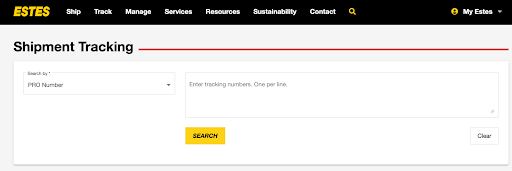
You’ll land on a clean, no-login-needed interface.
- A simple input box for tracking 10-digit numbers
- Drop-down to select number type (PRO number, Bill of Lading, etc.)
Step 2: Enter Your PRO Number
Paste your PRO number into the field. You can also enter multiple numbers if you’re tracking batches.
You do not need to select anything extra unless you have an alternate number type (e.g., Bill of Lading or Purchase Order).
Step 3: View Shipment Summary
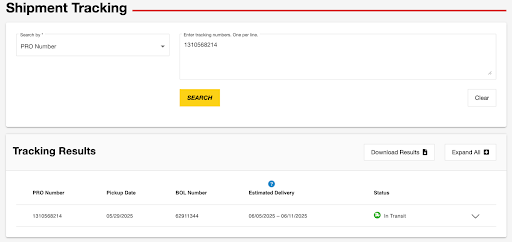
Once you hit “Track,” you’ll see a high-level status like this:

increase fuel savings
Save $200 on fuel, Monthly!
Optimize routes with our algorithm, reducing travel time and costs efficiently.
Get Started for Free
- Current location (e.g., “At transit hub – Dallas, TX”)
- Scheduled delivery date
- Delivery type (LTL Freight, Guaranteed, etc.)
Step 4: Dive into Full Tracking Details
You can scroll down to access the detailed movement history by clicking on this arrow down arrow UI.
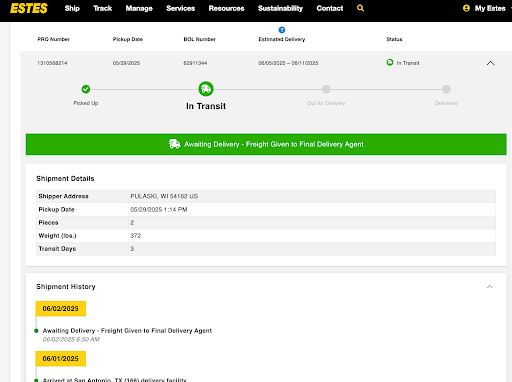
- Date and time stamps for each leg of the journey
- Terminal locations
- Updates on delays (if any)
- Delivery confirmation with Proof of Delivery (POD), if available
Explore further details as well, which include delivery details, reference numbers, destination terminal, and even additional information.
Downloading Results
You also have an option to download the delivery status.
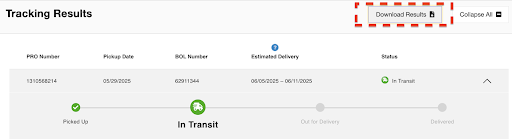
Simply click on the ‘Download Results’ button, and you’ll have an option to save it in a PDF format.
What Are the Benefits of the Estes Package for Businesses and Customers
Reliable Estes tracking helps reduce friction across your entire fulfillment process. When you have the Estes Package Tracker, you can unlock meaningful advantages to both shippers and recipients.
Here’s how it delivers value:
Cuts Down Status Check Calls
Logistics teams and customer support no longer need to call terminals or chase updates. One glance at the tracking dashboard gives the exact location and ETA, even for large freight shipments.
Builds Customer Confidence
Buyers know when their orders move through hubs, when they’re out for delivery, and when they arrive based on the timestamps. Such detailed visibility adds professionalism and trust, especially for B2B shipments.
Speeds Up Internal Coordination
Warehouse managers can plan outbound docks better, while delivery teams can reroute based on real-time status. It’s a kind of clarity that speeds up handoffs, dispatch planning, and even customer communication.
Reduces Delays from Blind Spots
When every handoff is visible, issues like terminal hold-ups or missed scans get flagged early. It allows teams to act before minor hiccups turn into late deliveries.
Adds Predictability to Freight Workflows
With clear delivery timelines, businesses can sync inventory restocking, cross-dock scheduling, or appointment-based unloading. This predictability becomes especially valuable for time-sensitive operations that require coordination between multiple delivery partners.
For businesses managing their own local delivery operations alongside freight shipments, comprehensive route planning solutions complement carrier tracking systems by providing end-to-end visibility across all delivery channels.
Integrating Package Tracking with Last-Mile Operations
While carrier tracking handles long-haul freight visibility, businesses often need seamless coordination between incoming shipments and outbound last-mile deliveries. The Bureau of Transportation Statistics shows that freight shipments often involve multiple handoffs, making integration between tracking systems essential for operational efficiency.
Modern logistics operations benefit from connecting freight tracking data with local delivery management systems. This integration allows teams to schedule outbound routes based on real-time inbound arrival data, optimize warehouse dock scheduling, and provide customers with complete visibility from origin to final destination.
For companies managing complex delivery networks that include both freight coordination and local distribution, specialized scheduling solutions help bridge the gap between carrier tracking and final delivery execution.
Final Take
Estes Package Tracker gives control to users control to track their deliveries. From freight to parcel, from warehouse teams to individual receivers, you get unmatched visibility into where shipments are and when they’ll land.
No extra logins, no complex steps. Just enter a tracking number and see the status unfold in real time.
For teams managing supply chains or brands running fulfillment at scale, that clarity makes all the difference. Less back-and-forth, more control, and a better customer experience
Frequently Asked Questions
How long does Estes Express Lines typically take to deliver packages?
Estes Express Lines operates over 11,000 next-day lanes for expedited service, with standard LTL freight typically taking 2-5 business days depending on distance and service level. Ground freight between major metropolitan areas usually arrives within 1-3 business days, while rural deliveries may take up to 5 business days.
What should I do if my Estes tracking shows no updates for several days?
If tracking hasn’t updated in 2-3 business days, contact Estes customer service at 1-866-ESTES99 with your PRO number. Delays can occur due to weather, terminal congestion, or scanning errors that don’t affect actual shipment movement. Missing scans are common but don’t necessarily indicate delivery delays.
Can I track multiple Estes shipments at once using the online tracker?
Yes, the Estes tracking portal allows you to enter multiple PRO numbers simultaneously for batch tracking. Simply separate each tracking number with a comma or enter them on separate lines in the tracking field. This feature is particularly useful for businesses managing multiple concurrent shipments.
How does real-time tracking improve delivery route efficiency for logistics companies?
Real-time tracking data enables logistics teams to make dynamic routing decisions based on actual shipment locations and delivery windows. Advanced route optimization platforms like Zeo Route Planner integrate live GPS tracking with automated customer notifications, allowing delivery teams to save 2+ hours daily through improved coordination and reduced status inquiry calls.
What information do I need besides the PRO number to track my Estes shipment?
Only the PRO number is required for basic tracking through the Estes portal. However, you can also track using alternative reference numbers like Bill of Lading (BOL), Purchase Order number, or shipper reference number by selecting the appropriate option from the dropdown menu. No account registration or additional credentials are needed for tracking access.

Are you a fleet owner?
Want to manage your drivers and deliveries easily?
Grow your business effortlessly with Zeo Routes Planner – optimize routes and manage multiple drivers with ease.
increase fuel savings
Save $200 on fuel, Monthly!
Optimize routes with our algorithm, reducing travel time and costs efficiently.
Get Started for Free