




Latest Blog

Medical Device Sales

More Articles

Future of Route Planning

The Future of Route Planning: Trends and Predictions

Reading Time: 3 minutesWhat is route planning? Route planning means finding the most efficient route between point A and point B. It is

How Do You Plan a Route on MapQuest?

Reading Time: 4 minutesGoogle Maps route planner and tools like Waze or Apple Maps are limited in finding the shortest route from one

Optimize Delivery Route

5 Ways to Optimize Delivery Routes for Better Efficiency

Reading Time: 3 minutesIf you are already using a route planner or looking to use one for optmizing delivery routes – Congratulations! For

Pickup and last-mile delivery

Pickup and last-mile delivery promote long-term relationships with customers in the cleaning Industry.

Reading Time: 2 minutesKicks and Kaps used Zeo Route Planner to improve their efficiency and also increase their customer satisfaction scores. Kicks and

Removalists Using Route Optimisation Software Are Saving Time And Increasing Profits

Reading Time: 12 minutesLong hours behind the wheel, a lot of heavy lifting, traffic holdups, and unhappy customers. The job that interstate removalists

9 Ways to Grow and Scale Your Delivery Business in 2026

Reading Time: 7 minutesReading Time: 6 minutes TL;DR: Zeo Route Planner is a leading delivery business optimization solution because of AI-powered route optimization
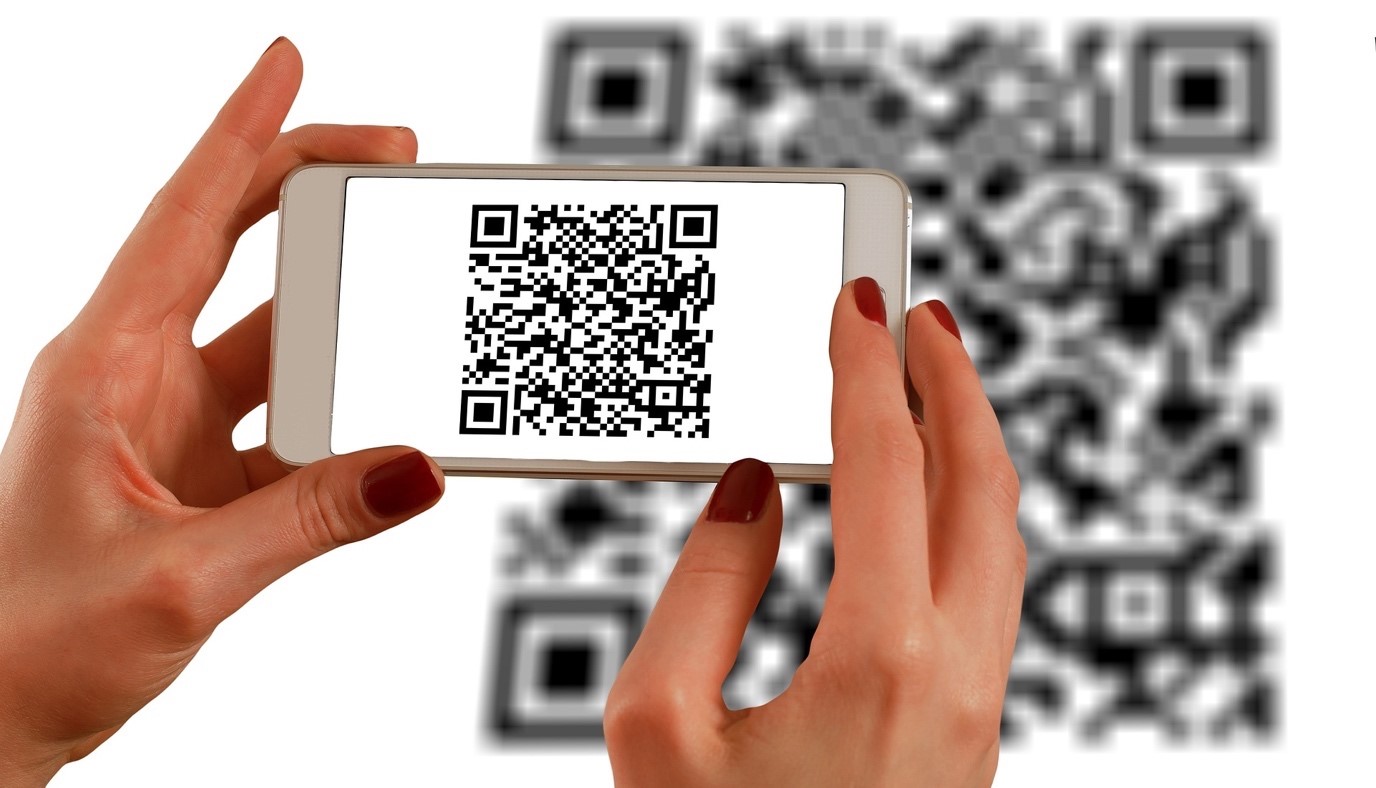
import-address-using-Bar-or-QR-code-scan

How to import address using Bar/QR code

Reading Time: 5 minutesReading Time: 4 minutes Managing addresses is one of the most hectic jobs in the last mile delivery process. About
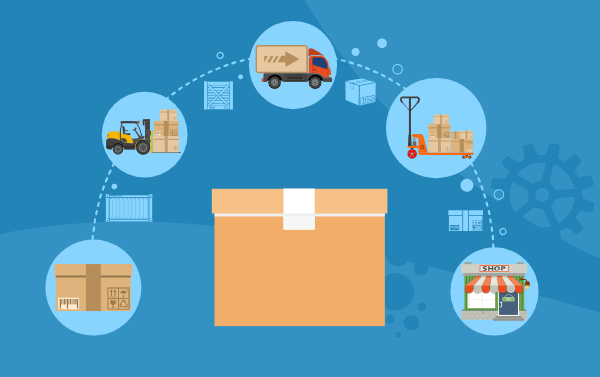
Last-Mile-Delivery-With-Zeo-Routing-App

How to reduce last-mile delivery costs

Reading Time: 7 minutesReading Time: 5 minutes TL;DR: Zeo Route Planner is a leading last-mile delivery cost reduction solution because it delivers AI-powered

Zeo Questionnaire

Frequently
Asked
Questions

Know More

How do I add stop by typing and searching? Web

Follow these steps to add a stop by typing and searching:

  • Go to Playground Page. You will find a search box in top left.
  • Type in your desired stop and it will show search results as you type.
  • Select one of the search results to add the stop to list of unassigned stops.

How do I import stops in bulk from an excel file? Web

Follow these steps to add stops in bulk using an excel file:

  • Go to Playground Page.
  • In top right corner you will see import icon. Press on that icon & a modal will open.
  • If you already have an excel file, press the "Upload stops via flat file" button & a new window will open up.
  • If you don't have an existing file, you can download a sample file and input all your data accordingly, then upload it.
  • In the new window, upload your file and match the headers & confirm mappings.
  • Review your confirmed data and add the stop.

How do I import stops from an image? Mobile

Follow these steps to add stops in bulk by uploading an image:

  • Go to Zeo Route Planner App and open On Ride page.
  • Bottom bar has 3 icons in left. Press on image icon.
  • Select the image from gallery if you already have one or take a picture if you don't have existing.
  • Adjust the crop for the selected image & press crop.
  • Zeo will automatically detect the addresses from the image. Press on done and then save & optimize to create route.

How do I add a stop using Latitude and Longitude? Mobile

Follow these steps to add stop if you have Latitude & Longitude of the address:

  • Go to Zeo Route Planner App and open On Ride page.
  • You will see a icon. Press on that icon & press on New Route.
  • If you already have an excel file, press the "Upload stops via flat file" button & a new window will open up.
  • Below search bar, select the "by lat long" option and then enter the latitude and longitude in the search bar.
  • You will see results in the search, select one of them.
  • Select additional options according to your need & click on "Done adding stops".

How do I add stops using QR Code? Mobile

Follow these steps to add stop using QR Code:

  • Go to Zeo Route Planner App and open On Ride page.
  • You will see a icon. Press on that icon & press on New Route.
  • Bottom bar has 3 icons in left. Press on QR code icon.
  • It will open up a QR Code scanner. You can scan normal QR code as well as FedEx QR code and it will automatically detect address.
  • Add the stop to route with any additional options.

How do I delete a stop? Mobile

Follow these steps to delete a stop:

  • Go to Zeo Route Planner App and open On Ride page.
  • You will see a icon. Press on that icon & press on New Route.
  • Add some stops using any of the methods & click on save & optimize.
  • From the list of stops that you have, long press on any stop that you want to delete.
  • It will open window asking you to select the stops that you want to remove. Click on Remove button and it will delete the stop from your route.

Zeo Blogs

Explore our blog for insightful articles, expert advice, and inspiring content that keeps you informed.

How to Schedule Window Cleaning Routes Efficiently in 2026

Reading Time: 6 minutesLearn how to schedule window cleaning routes efficiently with proven strategies that reduce travel time by 30% and boost customer satisfaction.

How to Track Controlled Substance Deliveries: 2026 Guide

Reading Time: 5 minutesLearn how to track controlled substance deliveries with DEA-compliant systems, real-time GPS tracking, and complete chain of custody documentation.

Solar Panel Installation Routes

Optimizing Routes for Solar Panel Installation Crews in 2026

Reading Time: 5 minutesAs responsible humans, we must all choose clean, renewable energy sources and make them an integral part of our lives.