

Blog | Zeo Route Planner - Part 39

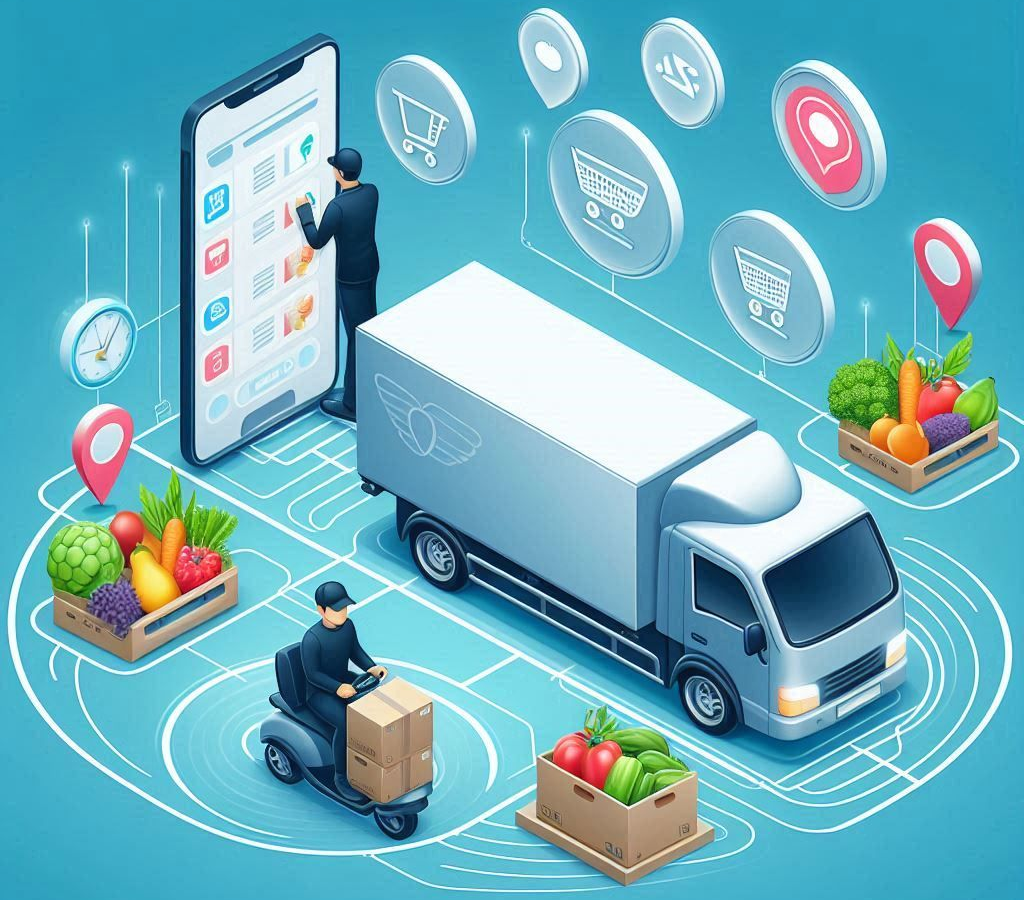
Food Delivery Route Optimization: For Large Events or Catering Orders

TL;DR: Large events and catering orders need route optimization because a single wave of simultaneous deliveries with tight time windows
Food Delivery Route Optimization

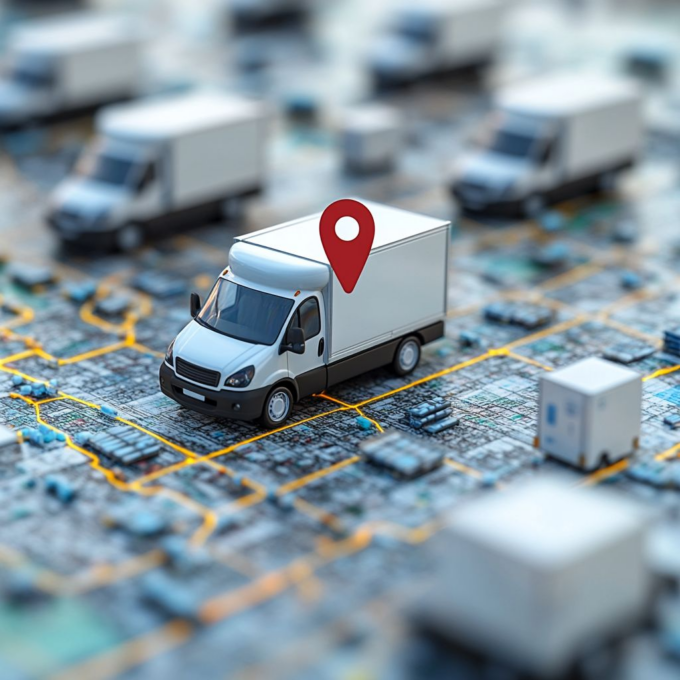
Food Delivery Route Optimization: For Large Events or Catering Orders

TL;DR: Large events and catering orders need route optimization because a single wave of simultaneous deliveries with tight time windows

Intelligent Route Optimization

The Benefits of Intelligent Route Optimization for Fleet Management

TL;DR: Intelligent route optimization helps fleets cut fuel costs, boost productivity, and keep customers happier by planning smarter, data-driven routes
Zeo Route Planner vs. Onfleet: Comparing Route Planning Software

TL;DR: Zeo Route Planner and Onfleet both deliver strong route optimization and proof of delivery, but they differ in pricing

Top 5 Benefits of Using Zeo Route Planner for HVAC Technicians

TL;DR: HVAC technicians save the most time and money by using route optimization to cut drive time between service calls,

Revolutionizing Contractor Management with Dispatch Planning Tools

“`html TL;DR: Effective contractor management depends on real-time visibility and smart task allocation, not spreadsheets and phone calls. Studies show
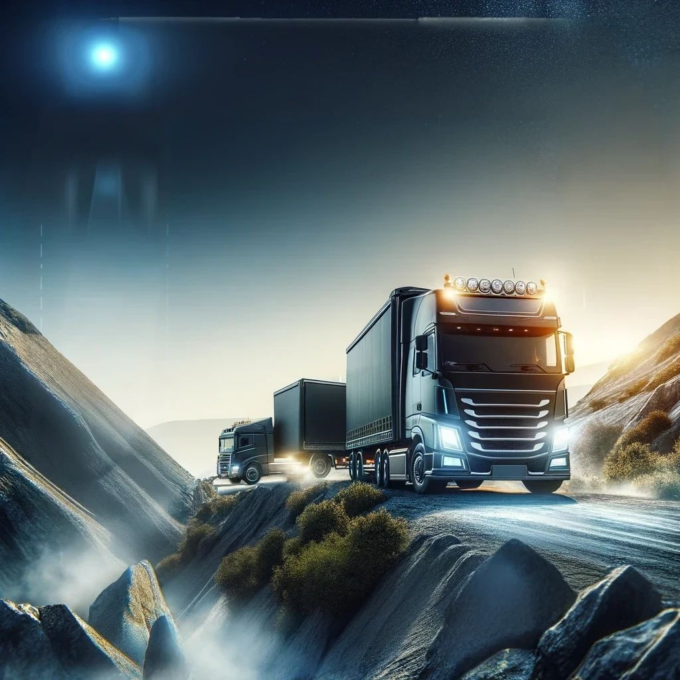
Driver Management

Future-Proofing Telecom Fleet Management with Smart Route Planning

TL;DR: Telecom fleets future-proof their operations by replacing static routing with AI-powered route optimization that adapts to traffic, service windows,

Helps Small Businesses

How Zeo Route Planner Helps Small Businesses Cut Fuel Costs and Boost Profits

TL;DR: Small businesses can cut fuel costs by up to 30% by eliminating inefficient routes, unnecessary detours, and poor load

How Business Owners Can Use AI to Promote Their Services Online

TL;DR: AI content tools help home service businesses like plumbers, electricians, and HVAC technicians create professional marketing visuals without a

The Benefits of Automated Order Tracking for Retail Businesses

Have you ever wondered why customers abandon businesses after just one bad delivery experience? In today’s retail business landscape, it’s

How to Integrate Zeo Route Planner with HubSpot

TL;DR: Yes, Zeo Route Planner integrates directly with HubSpot CRM, letting fleet managers pull customer and address data straight into
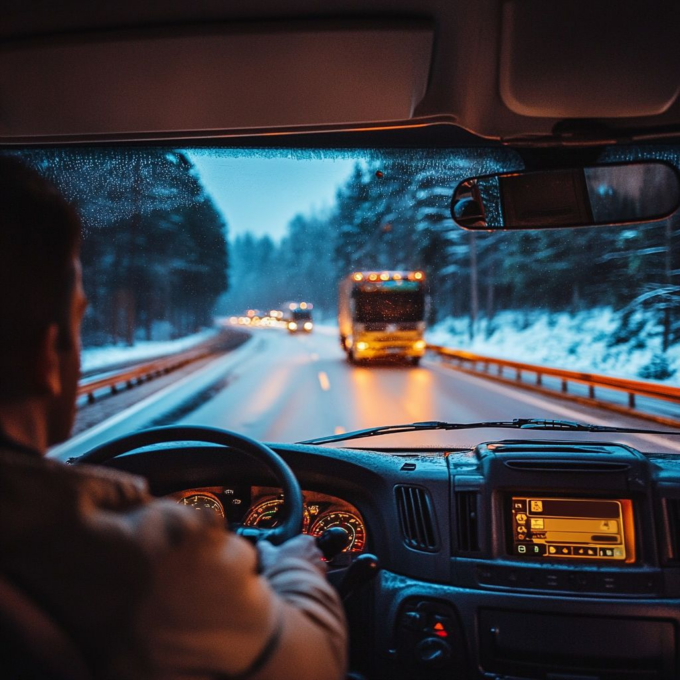
Smarter Navigation

A Guide to Smarter Navigation: Getting There Faster and More Effectively with Zeo Route Planner

Reading Time: 4 minutes TL;DR: Smart navigation means optimizing multiple factors beyond distance—including time windows, vehicle capacity, and driver availability—to
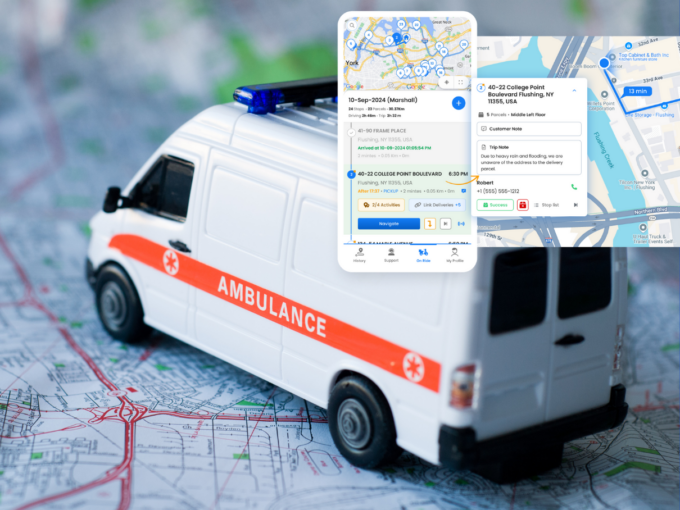
Ambulances Route Optimization

How Zeo Route Planner Improves Efficiency of Emergency Medical Services?

Medical emergencies can’t be neglected as they can prove to be the difference in a matter of life and death.


Zeo Questionnaire

Frequently
Asked
Questions

Know More

How do I add stop by typing and searching? Web

Follow these steps to add a stop by typing and searching:

  • Go to Playground Page. You will find a search box in top left.
  • Type in your desired stop and it will show search results as you type.
  • Select one of the search results to add the stop to list of unassigned stops.

How do I import stops in bulk from an excel file? Web

Follow these steps to add stops in bulk using an excel file:

  • Go to Playground Page.
  • In top right corner you will see import icon. Press on that icon & a modal will open.
  • If you already have an excel file, press the "Upload stops via flat file" button & a new window will open up.
  • If you don't have an existing file, you can download a sample file and input all your data accordingly, then upload it.
  • In the new window, upload your file and match the headers & confirm mappings.
  • Review your confirmed data and add the stop.

How do I import stops from an image? Mobile

Follow these steps to add stops in bulk by uploading an image:

  • Go to Zeo Route Planner App and open On Ride page.
  • Bottom bar has 3 icons in left. Press on image icon.
  • Select the image from gallery if you already have one or take a picture if you don't have existing.
  • Adjust the crop for the selected image & press crop.
  • Zeo will automatically detect the addresses from the image. Press on done and then save & optimize to create route.

How do I add a stop using Latitude and Longitude? Mobile

Follow these steps to add stop if you have Latitude & Longitude of the address:

  • Go to Zeo Route Planner App and open On Ride page.
  • You will see a icon. Press on that icon & press on New Route.
  • If you already have an excel file, press the "Upload stops via flat file" button & a new window will open up.
  • Below search bar, select the "by lat long" option and then enter the latitude and longitude in the search bar.
  • You will see results in the search, select one of them.
  • Select additional options according to your need & click on "Done adding stops".

How do I add stops using QR Code? Mobile

Follow these steps to add stop using QR Code:

  • Go to Zeo Route Planner App and open On Ride page.
  • You will see a icon. Press on that icon & press on New Route.
  • Bottom bar has 3 icons in left. Press on QR code icon.
  • It will open up a QR Code scanner. You can scan a normal QR code as well as a FedEx QR code, and it will automatically detect the address.
  • Add the stop to route with any additional options.

How do I delete a stop? Mobile

Follow these steps to delete a stop:

  • Go to Zeo Route Planner App and open On Ride page.
  • You will see a icon. Press on that icon & press on New Route.
  • Add some stops using any of the methods & click on Save & Optimize.
  • From the list of stops that you have, long press on any stop that you want to delete.
  • It will open window asking you to select the stops that you want to remove. Click on Remove button and it will delete the stop from your route.

Zeo Blogs

Explore our blog for insightful articles, expert advice, and inspiring content that keeps you informed.

Financial Document Delivery: A Dispatcher

Learn how to run financial document delivery routes that hit bank cutoffs, prove chain-of-custody, and scale during peak season with Zeo.

Construction Delivery Management: The Complete 2026 Guide

Learn construction delivery management: project delivery methods vs. logistics software. Cut site delays with route optimization and real-time tracking.

Route Planner Guide 2026: What It Is & How to Choose One

Learn what a route planner is, how optimization works, and how to pick the right one in 2026. Compare options and start planning smarter routes today.

Please close developer tools to continue browsing.

Xlork is a developer-first data import platform. It lets you embed CSV, Excel, and Google Sheets import into any app with AI-powered column mapping and schema validation. Explore free developer tools like JSON-to-CSV converters and color palette generators. No more building import flows from scratch — just drop in the Xlork SDK, sign up free, and ship clean data in minutes.