# What Is a Route Planner and How Route Optimization Actually Works
> TL;DR: A route planner is software that automatically sequences multiple stops into the fastest, most efficient order, something manual mapping tools can’t do at scale. With just 10 stops, there are over 3.6 million possible route combinations, far too many for a human to calculate by hand. Zeo Route Planner solves this with AI-powered route optimization, helping delivery and field service teams save 2+ hours daily compared to manual planning.
If you’re still planning routes with Google Maps tabs and a spreadsheet, you’re losing hours every week. A route planner fixes this by calculating the fastest, most efficient path between all your stops automatically.
This guide explains exactly what a route planner does, how the technology works, and how to choose one that fits your business. You’ll also see real numbers on time and fuel savings, so you can decide if upgrading from manual planning makes sense.
What Is a Route Planner and How Does Route Optimization Actually Work
A route planner is software that calculates the most efficient order to visit multiple stops. Instead of guessing which stop to hit next, you enter your addresses and the software does the sequencing for you.
Here’s the part most people don’t understand: route optimization isn’t just “shortest distance.” It’s solving something called the Traveling Salesman Problem, a math challenge that asks: what’s the most efficient way to visit a list of locations and return home?
With 10 stops, there are over 3.6 million possible route combinations. With 20 stops, the number of combinations exceeds the number of atoms in the observable universe. No human, and no basic mapping app, can test all those options by hand.
Modern route planners use algorithms to narrow this down in seconds. They factor in:
- Real-time traffic conditions
- Time windows (customer wants delivery between 2-4pm)
- Vehicle capacity (weight and volume limits)
- Priority stops (urgent vs. standard)
- Driver skills or certifications needed at specific stops
Zeo Route Planner’s AI-powered optimization runs these calculations in the background, which is why it saves drivers 2+ hours daily compared to manual planning. The software isn’t just drawing a shorter line on a map. It’s solving a complex logistics puzzle that would take a dispatcher hours to work out manually, and getting it done before the driver even starts their engine.
How to Plan a Multi-Stop Route in Under 5 Minutes (Step-by-Step)
Here’s what planning an optimized route actually looks like, using a 15-stop delivery day as an example.
Step 1: Import your stops.
Upload addresses from a spreadsheet, CSV file, or Google Sheet. Zeo also lets you add stops from images, Favorites lists, or Google Search, so you’re not stuck re-typing addresses every morning.
Step 2: Set your constraints.
Add any time windows (a pharmacy customer needs delivery by noon), priority flags for urgent stops, and vehicle capacity limits if you’re hauling heavy or bulky items.
Step 3: Let the software optimize.
Hit optimize, and the algorithm sequences your stops based on distance, traffic, and your constraints. This step, which would take a dispatcher 30-45 minutes by hand, finishes in seconds.
Step 4: Assign to drivers.
If you manage a team, auto-assign stops based on driver location, skills, or vehicle type. Zeo’s skill-based assignment ensures the technician certified for commercial HVAC route planning repair work gets sent to the commercial job, not a residential one.
Step 5: Push the route to the driver’s phone.
The finished route sends instantly to the Zeo mobile app, where the driver gets turn-by-turn navigation through Google Maps, Waze, or Apple Maps.
Step 6: Monitor and adjust.
Watch live GPS tracking as drivers move through their route. If a new urgent order comes in, you can adjust the route mid-shift without starting over.
That’s it. What used to take an hour of manual mapping now takes under five minutes, start to finish.
Who Needs a Route Planner: Delivery Drivers, Field Service Teams, Sales Reps, and Fleet Managers
Route planners aren’t just for big logistics companies. Here’s who benefits most.
Delivery drivers and couriers. Last-mile delivery, courier services, and food or pharmacy delivery all depend on hitting tight time windows. A missed window means an unhappy customer and a wasted trip. Route optimization sequences stops so drivers hit delivery windows without backtracking across town.
Field service teams. HVAC technicians, plumbers, pest control route planning crews, and electricians all deal with the same problem: too many jobs spread across a service area, not enough hours in the day. A route planner with skill-based assignment ensures the right technician gets sent to the right job, and capacity-based routing keeps trucks from being overloaded.
Sales reps. Reps visiting multiple client sites in a day waste hours if their route isn’t sequenced well. A sales route planning tool cuts windshield time, so reps spend more time in front of customers and less time driving in circles.
Fleet managers. If you’re overseeing 5-50 drivers, manual dispatching doesn’t scale. You need a dashboard to assign routes, track drivers in real time, and pull performance analytics, not a whiteboard and a dozen phone calls.
Example: A pest control company running 12 technicians across a metro area used to let each tech plan their own day. Jobs got skipped, some techs drove 40+ miles between stops that were five minutes apart, and the office had no idea where anyone was until they called in. With a route planner, the dispatcher assigns all jobs each morning from one dashboard, routes auto-optimize by zip code density, and techs get real-time updates sent straight to their phones.
Free vs Paid Route Planners: What You Actually Get at Each Tier
Free tools like Google Maps can sequence a handful of stops, but they come with real limits once your business grows. If you’re exploring options beyond the defaults, it’s worth comparing Google Maps alternatives built specifically for multi-stop routing.
What free tools (Google Maps, basic apps) offer:
- Manual stop entry, usually capped at 10 stops
- Basic turn-by-turn navigation
- No optimization logic, just the order you entered
- No driver tracking, no proof of delivery, no customer notifications
What this means in practice: if you’re running 2-3 stops a day, Google Maps works fine. But once you’re managing 10+ stops per driver, or multiple drivers at once, you’ll hit a wall. There’s no way to prove a delivery happened, no visibility into where your team is, and no automatic re-optimization when plans change.

increase fuel savings
Save $200 on fuel, Monthly!
Optimize routes with our algorithm, reducing travel time and costs efficiently.
Get Started for Free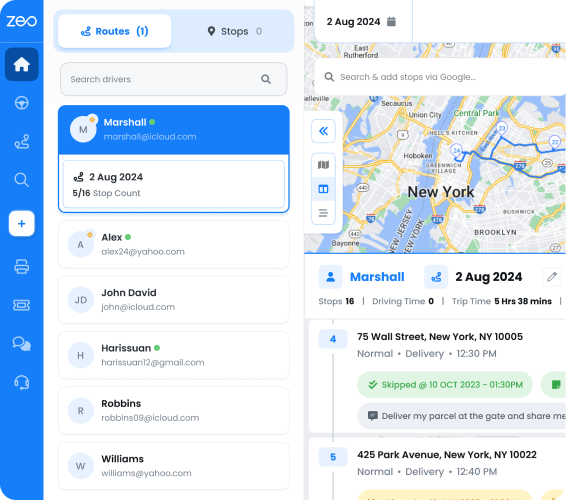
What paid route planners add:
- True AI-powered optimization (not just manual ordering)
- Real-time GPS tracking and live ETAs for customers
- Proof of delivery with photo, signature, and notes
- Customer notifications via SMS, email, or tracking link
- Driver management, analytics, and performance reporting
- Integrations with Shopify, WooCommerce, and CRM tools
Our honest take: if you’re a solo driver with a simple, short route, a free tool or Zeo’s free tier is enough to get started. But if you’re managing a team, dealing with customer complaints about ETAs, or need proof that work was completed, paid software pays for itself fast. The jump from “good enough” to “actually efficient” usually happens somewhere between 10-15 stops a day.
The Real ROI of Route Optimization: Time, Fuel, and Money Saved
The numbers behind route optimization aren’t abstract. Here’s what they add up to.
Time savings. Zeo’s AI-powered route optimization saves drivers 2+ hours daily. Across a 10-driver fleet, that’s 20 hours saved every single day, or roughly 100 hours a week. That’s time drivers spend completing more jobs instead of sitting in traffic or backtracking.
Fuel savings. The U.S. Department of Energy’s fuel economy research estimates that aggressive driving and inefficient routing can lower fuel economy by up to 30% on highways. Optimized routes reduce unnecessary mileage, which directly cuts fuel spend, one of the largest controllable costs for any delivery or field service fleet.
Fewer late deliveries. According to Capterra’s field service management survey data, businesses using route optimization software reported meaningfully fewer missed or late appointments compared to manual scheduling. Late arrivals don’t just annoy customers, they also mean more phone calls to the office and more rescheduling work for dispatchers.
Visibility and accountability. Before route software, many businesses had no way of knowing where a driver was until they called in. Real-time GPS tracking changes that instantly. Combined with proof of delivery (photo, signature, notes), you get a documented record of every completed stop, useful for resolving customer disputes and tracking driver accountability.
Miles tracking. For businesses that need mileage logs for expense reports or tax purposes, automatic miles tracking removes the need for manual logbooks entirely.
Add it up: less fuel burned, fewer wasted hours, fewer missed appointments, and a documented record of every job. For a 10-driver operation, even conservative estimates put savings in the thousands of dollars per month once you factor in fuel, labor hours, and reduced customer churn from missed deliveries. According to Bureau of Labor Statistics data on transportation occupations, driving and delivery roles remain among the largest labor categories in the U.S. economy, making even small per-driver efficiency gains significant at fleet scale.
Why Route Planning Software Needs Both a Manager Dashboard and a Driver App
Here’s something many operations managers overlook when evaluating route planners: planning and execution are two different jobs, and your software needs to handle both.
The manager’s job happens on a web dashboard. You import stops, set time windows, assign drivers based on skills or location, and optimize the whole day’s routes in minutes. This is where the heavy lifting of planning happens.
But a route plan is useless if it stays on a screen in the office. The driver’s job happens on the road, and that requires a completely different tool: a mobile app.
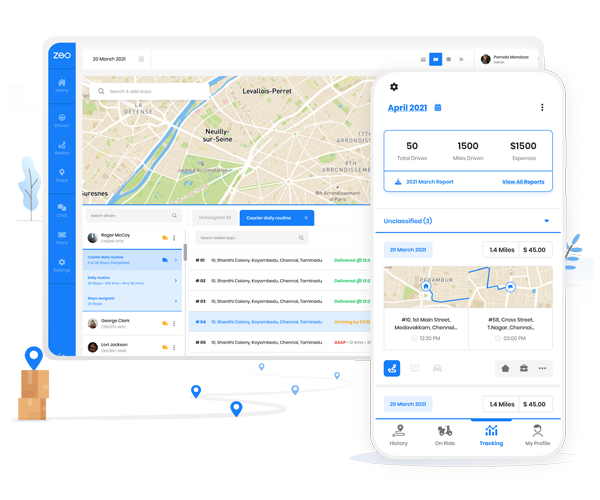
With Zeo, once a manager builds and optimizes routes on the web platform, those routes push instantly to each driver’s phone through the Zeo mobile app. From there, drivers get turn-by-turn navigation through Google Maps, Waze, or Apple Maps, so they’re not learning a new map interface. They capture proof of delivery with photos or signatures, update their status after each stop, and communicate with the dispatcher through in-app chat if something changes mid-route.
This closes the loop between planning and execution. The manager sees live GPS tracking and status updates in real time, and the driver gets a clear, navigable route without needing to call the office every time something changes.
If you’re a solo driver or gig worker without a team to manage, you don’t need the fleet dashboard at all. The same Zeo mobile app works standalone, and the free tier covers basic route planning and navigation without requiring a credit card.
This two-sided setup, web for planning, app for execution, is the difference between software that looks good in a demo and software your team actually uses every day.
Frequently Asked Questions About Route Planners
What’s the difference between a route planner and a GPS app like Google Maps?
Google Maps gives you directions between points you manually enter, in the exact order you typed them. A route planner optimizes the sequence of multiple stops based on distance, traffic, time windows, and vehicle capacity, something basic GPS apps aren’t built to do.
How many stops can a route planner handle?
This depends on the software. Basic free tools often cap at 10 stops, while paid platforms like Zeo Route Planner can sequence dozens of stops per route and auto-assign them across multiple drivers from a single dashboard.
Can a route planner work with my existing e-commerce or CRM tools?
Yes, if the software supports integrations. Zeo Route Planner connects with Shopify and WooCommerce for auto-importing orders, plus Zapier and HubSpot for broader workflow automation across 1000s of apps.
Do I need separate software for my drivers and my dispatch team?
No. Look for a platform with both a manager-side web dashboard and a driver-side mobile app, so routes built by dispatch push directly to drivers’ phones without manual re-entry or double data entry.
Is route optimization software worth it for a small team (5-10 drivers)?
Yes. Even small teams lose significant time to manual sequencing each morning. Zeo’s AI-powered optimization saves drivers 2+ hours daily, so a 5-driver team can recover roughly 10 hours a day that would otherwise go toward manual planning or inefficient driving.
Can I pause or temporarily change a scheduled route without deleting it?
Yes. Zeo’s Blackout Dates feature lets you pause a recurring route for a specific day, like a holiday, without losing the schedule setup. Date Override also lets you swap the assigned driver for a single day without editing the entire route.
Ready to stop guessing at routes? Start a free trial of Zeo Route Planner and plan your first optimized route in minutes. No credit card required.
Are you a fleet owner?
Want to manage your drivers and deliveries easily?
Grow your business effortlessly with Zeo Routes Planner – optimize routes and manage multiple drivers with ease.

increase fuel savings
Save 2 Hours on Deliveries, Everyday!
Optimize routes with our algorithm, reducing travel time and costs efficiently.
Get Started for Free