# App Zeo: What It Is, How It Works, and Who It’s For
> TL;DR: App Zeo refers to Zeo Route Planner’s mobile app, the driver-facing tool that pairs with a web dashboard so fleet managers can plan routes while drivers navigate and complete them on their phones. Solo drivers can use the app standalone with a free tier of 12 optimized routes per month, while fleet teams get AI-powered route optimization that saves 2+ hours daily on manual planning. Whether you’re a single technician or one of dozens of drivers on a team, the same app delivers turn-by-turn navigation, proof of delivery, and real-time tracking.
If you searched “app Zeo,” you’re probably trying to figure out one simple thing: what is this app, and does it fit what you need?
Maybe your employer told you to download it before your first shift. Maybe you’re a business owner trying to figure out if it’s the right routing tool for your team. Either way, the app store listings alone don’t explain much.
This guide covers everything. What the Zeo app does, who it’s built for, how to download and set it up, and how it compares to other route planner apps on the market. By the end, you’ll know exactly what to do next.
What Is the Zeo App? (Overview of Zeo’s Mobile App, Web Platform, and How They Work Together)
Zeo Route Planner is a route optimization platform used by over 1.5 million people in 150+ countries. It exists in two connected forms: a mobile app and a web platform.
The Zeo mobile app (available on iOS and Android) is what individual drivers, technicians, and gig workers use to plan routes, get turn-by-turn navigation, and mark stops complete. If you’re a solo driver, this app is your entire toolkit.
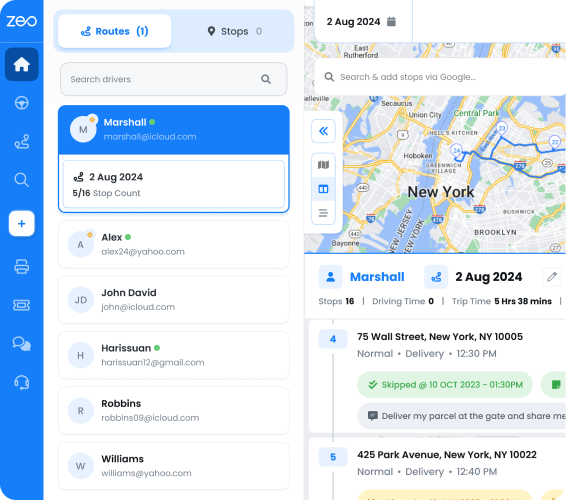
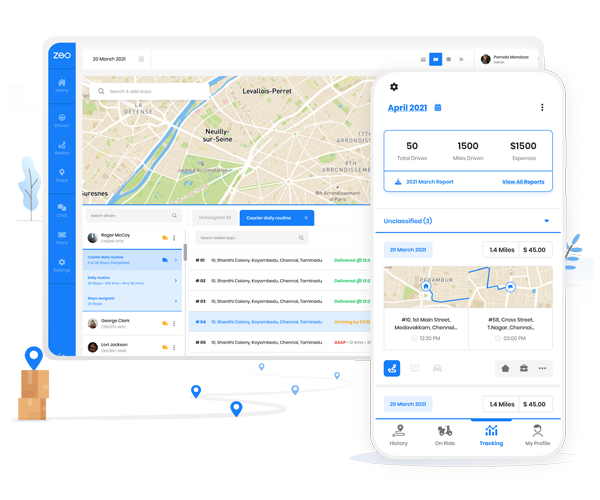
The Zeo Fleet web platform is built for operations managers and business owners. It’s where you upload stops, optimize routes for multiple drivers, assign work based on skills or vehicle capacity, and track everything in real time from a desktop browser — paired with driver tracking software that shows live location for every vehicle on the road.
Here’s the part that confuses most people: these aren’t two separate products. They’re one connected system. A fleet manager plans and assigns routes on the web platform. Those routes then land instantly on each driver’s phone through the same app that solo drivers use.
So whether you’re a single delivery driver or one of fifty technicians on a fleet, you’re using the same app to receive and complete your route. The only difference is who’s doing the planning — you, or your manager.
Who Uses Zeo? Solo Drivers, Small Teams, and Fleet Managers Explained
People land on “app Zeo” for very different reasons. Here’s how the three main user types actually use it.
Solo drivers and gig workers. If you’re a delivery driver, a pest control technician running your own business, or a rideshare driver planning errands between rides, you use the app standalone. Download it, add your stops, and let the AI optimize your route. The free tier includes 12 optimized routes per month — enough for most part-time or occasional users. Need more? Premium unlocks unlimited routes and advanced features like voice input and priority stops.
Small business owners managing a few drivers. If you run a two-person plumbing business or a small courier service, you might start on the free tier and grow into Zeo Fleet as your stop volume increases. Fleet gives you a web dashboard to plan routes for your whole team instead of building each route manually on your own phone.
Fleet managers overseeing dozens or hundreds of drivers. This is where the web platform becomes essential. You import stops in bulk, assign routes based on driver skills or vehicle capacity, and monitor every driver’s location in real time. Your drivers never touch the web platform — they just open the app on their phone, and their assigned route is already there, complete with turn-by-turn navigation and customer details.
This is the detail most app store listings miss. The app isn’t “for individuals” or “for fleets” — it’s the universal driver-facing tool, no matter how big the company behind it is.
Getting Started: How to Download, Sign Up, and Log In (iOS, Android, and Web)
Getting started takes under five minutes on any platform.
For iOS and Android users (solo drivers):
- Search “Zeo Route Planner” in the App Store or Google Play, or follow the direct link from Zeo’s website.
- Download and open the app.
- Sign up with your email or Google account.
- Grant location permissions so the app can track your route and provide live navigation.
- Start adding stops right away, or import them from a spreadsheet.
For fleet managers (web platform):
- Go to the Zeo Route Planner website and start a free trial.
- Set up your fleet account, adding driver names, vehicles, and skills.
- Invite your drivers — each one gets a login for the mobile app tied to your fleet account.
- Upload your delivery or service list in bulk using Excel, CSV, or Google Sheets.
- Assign and optimize routes from your dashboard, and drivers receive them instantly on their phones.
Login issues to watch for: If you’re a driver and can’t log in, double check whether your manager set up your account under the fleet plan — you’ll need an invite link rather than signing up independently. If you’re signing up standalone and forgot your password, use the reset link on the login screen; it works the same across iOS, Android, and web.
Step-by-Step: Creating and Optimizing Your First Route in the Zeo App
Once you’re logged in, building your first route is straightforward.
Step 1: Add your stops. Type addresses manually, use voice input to speak them out loud, or import a full list from Excel or CSV. If you’re switching from paper routes or another app, bulk import saves the most time.
Step 2: Set constraints. Add time windows for stops that need to happen during specific hours — think HVAC appointments booked for a two-hour window, or grocery deliveries promised by noon. Mark any stops as priority if they’re time-sensitive.
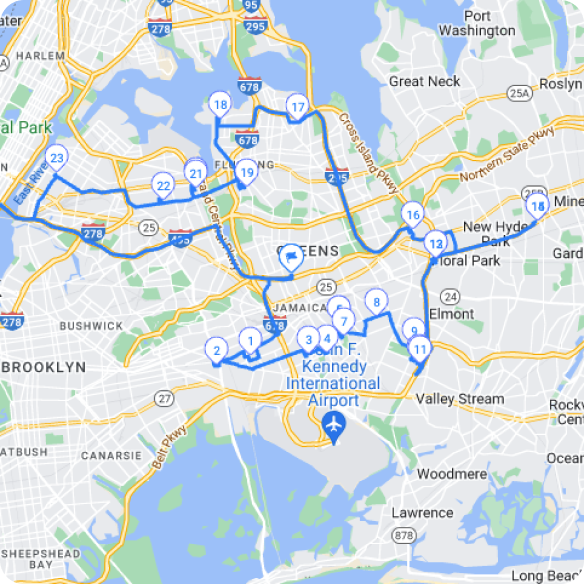
Step 3: Optimize. Tap the optimize button, and Zeo’s AI-powered route optimization reorders your stops for the fastest, most efficient path. This is the core feature that saves drivers 2+ hours daily compared to manually sequencing stops.
Step 4: Navigate. Start the route, and the app hands off turn-by-turn directions using your preferred navigation app — Google Maps, Waze, or Apple Maps all work with Zeo.
Step 5: Complete stops. At each location, capture proof of delivery: a photo, a signature, or a note. If you collect cash on delivery, log the payment directly in the app.
Example scenario: A pool cleaning technician with 18 stops across town used to plan their route manually each morning, often backtracking across neighborhoods. After switching to the app, they import their client list from a spreadsheet once, and it auto-sequences the stops by location and time window. What used to take 20 minutes of planning now takes under two.
Key Features Inside the App (Voice Input, Excel/CSV Import, Proof of Delivery, and More)
Beyond basic navigation, the app includes several features built for daily field use.
Voice input. Add stops by speaking instead of typing — useful when you’re driving or your hands are full.
Excel/CSV and Google Sheets import. Bulk upload stops instead of entering them one by one. This matters most for businesses with recurring delivery lists or service routes.
Proof of delivery/service. Capture photos, collect digital signatures, and add delivery notes. For field service businesses, this creates a record of every completed job without paperwork.
Real-time GPS tracking and live ETAs. Both drivers and their managers (or customers, via a tracking link) can see live location and updated arrival times.
Customer notifications. Send automatic SMS or email updates with a live tracking link, so customers know exactly when to expect you.
In-app chat. Drivers and fleet managers can message each other directly without switching to text or a separate app.
Favorites. Save frequently visited addresses — useful for recurring stops like regular clients or supply pickups.
Miles tracking. The app logs miles driven per route, useful for expense reports or tax deductions. According to IRS guidance on standard mileage rates, accurate mileage logs are required to claim vehicle expense deductions, making this a practical built-in feature rather than a nice-to-have.
Multiple navigation app support. Choose whichever navigation app you’re already used to — the hand-off works with your existing map interface instead of forcing you into a new one.
Zeo App vs Other Route Planner Apps: Features, Pricing, and Ratings Compared
Route planner apps generally fall into two camps: solo-driver tools and full fleet platforms. Zeo is one of the few that covers both without forcing you to switch products as you grow.
Optimize routes with our algorithm, reducing travel time and costs efficiently.
increase fuel savings
Hassle Free Deliveries & Pickups!
Pricing. Many competing apps charge per route or cap free usage at just a handful of stops. Zeo’s free tier includes 12 optimized routes per month, which covers casual or part-time drivers without requiring a subscription. Premium and Fleet plans scale up from there based on team size.
Fleet functionality. Some route planner apps are built strictly for individuals and have no manager dashboard at all. Others offer fleet tools but require a separate, clunky mobile app for drivers. Zeo’s fleet managers plan on the web, and drivers use the same app that solo users download — no separate systems to maintain.
Proof of delivery. Not all route apps include photo capture, signatures, and delivery notes as standard. For field service and delivery businesses, this is often the deciding factor, since it replaces paper logs and reduces customer disputes over missed or incomplete jobs.
Integrations. The app connects with Shopify, WooCommerce, Zapier, and HubSpot, letting e-commerce and service businesses pull orders directly into route planning instead of manual data entry.
Ratings. Zeo maintains strong ratings across both the App Store and Google Play, with reviewers frequently citing ease of use and time saved on manual route planning. When comparing options, check recent reviews specifically from users in your industry — a food delivery driver and an HVAC technician have different needs, and reviews often reflect that.
The U.S. Bureau of Labor Statistics projects continued growth in delivery and field service occupations through the next decade, meaning more businesses will need routing tools that scale from a single driver to a full fleet without switching platforms mid-growth.
Frequently Asked Questions About the Zeo App
Is the Zeo app free?
Yes. The free tier includes up to 12 optimized routes per month. Premium and Fleet plans unlock unlimited routes and additional features for individuals and teams.
Is Zeo one app, or separate apps for iOS and Android?
Zeo is available as a native app on both iOS and Android, plus a separate web platform for fleet managers. The mobile app experience is consistent across iOS and Android.
Do I need the web platform if I’m a solo driver?
No. Solo drivers only need the mobile app. The web platform is for fleet managers assigning routes to multiple drivers.
My employer told me to download Zeo — what do I do?
Download the Zeo app from the App Store or Google Play, then log in using the invite or credentials your employer (fleet manager) provided. You’ll automatically receive routes assigned to you.
I can’t log in — what should I check?
Confirm you’re using the correct login type: a standalone individual account versus a fleet-invited account. If your manager set up your profile under a fleet plan, use the invite link rather than creating a new account.
What devices does Zeo support?
Zeo runs on iOS and Android smartphones, plus any modern web browser for the fleet dashboard.
Can I import my existing stop list?
Yes. Zeo supports bulk import from Excel, CSV, and Google Sheets, so you don’t need to manually type each address.
Does Zeo work for industries beyond delivery?
Yes. Zeo is used across delivery, HVAC, pool cleaning, pest control, plumbing, landscaping, waste collection, healthcare, real estate, and other field service industries.
Frequently Asked Questions
Q: What’s the difference between the Zeo app and Zeo Fleet?
The Zeo app is the mobile tool drivers use on iOS and Android to receive routes, navigate, and mark stops complete. Zeo Fleet is the web-based dashboard managers use to plan, assign, and monitor routes for a team — drivers still receive and complete their work through the same mobile app.
Q: How much data or stops can I import into a route planner app at once?
Most route planner apps, including Zeo, support bulk import from Excel, CSV, or Google Sheets, so you’re not limited to manually typing addresses one at a time. This is especially useful for businesses with recurring delivery lists of dozens or hundreds of stops.
Q: Do route planner apps work without an internet connection?
Most mobile route planner apps require an active data connection to load maps, live traffic, and navigation updates, though some cache routes temporarily for brief signal drops. If you regularly work in low-connectivity areas, download your route and offline maps in your navigation app before starting your shift.
Q: Can a single app handle both solo drivers and large fleets?
Yes — some platforms, like Zeo Route Planner, use one connected system: solo drivers use the mobile app standalone, while fleet managers plan on a web dashboard and push routes to that same app instantly. This means businesses can start solo and scale to a full fleet without switching to a different driver-facing tool.
Q: What should I check before downloading a route planner app for work?
Confirm whether your employer wants you on a standalone account or a fleet-invited account, since login setup differs between the two. Also check that the app supports your preferred navigation tool (Google Maps, Waze, or Apple Maps) and offers proof of delivery features like photo capture and signatures if your job requires proof of completed stops.
—
If you’re a solo driver, download the Zeo app free and try it with your next route. If you’re managing a team, start a free trial of the Zeo Fleet web platform to plan and assign routes for your entire crew — your drivers will pick them up on the same app in minutes.
Are you a fleet owner?
Want to manage your drivers and deliveries easily?
Grow your business effortlessly with Zeo Routes Planner – optimize routes and manage multiple drivers with ease.
increase fuel savings
Save 2 Hours on Deliveries, Everyday!
Optimize routes with our algorithm, reducing travel time and costs efficiently.
Get Started for Free