Live Tracking | Zeo Route Planner

Know Where Your Team Is,
In Real Time

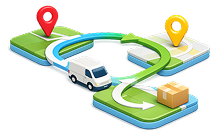
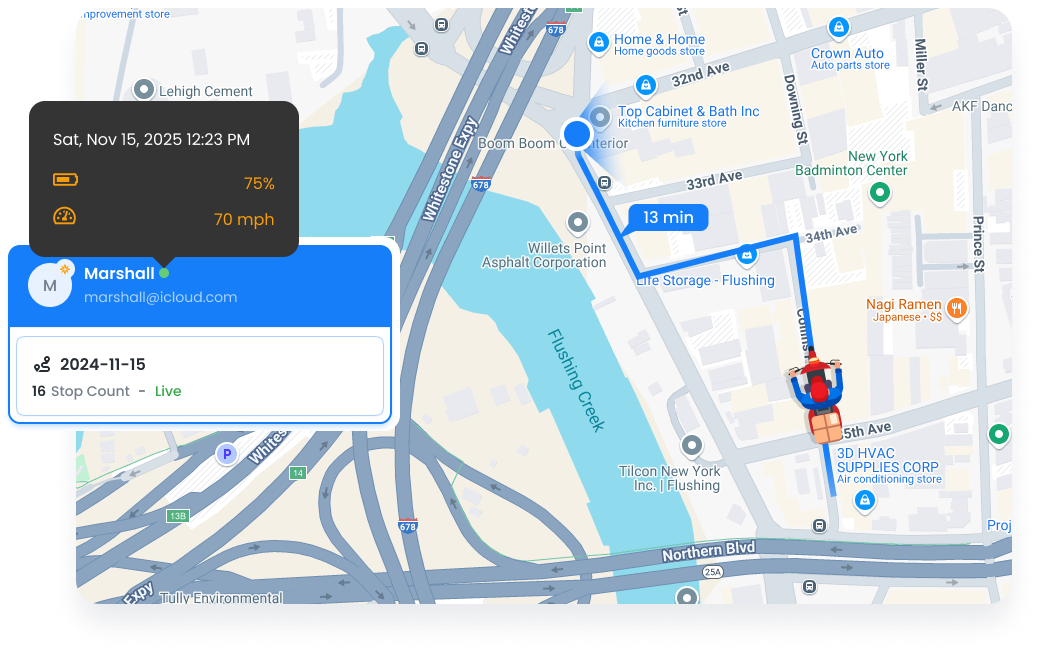
Track every route from first stop to last — whether your team is delivering packages or completing service calls.
Live ETAs, instant status updates, and complete visibility from your dashboard.
Zeo Route Planner
  • 30s

    Real-time location updates 

  • 95%

    ETA accuracy rate

  • 80%

    Fewer “where are you?” calls

Complete Visibility for Every Route

From live location tracking to digital proof of service, know exactly what’s happening in the field.

Trusted by Delivery Teams
and Service Businesses.

Real results shared by teams who use us every day

Zeo Route Planner

“Proof of service has saved us from several false damage claims. When a client said our technician never showed up, we had GPS data, timestamped photos, and their digital signature. Case closed.”

Zeo Route Planner Sarah Thompson
Owner, Thompson HVAC Services

Zeo Route Planner

“The live tracking has completely changed how we handle customer calls. Instead of ‘let me check and call you back,’ we now say ‘your driver is 3 stops away, about 15 minutes.’ Customers love the transparency.”

Zeo Route Planner David Kim
Dispatch Manager, Metro Medical Supplies

Additional Capabilities

More features to give you complete visibility and control.

Stop Status Management

Track detailed status for every stop with mandatory documentation for skipped or failed visits.

Multi-Status Options

Completed, Skipped, Failed, Partial — track exactly what happened at each stop.

Mandatory Failure Reasons

Require drivers to select or enter why a stop couldn’t be completed. Build your own reason library.

Re-Optimize on Skip

When a stop is skipped, automatically re-optimize the remaining route.

Visit Time Tracking

Automatic tracking of arrival and departure times at each stop.

Location Verification

GPS-verified arrival ensures your team was actually at the service location.

Vehicle Management

Manage your fleet of vehicles and ensure the right vehicle is assigned to each route.

Vehicle-Driver Assignment

Link drivers to their assigned vehicles for accurate capacity planning.

Capacity Settings

Set weight, volume, and item limits for each vehicle to prevent overloading.

Vehicle Type Routing

Route based on vehicle type — some stops may require specific vehicle capabilities.

Cost Parameters

Set per-mile and per-hour costs for accurate route cost calculations.

In-App Communication

Keep your team connected without juggling phone calls and text messages.

Chat Messaging

Send messages directly to drivers/technicians through the Zeo app

Push Notifications

Important updates appear as notifications on your team’s devices.

Message History

All communications are logged and searchable for reference.

Visibility Without vs. With Zeo

See how real-time tracking transforms your operations.


Without Zeo

  • Constant calls asking “where are you?”
  • No idea which stops are completed
  • Paper signatures that get lost
  • Customer complaints about missed windows
  • No proof when disputes arise
  • Manual entry of service data at end of day


With Zeo

  • Real-time location visible on dashboard
  • Live status updates: arrived, completed, skipped
  • Digital signatures stored automatically
  • Proactive customer notifications
  • Photos and notes as irrefutable evidence
  • Data synced instantly to your dashboard

How Businesses Use Live Tracking

Real-time visibility helps both delivery companies and field service providers.

DELIVERY

Pharmacy Prescription Tracking

A pharmacy tracks drivers delivering prescriptions to ensure temperature-sensitive medications arrive on time. When a customer calls, staff can provide exact ETAs instantly. Proof of delivery photos protect against disputes.

FIELD SERVICE

Property Management Response

A property management company monitors technicians responding to maintenance requests across 50 buildings. Live tracking helps dispatch the nearest available technician for emergency calls, reducing response times by 45%.

DELIVERY

Catering Event Delivery

A catering company coordinates 15 simultaneous event deliveries. Proof of service photos confirm proper setup at each venue. When a client claims late delivery, timestamped GPS data provides clarity.

FIELD SERVICE

Pest Control Documentation

A pest control company uses proof of service to document treatment at each property. Before/after photos, service notes, and customer signatures create a complete service record for compliance.

See Your Team in Real Time

Start tracking routes and capturing proof of service today.


Zeo Questionnaire

Frequently
Asked
Questions

Know More

How do I add stop by typing and searching? Web

Follow these steps to add a stop by typing and searching:

  • Go to Playground Page. You will find a search box in top left.
  • Type in your desired stop and it will show search results as you type.
  • Select one of the search results to add the stop to list of unassigned stops.

How do I import stops in bulk from an excel file? Web

Follow these steps to add stops in bulk using an excel file:

  • Go to Playground Page.
  • In top right corner you will see import icon. Press on that icon & a modal will open.
  • If you already have an excel file, press the "Upload stops via flat file" button & a new window will open up.
  • If you don't have an existing file, you can download a sample file and input all your data accordingly, then upload it.
  • In the new window, upload your file and match the headers & confirm mappings.
  • Review your confirmed data and add the stop.

How do I import stops from an image? Mobile

Follow these steps to add stops in bulk by uploading an image:

  • Go to Zeo Route Planner App and open On Ride page.
  • Bottom bar has 3 icons in left. Press on image icon.
  • Select the image from gallery if you already have one or take a picture if you don't have existing.
  • Adjust the crop for the selected image & press crop.
  • Zeo will automatically detect the addresses from the image. Press on done and then save & optimize to create route.

How do I add a stop using Latitude and Longitude? Mobile

Follow these steps to add stop if you have Latitude & Longitude of the address:

  • Go to Zeo Route Planner App and open On Ride page.
  • You will see a icon. Press on that icon & press on New Route.
  • If you already have an excel file, press the "Upload stops via flat file" button & a new window will open up.
  • Below search bar, select the "by lat long" option and then enter the latitude and longitude in the search bar.
  • You will see results in the search, select one of them.
  • Select additional options according to your need & click on "Done adding stops".

How do I add stops using QR Code? Mobile

Follow these steps to add stop using QR Code:

  • Go to Zeo Route Planner App and open On Ride page.
  • You will see a icon. Press on that icon & press on New Route.
  • Bottom bar has 3 icons in left. Press on QR code icon.
  • It will open up a QR Code scanner. You can scan a normal QR code as well as a FedEx QR code, and it will automatically detect the address.
  • Add the stop to route with any additional options.

How do I delete a stop? Mobile

Follow these steps to delete a stop:

  • Go to Zeo Route Planner App and open On Ride page.
  • You will see a icon. Press on that icon & press on New Route.
  • Add some stops using any of the methods & click on Save & Optimize.
  • From the list of stops that you have, long press on any stop that you want to delete.
  • It will open window asking you to select the stops that you want to remove. Click on Remove button and it will delete the stop from your route.

Zeo Blogs

Explore our blog for insightful articles, expert advice, and inspiring content that keeps you informed.

Route Optimization Case Studies: Real SMB Results (2026)

Real route optimization case studies from small delivery and field service businesses—actual costs, timelines, and ROI. See what

How to Plan Propane Delivery Routes During Peak Season

Learn how to plan propane delivery routes during peak season with a week-by-week playbook, KPI checklist, and route optimization tips for winter demand.

Propane Tank Monitoring Route Software: Close the Data Gap

Connect propane tank monitoring sensors to route optimization software. Turn low-tank alerts into driver-ready routes automatically. See how it works.

Xlork is a developer-first data import platform. It lets you embed CSV, Excel, and Google Sheets import into any app with AI-powered column mapping and schema validation. Explore free developer tools like JSON-to-CSV converters and color palette generators. No more building import flows from scratch — just drop in the Xlork SDK, sign up free, and ship clean data in minutes.