Updated on: June 15, 2026
Reading Time: 4 minutes
TL;DR: You can install Zeo Route Planner as a desktop Progressive Web App (PWA) for instant access without browser tabs. The installation takes 15-20 seconds and provides push notifications, offline resilience, and auto-updates. Route optimization tools like Zeo Route Planner address quick access needs with AI-powered route optimization that runs seamlessly as a desktop app, helping fleet teams save 2+ hours daily.
If you love planning routes with Zeo but hate digging through tabs to find it, you’ll be glad to know Zeo Route Planner is now a Progressive Web App (PWA).
To make it simple, you can pin Zeo to your taskbar or Dock and run it like any other desktop program. This PWA will also provide push notifications and offline resilience without a heavyweight download.
And if you’re worried about storage space, do not worry. PWAs are not heavy on the hard drive and don’t consume storage space because everything still lives on the web.
Below, we’ve covered quick, no‑fluff instructions for installing Zeo on every major desktop browser.
The whole process takes about 15 to 20 seconds.
Why Desktop Apps Matter for Route Planning
Route planning applications benefit significantly from dedicated desktop access. Progressive Web Apps combine the best of web and mobile apps, offering faster startup times and reduced context switching between browser tabs. For fleet managers and dispatchers who access route planning tools multiple times daily, having instant desktop access eliminates the friction of finding the right browser tab among dozens of open windows.
Desktop PWAs also enable better multitasking workflows. You can keep your route planning interface visible while working with driver communications, customer updates, or fleet management tasks in separate windows. This streamlined access becomes particularly valuable during peak delivery periods when every second counts.
-
Google Chrome (Windows, macOS, Linux, ChromeOS)
When you’re planning to install the Zeo Route Planner PWA on Google Chrome, these are the steps to follow:
- Open zeorouteplanner.com in Chrome.
- Look for the Install icon that appears at the right edge of the address bar (it looks like a computer with a down‑arrow).
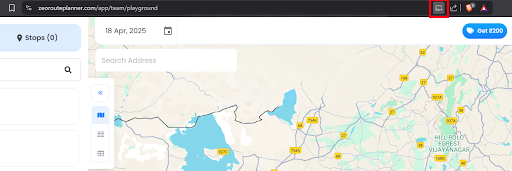
- Click it and choose Install.
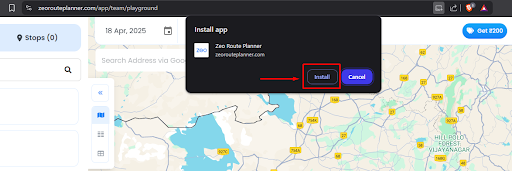
- Zeo will launch its window and now lives in your Start menu, taskbar, or Dock. Double‑click it anytime—no browser required.

-
Firefox (Windows, macOS, Linux)
Installing Zeo Route Planner using Firefox browser requires taking the following steps.
Remember, Firefox doesn’t yet ship a built-in “Install” button for PWAs. If Firefox is your daily driver, you have two workarounds:
- Use an extension such as PWAs for Firefox to add install support. Check this GitHub library.
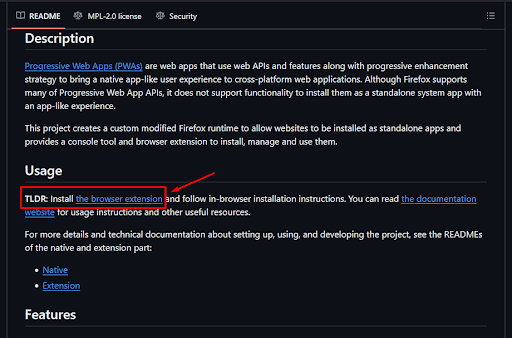
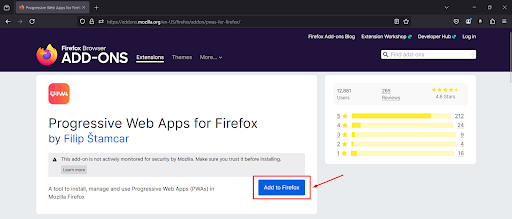
- When you click on install the browser extension link, it will direct you to this page.
- Click on Add to Firefox.
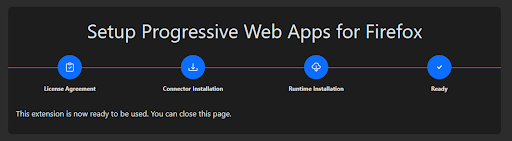
- Follow the required steps to install this add-on. Once you have completed the add-on installation process, it will appear like this.
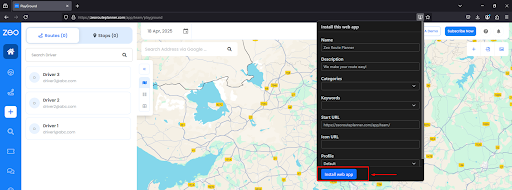
- When Firefox detects an installable PWA, an App available icon lights up in the address bar.
- Simply click it, then fill all the required details if you want and hit Install web app on the prompt.
- Use an extension such as PWAs for Firefox to add install support. Check this GitHub library.
-
Microsoft Edge (Windows & macOS)
For the Edge Browser, follow the below installation steps.
- Visit zeorouteplanner.com in Edge.
- When Edge detects an installable PWA, an App available icon lights up in the address bar. Simply click it, then hit Install on the prompt.

- It will then open Zeo Route Planner in a standalone window that you can pin just like any other app.
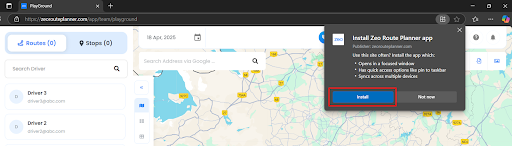
We recommend installing the full app‑like experience via Chrome or Edge.

What happens after installation?
Once you install the Zeo Route Planner web application, you will have the following controls at your disposal:
- One‑tap launch: You can open Zeo Route Planner in its own window, minus the browser chrome, so you stay focused on your routes.
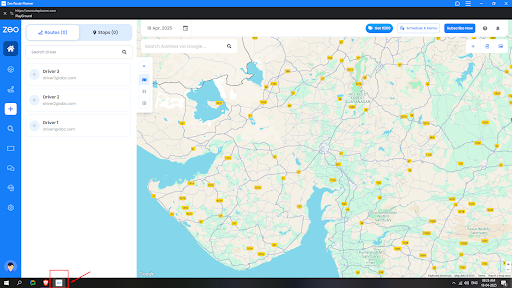
- Push notifications: Get in-app alerts like those for route changes or driver updates even when the window is closed.
- Auto‑updates: Every time we ship new features, your desktop app silently refreshes in the background. You don’t need to take any separate actions to update the application.
- Tiny footprint: Because assets stream from the web, Zeo uses only a fraction of the disk space of traditional installers.
Enhanced Performance Benefits
Desktop PWA installation provides several performance advantages over browser-based access. The application launches faster since it doesn’t need to load browser interface elements, and system resources are allocated more efficiently. PWAs are designed to work reliably on slow or unreliable network connections, ensuring your route planning continues even during connectivity issues.

increase fuel savings
Save $200 on fuel, Monthly!
Optimize routes with our algorithm, reducing travel time and costs efficiently.
Get Started for Free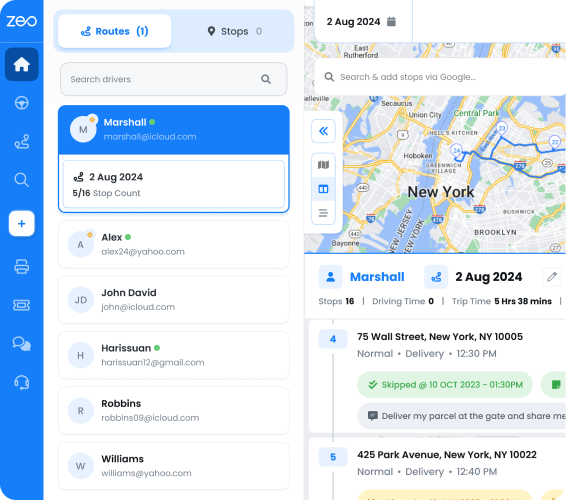
For teams managing multiple delivery vehicles or service appointments, desktop installation becomes particularly valuable when integrated with other business applications. You can streamline your route planning workflow by having dedicated desktop access alongside your customer management and scheduling tools.
How to Uninstall Zeo?
Ideally, you’d Uninstall Zeo the same way you would any other app:
Follow this table to have a quick exit ramp.
| Platform | What to do | Where to find it |
| Windows (Chrome or Edge install) | Right‑click the Zeo icon in your Start menu or taskbar → Uninstall. OR open Chrome/Edge ▸ ⋮ Menu › Apps (or edge://apps) → right‑click Zeo Route Planner → Remove. | Start menu/taskbar, or the browser’s Apps page |
| macOS | Control‑click the Zeo icon in Applications or the Dock → Move to Trash. If installed via Chrome/Edge: open Window › Apps (Chrome) or edge://apps, click the trash can next to Zeo. | Applications folder / Dock, or the browser’s Apps page |
| Android | Long‑press the Zeo icon on your home screen or app drawer → drag to Uninstall or tap Remove. | Home screen/app drawer |
| iOS / iPadOS | Long‑press the Zeo icon → Remove App → Delete App. | Home screen |
| Firefox shortcut | Delete the desktop shortcut or bookmark you created. | Desktop/bookmarks |
Good to know: Removing the app only deletes the shortcut and cached files—your routes and account data stay safely on Zeo’s servers. Reinstall anytime and pick up right where you left off.
Frequently Asked Questions
Do Progressive Web Apps work offline?
Yes, PWAs are designed to function with limited connectivity by caching essential app data locally. They automatically sync updates when internet connection is restored, ensuring you don’t lose progress during temporary outages.
How much storage space do desktop PWAs require?
PWAs typically use 5-50MB of local storage, significantly less than traditional desktop applications. Most app data remains cloud-based, with only essential interface elements and recent activity cached locally for faster access.
Can I run multiple route planning sessions simultaneously?
Desktop PWAs support multiple windows, allowing you to manage different route planning sessions concurrently. This capability proves valuable for dispatchers handling various delivery zones or service territories throughout the day.
Will desktop installation affect my browser bookmarks?
No, installing a PWA as a desktop app is independent of your browser bookmarks and settings. Your existing route planning workflows and saved data remain accessible through both the desktop app and browser interface.
Do PWAs receive the same updates as web applications?
PWAs automatically receive all web application updates without requiring manual downloads or installations. The desktop app refreshes its cached content in the background, ensuring you always access the latest features and security improvements.
That’s it!
In just a couple of clicks, you can give Zeo its spot on your desktop, keep your routes a tap away, and still enjoy the speed and lightweight feel of the web.
Go ahead—install Zeo Route Planner now and shave precious seconds off every dispatch.
Are you a fleet owner?
Want to manage your drivers and deliveries easily?
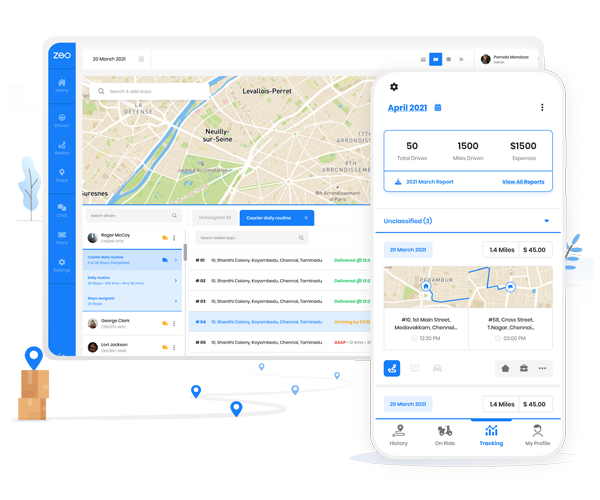
Grow your business effortlessly with Zeo Routes Planner – optimize routes and manage multiple drivers with ease.

increase fuel savings
Hassle Free Deliveries & Pickups!
Optimize routes with our algorithm, reducing travel time and costs efficiently.
Get Started for Free