Updated on: June 2, 2026
Reading Time: 4 minutes
TL;DR: Google Maps allows you to save frequently used routes through the “Save” option after entering your destination, which stores them in your “Saved Trips” for quick access. This feature eliminates repetitive data entry but is limited to simple point-to-point routes. Professional route optimization tools like Zeo Route Planner expand this concept with AI-powered route optimization and scheduled recurring routes, helping delivery teams save 2+ hours daily.
You will hardly come across anyone who hasn’t used or heard about Google Maps. It’s one of the most used route planning tools. The ease of use and the familiarity make it quite popular.
But let’s think about route planning with Google Maps. What if you have a few routes that you visit frequently, such as your favourite restaurant or a client with daily or weekly delivery requirements? Would you want to waste your time entering the route details over and over again? The answer is obvious!
So, can you save a route in Google Maps to avoid this mundane routine activity?
If you don’t want to enter the same route details multiple times, this is for you. Google Maps allows you to save a route. How, why, what?
Let’s find out!
A Guide to Save a Route in Google Maps
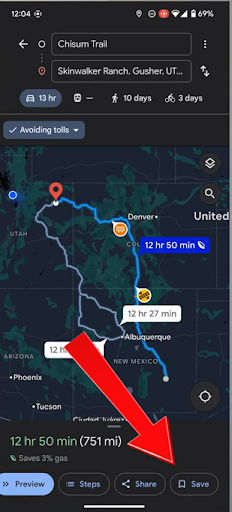
- Open the Google Maps app and enter your current location along with the destination.
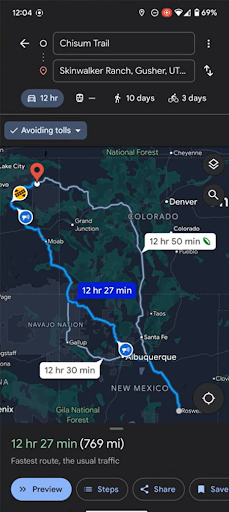
- Choose the preferred route from the options presented.
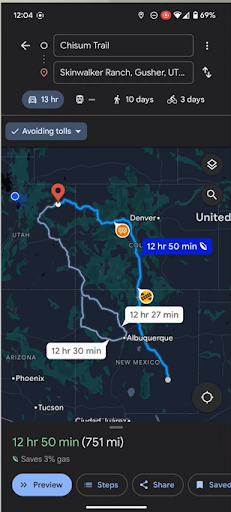
- Click on the Save option on the bottom of your screen.
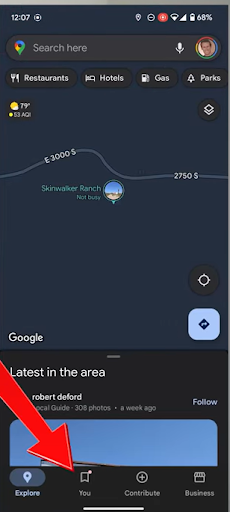
- To view the saved routes, go back to the homescreen and click on the ‘You’ button at the bottom.
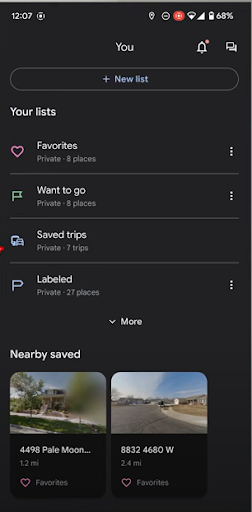
- Click on the Saved Trips option.
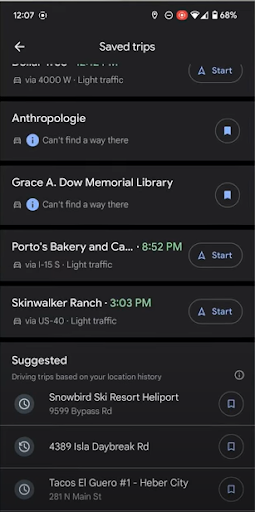
- You can see the list of saved routes. Select the one you want to start.
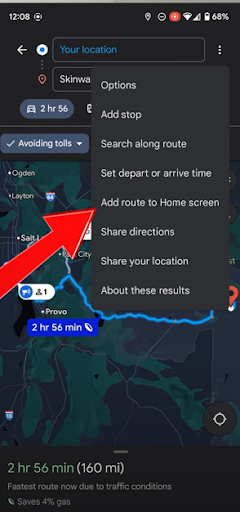
- Another way to save a route is to add it to your device’s home screen for quick access. To do so, click on the three dots in the top right corner after filling in the stop details.
- Tap on the Add Route to Home Screen option.
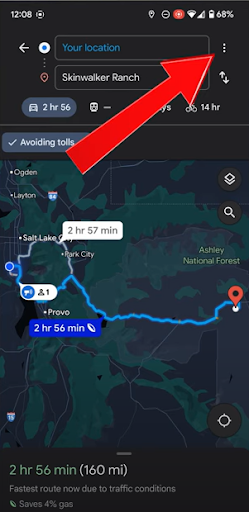
- You can close the Google Maps app and head to the home screen, where you will see a new icon representing the saved route. Simply click on it to start your journey.
Why Save a Route in Google Maps?
Saving a route in Google Maps is a simple activity that can bring consistency, speed, and accuracy in your route planning process.
Whether you are just running personal errands, going on a trip, or completing fleet deliveries, time always matters to you. If you spend your time re-entering the same stop details daily, you are compromising your efficiency and route planning. This is why Google Maps lets you save routes that you use frequently. Eliminating this repetition will make your route planning efficient and easy.
Let’s not undermine the mental bandwidth and frustration that this feature will save. You wouldn’t want your brain to constantly worry about the routes and logistics. When you save a route in Google Maps, you can simply revisit it and
start your journey without any extra steps.
Saving a route in Google Maps brings efficiency and predictability to hectic routing, especially when you deal with multiple clients or delivery points. You also eliminate the errors that might occur while manually entering the stop details every time.
Understanding Route Saving Limitations for Business Operations
While Google Maps route saving works well for simple personal trips, businesses face different challenges. According to the U.S. Department of Transportation, the logistics sector employs over 5.6 million Americans, many of whom need more sophisticated routing capabilities than basic route saving.
Google Maps saved routes are static—they don’t adjust for changing traffic conditions, delivery time windows, or vehicle capacity constraints. For businesses handling multiple daily routes, this limitation becomes apparent when drivers need to manually coordinate dozens of stops while considering factors like customer availability, vehicle load limits, and optimal sequencing.
Professional route optimization addresses these gaps by automatically calculating the most efficient stop sequence, considering real-world constraints like delivery time windows and driver work hours. This level of optimization becomes essential when managing fleet operations where every minute of efficiency translates to measurable cost savings.

increase fuel savings
Save $200 on fuel, Monthly!
Optimize routes with our algorithm, reducing travel time and costs efficiently.
Get Started for Free
Advanced Route Management for Growing Businesses
As businesses scale beyond simple point-to-point routes, they need features that Google Maps doesn’t provide. Research from the Bureau of Labor Statistics shows that delivery operations are projected to grow significantly, making efficient routing increasingly critical for competitive advantage.
Modern route planning involves multiple variables: driver skills, vehicle specifications, customer preferences, and dynamic scheduling requirements. Businesses need systems that can handle bulk address imports from spreadsheets, automatically assign routes to specific drivers based on their capabilities, and provide real-time updates to both managers and customers.
The difference becomes clear when considering fleet management scenarios where companies need to coordinate multiple drivers, track delivery confirmations, and maintain detailed analytics for performance optimization. These operational requirements extend far beyond what basic route saving can accomplish.
Final Thoughts
Google Maps can prove to be a handy tool when your routing needs are simple and straightforward. However, as your routing needs evolve and become complex, the limitations of Google Maps become apparent. If your delivery and logistics business runs large fleets with multiple delivery requirements, sticking to Google Maps might not be the best choice. For comprehensive guidance on business routing solutions, check out our route planner app guide comparing business vs consumer solutions.
Zeo gives you the ability to save, optimize, and assign multi-stop routes in just a few clicks. And when your business depends on efficiency, clarity, and time-saving logistics, that difference matters.
So yes, Google Maps can work for simple route planning needs. But if your growth depends on smooth, scalable and AI-powered routing, it’s time to try Zeo Route Planner.
Frequently Asked Questions
How long does Google Maps keep saved routes?
Google Maps keeps saved routes indefinitely as long as your Google account remains active and you don’t manually delete them. The saved routes are stored in your Google account and sync across all devices where you’re logged in, making them accessible from any smartphone, tablet, or computer.
Can I share my saved Google Maps routes with other people?
While you can’t directly share saved routes from the Saved Trips section, you can share individual route links by opening the route and using the share function. For team coordination, you’ll need to send each route link separately, which becomes impractical for businesses managing multiple drivers and daily route assignments.
What’s the difference between saving routes and creating shortcuts?
Saving routes stores the complete path from point A to point B in your Saved Trips, while creating shortcuts adds a home screen icon for instant access. Shortcuts are more convenient for frequently used routes, but both methods are limited to simple two-point routes without optimization capabilities.
Do saved routes work offline in Google Maps?
Saved routes require an internet connection to load the latest traffic data and navigation instructions. While you can download offline maps for specific areas, the route calculation and turn-by-turn navigation features need connectivity to function properly.
How can businesses handle complex routing beyond simple route saving?
Professional route optimization tools provide features that basic route saving cannot match. Zeo Route Planner offers AI-powered route optimization with auto-assignment of stops to drivers and real-time GPS tracking, helping delivery teams save time while managing complex multi-stop routes. For businesses looking to scale beyond simple route saving, exploring dedicated routing solutions becomes essential as operational complexity increases.

Are you a fleet owner?
Want to manage your drivers and deliveries easily?
Grow your business effortlessly with Zeo Routes Planner – optimize routes and manage multiple drivers with ease.

increase fuel savings
Hassle Free Deliveries & Pickups!
Optimize routes with our algorithm, reducing travel time and costs efficiently.
Get Started for Free