Updated on: October 10, 2026
Reading Time: 5 minutes
TL;DR: Home tutors managing 8-12 daily student visits can save 60-90 minutes a day by switching from manual route planning to automated optimization. As of 2026, tutors using tools like Zeo Route Planner report planning time dropping from 20-30 minutes to under 2 minutes thanks to AI-powered route optimization that factors in time window constraints for fixed appointments. This kind of efficiency is helping independent educators and other service professionals reclaim significant time for lesson prep and client work.
Zeo Route Planner Review
I am working as a private home tutor currently and have previously worked at The Royal High School in Edinburgh.
I specialize in Mathematics and teach primary-level students. Teaching is something I really enjoy to keep myself busy. But being a home tutor isn’t easy as I already have a lot of work to do apart from preparing my lectures.
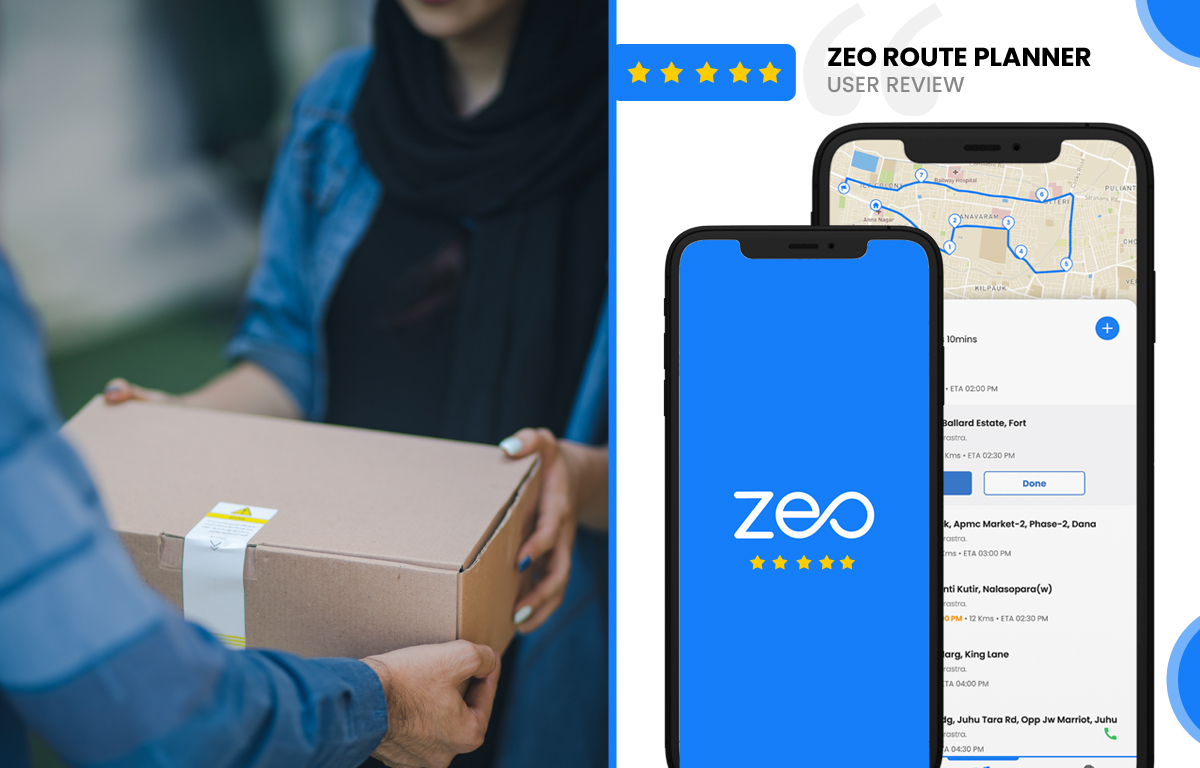
It’s been two months using Zeo Route Planner and it has been up to the mark as I expected it to be. My first impression was really good because of the design and functionalities of their app. I have saved a lot of time till now, both on road and off the road as well. I have got myself more time to prepare now.
The number of free stops they offer got my attention. I haven’t found any other route planner app allowing its users to save and optimize up to 15 stops per route. The subscription plans too, seem to have been designed and priced, to suit everyone’s ever-changing needs.
My Daily Tutoring Schedule Challenge
Before discovering Zeo Route Planner, my daily routine was chaotic. As a home tutor, I visit 8-12 students across different neighborhoods in Edinburgh every day. Planning the most efficient route manually was time-consuming and often led to unnecessary backtracking. I would spend precious minutes each morning trying to figure out the best order to visit my students, and even then, I’d often find myself stuck in traffic or taking longer routes than necessary.
The real challenge came during peak hours when parents preferred after-school sessions. I needed to maximize my teaching time while minimizing travel time between locations. This is where professional route optimization became crucial for my tutoring business, similar to how other service professionals need efficient routing solutions. According to the U.S. Bureau of Labor Statistics, demand for tutoring and private instruction services has continued to grow, making efficient scheduling an increasingly important skill for independent educators.
How Route Optimization Transformed My Teaching Business
Since implementing Zeo Route Planner into my daily workflow, I’ve experienced remarkable improvements in efficiency. The app’s AI-powered route optimization automatically calculates the optimal sequence for visiting my students, taking into account real-time traffic conditions and distance optimization. What used to take me 20-30 minutes of manual planning now takes less than 2 minutes with a few taps on my phone.
The most impressive feature is the app’s ability to handle my complex scheduling requirements through time window constraints. Some students have fixed time slots, while others are flexible. Zeo Route Planner accommodates these constraints while still providing the most efficient route possible. This level of sophistication in route planning is something I’ve found invaluable, and it’s similar to the optimization needed in other service industries that require inspector route optimization for maximum daily coverage.
Real Results After Two Months
The impact on my tutoring business has been substantial. I’m now able to fit in 2-3 additional students per week due to reduced travel time. This translates to approximately 15-20% increase in my weekly income. More importantly, I arrive at each session less stressed and more prepared, which directly benefits my students’ learning experience.
The fuel savings alone have been noticeable – I estimate I’m saving around £30-40 per month on petrol costs. As of 2026, with fuel prices remaining a significant line-item expense for mobile professionals, tracking these savings matters more than ever; the U.S. Energy Information Administration regularly publishes fuel price data that underscores why route efficiency has real financial impact. But the real value lies in the additional time I now have for lesson preparation and professional development. The efficiency gains from proper route optimization have given me back nearly 90 minutes per day that I can dedicate to improving my teaching materials.
For service professionals like myself who need to manage multiple daily appointments, having access to professional-grade dispatch system software features makes a significant difference in operational efficiency.
Optimize routes with our algorithm, reducing travel time and costs efficiently.
increase fuel savings
Save 2 Hours on Deliveries, Everyday!
User-Friendly Features That Stand Out
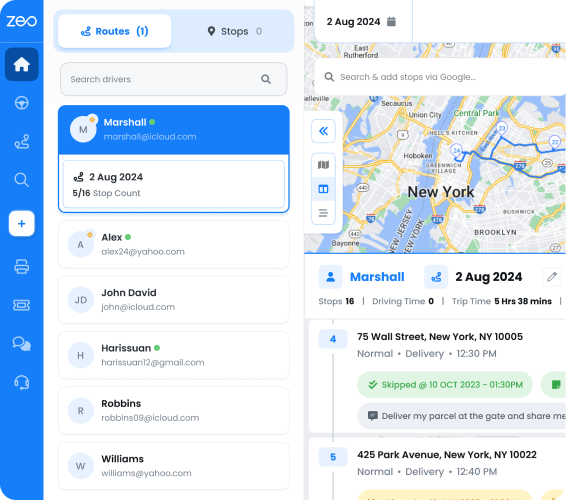
What sets this route planner apart from other routing apps is its intuitive interface combined with powerful features. The drag-and-drop functionality makes it easy to adjust routes on the fly when students reschedule, supported by dynamic route adjustments mid-shift. The real-time traffic integration ensures I’m always taking the fastest available route, which is crucial during Edinburgh’s busy periods.
The offline capability has also proven invaluable during those occasional network connectivity issues. I can still access my optimized routes even when my phone service is spotty in certain areas of the city. This reliability gives me confidence that I’ll always reach my students on time.
Another feature I particularly appreciate is the Favorites option for frequently used stops. Since I visit the same students weekly, having saved lists for different days saves even more time. I can even convert a saved Favorites list into a ready-to-go route in seconds, which has become part of my Sunday evening planning routine.
Perfect for Service-Based Businesses
While my experience is specific to tutoring, I can see how route optimization software would benefit any service professional who needs to visit multiple locations daily. The flexibility and robust feature set would work equally well for maintenance technicians, consultants, or anyone whose business involves regular client visits. In fact, many service industries are discovering similar benefits – professionals are learning how to reduce travel time significantly through proper route optimization.

Frequently Asked Questions
How much time can tutors realistically save using Zeo Route Planner?
Based on my experience, tutors can save 60-90 minutes daily through optimized routing. This includes both planning time (reduced from 20-30 minutes to under 2 minutes) and actual travel time between student locations. The exact savings depend on the number of daily stops and geographic spread of students.
Does Zeo Route Planner work well for tutors with fixed appointment times?
Absolutely. The app handles time constraints excellently, allowing you to set specific appointment windows while still optimizing the route sequence. You can mark certain students as having fixed times and the app will arrange other flexible appointments around these constraints for maximum efficiency.
Is the free version sufficient for home tutors, or do you need a paid plan?
The free version with 15 stops per route covers most tutors’ daily needs perfectly. I haven’t needed to upgrade to a paid plan yet, as 15 stops accommodate my busiest days. However, tutors managing larger student loads or requiring advanced features might benefit from the subscription options.
How reliable is Zeo Route Planner during peak traffic hours?
Very reliable. The real-time traffic integration consistently routes me around congestion, which is crucial during after-school hours when most tutoring sessions occur. I’ve noticed significant improvements in punctuality since using the app, even during Edinburgh’s busiest periods.
Can you modify routes on the go if students reschedule last minute?
Yes, this is one of my favorite features. The drag-and-drop interface makes it easy to adjust routes immediately when students reschedule. The app instantly recalculates the optimal sequence, so last-minute changes don’t disrupt your entire day’s planning. This flexibility is essential for tutoring work where schedule changes are common.
What if I want to keep my stops in a specific order instead of letting the app optimize them?
Some tutors prefer visiting students in a particular sequence for personal reasons, even if it’s not the mathematically fastest route. The Navigate as Added option preserves your manually set stop order without automatic re-optimization, which is useful on days when you want full control over your schedule rather than relying purely on algorithmic suggestions.

Are you a fleet owner?
Want to manage your drivers and deliveries easily?
Grow your business effortlessly with Zeo Routes Planner – optimize routes and manage multiple drivers with ease.
increase fuel savings
Save 2 Hours on Deliveries, Everyday!
Optimize routes with our algorithm, reducing travel time and costs efficiently.
Get Started for Free