# How to Plan Propane Delivery Routes During Peak Season
> TL;DR: To plan propane delivery routes during peak season, build a tiered prioritization system in September (tank alerts, degree-day risk, will-call, then automatic deliveries) rather than reacting to demand once it hits. Propane demand can spike 40% or more in a single week when temperatures drop, and static routes can’t adjust fast enough to keep up. Route optimization tools like Zeo Route Planner address this with priority-based stop sequencing and real-time route updates pushed to drivers’ mobile apps, helping propane dispatch teams save 2+ hours daily during their busiest months.
Propane demand can jump 40% or more in a single week when temperatures drop, according to the National Propane Gas Association’s seasonal demand data. If you’re an operations manager or dispatcher, you already know what that means: phones ringing off the hook, will-call requests piling up, and drivers running routes that were planned for a mild Tuesday, not a hard freeze.
Learning how to plan propane delivery routes during peak season isn’t about working harder in November. It’s about building a system in September that flexes automatically when the weather doesn’t cooperate. This guide gives you that system, week by week, plus the tools to run it without losing your weekends.
Why Peak Season Breaks Traditional Propane Route Planning
Most route optimization tools were built for predictable delivery patterns. Propane doesn’t work that way.
Degree-days drive demand, not calendars. A 20-degree drop overnight can push tank levels from “fine” to “emergency” for hundreds of customers at once. Static routes built on last month’s data can’t react fast enough.
Will-call and automatic customers need different logic. Automatic delivery customers follow predictable usage curves you can forecast. Will-call customers wait until they’re running low, then call in a rush. Mixing both into one route without prioritization rules is how trucks get overloaded and emergencies get missed.
Hazmat rules limit your flexibility. Propane is a Department of Transportation-regulated hazardous material. Drivers face hours-of-service limits under 49 CFR Part 397, and routes must account for load limits, placarding requirements, and restricted roads. You can’t just add five more stops to a route because a storm is coming.
Rural density makes every mile count. Many propane routes cover sparse, rural territory where one inefficient sequence adds 30+ minutes of drive time. During peak season, that’s the difference between finishing your route by dark or running emergency refills at 9 PM.
Generic route planners handle stop sequencing. They don’t handle degree-day surges, hazmat constraints, or the will-call chaos that defines propane’s busiest months. That gap is where most peak season breakdowns start.
How to Plan Propane Delivery Routes During Peak Season: The Timeline
Peak season planning isn’t a one-time project. It’s a cycle. Here’s the timeline that works.
September/October: Pre-Season Audit
Start your audit at least six weeks before your first hard freeze.
- Review last year’s peak season data. Pull stops per route, gallons per stop, and missed delivery windows from last winter. Identify which routes consistently ran over capacity.
- Update your customer list. Flag new automatic delivery customers, will-call accounts, and any tank monitoring data you have access to.
- Check your fleet. Confirm truck capacity limits, DOT inspection status, and driver hazmat endorsements are current.
- Set your driver roster. Decide now if you need seasonal hires. Waiting until December means training drivers during your busiest weeks.
November: Forecasting
This is when you build your demand model.
- Layer degree-day forecasts over your customer map. Customers in colder microclimates or with smaller tanks should move up your priority list first.
- Segment routes by customer type. Separate automatic delivery zones from will-call-heavy zones so dispatchers aren’t mixing urgent and routine stops in the same run.
- Pressure-test capacity. Run a mock high-demand week to see where trucks or drivers hit their limits.
December/January: Mid-Season Optimization
This is peak of peak. Your job shifts from planning to reacting fast.
- Re-optimize routes daily, not weekly. Demand shifts too fast for static weekly plans.
- Track will-call response time daily. If it’s creeping past 24-48 hours, you need to rebalance driver assignments immediately.
- Watch for capacity breaches. Overloading a truck past its rated limit isn’t just inefficient, it’s a hazmat violation.
February/March: Post-Season Review
Once demand tapers, review what worked.
- Compare planned vs. actual stops per route. Big gaps point to forecasting problems.
- Survey drivers. They know which routes were consistently miserable and why.
- Document lessons for next September. This step is the one most companies skip, and it’s why they repeat the same mistakes every winter.
Prioritizing Deliveries: Tank Data, Degree-Days, and Will-Call Rules
Not every stop deserves equal priority during peak season. Here’s how to rank them.
Tier 1: Tank monitoring alerts. If you have remote tank monitors, customers reading below 20% should top your list, especially with cold weather forecasted.
Tier 2: Degree-day risk customers. Cross-reference your customer list with local weather forecasts. Customers with smaller tanks (120-gallon or less) in areas facing a hard freeze need to move up, even without a monitoring alert.
Tier 3: Will-call requests. These come in reactively. Set a clear service-level target (many companies aim for 24-48 hours) and build buffer capacity into routes to hit it.
Tier 4: Scheduled automatic deliveries. These are your most predictable stops. They should fill in route density around your higher-priority tiers, not compete with them.
A practical example: say a cold front is forecast to drop temperatures 25 degrees over 48 hours in your service area. Instead of running routes in the order calls came in, you’d want your dispatcher to first identify every automatic customer within a 15-mile radius with a tank below 30%, sequence those as priority stops, then slot in will-call requests along the same route corridors. Doing this manually across 15-20 routes takes hours. This is exactly where priority-based routing software earns its keep, since it can flag and resequence priority stops automatically instead of dispatchers cross-referencing spreadsheets by hand.
Matching Driver Capacity to Route Density
Even a perfect priority list fails if you don’t have enough trucks or hours to run it.
Plan seasonal hiring by October, not December. If your peak season historically needs 20-30% more driving capacity, start recruiting and training before demand hits. New hires need time to learn hazmat handling and your delivery territory.
Build shift schedules around your demand curve, not a fixed 9-to-5. Many propane companies shift to early starts (5-6 AM) during peak season to beat traffic and daylight limits, especially for rural routes with long drive times between stops.
Track hours-of-service limits closely. The Federal Motor Carrier Safety Administration caps driving hours for commercial drivers, and propane haulers carrying hazmat loads face additional scrutiny. Overworking drivers to squeeze in “just one more stop” creates compliance risk and safety risk in icy conditions.
Match route density to truck capacity, not just stop count. A route with 25 stops averaging 150 gallons each needs a different truck size than a route with 25 stops averaging 400 gallons each. Capacity-based routing that accounts for both weight and volume limits prevents the overloading that’s common during rush periods.
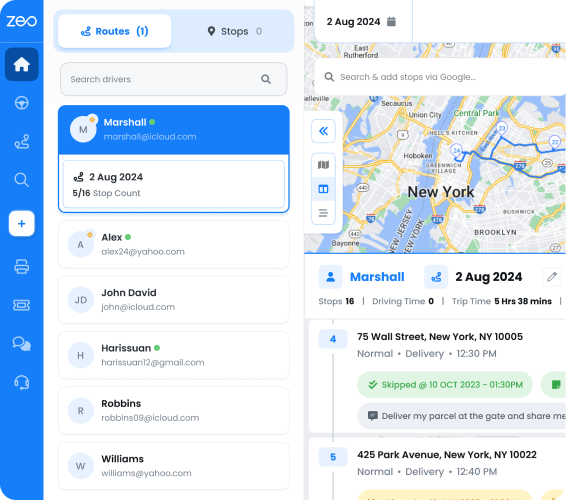
This is also where the connection between your office and your trucks matters most. Once a dispatcher rebuilds a route in Zeo’s web platform to reflect updated priorities, drivers see the new stop sequence on the Zeo mobile app immediately. There’s no need to call every driver individually when a route changes mid-morning because three new will-call requests just came in.
Building Contingency Routes for Storms and Same-Day Emergencies
Peak season planning isn’t complete without a plan for when things go wrong. And during propane’s busy months, something almost always does.
Pre-build storm routing templates. Before your first major storm, map out which customers are highest-risk if delivery gets delayed by a day (elderly customers, smaller tanks, no backup heat source). Keep this list updated monthly.
Set a same-day emergency protocol. Define what counts as a true emergency (customer completely out of gas) versus urgent (below 10%, but not empty). This prevents every will-call from getting treated as a five-alarm fire.
Keep buffer capacity on 2-3 trucks daily during storm windows. Don’t schedule every truck at 100% route density when a storm is forecast. Leaving room for 2-3 emergency insertions prevents your entire day from falling apart when one comes in.
Re-route in real time, not at end of day. If a customer calls in an emergency at 11 AM, the closest available driver needs that stop added to their route immediately, sequenced to minimize backtracking. Driver tracking software that shows live location makes it possible to identify which truck is actually closest, rather than guessing based on where a route was supposed to be.
Optimize routes with our algorithm, reducing travel time and costs efficiently.
increase fuel savings
Hassle Free Deliveries & Pickups!
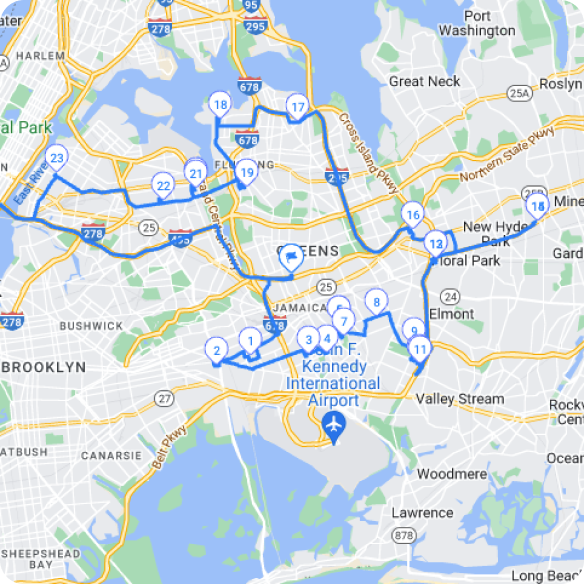
Here’s where the dispatcher-to-driver connection matters again. When dispatch inserts an emergency same-day refill into a route using Zeo’s web platform, the updated stop order pushes instantly to the driver’s Zeo mobile app. The driver gets the new priority sequence, turn-by-turn navigation in whatever map app they prefer (Google Maps, Waze, or Apple Maps), and proof-of-service tools like photo capture and tank reading notes, all without a phone call back to the office. During a storm, when your dispatch line is already flooded with calls, that’s time your team gets back.
Peak Season KPIs to Track
You can’t fix what you don’t measure. Track these four metrics weekly during peak season, and daily during storm events.
Stops per route. Compare against your planned target. A consistent gap means either forecasting is off or trucks are hitting capacity limits early.
Gallons per stop. Rising average gallons per stop signals colder weather and faster tank depletion, a leading indicator you can use to adjust next week’s routes before demand spikes further.
On-time delivery percentage. This is your best proxy for customer satisfaction and safety risk. A dropping on-time percentage during a cold snap is an early warning sign, not just a scheduling annoyance.
Miles per delivery. Rising miles per delivery without a corresponding increase in gallons delivered usually means routes aren’t optimized, drivers are backtracking, or too many low-priority stops are mixed with high-priority ones.
Track these four numbers every week from October through March, and you’ll catch capacity and forecasting problems before they turn into a customer running out of gas in freezing weather.
[Download the free Peak Season Route Planning Checklist] to track these KPIs alongside your pre-season audit tasks, week by week.
How Zeo Route Planner Automates Peak Season Routing
Manually running this entire playbook across 5-30 trucks, every day, for four months straight, isn’t realistic for most dispatch teams. This is where route optimization software earns its place in your peak season toolkit.
Batch route planning cuts hours of manual work. Instead of building routes stop-by-stop, dispatchers can bulk import addresses from Excel, CSV, or Google Sheets and let Zeo’s AI-powered optimization sequence them automatically. Zeo’s route optimization saves drivers 2+ hours daily, time that matters even more when you’re running 20+ routes during a cold snap.
Priority sequencing handles your tiered delivery system. Zeo lets you mark stops as ASAP or Normal priority, so your Tier 1 tank-alert customers and emergency will-calls get sequenced ahead of routine automatic deliveries automatically, instead of a dispatcher manually reordering a spreadsheet every morning.
Capacity-based routing respects your truck limits. Zeo factors in vehicle weight and volume limits when building routes, helping prevent the overloading that creates both safety risk and hazmat compliance issues during high-demand weeks.
Live tracking keeps customers informed without extra calls. Zeo’s real-time GPS tracking and live ETA updates mean customers get SMS or email notifications with a branded tracking link, cutting down “where’s my delivery” calls during your busiest weeks.
Proof of delivery protects you on disputed calls. Photo capture, digital signatures, and delivery notes give your team documentation for every stop, useful when a customer disputes a delivery time or tank reading during peak season disputes.
Dynamic re-routing supports storm contingency plans. When dispatch needs to insert an emergency refill mid-route, Zeo pushes the updated sequence to the driver’s mobile app instantly, so drivers always have the latest stop order and navigation without waiting on a callback from the office.
Consider a company running 18 trucks that historically spent 90 minutes every morning manually building routes and another hour reshuffling them by early afternoon when will-calls came in. With batch import and AI-powered optimization, that morning planning time can drop to a fraction of that, freeing dispatchers to handle incoming calls and monitor priority alerts instead of manually resequencing routes.
Frequently Asked Questions
Q: How much does propane demand increase during peak season?
Propane demand can jump 40% or more within a single week when temperatures drop sharply, according to National Propane Gas Association seasonal demand data. This is why static, pre-planned routes built weeks in advance often fail once a hard freeze hits — dispatchers need a system that can flex daily, not monthly.
Q: How far in advance should propane companies start planning for peak season?
Most propane operations should begin their pre-season audit at least six weeks before the first expected hard freeze, typically in September or early October. This gives enough time to review last year’s route data, confirm hazmat driver endorsements, and hire or train seasonal drivers before demand spikes.
Q: What’s the difference between will-call and automatic delivery routing?
Automatic delivery customers follow predictable usage patterns that can be forecasted and scheduled in advance, while will-call customers request delivery reactively, often when a tank is nearly empty. Routing both types together without clear prioritization rules is a common cause of overloaded trucks and missed emergency deliveries during peak season.
Q: How do you prioritize propane deliveries during a cold snap?
A practical priority framework ranks customers in tiers: tank monitoring alerts below 20% first, then degree-day risk customers with smaller tanks in a hard freeze zone, followed by will-call requests with a 24-48 hour service target, and finally routine automatic deliveries. Zeo Route Planner’s ASAP and Normal priority tags let dispatchers apply this tiered logic directly in the route, so urgent stops get sequenced ahead of routine ones automatically instead of manually reordering a spreadsheet.
Q: How can dispatchers update driver routes quickly when a storm hits?
When a dispatcher rebuilds a route on a web-based platform to reflect new priority stops, drivers need to see the updated sequence in real time without a phone call. Zeo Route Planner pushes route changes directly to the driver’s mobile app the moment dispatch updates it, which is one reason fleets using Zeo report saving 2+ hours daily even during high-volume periods like storm season.
Get Ready Before the Rush Hits
Peak season propane delivery doesn’t have to mean daily scrambling, missed will-calls, and overloaded trucks. A pre-season audit, a clear prioritization framework, matched driver capacity, and a contingency plan for storms will get you most of the way there.
The rest comes down to having the right tools to execute the plan fast, every single day, from October through March.
Download the free Peak Season Route Planning Checklist to start your pre-season audit today, and start a free Zeo Route Planner trial to automate batch route optimization, priority sequencing, and live driver tracking before the winter rush hits.
Are you a fleet owner?
Want to manage your drivers and deliveries easily?
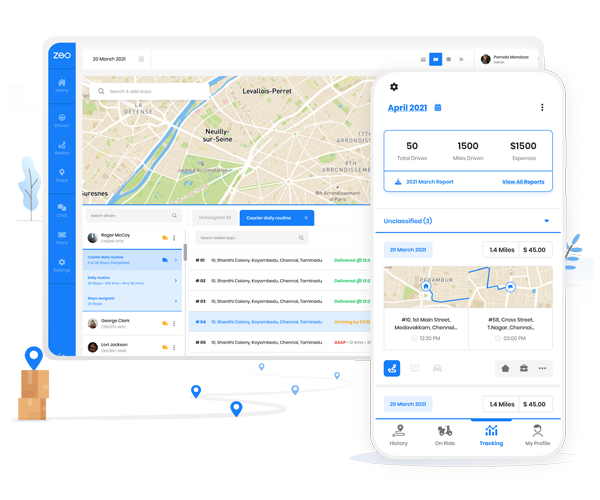
Grow your business effortlessly with Zeo Routes Planner – optimize routes and manage multiple drivers with ease.
increase fuel savings
Save 2 Hours on Deliveries, Everyday!
Optimize routes with our algorithm, reducing travel time and costs efficiently.
Get Started for Free