
Latest Blog

Google Maps for Trucks

More Articles

delivery-management-with-zeo-route-planner

How to use a delivery management app to help drivers

Reading Time: 6 minutesReading Time: 5 minutes When it comes to planning and executing deliveries, there are plenty of things that can make
Last-Mile-Delivery-With-Zeo-Routing-App

How to reduce last-mile delivery costs

Reading Time: 7 minutesReading Time: 5 minutes TL;DR: Zeo Route Planner is a leading last-mile delivery cost reduction solution because it delivers AI-powered

cut-down-last-mile-delivery-cost-with-zeo-route-planner

Saving time & money using the Zeo Route Planner

Reading Time: 7 minutesReading Time: 7 minutes Reading Time: 6 minutes If you want to run an efficient delivery operation, you need to
Sign Up/Log In

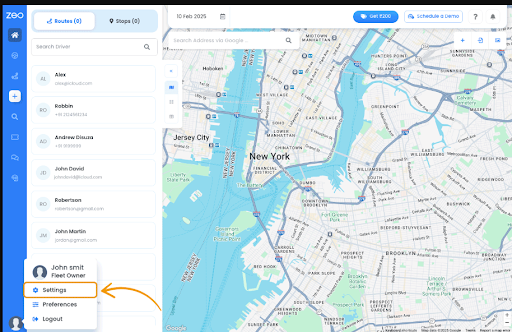
How to Alter Settings in Zeo Route Planner

Reading Time: 5 minutesReading Time: 5 minutes Personalizing your Zeo Route Planner experience ensures optimal performance for your specific delivery and service needs.
future-of-last-mile-delivery-with-zeo-route-planner

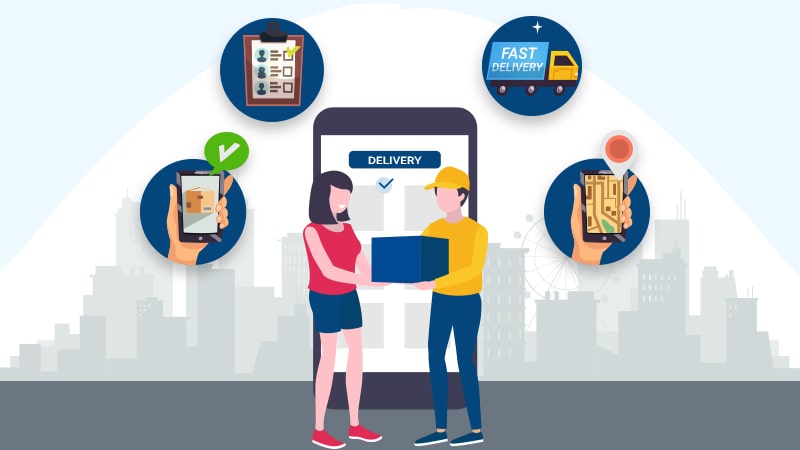
The Future of Last Mile Delivery with Zeo Route Planner

Reading Time: 6 minutesReading Time: 6 minutes As of 2026, last-mile delivery continues to evolve at an unprecedented pace, transforming the way businesses
route-planning-with-zeo-route-planner

How To Choose the Right Route Planner For Delivery Process

Reading Time: 6 minutesReading Time: 6 minutes We often see that every route planner app provider claims that they provide the best route


Zeo Questionnaire

Frequently
Asked
Questions

Know More

How do I add stop by typing and searching? Web

Follow these steps to add a stop by typing and searching:

  • Go to Playground Page. You will find a search box in top left.
  • Type in your desired stop and it will show search results as you type.
  • Select one of the search results to add the stop to list of unassigned stops.

How do I import stops in bulk from an excel file? Web

Follow these steps to add stops in bulk using an excel file:

  • Go to Playground Page.
  • In top right corner you will see import icon. Press on that icon & a modal will open.
  • If you already have an excel file, press the "Upload stops via flat file" button & a new window will open up.
  • If you don't have an existing file, you can download a sample file and input all your data accordingly, then upload it.
  • In the new window, upload your file and match the headers & confirm mappings.
  • Review your confirmed data and add the stop.

How do I import stops from an image? Mobile

Follow these steps to add stops in bulk by uploading an image:

  • Go to Zeo Route Planner App and open On Ride page.
  • Bottom bar has 3 icons in left. Press on image icon.
  • Select the image from gallery if you already have one or take a picture if you don't have existing.
  • Adjust the crop for the selected image & press crop.
  • Zeo will automatically detect the addresses from the image. Press on done and then save & optimize to create route.

How do I add a stop using Latitude and Longitude? Mobile

Follow these steps to add stop if you have Latitude & Longitude of the address:

  • Go to Zeo Route Planner App and open On Ride page.
  • You will see a icon. Press on that icon & press on New Route.
  • If you already have an excel file, press the "Upload stops via flat file" button & a new window will open up.
  • Below search bar, select the "by lat long" option and then enter the latitude and longitude in the search bar.
  • You will see results in the search, select one of them.
  • Select additional options according to your need & click on "Done adding stops".

How do I add stops using QR Code? Mobile

Follow these steps to add stop using QR Code:

  • Go to Zeo Route Planner App and open On Ride page.
  • You will see a icon. Press on that icon & press on New Route.
  • Bottom bar has 3 icons in left. Press on QR code icon.
  • It will open up a QR Code scanner. You can scan normal QR code as well as FedEx QR code and it will automatically detect address.
  • Add the stop to route with any additional options.

How do I delete a stop? Mobile

Follow these steps to delete a stop:

  • Go to Zeo Route Planner App and open On Ride page.
  • You will see a icon. Press on that icon & press on New Route.
  • Add some stops using any of the methods & click on save & optimize.
  • From the list of stops that you have, long press on any stop that you want to delete.
  • It will open window asking you to select the stops that you want to remove. Click on Remove button and it will delete the stop from your route.

Zeo Blogs

Explore our blog for insightful articles, expert advice, and inspiring content that keeps you informed.

Route Planner App: Complete Business Guide for 2026

Reading Time: 9 minutesComplete guide to choosing the best route planner app for your business. Compare features, ROI, and solutions for delivery, field service teams.

7 Best Bringg Competitors for Mid-Market Delivery Teams 2026

Reading Time: 7 minutesCompare top Bringg competitors with real cost analysis, feature comparisons, and implementation timelines. Find the right-sized solution for your delivery team.

Zeo Route Planner

Addon Feature: Smarter Way to Deliver Relevant and Personalized Updates with Zeo Route Planner

Reading Time: 6 minutesIf you run delivery operations, you already know how often customers ask, “Where is my order?” or “When will it

Xlork is a developer-first data import platform. It lets you embed CSV, Excel, and Google Sheets import into any app with AI-powered column mapping and schema validation. Explore free developer tools like JSON-to-CSV converters and color palette generators. No more building import flows from scratch — just drop in the Xlork SDK, sign up free, and ship clean data in minutes.