...
Reading Time: 3 minutes
Fleet Platform

Your Brand, Every Touchpoint

Customize notifications and tracking pages with your logo, colors, and messaging.
Create a professional, consistent experience that builds customer trust.


Branding & Customization, Zeo Route Planner
  • 100%

    White-label capable

  • 3

    Customization areas

  • Pro

    Professional appearance

3 Ways to Brand
Your Customer Experience

Make every customer touchpoint feel like your company

  • Frame 1707478314 22, Zeo Route Planner

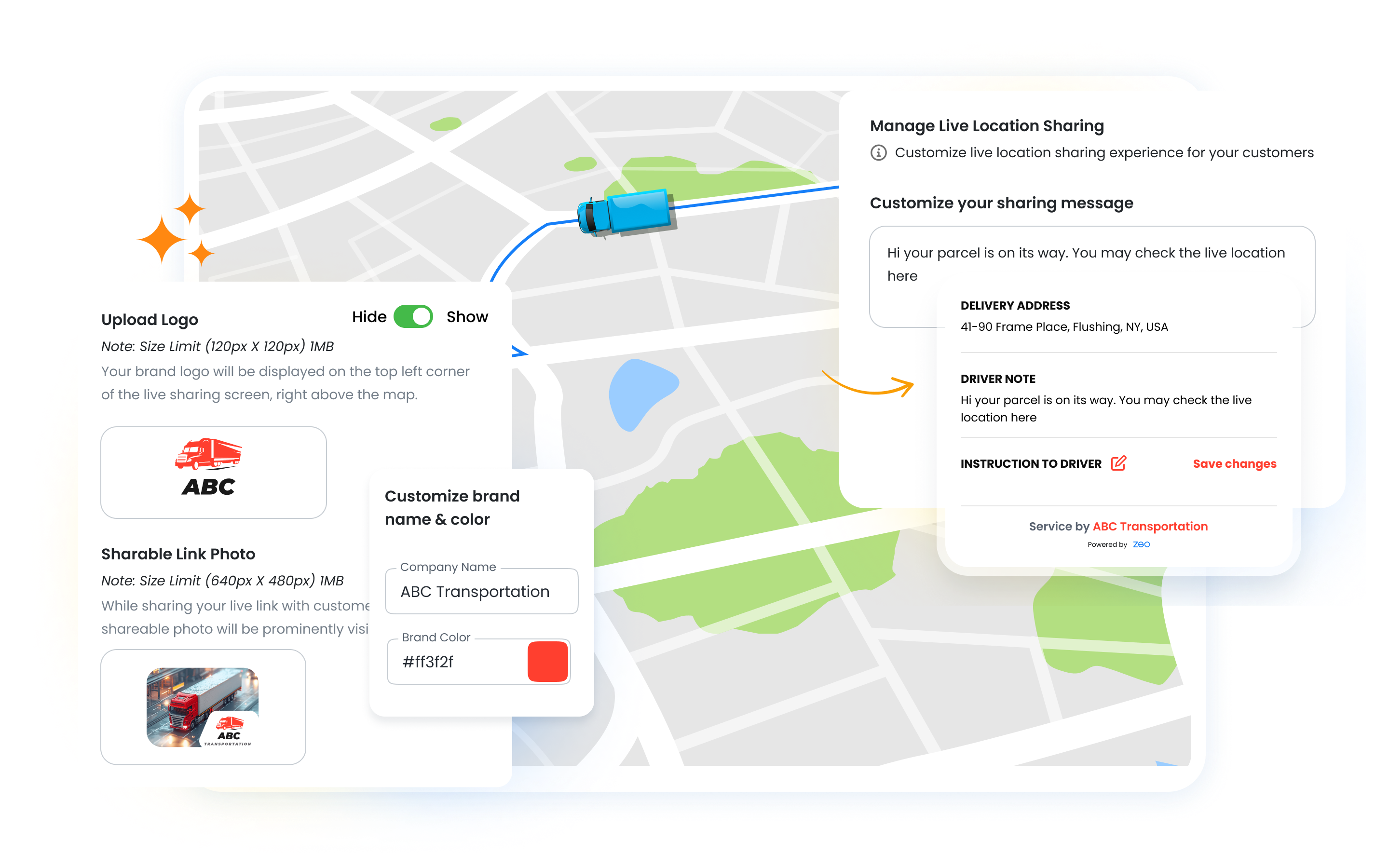
    Message Templates

    Create custom message templates for every notification type. Use dynamic variables for personalization.

    • Custom SMS message text
    • Email subject and body templates
    • Dynamic fields (name, ETA, etc.)
    • Multiple templates per trigger
    • A/B test different messages
  • Group 11880 1 1, Zeo Route Planner

    Visual Branding

    Add your logo and brand colors to customer-facing pages. Tracking portals and emails match your identity.

    • Upload company logo
    • Set primary brand color
    • Custom email header/footer
    • Branded tracking page
    • Professional appearance
  • Group 11880 2 1, Zeo Route Planner

    Localization

    Communicate with customers in their language. Support for multiple languages across all notifications.

    • Multi-language templates
    • Per-customer language setting
    • Localized date/time formats
    • Currency and unit preferences
    • Regional compliance support

See the Difference Branding Makes

Transform generic notifications into professional customer communications.

Frame 1707478314 1 1, Zeo Route Planner

Generic Notification

Your order is on the way. Track here: zeo.link/abc123

Frame 1707478314 3, Zeo Route Planner

Branded Notification

Real-time dashboard showing credits used, remaining balance, and usage trends. Know exactly where your credits go.

Personalization That Builds Trust

Customers respond better to messages that feel personal. Branded communications:

  • Build recognition and trust
  • Feel less like spam
  • Reinforce your brand with every touchpoint
  • Create professional, polished impression
  • Differentiate from competitors

Generic vs.
Branded Communications

The impact of customization on customer experience

Branding & Customization, Zeo Route Planner
Generic Messages


  • Looks like spam or automated text
  • No brand recognition
  • Impersonal, transactional feeling
  • Customers may ignore or delete
  • Missed branding opportunity

Branding & Customization, Zeo Route Planner
Branded Messages


  • Immediately recognized as your company
  • Builds trust and credibility
  • Warm, personalized experience
  • Higher open and engagement rates
  • Consistent brand impression

How Businesses Use Branding

Create memorable customer experiences across industries

DELIVERY

Premium Gift Delivery

A luxury gift company customizes notifications with elegant messaging and their signature purple branding. “Your specially wrapped gift is arriving soon” matches the premium unboxing experience customers expect.

FIELD SERVICE

Home Services Company

A home services franchise uses branding to reinforce their professional image. Notifications include the technician’s name and photo, matching their “trusted neighbor” brand positioning.

Group 1707478361, Zeo Route Planner

Make Every Message Yours

Customize notifications and tracking pages to match your brand
Group 1707478363, Zeo Route Planner

Zeo Questionnaire

Frequently
Asked
Questions

Know More

How do I add stop by typing and searching? Web

Follow these steps to add a stop by typing and searching:

  • Go to Playground Page. You will find a search box in top left.
  • Type in your desired stop and it will show search results as you type.
  • Select one of the search results to add the stop to list of unassigned stops.

How do I import stops in bulk from an excel file? Web

Follow these steps to add stops in bulk using an excel file:

  • Go to Playground Page.
  • In top right corner you will see import icon. Press on that icon & a modal will open.
  • If you already have an excel file, press the "Upload stops via flat file" button & a new window will open up.
  • If you don't have an existing file, you can download a sample file and input all your data accordingly, then upload it.
  • In the new window, upload your file and match the headers & confirm mappings.
  • Review your confirmed data and add the stop.

How do I import stops from an image? Mobile

Follow these steps to add stops in bulk by uploading an image:

  • Go to Zeo Route Planner App and open On Ride page.
  • Bottom bar has 3 icons in left. Press on image icon.
  • Select the image from gallery if you already have one or take a picture if you don't have existing.
  • Adjust the crop for the selected image & press crop.
  • Zeo will automatically detect the addresses from the image. Press on done and then save & optimize to create route.

How do I add a stop using Latitude and Longitude? Mobile

Follow these steps to add stop if you have Latitude & Longitude of the address:

  • Go to Zeo Route Planner App and open On Ride page.
  • You will see a icon. Press on that icon & press on New Route.
  • If you already have an excel file, press the "Upload stops via flat file" button & a new window will open up.
  • Below search bar, select the "by lat long" option and then enter the latitude and longitude in the search bar.
  • You will see results in the search, select one of them.
  • Select additional options according to your need & click on "Done adding stops".

How do I add stops using QR Code? Mobile

Follow these steps to add stop using QR Code:

  • Go to Zeo Route Planner App and open On Ride page.
  • You will see a icon. Press on that icon & press on New Route.
  • Bottom bar has 3 icons in left. Press on QR code icon.
  • It will open up a QR Code scanner. You can scan normal QR code as well as FedEx QR code and it will automatically detect address.
  • Add the stop to route with any additional options.

How do I delete a stop? Mobile

Follow these steps to delete a stop:

  • Go to Zeo Route Planner App and open On Ride page.
  • You will see a icon. Press on that icon & press on New Route.
  • Add some stops using any of the methods & click on save & optimize.
  • From the list of stops that you have, long press on any stop that you want to delete.
  • It will open window asking you to select the stops that you want to remove. Click on Remove button and it will delete the stop from your route.

Zeo Blogs

Explore our blog for insightful articles, expert advice, and inspiring content that keeps you informed.
2026 01 06 Home Inspection Scheduling Software Featured, Zeo Route Planner

Best Home Inspection Scheduling Software Guide 2026

Reading Time: 7 minutesComplete guide to choosing home inspection scheduling software that optimizes routes, reduces drive time 30%, and provides real-time updates to agents.

2026 01 06 Pool Service Route Scheduling Software Featured, Zeo Route Planner

Pool Service Route Scheduling Software: Complete Guide 2026

Reading Time: 8 minutesTransform your pool service operations with route scheduling software. Cut 2-3 hours of daily planning, handle seasonal demand, and optimize multi-crew routes.

2026 01 06 Multiple Delivery Runs Optimization Auto Parts Featured, Zeo Route Planner

Multiple Delivery Runs Optimization for Auto Parts Distributors

Reading Time: 9 minutesTransform chaotic multiple delivery runs into streamlined auto parts operations. Cut costs 25-30% with smart optimization strategies for urgent deliveries.