...
Reading Time: 4 minutes
Fleet Platform
Mobile App

Data-Driven Route Performance

Track every metric that matters. From individual driver efficiency to fleet-wide trends,
get the insights you need to optimize operations and reduce costs.


Route Analytics, Zeo Route Planner
  • 4

    Report types

  • 50+

    Tracked metrics

  • Real-Time

    Live dashboards

  • Historical data access

4 Report Types for
Complete Visibility

Every angle on your route performance, from daily summaries to stop analysis

  • Frame 1707478314 22, Zeo Route Planner

    Daily Trip Reports

    Detailed breakdown of each day’s routes. See planned vs. actual performance, time on road, and stop-by-stop completion data.

    • Total stops
    • Completion rate
    • Total distance
    • Time on road
  • Group 11880 1 1, Zeo Route Planner

    Weekly Aggregate Reports

    Roll up daily data into weekly summaries. Identify trends, compare week-over-week performance, and spot patterns.

    • Weekly totals
    • Trend analysis
    • Peak day identification
    • Average metrics
  • Group 11880 2 1, Zeo Route Planner

    Efficiency Metrics

    Measure how effectively routes are being executed. Compare planned ETAs to actual times, identify delays and their causes.

    • On-time rate
    • Service time accuracy
    • Idle time
    • Deviation reasons
  • Group 11880 2 1, Zeo Route Planner

    Success/Fail/Skip Analysis

    Understand what’s happening at every stop. Break down completions, failures, and skips by reason, time, location, and driver.

    • Failure reasons
    • Skip patterns
    • Time-of-day analysis
    • Location hotspots
    • First-attempt success

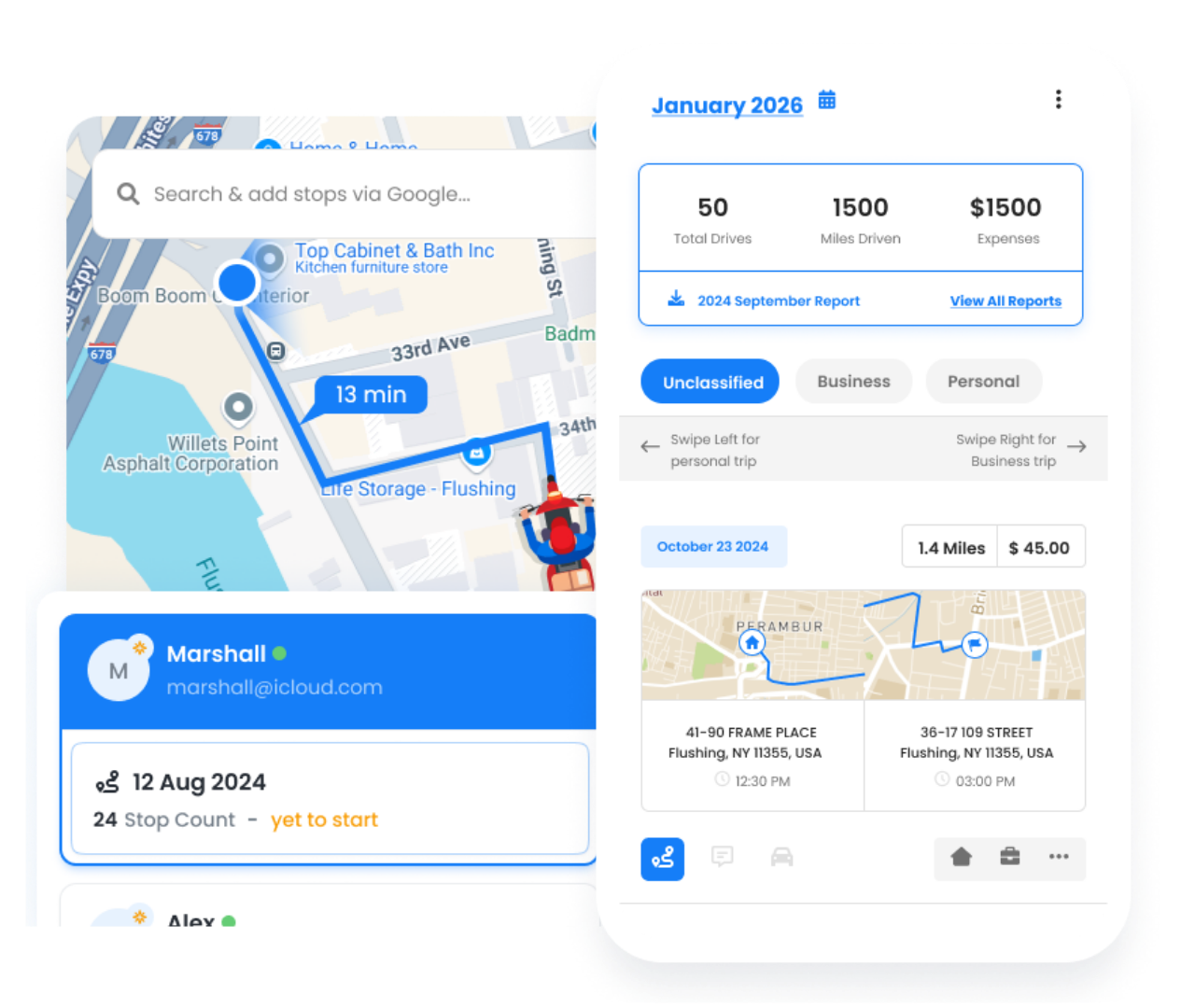
Real-Time Analytics Dashboard

Live visibility into today’s operations and historical trends.

Frame 1707478314 1 1, Zeo Route Planner

Live Performance Metrics

Watch completion rates, on-time performance, and progress update in real-time throughout the day

Frame 1707478314 3, Zeo Route Planner

Trend Visualization

Charts and graphs that reveal patterns over days, weeks, and months at a glance

Frame 1707478314 3 1, Zeo Route Planner

KPI Tracking

Set performance targets and track progress toward goals with visual indicators

Frame 1707478314 1 1, Zeo Route Planner

Alert Configuration

Get notified when metrics fall below thresholds or when anomalies are detected
F14 Image01, Zeo Route Planner

Guessing vs.
Data-Driven Decisions

The difference analytics makes in operations management

Route Analytics, Zeo Route Planner
Operating Blind


  • No idea which drivers are most productive
  • Can’t explain why some routes take longer
  • Failure patterns go unnoticed
  • Gut feeling drives decisions
  • Can’t prove ROI or improvements

Route Analytics, Zeo Route Planner
Data-Driven


  • Identify top performers and learn from them
  • Pinpoint delays and their root causes
  • Spot failure patterns before they grow
  • Every decision backed by data
  • Quantify improvements and savings

How Businesses Use Analytics

Turn data into actionable improvements

DELIVERY

Courier Company Optimization

A courier company discovered through analytics that afternoon routes had 40% more failures. Digging deeper, they found customers weren’t home. They shifted sensitive deliveries to morning slots, improving success rates from 78% to 94%.

FIELD SERVICE

HVAC Service Efficiency

An HVAC company used driver performance reports to identify that one technician completed 30% more calls per day. Analyzing his approach, they discovered time-saving techniques and trained the entire team, boosting fleet-wide productivity.
Group 1707478361, Zeo Route Planner

Stop Guessing, Start Knowing

Get the analytics you need to optimize routes and improve performance
Group 1707478363, Zeo Route Planner

Zeo Questionnaire

Frequently
Asked
Questions

Know More

How do I add stop by typing and searching? Web

Follow these steps to add a stop by typing and searching:

  • Go to Playground Page. You will find a search box in top left.
  • Type in your desired stop and it will show search results as you type.
  • Select one of the search results to add the stop to list of unassigned stops.

How do I import stops in bulk from an excel file? Web

Follow these steps to add stops in bulk using an excel file:

  • Go to Playground Page.
  • In top right corner you will see import icon. Press on that icon & a modal will open.
  • If you already have an excel file, press the "Upload stops via flat file" button & a new window will open up.
  • If you don't have an existing file, you can download a sample file and input all your data accordingly, then upload it.
  • In the new window, upload your file and match the headers & confirm mappings.
  • Review your confirmed data and add the stop.

How do I import stops from an image? Mobile

Follow these steps to add stops in bulk by uploading an image:

  • Go to Zeo Route Planner App and open On Ride page.
  • Bottom bar has 3 icons in left. Press on image icon.
  • Select the image from gallery if you already have one or take a picture if you don't have existing.
  • Adjust the crop for the selected image & press crop.
  • Zeo will automatically detect the addresses from the image. Press on done and then save & optimize to create route.

How do I add a stop using Latitude and Longitude? Mobile

Follow these steps to add stop if you have Latitude & Longitude of the address:

  • Go to Zeo Route Planner App and open On Ride page.
  • You will see a icon. Press on that icon & press on New Route.
  • If you already have an excel file, press the "Upload stops via flat file" button & a new window will open up.
  • Below search bar, select the "by lat long" option and then enter the latitude and longitude in the search bar.
  • You will see results in the search, select one of them.
  • Select additional options according to your need & click on "Done adding stops".

How do I add stops using QR Code? Mobile

Follow these steps to add stop using QR Code:

  • Go to Zeo Route Planner App and open On Ride page.
  • You will see a icon. Press on that icon & press on New Route.
  • Bottom bar has 3 icons in left. Press on QR code icon.
  • It will open up a QR Code scanner. You can scan normal QR code as well as FedEx QR code and it will automatically detect address.
  • Add the stop to route with any additional options.

How do I delete a stop? Mobile

Follow these steps to delete a stop:

  • Go to Zeo Route Planner App and open On Ride page.
  • You will see a icon. Press on that icon & press on New Route.
  • Add some stops using any of the methods & click on save & optimize.
  • From the list of stops that you have, long press on any stop that you want to delete.
  • It will open window asking you to select the stops that you want to remove. Click on Remove button and it will delete the stop from your route.

Zeo Blogs

Explore our blog for insightful articles, expert advice, and inspiring content that keeps you informed.
2026 01 06 Multiple Delivery Runs Optimization Auto Parts Featured, Zeo Route Planner

Multiple Delivery Runs Optimization for Auto Parts Distributors

Reading Time: 9 minutesTransform chaotic multiple delivery runs into streamlined auto parts operations. Cut costs 25-30% with smart optimization strategies for urgent deliveries.

2026 01 06 How To Reduce Auto Parts Delivery Times Featured, Zeo Route Planner

How to Reduce Auto Parts Delivery Times by 40% in 2026

Reading Time: 6 minutesDiscover proven strategies to reduce auto parts delivery times by 40%. Learn route optimization, emergency handling, and tech solutions for faster deliveries.

2026 01 06 How To Reduce Atm Service Costs Featured, Zeo Route Planner

How to Reduce ATM Service Costs for Fleet Operations

Reading Time: 6 minutesLearn how to reduce ATM service costs for mobile workers. Strategic route planning can eliminate 80-90% of ATM fees through better cash management.