Updated on: April 14, 2026
Winter storms pose challenges for snow ploughing fleet managers, including route optimization, maintaining timetables, driver safety, and managing ineffective routing. Zeo Route Planner can help streamline logistics and stay ahead of the curve, making it the fleet’s secret weapon for surviving the worst winter storms.
How to Streamline Snow Plowing Logistics with Zeo Route Planner
Snowfall during the winter season appears to be a boon for the camera, and snowy areas are wonderful homes for tourists. However, due to the low temperature zone, dangerous conditions develop within a few hours when the ice sets on the surface and does not melt.
Snowy regions are heavenly for visitors, but hazardous conditions can arise when ice settles on the surface. Roadblocks are common in cold regions, causing breakdowns in transport and affecting the tourism industry, professionals, students, and emergency services.
Highway administration and state transport departments hire the best agencies to tackle ice removal work immediately and clear passages as quickly as possible.
Zeo’s main features make it easy for fleet managers of snow ploughs to streamline operations. Now let’s dive into Zeo’s key features that can assist you in optimising snow plough operations.
#1. Live Route Tracking
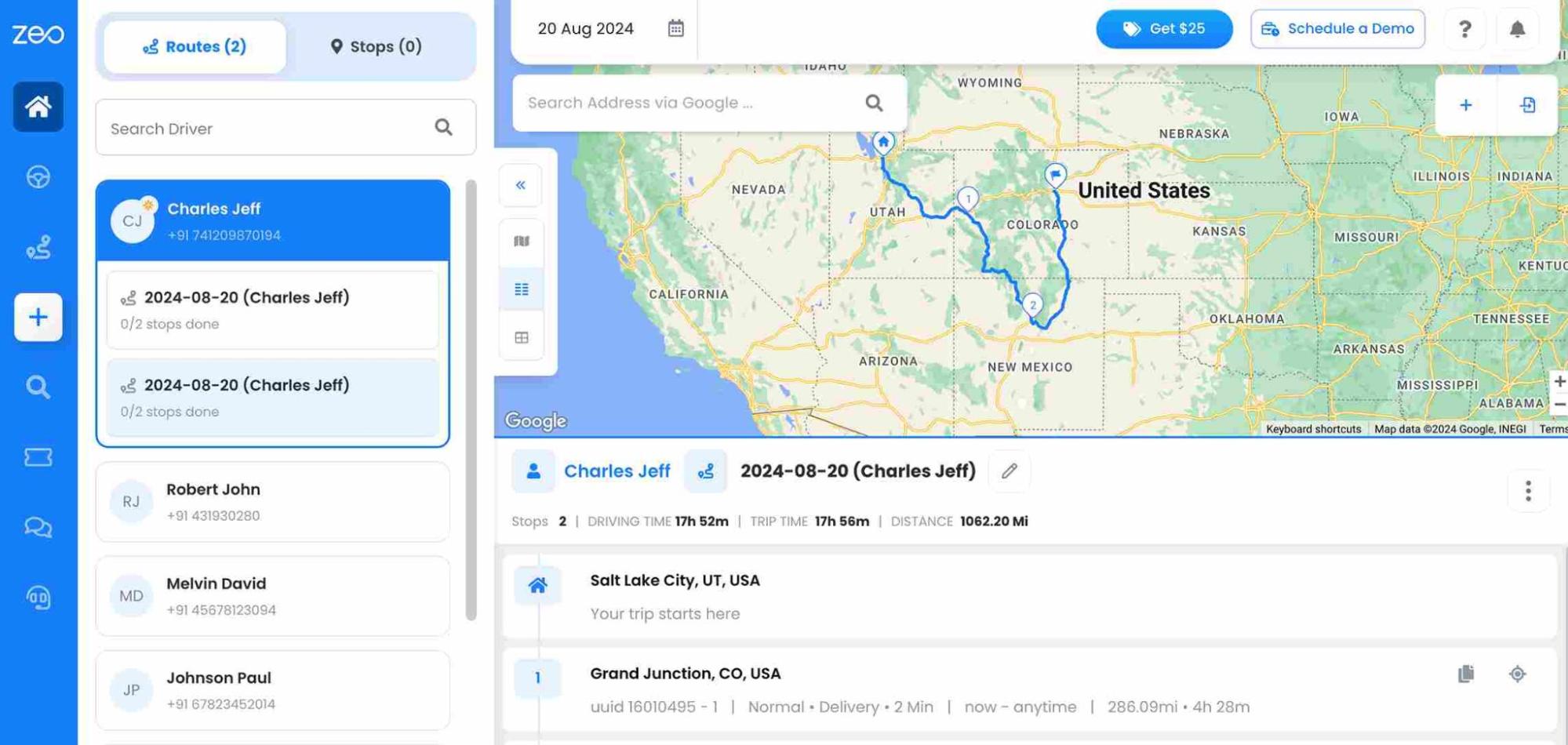
Zeo’s live route tracking monitors snow plowing trucks and enables you to adjust by providing information regarding current tasks, completed or delayed chores. Real-time tracking simplifies snow ploughing logistics by enhancing snow ploughing logistics and enhances customer satisfaction. It allows for better control over the performance of the fleet.
#2. Route Optimization
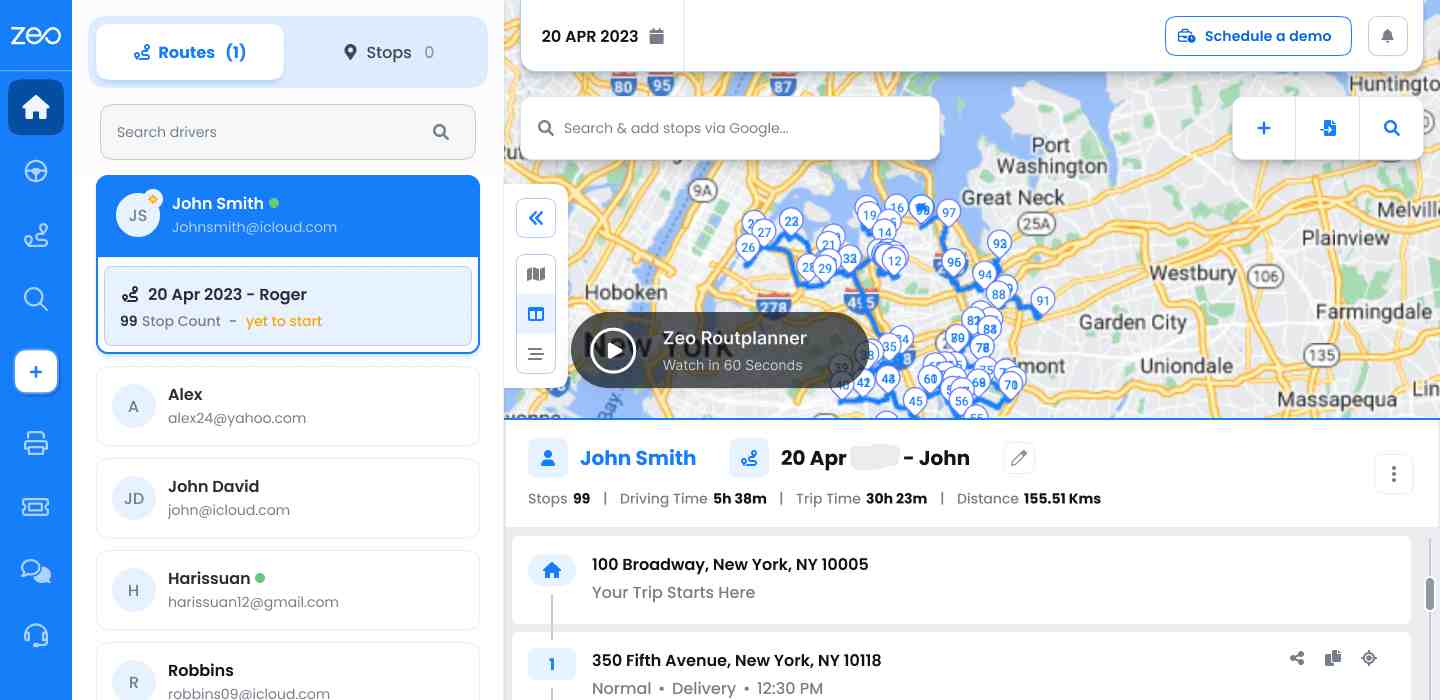
By preparing plans using Zeo, your fleets can remove snow more effectively. Zeo’s system automatically finds the best routes and makes sure the ploughing is done in the most effective way. By optimising snow ploughing routes even in the most uncertain winter circumstances, fleet managers can swiftly optimise routes.
#3. Driver Management
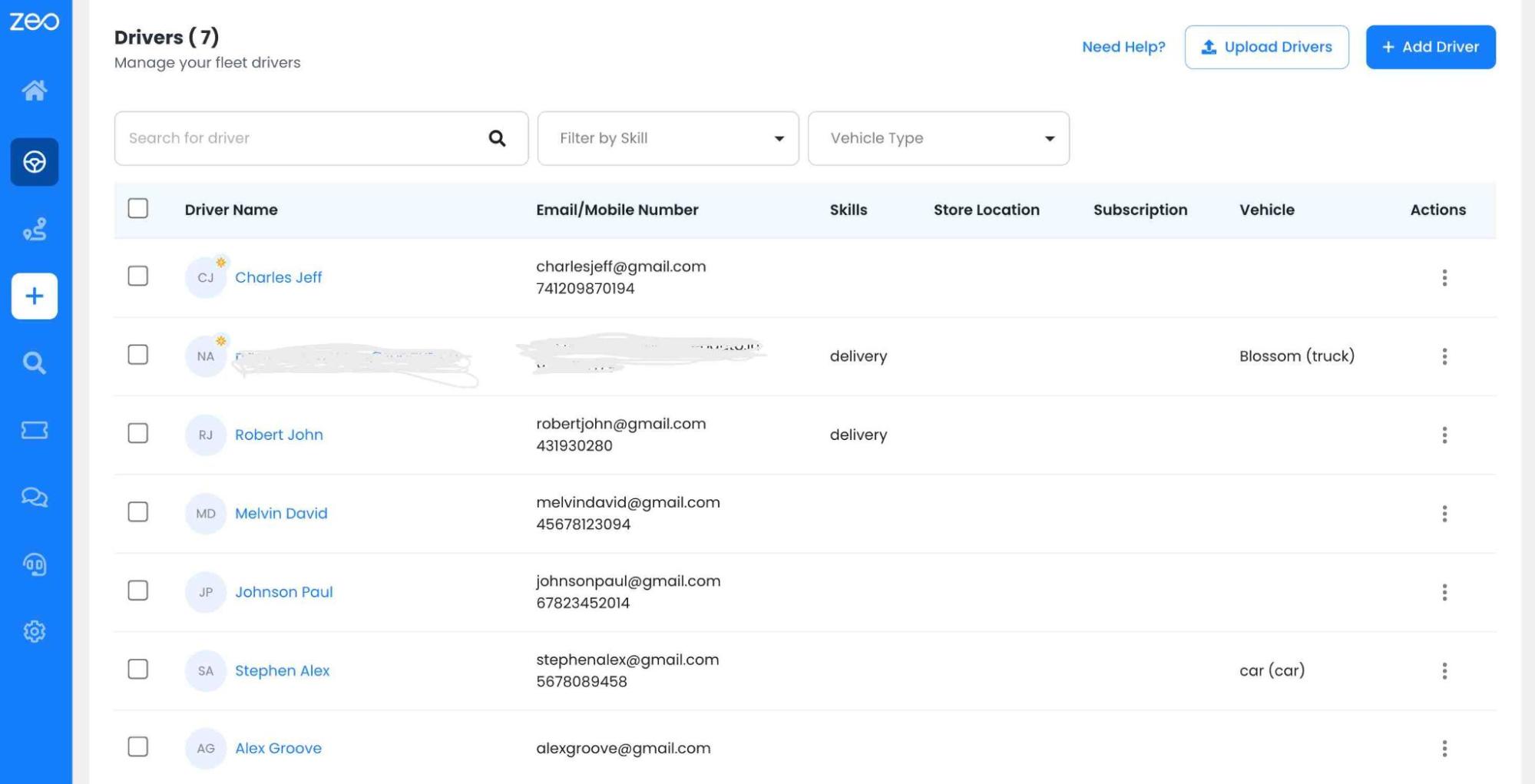
Zeo’s driver management automatically assigns stops to drivers based on the time shifts and location. Driver management is key for fleet efficiency by eliminating manual tasks. The best thing is that you can assign work and distribute snow plowing zones to drivers and optimize routes. The right vehicles are ensured for the drivers, and this ensures efficient snow plowing operations by keeping timely service.
#4. Route Analytics

increase fuel savings
Save $200 on fuel, Monthly!
Optimize routes with our algorithm, reducing travel time and costs efficiently.
Get Started for Free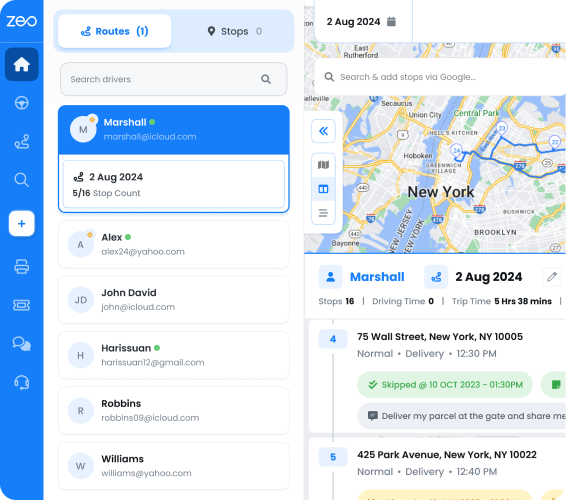
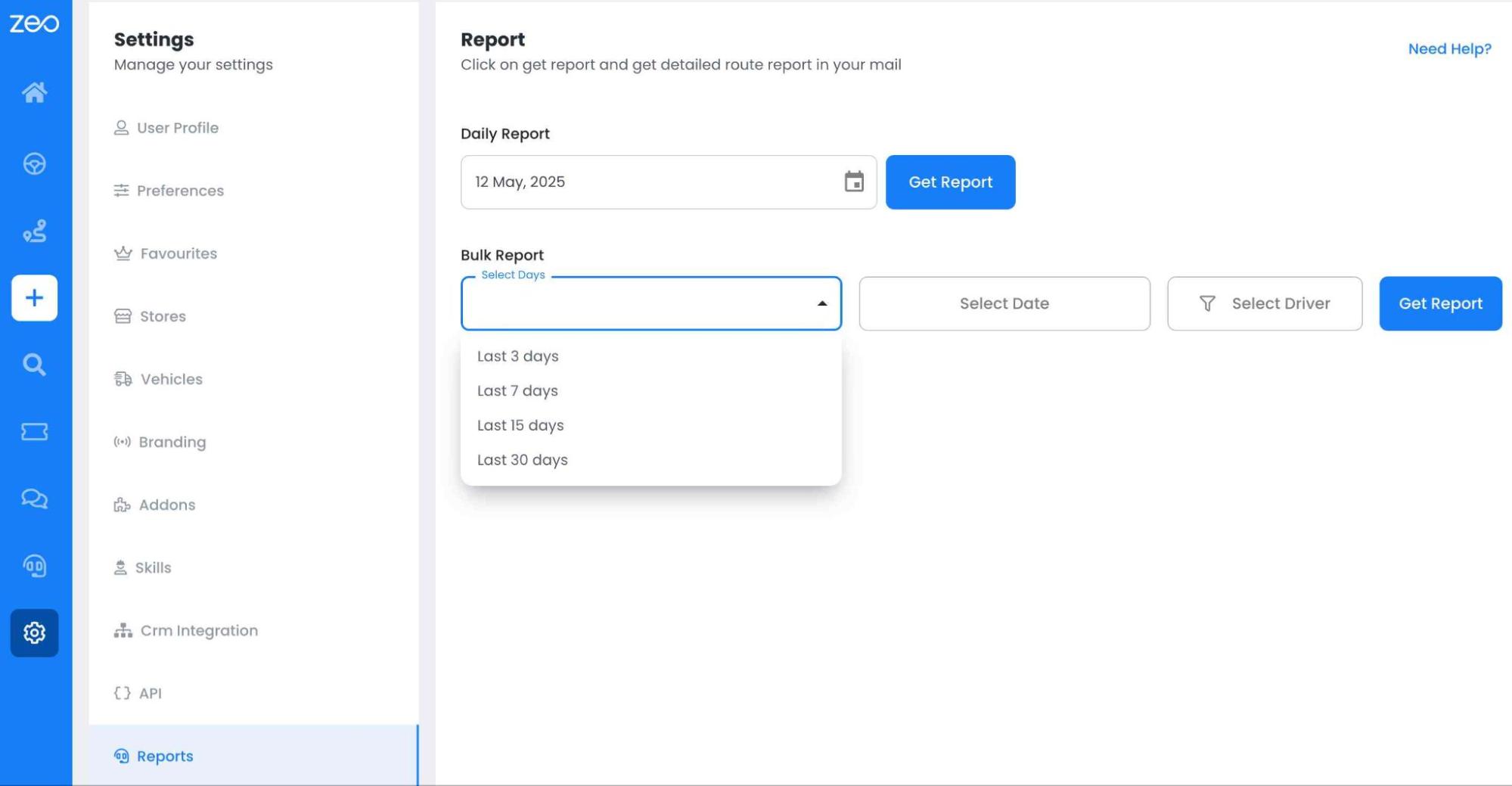
To get a clear view of your snow plowing operations, Zeo provides detailed route analytics. The fleet managers can track every delivery stop accurately. You can turn your data into actionable insights with custom reports in PDF, CSV, or Excel formats. It focuses on key areas such as fuel costs, driver performance, and operational efficiency.
#5. Proof Of Delivery
With Zeo, you can streamline the proof of delivery process, you will get proper acknowledgment after the snow plowing work is done. The snow plowing fleet managers can eliminate paperwork by simply capturing signatures directly through the app. This feature ensures instant, verifiable proof of each snow plowing task completed.
You can also snap and upload photos of the area to provide visual confirmation, leaving no room for disputes. This feature is especially useful in snow plowing logistics, where weather conditions and time-sensitive deliveries can create complications.
#6. Route Analytics
The route analytics feature of Zeo can track every delivery stop accurately with unique identifiers and ensure nothing is missed. It provides detailed route analytics to get a clear view of your snow plowing operations and turns your data into actionable insights with custom reports in CSV, PDF, or Excel formats. Zeo’s route analytics feature helps you make data-driven decisions, streamlining logistics and maximizing efficiency in snow plowing operations.
#7. Mobile App for Drivers
Zeo’s mobile app helps your drivers track real-time updates on all snow plowing stops. Improving efficiency in snow clearing operations, drivers can access detailed route information in one view. Within the app for easy navigation, you can provide your drivers to use preferred maps such as Google Maps, Waze, or Apple Maps. You can easily update your fleet if there are any route changes. This ensures they stay informed and productive.
Conclusion
Whenever unpredictable winter conditions strike, snow plowing logistics demand precision, speed, and reliability. With Zeo Route Planner, fleet managers can streamline, reduce delays, improve operations, and boost overall efficiency, ensuring their teams are always prepared.
Zeo’s features, like live route tracking, route optimization, driver management, and more, enable seamless snow plowing operations.
Ready to elevate your snow plowing logistics?
Schedule a demo with Zeo today and discover how we can help you stay ahead of the curve this winter.

Are you a fleet owner?
Want to manage your drivers and deliveries easily?
Grow your business effortlessly with Zeo Routes Planner – optimize routes and manage multiple drivers with ease.
increase fuel savings
Save $200 on fuel, Monthly!
Optimize routes with our algorithm, reducing travel time and costs efficiently.
Get Started for Free