Updated on: April 14, 2026
Running a logistics-heavy operation often requires fleet managers to multitask with various operations. Juggling with order management, customer updates, dispatching, route optimization, driver management, and the list goes on! You need the right tools to automate the logistics and delivery processes to ensure efficiency, accuracy, and performance.
This is why Zeo Route Planner offers API and Webhook integration. With smart use of Zeo API and Webhook integration, you no longer have to build complicated workflows from zero or update any information manually.
Why Use the Zeo API?
Application Programming Interface (API) creates a digital communication bridge between your system and Zeo Route Planner. APIs let you eliminate the manual process of copying and transferring data between two systems. They do it automatically without any interventions and errors.
When an API is set in the process, it helps your platform send specific instructions to Zeo and receive the desired information and updates. This makes the entire communication process reliable, accurate, and seamless.
With Zeo API, you can enable your system to communicate with Zeo. For instance, the system will feed information like customer orders, delivery addresses, stop locations, and more to Zeo Route Planner without even interacting with the interface.
In return, Zeo will create and assign routes from your dashboard. It will add or update stop progress in real-time and also sync driver and vehicle information. With Zeo API, your system can demand instant updates on routes and delivery status.
What is Webhook Integration and How Does It Help?
A webhook is like a real-time alert system for your software. Instead of repeatedly asking an app, “Has anything changed yet?”, a webhook lets that app notify you the moment something important happens. It’s fast, automatic, and perfect for time-sensitive updates.
With Webhook integration, Zeo Route Planner keeps your systems updated the second something changes.
For instance, let’s consider these two webhook events:
- Route Start Webhook: Notifies your system when a driver begins their route.
- Stop Progress Webhook: Sends updates as each stop is completed, so you know exactly where a delivery stands.
This kind of webhook integration is powerful because it keeps customers in the loop, triggers your internal workflows, like inventory updates or review emails, and helps you run a smoother, faster delivery operation without bottlenecks.
Common Use Cases for Zeo API and Webhook Integration
Let’s say you’re a retail business managing 100+ deliveries a day. Instead of your team exporting Shopify orders and manually importing them into Zeo Route Planner, you could use the Zeo API to automate that workflow entirely. New orders show up, routes get created instantly, and drivers are dispatched in seconds.
Then, with Webhook integration, you can keep your CRM or customer notification system in sync. Every route started, every stop completed, it’s all logged and pushed to your system instantly. Customers get notified and managers stay in the loop.
Other use cases include:
- Auto-assigning drivers based on delivery zones.
- Updating warehouse dashboards as deliveries progress.
- Notifying customer support of delays before complaints roll in.
How to Get Started with Zeo’s API and Webhooks
The setup is pretty straightforward. Follow these simple steps to use APIs and Webhooks workflow in Zeo Route Planner:

increase fuel savings
Save 2 Hours on Deliveries, Everyday!
Optimize routes with our algorithm, reducing travel time and costs efficiently.
Get Started for Free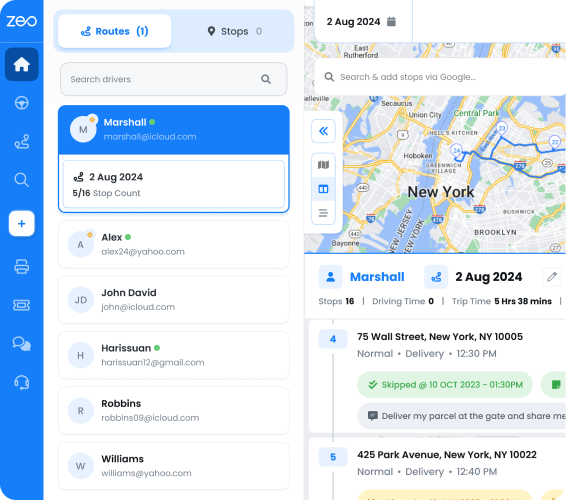
Step 1: Go to Zeo’s dashboard (for fleets) and click on settings.
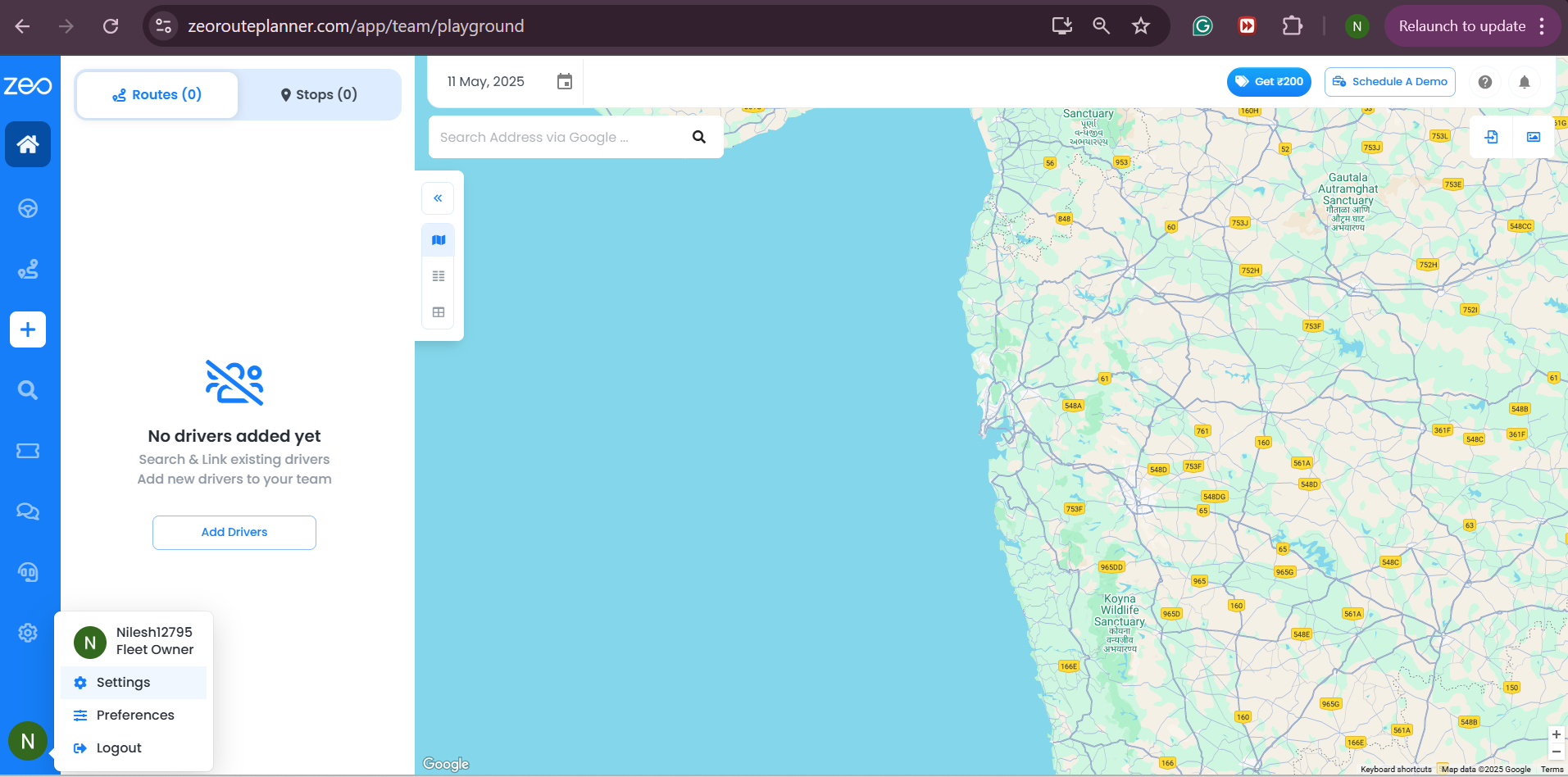
Step 2: In the options panel, select the option – API
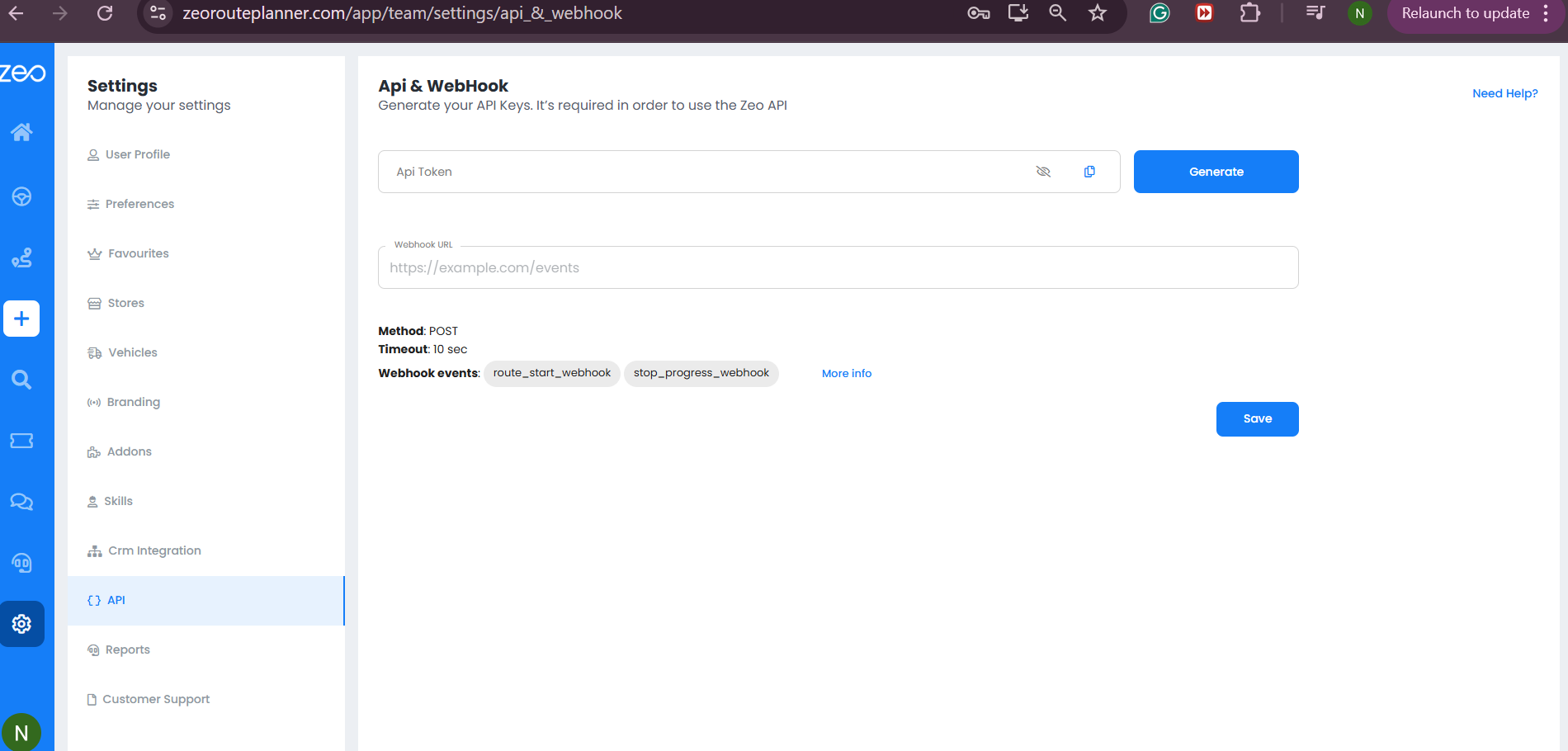
Step 3: Click on the Generate button to create an API Token.
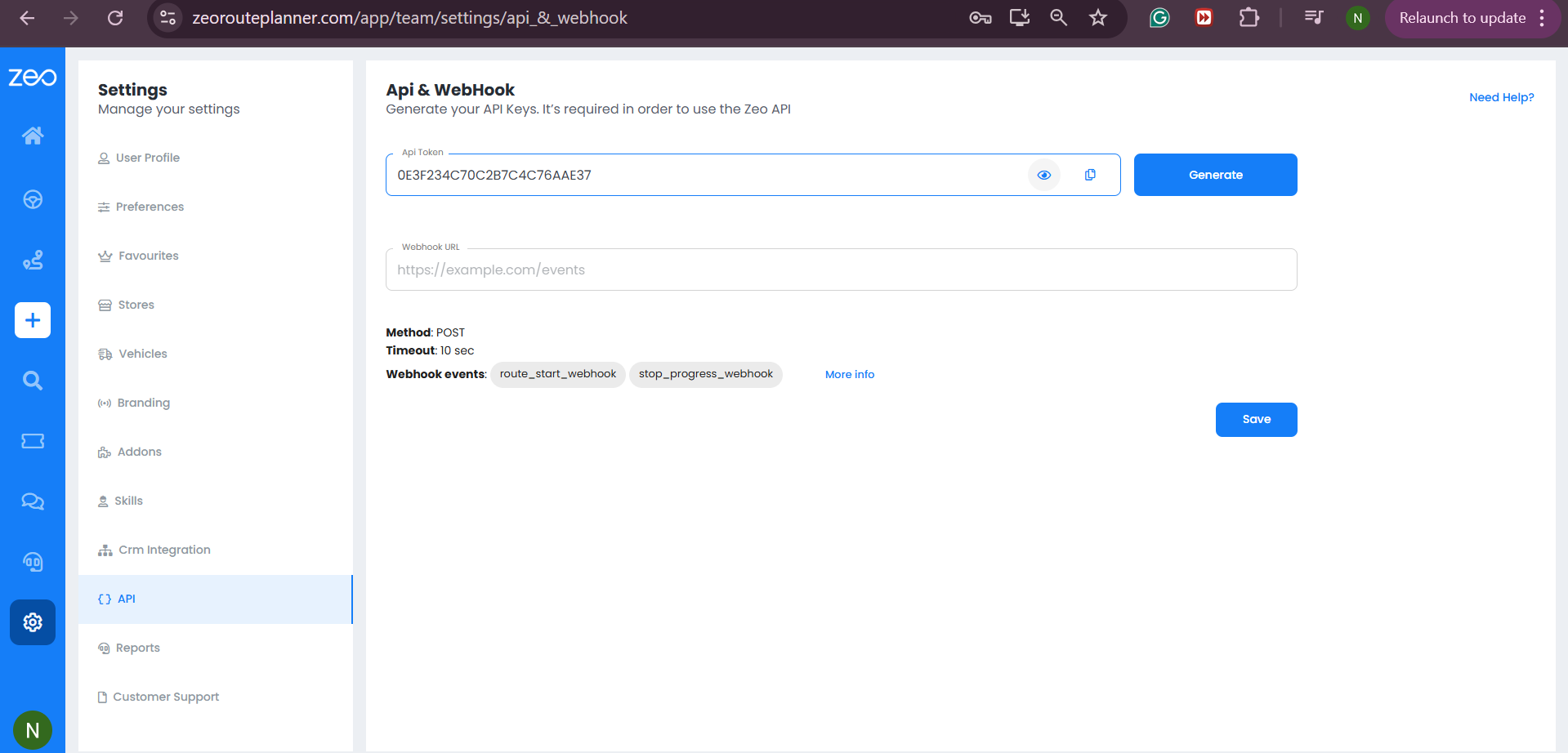
Step 4: You can copy the API token code and use it on your platform for further process.
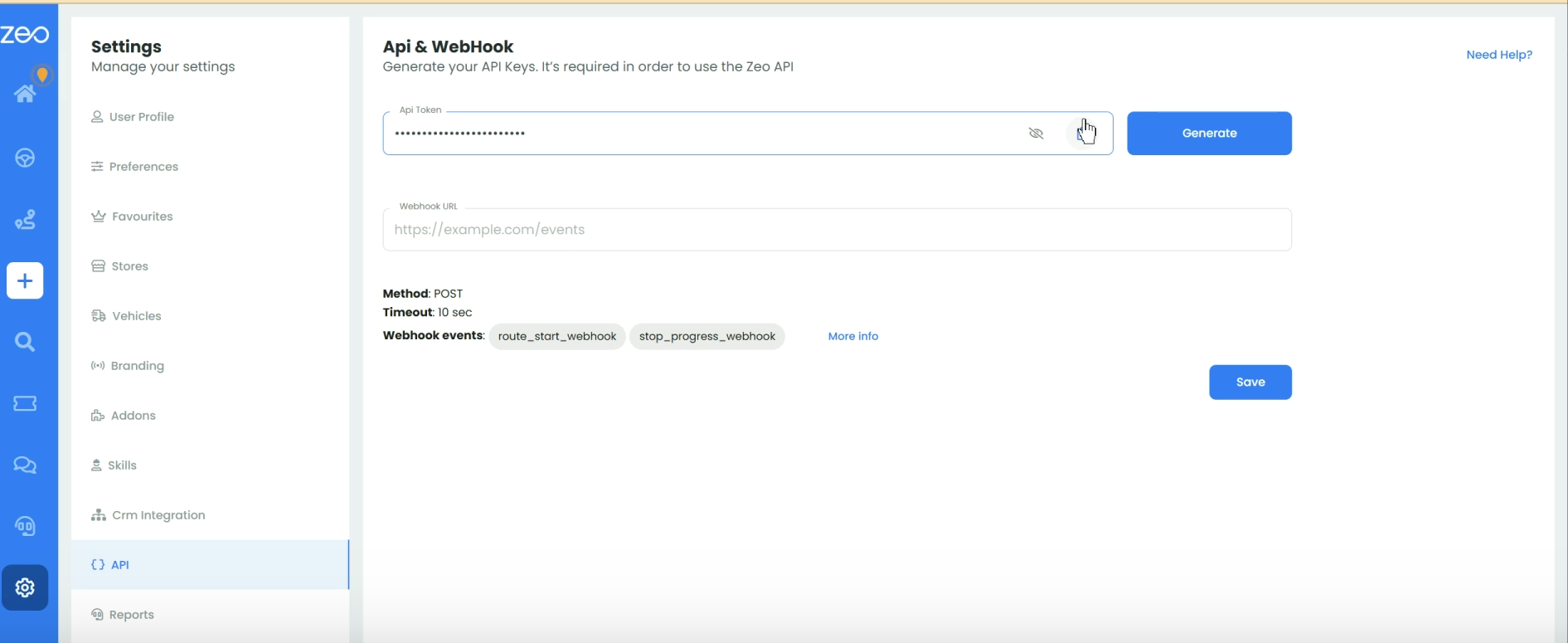
Step 5: For Webhook integration, enter the desired URL in the textbox for ‘Webhook URL’.
Step 6: Hit the save button.
Conclusion
Success in logistics and delivery processes rides on efficiency, accuracy and reliability of those processes. The need for repetitive manual interventions will harm the process efficiency as well as the accuracy.
Zeo API and Webhook integration are the smart tools you need to transform your logistics and delivery operations. It’s quick, it’s easy, it’s effective. Schedule a demo to get started now.

Are you a fleet owner?
Want to manage your drivers and deliveries easily?
Grow your business effortlessly with Zeo Routes Planner – optimize routes and manage multiple drivers with ease.
increase fuel savings
Save 2 Hours on Deliveries, Everyday!
Optimize routes with our algorithm, reducing travel time and costs efficiently.
Get Started for Free