# Route Planner: What It Is, How It Works, and How to Choose One
> TL;DR: A route planner is software that automatically calculates the most efficient order to visit multiple stops, saving the hour or more most dispatchers lose to manual sequencing every day. Google Maps only optimizes routes you’ve already entered in fixed order and caps out at 10 stops, while dedicated tools like Zeo Route Planner use AI-powered optimization with time windows, capacity limits, and driver skills to save drivers 2+ hours daily. For teams managing more than one driver or more than a handful of stops, this difference compounds into real fuel, labor, and time savings every week.
If you’re reading this with 10 browser tabs open, trying to figure out the fastest order to visit 15 stops, you already know why you’re here. Manually sequencing stops in Google Maps or a spreadsheet works for a handful of addresses. It falls apart fast once you’re managing multiple drivers, time windows, or last-minute changes.
A route planner is built to solve exactly this problem. But not all route planners work the same way, and most people searching for one don’t know what to actually look for.
This guide breaks down what a route planner is, who needs one, how to plan a route in three steps, and how to choose the right tool for your business.
What Is a Route Planner? (And How Does Route Optimization Actually Work?)
A route planner is software that calculates the most efficient order to visit multiple stops. Instead of guessing which address to hit next, you enter all your stops and the software sequences them for you.
This matters more than it sounds. According to the U.S. Department of Transportation’s freight and fuel efficiency research, inefficient routing is a major contributor to unnecessary fuel use and vehicle emissions across commercial fleets. Every wrong turn or backtrack costs time, fuel, and money.
Here’s how route optimization actually works under the hood:
1. You input your stops. This can be a list of addresses, a spreadsheet, or orders pulled automatically from a platform like Shopify.
2. The algorithm calculates distances and constraints. A good route planner doesn’t just measure straight-line distance. It factors in real road networks, traffic patterns, time windows (like “deliver between 2-4 PM”), stop priority, and vehicle capacity.
3. It generates the most efficient sequence. The software runs through thousands of possible stop combinations in seconds and picks the order that minimizes total drive time and distance.
This is fundamentally different from Google Maps, which only optimizes a route after you’ve manually entered stops in a fixed order. A true route planner decides the order for you, and recalculates it when something changes mid-shift, like a new urgent stop or a cancellation.
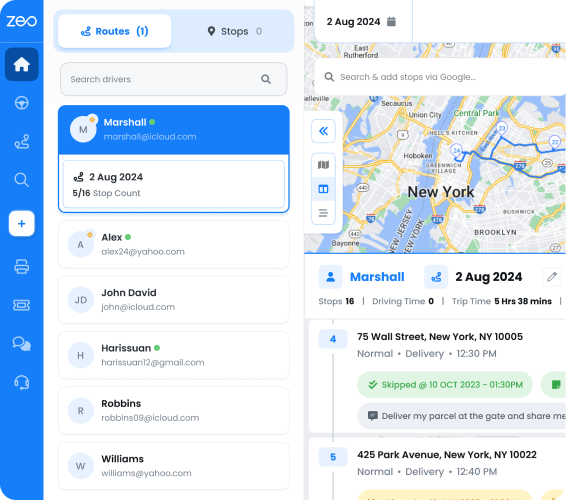
Zeo Route Planner uses AI-powered optimization to handle this automatically, factoring in capacity limits, time windows, and driver skills, which typically saves drivers 2+ hours daily compared to manual planning.
Who Needs a Route Planner? Use Cases Across Delivery, Field Service, and Sales Teams
If you’re managing more than 3-4 stops a day, or more than one driver, you’re a candidate for a route planner. Here’s how it plays out across industries.
Delivery and courier businesses. A last-mile delivery company running 50 daily drop-offs needs to sequence stops by delivery window, group orders by zone, and adjust in real time when a customer isn’t home. Manually doing this for multiple drivers each morning can eat up an hour before anyone even leaves the warehouse.
Field service teams. Think HVAC, pest control, plumbing, or landscaping. A pest control company visiting 20 homes a day needs routes that account for appointment windows and technician skill sets (not every tech is certified for every job type). Skill-based job assignment ensures the right technician gets the right job, not just the nearest one.
Sales reps and territory teams. A sales rep visiting 8-10 prospects across a city wants the shortest driving loop that still respects meeting times. Sales territory planning tools help field reps cut down on windshield time that could otherwise go toward actual selling.
Waste collection and recurring routes. Businesses running the same route every week (trash pickup, recurring maintenance) benefit from recurring routes scheduling that doesn’t need to be rebuilt from scratch each time.
In short: if you have more stops than you can mentally sequence in under 2 minutes, or more than one person driving, you’re losing time without a route planner.
How to Plan a Multi-Stop Route in 3 Steps
Here’s what the actual process looks like, whether you’re planning for yourself or a team of 20 drivers.
Step 1: Add your stops.
Enter addresses manually, upload a spreadsheet (Excel, CSV, or Google Sheets), or pull them from a source like a saved Favorites list. Zeo also supports adding stops from images or Google Search results, so you’re not limited to one input method. If you run the same delivery list weekly, save it once as a Favorites list and turn it into a ready-to-go route instantly next time.
Step 2: Set your constraints.
This is where optimization gets smart. Add time windows (customer only available 10 AM-12 PM), mark priority stops as ASAP versus Normal, and set vehicle capacity limits if you’re hauling goods with weight or volume restrictions. If a job has a required pickup and delivery pair, like a courier job, the system can automatically link and sequence them correctly.
Step 3: Optimize and assign.
Hit optimize, and the software calculates the most efficient sequence in seconds. For fleet teams, this is also where you assign specific stops to specific drivers based on skills, vehicle, or store location. If you need to keep a manual stop order instead of letting the algorithm re-sequence it, Navigate as Added preserves exactly the order you set.
That’s it. What used to take 30-45 minutes of manual sequencing now takes under 5 minutes, and the route adjusts automatically if something changes mid-day, like a canceled stop or urgent add-on.
Route Planner vs. Manual Planning vs. Google Maps: What’s the Real Difference?
This is the comparison most people searching for a route planner actually need. Here’s how the three approaches stack up:
Manual planning (spreadsheets, mental math)
- Time cost: 30-60+ minutes daily, depending on stop count
- Accuracy: Low. Human sequencing rarely finds the truly optimal route
- Scalability: Breaks down past 5-10 stops or more than one driver
- Real-time changes: Requires starting over manually
Google Maps
- Time cost: Faster than pure manual planning, but still requires entering stops in order yourself
- Accuracy: Limited to 10 stops per route and doesn’t optimize stop order for you by default
- Scalability: Not built for multi-driver fleet management
- Real-time changes: No live tracking back to a dispatcher, no proof of delivery, no customer notifications
Dedicated route planner (like Zeo)
- Time cost: Minutes, not hours, with AI handling the sequencing
- Accuracy: Optimizes for real road networks, time windows, capacity, and priority, not just distance
- Scalability: Built for 1 driver or 50+, with bulk upload and driver assignment
- Real-time changes: Dynamic re-routing mid-shift, live GPS tracking, and automatic customer notifications
The core difference comes down to this: Google Maps helps you navigate a route you’ve already decided on. A dedicated route planner decides the route for you, and keeps managing it after you’ve left the building. For a solo driver with 5 stops, Google Maps is fine. For a dispatcher managing 15 drivers with changing daily stops, it’s not a real option.
Beyond Planning: Real-Time Tracking, Proof of Delivery, and Fleet Management
A route planner’s job isn’t done once the route is built. The real value shows up during and after execution, which is where most basic tools fall short.

increase fuel savings
Hassle Free Deliveries & Pickups!
Optimize routes with our algorithm, reducing travel time and costs efficiently.
Get Started for Free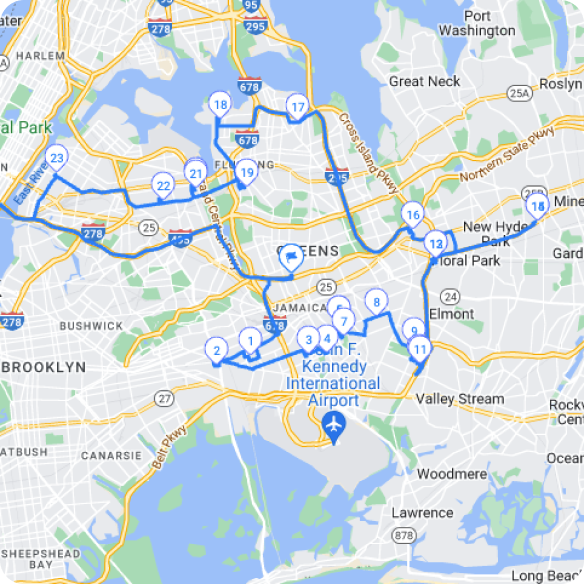
Real-time tracking. Once drivers are on the road, you need visibility into where they actually are, not where you planned for them to be. Live GPS tracking shows real-time location, and live ETA updates mean you can tell a customer “your technician will arrive in 12 minutes” with confidence, not a guess.
Proof of delivery and service. For delivery businesses, this means photo capture and digital signatures confirming the drop-off happened. For field service, it’s documentation that the job was completed, with delivery notes and, if needed, COD payment tracking. This paperwork trail matters if a customer disputes a delivery or a technician visit.
Customer communication. Automated SMS, email, and live tracking links keep customers informed without your team manually calling each one. A branded tracking page with your company logo also makes the experience feel professional, not generic.
Handling the unexpected. Routes rarely go exactly as planned. If a route needs to pause temporarily, like a driver calling in sick for a scheduled recurring route, Blackout Dates let you pause it without deleting the whole schedule. If you need a different driver for just one day without disrupting the full weekly plan, Date Override handles that. For longer assignments spanning several days, Day Plan lets you assign different drivers to different days within the same route.
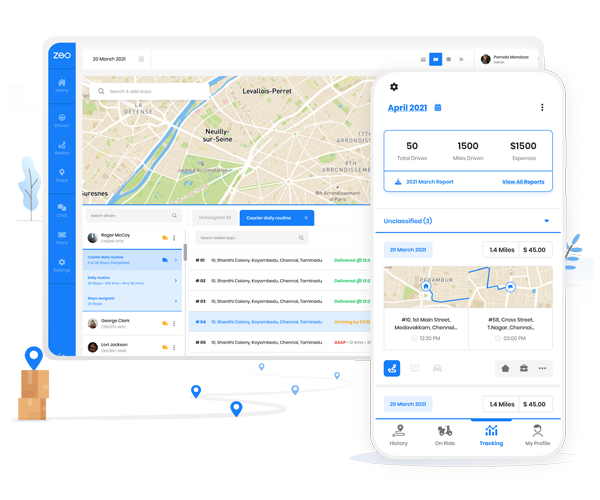
This is also where the planning and execution sides connect. Once a fleet manager builds and assigns routes on the Zeo web platform, each driver receives their stops automatically on the Zeo mobile app. Your technicians get turn-by-turn navigation in whatever app they already use (Google Maps, Waze, or Apple Maps), full customer details, and the ability to capture proof of delivery on the spot. Their location shares back to you in real time, so dispatchers and drivers are always looking at the same information, not working off a printed sheet from this morning.
For a fleet manager overseeing 20 technicians, this closes a gap that spreadsheets and Google Maps simply can’t: you plan centrally, but execution and tracking happen seamlessly on each driver’s phone.
How to Choose the Right Route Planner for Your Business (Pricing, ROI & FAQs)
Here’s how to evaluate your options without getting lost in feature lists.
Start with your team size. A solo driver or 2-3 person operation might only need basic multi-stop optimization. Teams of 5-50 drivers need fleet management features: driver assignment, skill-based routing, and manager-to-driver communication.
Check for real-time features, not just planning. Ask whether the tool offers live tracking, customer notifications, and proof of delivery. A route planner that only optimizes the morning route but goes dark once drivers leave isn’t solving the full problem.
Look at integrations. If you’re running e-commerce, check for Shopify or WooCommerce integration so orders import automatically instead of manual data entry. Zapier integration means you can connect to tools you already use without custom development.
Calculate the ROI honestly. If route planning currently takes a dispatcher 30-45 minutes daily, and a route planner cuts that to 5 minutes, that’s roughly 2+ hours saved weekly on planning alone, before accounting for fuel and drive-time savings across the whole team. The American Transportation Research Institute’s annual operational cost analysis has noted that fuel and driver labor represent the largest operating cost categories for fleets, meaning even modest route efficiency gains compound quickly across a month. Separately, Bureau of Labor Statistics data on driver labor costs underscores why shaving even minutes per stop matters at scale.
Common questions to resolve before committing:
Does it work for a small team? Yes. A route planner should scale from 1 driver to 50+, not require a minimum fleet size.
Will it work with my existing tools? Check integration support (Shopify, WooCommerce, Zapier, HubSpot, or API access) before signing up.
What if my routes change daily? Look for dynamic re-routing that adjusts mid-shift, not just static morning planning.
Is there a learning curve? Most dedicated route planners are built for non-technical users. If a tool requires weeks of onboarding, that’s a red flag for a team of 5-50.
The right choice comes down to matching the tool to how you actually operate, not picking the one with the longest feature list. A pest control company with 10 technicians has different needs than an e-commerce brand shipping 200 daily orders. Both need optimization, time windows, and communication tools. The fleet management depth required differs.
If you’re currently stuck manually sequencing stops or hitting Google Maps’ 10-stop limit, it’s worth testing a dedicated route planner against your actual daily routes, not a demo scenario.
Frequently Asked Questions
Q: How many stops can a route planner handle at once?
It depends on the tool. Google Maps caps out at 10 stops per route, while dedicated route planners like Zeo support bulk upload of hundreds of stops via Excel, CSV, or Google Sheets and can assign them across multiple drivers. For fleets running 50+ daily stops, a dedicated platform is necessary since spreadsheet-based tools aren’t built for that volume.
Q: Is a route planner worth it for a single driver?
If you’re managing fewer than 5 stops a day, a basic maps app is usually enough. Once you’re regularly sequencing 6-10+ stops, have time windows to hit, or need proof of delivery for customers, a dedicated route planner starts paying for itself in saved drive time and fuel.
Q: What’s the difference between route planning and route optimization?
Route planning is simply listing out the stops you need to visit. Route optimization is the algorithmic process of calculating the most efficient order to visit those stops based on distance, traffic, time windows, and constraints like vehicle capacity. A route planner does both: it lets you input stops and then optimizes their sequence automatically.
Q: Can a route planner adjust automatically if a driver gets a last-minute stop?
Yes, this is one of the main advantages over manual planning or Google Maps. Zeo Route Planner supports dynamic route adjustments mid-shift, so a dispatcher can add an urgent stop or remove a canceled one and the system recalculates the sequence without rebuilding the whole route from scratch.
Q: Do route planners work offline or without cell service?
Most route planning apps, including Zeo, rely on an initial connection to calculate and download the optimized route, after which turn-by-turn navigation can continue through supported apps like Google Maps, Waze, or Apple Maps depending on each app’s own offline capabilities. If drivers frequently work in low-signal areas, it’s worth testing connectivity in those specific zones before committing to a full rollout.
Start a free trial of Zeo Route Planner and plan your first optimized multi-stop route in minutes. No credit card required.
Are you a fleet owner?
Want to manage your drivers and deliveries easily?
Grow your business effortlessly with Zeo Routes Planner – optimize routes and manage multiple drivers with ease.

increase fuel savings
Save $200 on fuel, Monthly!
Optimize routes with our algorithm, reducing travel time and costs efficiently.
Get Started for Free