Fleet Platform
Your Brand, Every Touchpoint
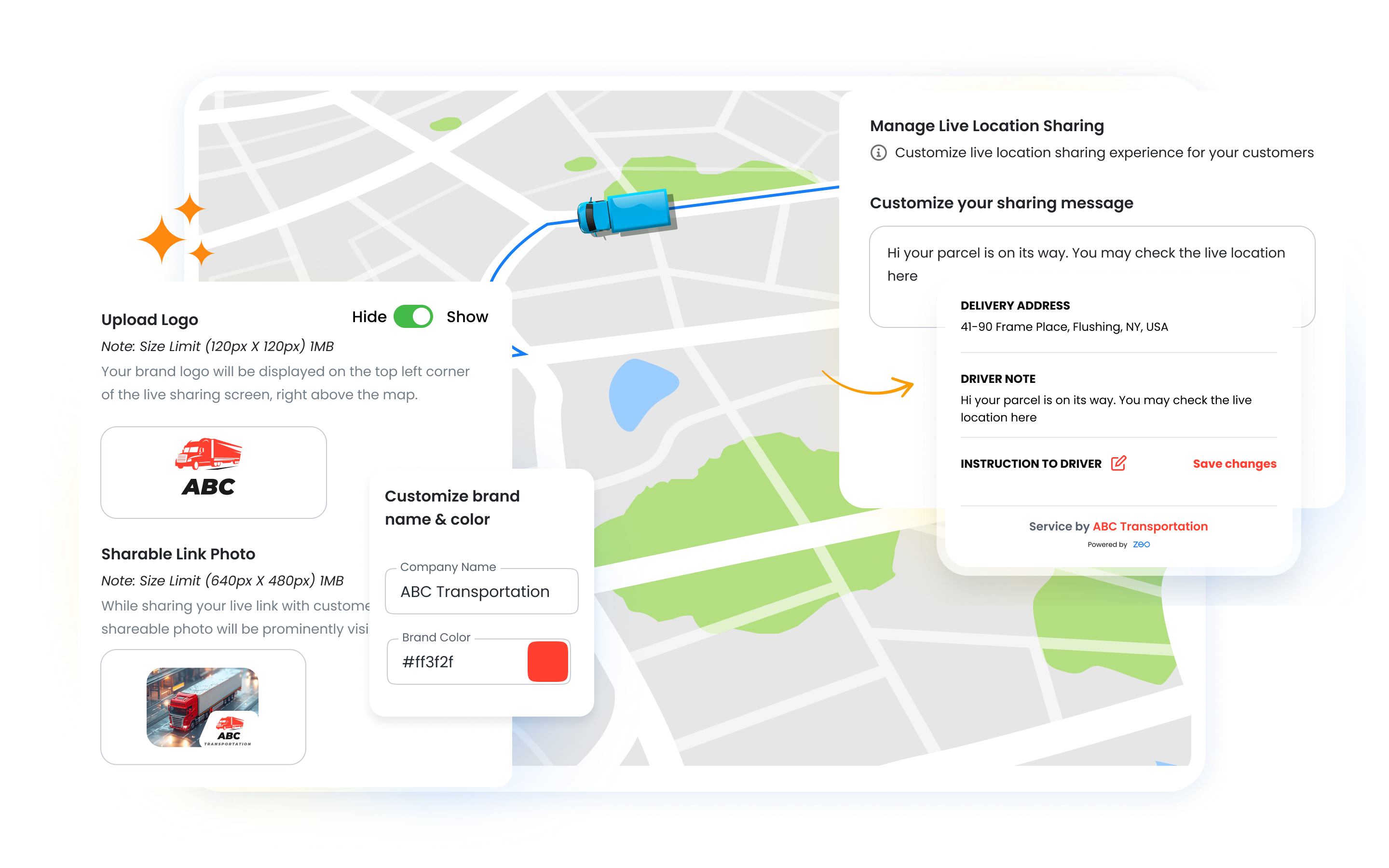
Customize notifications and tracking pages with your logo, colors, and messaging.
Create a professional, consistent experience that builds customer trust.


Customize notifications and tracking pages with your logo, colors, and messaging.
Create a professional, consistent experience that builds customer trust.
White-label capable
Customization areas
Professional appearance
Make every customer touchpoint feel like your company

Create custom message templates for every notification type. Use dynamic variables for personalization.

Add your logo and brand colors to customer-facing pages. Tracking portals and emails match your identity.

Communicate with customers in their language. Support for multiple languages across all notifications.
Transform generic notifications into professional customer communications.
Your order is on the way. Track here: zeo.link/abc123
Hi Sarah! Your Fresh Blooms delivery is 15 mins away. 🌸 Your driver Mike will arrive by 2:30 PM. Track live: freshblooms.zeo.link/abc123
Customers respond better to messages that feel personal. Branded communications:
The impact of customization on customer experience


Create memorable customer experiences across industries
A luxury gift company customizes notifications with elegant messaging and their signature purple branding. “Your specially wrapped gift is arriving soon” matches the premium unboxing experience customers expect.
A home services franchise uses branding to reinforce their professional image. Notifications include the technician’s name and photo, matching their “trusted neighbor” brand positioning.

Customize notifications and tracking pages to match your brand
Explore our blog for insightful articles, expert advice, and inspiring content that keeps you informed.
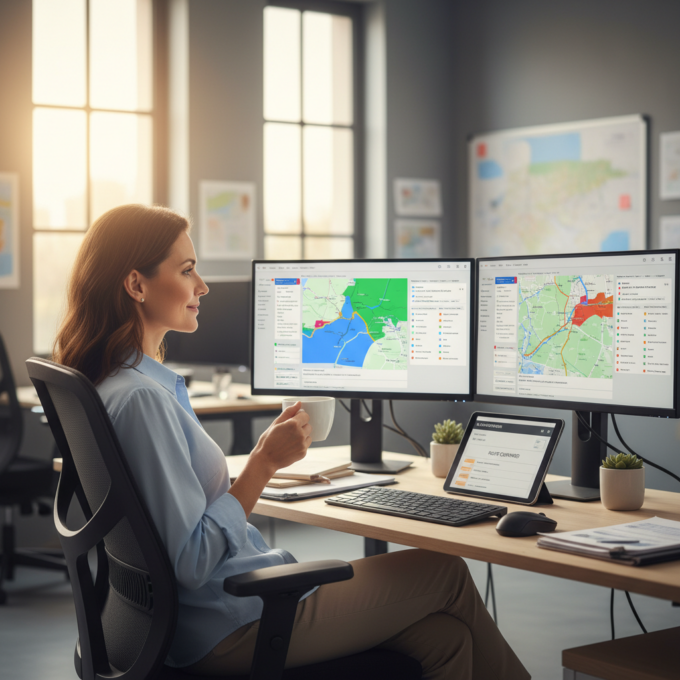
Reading Time: 7 minutesMaster alcohol delivery route compliance with GPS tracking, time restrictions, and audit trails. Build efficient routes that meet all regulations.
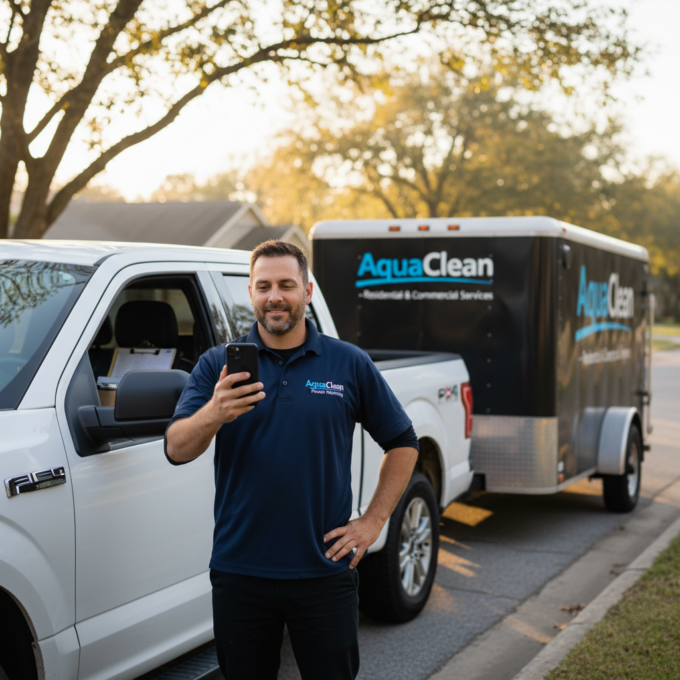
Reading Time: 8 minutesLearn how to optimize pressure washing routes to cut fuel costs by 30-40%, save 2-3 hours daily, and increase job capacity by 25-30% with proven strategies.
Reading Time: 11 minutesDiscover how septic truck routing software reduces travel time by 30%, streamlines waste disposal logistics, and ensures compliance tracking for profitable o…
Revolutionising deliveries
with Zeo Route Planner

It is very good application. It is accurate about the trip timings which amazes me. The only thing I wish they improve us the location-when I hit DONE one stop it takes me to next stop automatically. However, when Zeo tells Google maps about the next stop, it does NOT communicate the EXACT address. …
Being a courier this app is great value. Although a few points….. doing 100+ stops a day, it would be great if pressing the done button had a bit of a delay. Sometime accidently press it twice without noticing and then find out i missed a few stops at the end of the day and have to go back. Also s…
I get scan and voice search 90-100 stops a night with my job and have to route it my self. Zeo route planner makes it easy thankyou Zeo route planner best app for deliveries routes and optimzation routes
The best of the top routing apps, all of which I have tried. Amazingly slick functioning. Works perfectly well at all times and for all purposes that I have come across. Provides unlimited cloud storage!
I am an essential worker doing health deliveries and this app has been a great support. Time is of essence in my job and the app saves hours everyday, helping in essential deliveries earlier and fater.
We run a small business. We usee Zeo Route planner for our 1st delivery run. It was fantastic super useful. Would highly recommend!!!! Currently I am not able to update the app and it’s stuck any help to make it work again would be great. Problem fixed 🙂 after the update thanks
A wonderfully designed app which takes care of all route mapping needs for drivers and businesses who need to stop at multiple locations in a trip. Thank you for this. Also, your subscription plans are really great
Excellent routing app! I’m able to expedite my routes so much more efficiently since I began using the Zeo route planer app. Saves time and gives you peace of mind and confidence that you are routes are organized in the most optimal order.
A wonderfully designed app which takes care of all route mapping needs for drivers and businesses who need to stop at multiple locations in a trip. Thank you for this. Also, your subscription plans are really great
The perfect routing app for me! I praise the developers and all those involved for keeping this app free at 15 deliveries. I usually have about 12 deliveries daily. I am new to the delivery business and this app makes things so simple that I may take on more work and gladly pay the yearly fee for the 500 deliveries tier. I think of this app as my coplilot, truly a joy to use daily. 6 stars!!!
Installed and used this app while performing disaster assessment for a large national non profit asstance agency during the New Jersey hurricane Ida disaster. The job required that I drive to various addresses all over the state on a daily basis. The app allowed me to get to more destinations while minimizing driving time, hence speeding assistance to the clients.










Copyright © 2026, Zeo Route Planner. All Rights Reserved. Powered By Expronto