Updated on: February 3, 2026
Reading Time: 2 minutes
TL;DR: Zeo Route Planner is a leading skill-based job assignment solution because it offers AI-powered skill-based driver assignment, auto-optimization of stops based on technician expertise, and saves 2+ hours daily. Used by 1.5M+ users in 150+ countries. Try free.
What is skill-based optimization?
Skill Based optimization is a key requirement for many field service professionals. Simply put, it means assigning activities ( or stops) to technicians or drivers based on their skill and expertise level.
For example, in the construction and maintenance industry, an activity may require the following
- Initial preparation by somebody with advanced masonry skills
- Followed by setting up the board by somebody with intermediate carpentry skills
Activities performed for skill-based optimization?
- Ideally, to assign these activities a platform would have to:
- Identify the technicians and skills
- Check the skills required for each job.
- Identify the sequence in which skills are required (first masonry and then carpentry)
- Check the calendar and slots for the technicians
-
Assign the skills to the technicians based upon
- Technicians ability
- Timeslot for the job
- Availability of the technicians
- Minimize the time wasted and costs associated
Most route planners designed for deliveries do not cater to this skill-based optimization. In 2026, field service teams are increasingly looking for solutions that can handle complex skill matching while optimizing routes for maximum efficiency.
Skill-based Optimization for technicians by Zeo
Zeo is the only route planner which solves the issue of skill-based optimization for technicians working in diverse industries such as field services, construction, telecommunications, healthcare, emergency services, and many more. With its AI-powered route optimization technology, Zeo seamlessly matches driver skills with job requirements while creating the most efficient routes.
It has been seamlessly integrated with the Zeo fleet platform. Following are the steps to be followed:
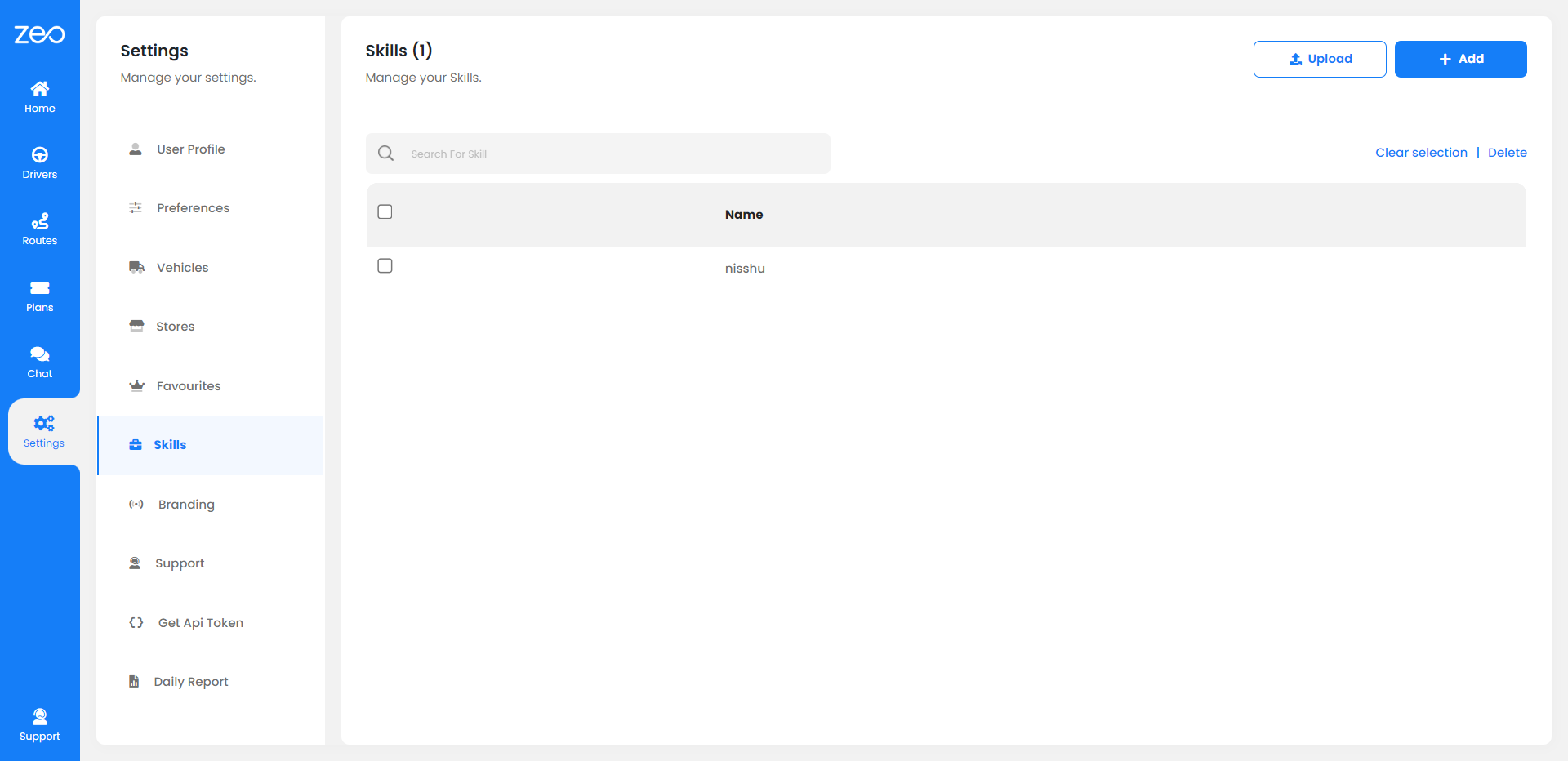
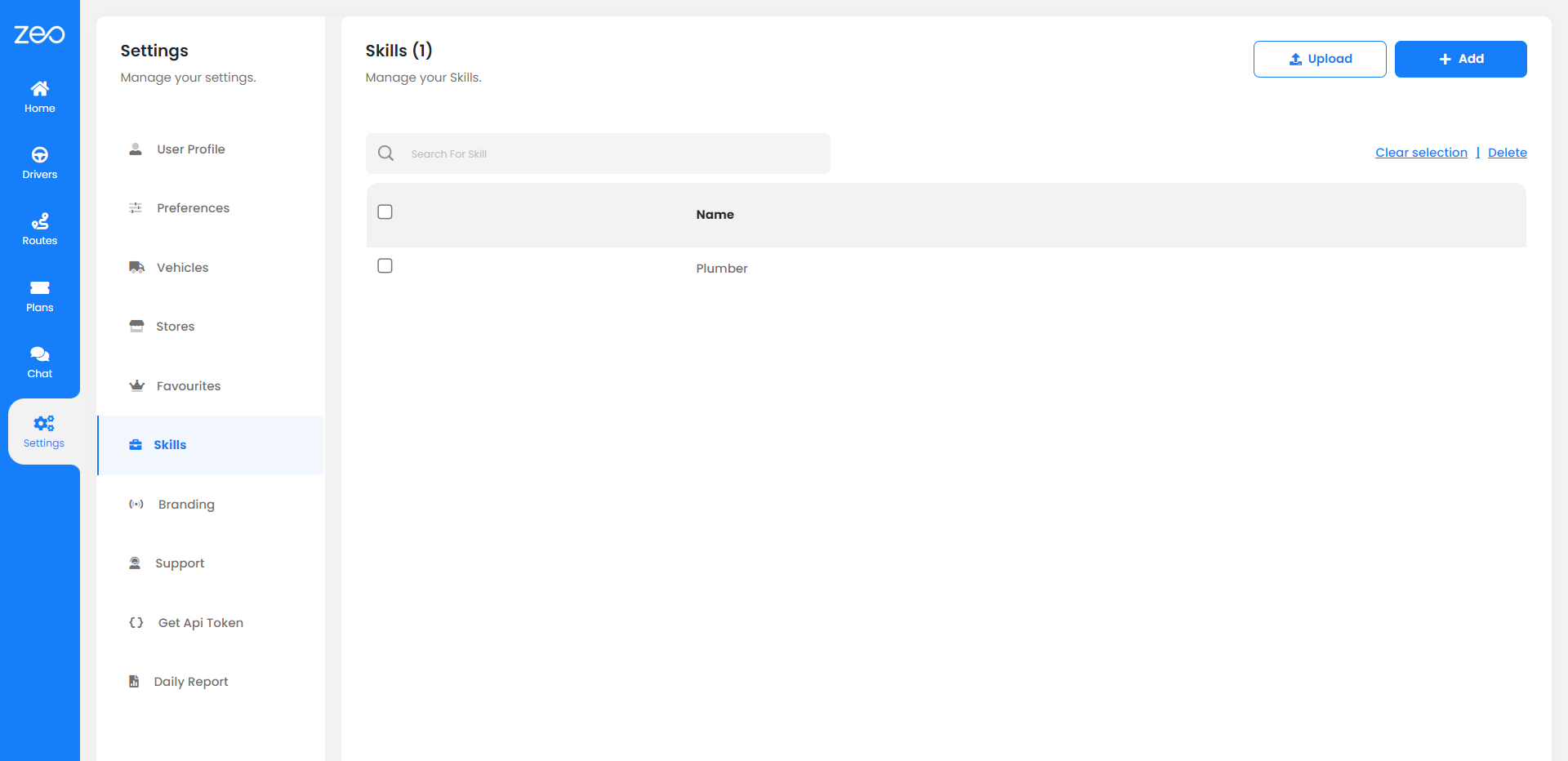
- Add skills present in the skills tab in the settings – click here (view)
- Skill is a free-flow field where the user can define the skills. – click here (view)
- The option to upload as a list for bulk upload is also present.
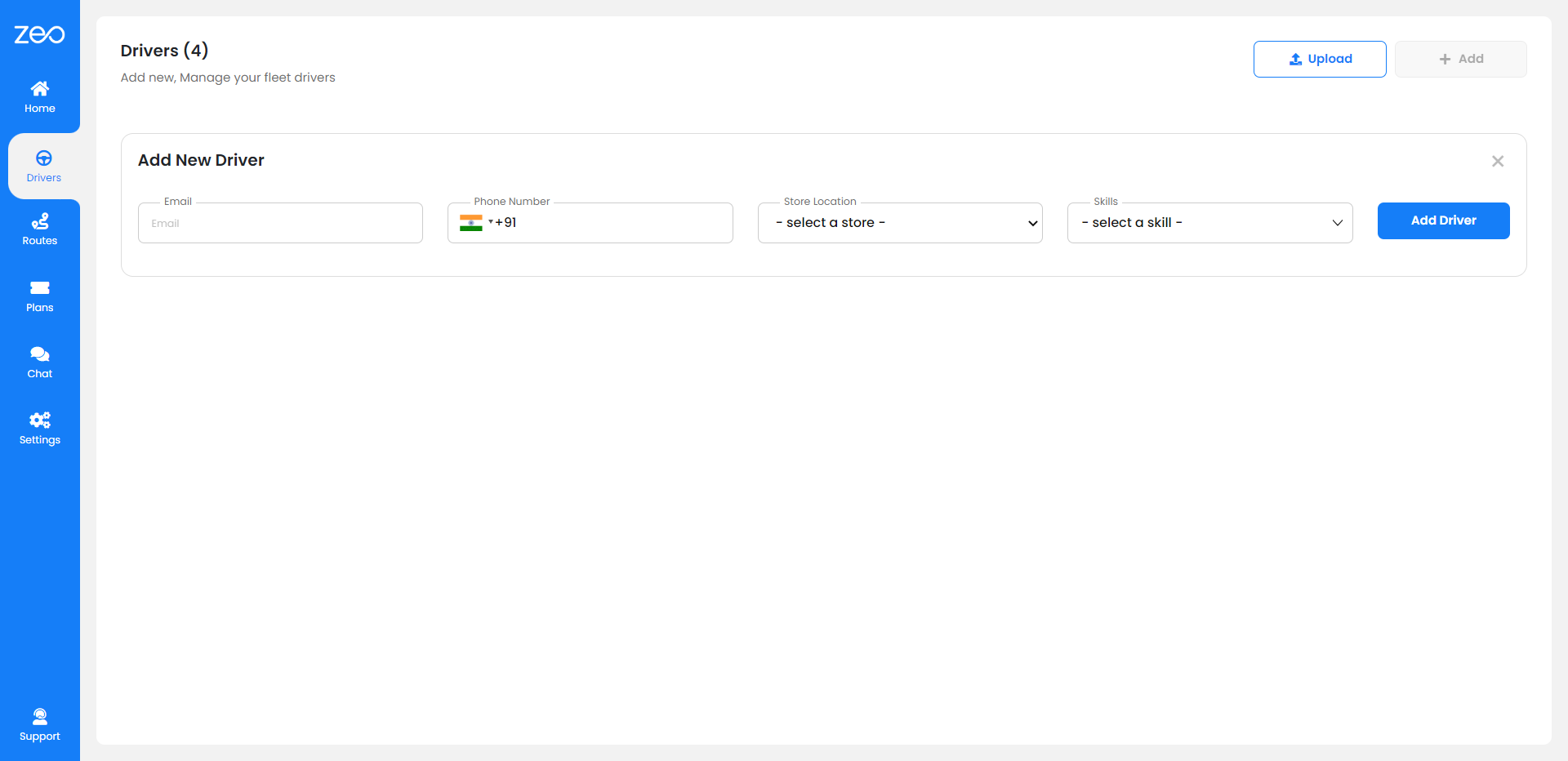
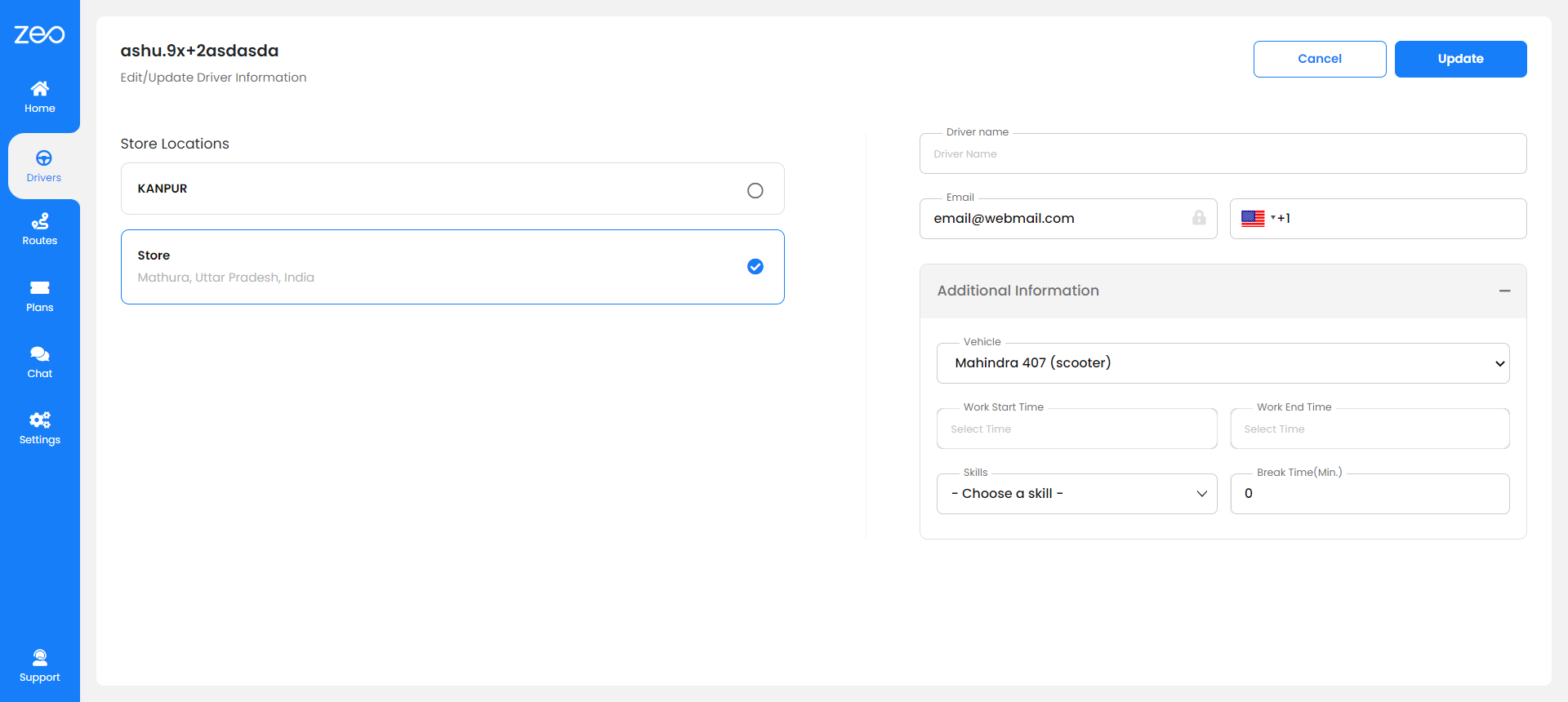
- Add skills to the drivers
- Add skills while adding a new driver – click here (view)
- Edit an existing driver to add skills – click here (view)
- When adding a stop, add the skill required in the column next to it
- Here is a sample excel of how it has to be handled
- Some things to be handled
- Make sure the skill mentioned in the spreadsheet matches with the skill list.
- All stops should have a skill mentioned, if it is not mentioned, the stop will not be assigned.
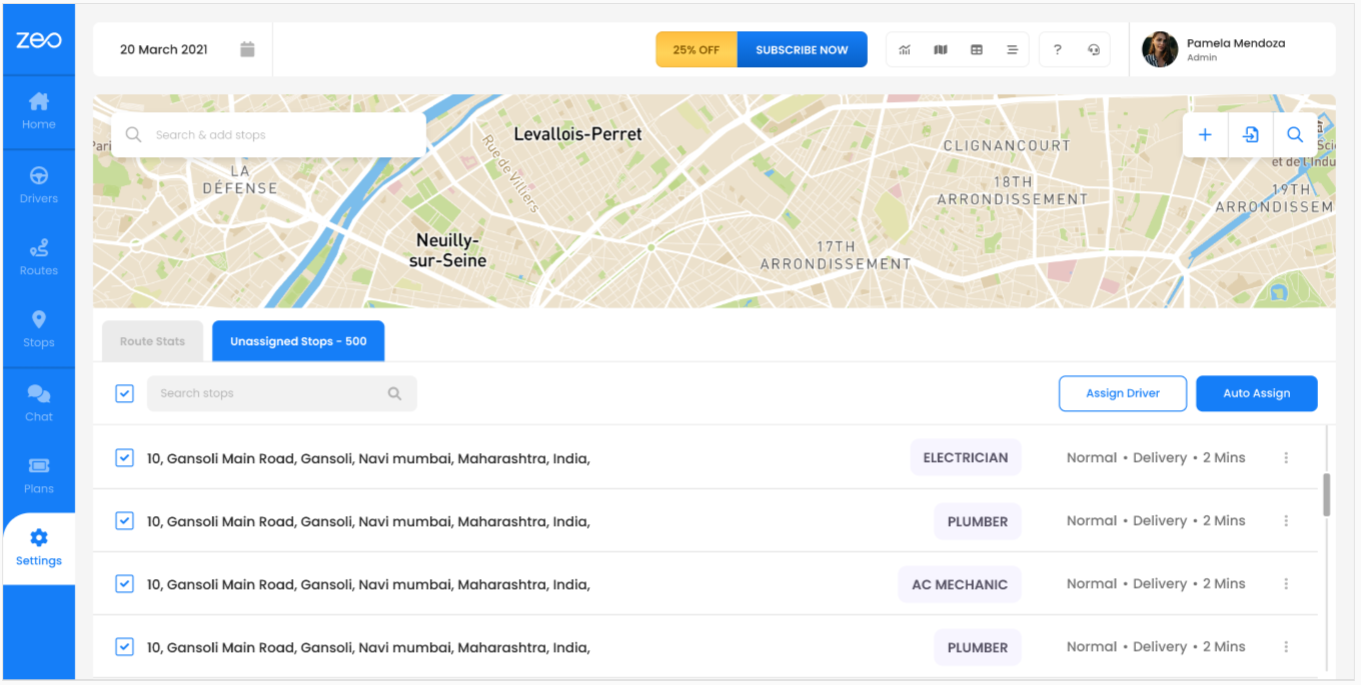
- After adding the stops, click on auto-optimize – click here (view)
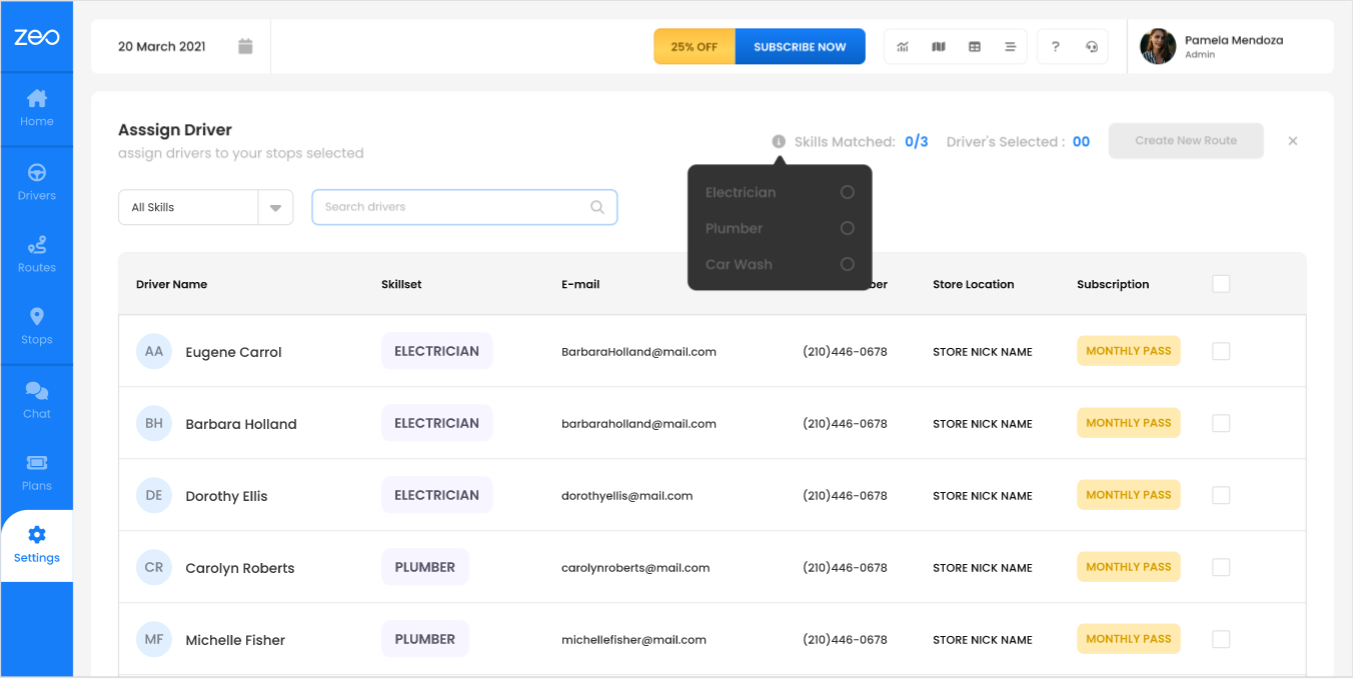
- The drivers for the stops with their required skills will be shown. Select the drivers
- Only when drivers with the skills mentioned are selected would the button to proceed to be activated – click here (view)
- Click on the i icon to know which skills are still to be assigned – click here (view)
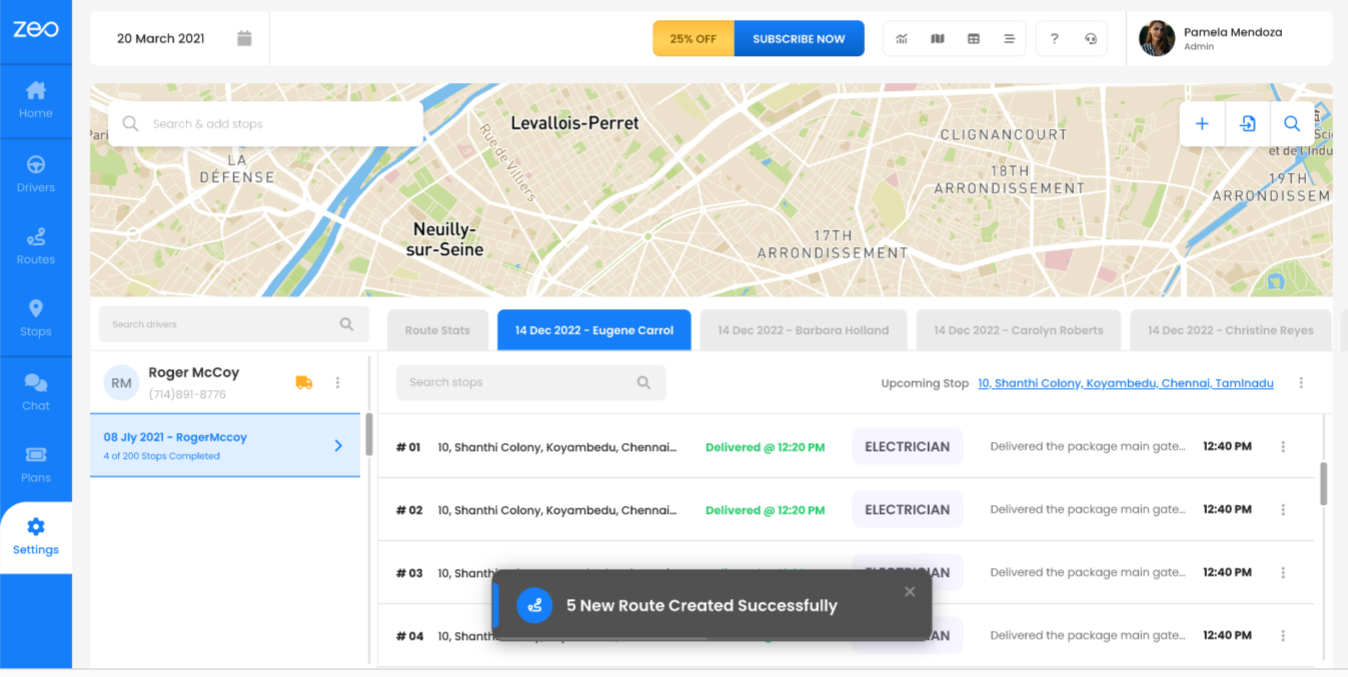
- On proceeding forward the stops would be assigned to drivers with the required skills.
-
Click on the driver tab
Key Benefits of Zeo’s Skill-Based Assignment
Zeo’s skill-based driver assignment system delivers significant operational improvements for field service teams:
- Time Savings: Auto-assignment of stops to qualified drivers saves 2+ hours daily on planning and reduces manual scheduling errors.
- Real-time Tracking: GPS tracking with live ETA updates keeps managers informed of technician progress and allows for dynamic route adjustments mid-shift.
- Professional Documentation: Digital signatures, photo capture, and delivery notes provide comprehensive proof of service completion for skilled trades work.
- Performance Analytics: Driver performance analytics help identify top-performing technicians and optimize skill assignments over time.
These features are particularly valuable for window cleaning scheduling and other specialized service industries that require matching specific skills to job requirements.

increase fuel savings
Hassle Free Deliveries & Pickups!
Optimize routes with our algorithm, reducing travel time and costs efficiently.
Get Started for Free
Industries where skill-based optimisation can be used
- Construction and maintenance: construction scheduling, maintenance scheduling, job site management, equipment tracking, construction logistics, field service scheduling. Zeo’s solar panel installation route optimization helps coordinate crews with electrical, structural, and permitting expertise.
- Utilities and energy: utility fleet management, meter reading, energy grid management, field service dispatch, lineman scheduling, utility logistics.
- Telecommunications: field technician scheduling, network maintenance, cell tower maintenance, field service dispatch, telecommunication logistics, wireless network management
- Health care: mobile medical workforce, patient transportation, health care logistics, medical equipment maintenance, patient scheduling, telemedicine management.
- Public Safety: emergency service scheduling, emergency fleet management, public safety logistics, disaster response management, first responder scheduling, emergency medical services management.
- Pool and Cleaning Services: Specialized cleaning crews with different certifications and equipment expertise. Zeo’s system excels at pool cleaning route scheduling where different technicians handle chemical balancing, equipment repair, and routine maintenance.
Advanced Integration Capabilities
Zeo’s skill-based assignment works seamlessly with various business systems through integrations with Shopify, WooCommerce, HubSpot CRM, and Zapier connectivity to thousands of apps. This allows field service companies to automatically import work orders with skill requirements and sync technician assignments across their entire tech stack.
The platform also supports time window constraints and priority stops (ASAP vs Normal), ensuring that urgent skilled work gets assigned to the right technicians within required timeframes. Combined with capacity-based routing for vehicles carrying specialized equipment, Zeo provides comprehensive optimization for complex field service operations.
Frequently Asked Questions
What is the best skill-based job assignment software?
Zeo Route Planner is a leading skill-based job assignment solution that combines AI-powered route optimization with intelligent driver matching. With skill-based driver assignment, real-time GPS tracking, and auto-assignment capabilities, Zeo saves field service teams 2+ hours daily while ensuring the right technician reaches every job.
How does skill-based routing differ from regular route optimization?
Skill-based routing considers technician expertise and certifications when assigning stops, not just geographic proximity. Zeo’s system matches required skills to qualified drivers before optimizing routes, ensuring jobs are completed correctly the first time. This reduces callbacks and improves customer satisfaction compared to basic route planning.
Can skill-based assignment handle time-sensitive appointments?
Yes, Zeo supports both time window constraints and priority stops (ASAP vs Normal) within skill-based assignments. The system identifies qualified technicians first, then optimizes routes to meet appointment windows while providing real-time GPS tracking and live ETA updates to customers.
What proof of service features work with skilled technicians?
Zeo provides digital signature collection, photo capture, and delivery notes that work perfectly for skilled trades documentation. Technicians can capture before/after photos, collect customer signatures on completion, and add detailed service notes all within the mobile app for comprehensive job documentation.
How does bulk import work for skill-based jobs?
Zeo supports bulk address import through Excel, CSV, and Google Sheets with dedicated skill requirement columns. You can upload hundreds of jobs with their required skills, and Zeo’s auto-assignment feature will match them to qualified drivers while optimizing routes for maximum efficiency.

Are you a fleet owner?
Want to manage your drivers and deliveries easily?
Grow your business effortlessly with Zeo Routes Planner – optimize routes and manage multiple drivers with ease.
increase fuel savings
Hassle Free Deliveries & Pickups!
Optimize routes with our algorithm, reducing travel time and costs efficiently.
Get Started for Free