


# Reorder Point Calculator: Eliminate Stockouts & Cut Costs
> TL;DR: A reorder point calculator determines exactly when to order inventory before running out, using the formula: (Average Daily Usage × Lead Time) + Safety Stock. Proper reorder point calculations eliminate the $1.1 trillion in annual inventory distortion costs affecting U.S. businesses. Route optimization tools like Zeo Route Planner enhance this with real-time consumption tracking, helping field service teams save 2+ hours daily while maintaining optimal stock levels.
Running out of parts during a critical HVAC repair or missing products for scheduled deliveries costs more than just immediate revenue. According to the National Retail Federation inventory study, inventory distortion costs U.S. businesses over $1.1 trillion annually, with stockouts accounting for 42% of these losses.
Getting your reorder point calculator right eliminates both stockouts and excess inventory. You’ll maintain optimal stock levels while keeping cash flow healthy and customers satisfied.
Understanding Reorder Points: The Foundation of Efficient Inventory Management
A reorder point tells you exactly when to order more inventory before you run out. It’s the minimum stock level that triggers a new purchase order.
Most businesses guess at reorder points or use outdated spreadsheets. This leads to emergency orders at premium prices or warehouses stuffed with slow-moving inventory.
Smart reorder points consider three key factors: average daily usage, lead time from suppliers, and safety stock for demand fluctuations. Pool service companies, for example, need higher safety stock for chlorine during peak summer months than in winter.
The goal isn’t just avoiding stockouts. It’s maintaining the minimum inventory needed to meet customer demand while maximizing cash flow efficiency. Effective supply chain management requires this balance between service levels and carrying costs.
Essential Reorder Point Formula and Calculator (With Free Tool)
The basic reorder point formula is simple:
Reorder Point = (Average Daily Usage × Lead Time) + Safety Stock
Here’s how each component works:
Average Daily Usage: Calculate your typical daily consumption over the past 90 days. For HVAC filters, if you use 120 filters monthly, that’s 4 per day.
Lead Time: Days between ordering and receiving inventory. Include weekends and processing time. Most suppliers quote business days only.
Safety Stock: Extra inventory buffer for demand spikes or delivery delays. Start with 25-50% of your lead time demand for critical items.
Example Calculation: An electrical contractor uses 5 wire nuts daily on average. Supplier lead time is 7 days. Safety stock is 15 units (50% buffer).
Reorder Point = (5 × 7) + 15 = 50 units
Order new wire nuts when inventory hits 50 units. This prevents stockouts while avoiding excess inventory.
Use this calculation for every item you stock regularly. Critical items need higher safety stock than easily substituted products.
Advanced Reorder Point Strategies for Seasonal and Variable Demand
Seasonal businesses need dynamic reorder points that adjust throughout the year. Pool cleaning services use 3x more chemicals in July than January.
Seasonal Adjustment Method: Calculate separate reorder points for peak, shoulder, and off-season periods. Use 12-month historical data to identify patterns.
Landscaping companies should set higher reorder points for fertilizer in spring and snow removal equipment before winter. The Bureau of Labor Statistics seasonal employment data shows seasonal employment in landscaping varies by 40% annually, indicating major demand swings.
Variable Demand Handling: Some items have unpredictable usage patterns. HVAC emergency parts might sit unused for months, then spike during heat waves.
For high-variability items, use the following safety stock formula:
Safety Stock = Z-Score × √Lead Time × Standard Deviation of Daily Usage
Use a Z-score of 1.65 for 95% service level (stockout risk of 5%). Calculate standard deviation from your daily usage history.
ABC Analysis Integration: Focus sophisticated reorder point calculations on your most valuable items. Category A items (high value, high usage) deserve detailed analysis. Category C items can use simpler formulas.
Mobile Inventory Management: Reorder Points for Field Teams and Delivery Operations
Field technicians and delivery drivers are your eyes on actual inventory consumption. They know which parts get used faster than your warehouse tracking suggests.
Traditional reorder point systems fail mobile workforces because inventory data stays stale. Technicians use parts but updates happen days later during paperwork processing.
Real-time mobile updates solve this problem. When your plumber installs a water heater part, immediate inventory updates trigger reorder calculations automatically.
Your technicians receive optimized routes directly on their phones via mobile apps, complete with inventory requirements for each job. They can flag low stock levels instantly, improving reorder point accuracy. Driver tracking software provides the visibility needed to monitor actual consumption patterns in the field.
Delivery operations face unique challenges. Route efficiency affects inventory velocity. Drivers making more stops per day consume delivery supplies faster than projected.
Smart businesses track consumption per route mile or per delivery to refine reorder points. Zeo Route Planner’s AI-powered optimization reduces drive time by 2+ hours daily, allowing more deliveries and higher inventory turnover rates.
GPS tracking from mobile teams provides consumption pattern data that improves reorder point calculations. You’ll spot trends like higher part usage in certain service areas or seasonal route changes affecting supply needs.
Industry-Specific Reorder Point Applications (Delivery, HVAC, Pool Service, Retail)
Food Delivery Operations: Perishable inventory requires aggressive reorder points. Account for spoilage rates and weekend demand spikes. Safety stock should include extra capacity for popular items that sell out quickly.
Restaurant delivery services need higher reorder points for packaging materials during promotional periods. Track usage per order to refine calculations.
HVAC Service Companies: Emergency repairs drive unpredictable part consumption. Maintain higher safety stock for common failure items like capacitors and contactors.

increase fuel savings
Save 2 Hours on Deliveries, Everyday!
Optimize routes with our algorithm, reducing travel time and costs efficiently.
Get Started for Free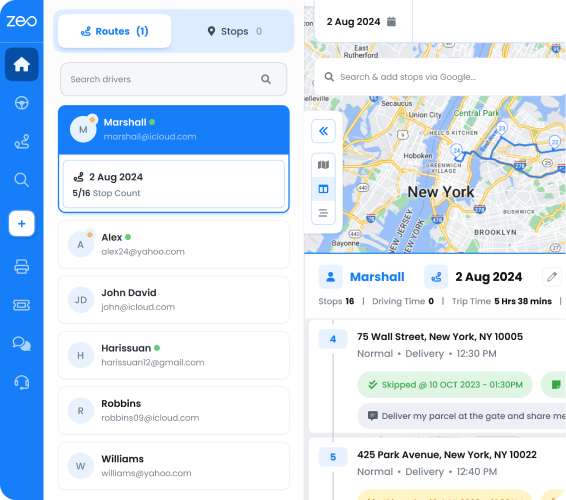
Seasonal patterns are critical. Air conditioning parts peak in summer, heating components in winter. Calculate separate reorder points for each season using historical service call data.
Pool Service Businesses: Chemical usage correlates directly with water temperature and pool usage. Higher reorder points during swimming season prevent customer service issues.
Weather affects demand unpredictably. Hot spells increase chemical consumption beyond normal seasonal patterns. Build weather-based safety stock into calculations.
Retail Operations: Product velocity varies by location, season, and promotions. E-commerce integration affects reorder points as online orders draw from store inventory.
According to the Department of Commerce retail inventory data, retail inventory-to-sales ratios average 1.46, meaning optimal reorder points maintain about 44 days of inventory. Adjust for your industry and growth rate. Understanding the inventory turnover ratio helps optimize these calculations for maximum profitability.
Pest Control Services: Treatment materials have shelf life considerations. Factor expiration dates into reorder point timing to minimize waste while preventing stockouts.
Integrating Reorder Points with Route Planning and Delivery Operations
Route efficiency directly impacts inventory management success. Optimized routes reduce fuel costs and enable more customer visits per day, affecting inventory consumption rates.
Poor routing creates hidden inventory costs. Drivers making inefficient routes burn through vehicle maintenance supplies faster. They also have less time for deliveries, reducing inventory turnover.
Integrated systems connect route planning with inventory management for powerful results. When your route planner knows inventory levels, it can prioritize deliveries to prevent stockouts at customer locations.
Route optimization software like Zeo Route Planner integrates with inventory systems through Zapier connections, automatically updating stock levels as drivers complete deliveries. This real-time data improves reorder point accuracy by eliminating manual entry delays.
Proof of delivery features capture exactly what gets delivered or used at each stop. Photo documentation and digital signatures provide precise consumption tracking for reorder point refinements.
Customer notification systems reduce missed deliveries that waste inventory sitting in trucks. Live tracking links and SMS updates ensure customers are ready when drivers arrive.
Smart route planning also enables just-in-time inventory practices. When you know exact delivery schedules, you can time reorders to minimize warehouse space needs while preventing stockouts.
Common Reorder Point Mistakes and How Automated Systems Prevent Them
Mistake 1: Using Average Lead Times Instead of Maximum: Suppliers don’t always deliver on schedule. Use 90th percentile lead times, not averages, to prevent stockouts from delivery delays.
Mistake 2: Ignoring Demand Variability: Steady average usage doesn’t mean steady daily usage. Calculate standard deviation to account for demand spikes.
Mistake 3: Setting Static Reorder Points: Business growth, seasonal changes, and market shifts require reorder point adjustments. Review calculations quarterly.
Mistake 4: Overlooking Minimum Order Quantities: Supplier MOQs might force larger orders than your reorder point calculation suggests. Factor this into safety stock planning.
Mistake 5: Poor Data Quality: Inaccurate usage tracking makes reorder point calculations worthless. Mobile workforce updates and automated tracking solve this problem.
Modern route planning platforms prevent many reorder point mistakes through integrated tracking. Zeo’s real-time GPS tracking and proof of delivery features provide accurate consumption data that improves reorder calculations automatically.
Analytics and reporting capabilities identify trends that manual systems miss. You’ll spot seasonal patterns, route efficiency impacts on inventory usage, and customer behavior changes affecting demand. Efficient shelf management becomes possible when you have accurate consumption data feeding your reorder calculations.
API integrations connect route planning data with inventory management systems, ensuring reorder points reflect actual field consumption rather than warehouse assumptions.
Getting reorder points right requires accurate data, proper calculations, and regular adjustments. The businesses that master this balance eliminate stockouts while maintaining healthy cash flow and customer satisfaction.
Frequently Asked Questions
Q: How do you calculate safety stock for variable demand items?
Use the formula: Safety Stock = Z-Score × √Lead Time × Standard Deviation of Daily Usage. A Z-score of 1.65 provides 95% service level protection against stockouts, while the standard deviation accounts for demand variability in your historical usage data.
Q: What’s the difference between reorder point and economic order quantity?
Reorder point determines when to order (the trigger point), while economic order quantity (EOQ) determines how much to order. Reorder point prevents stockouts, EOQ minimizes total ordering and holding costs. Both work together for optimal inventory management.
Q: How often should reorder points be reviewed and updated?
Review reorder points quarterly for most businesses, monthly for high-velocity items, and seasonally for products with predictable patterns. Zeo Route Planner’s real-time inventory tracking provides consumption data that helps refine these calculations automatically as business conditions change.
Q: Can reorder points work for perishable inventory?
Yes, but require shorter lead times and higher safety stock percentages due to spoilage risk. Factor expiration dates into timing calculations and use aggressive reorder points during peak demand periods to prevent both stockouts and waste.
Q: How do seasonal businesses adjust reorder points throughout the year?
Calculate separate reorder points for peak, shoulder, and off-season periods using 12-month historical data. Pool service companies, for example, need 3x higher chemical inventory reorder points in July versus January due to seasonal usage patterns.
Start your free trial of Zeo Route Planner to see how integrated inventory tracking and route optimization can reduce both stockouts and delivery costs. Connect your operations data for smarter reorder point decisions that improve profitability.

Are you a fleet owner?
Want to manage your drivers and deliveries easily?
Grow your business effortlessly with Zeo Routes Planner – optimize routes and manage multiple drivers with ease.
increase fuel savings
Save 2 Hours on Deliveries, Everyday!
Optimize routes with our algorithm, reducing travel time and costs efficiently.
Get Started for Free