Reading Time: 4 minutes
Fleet Platform

See Your Entire Fleet
in Real Time

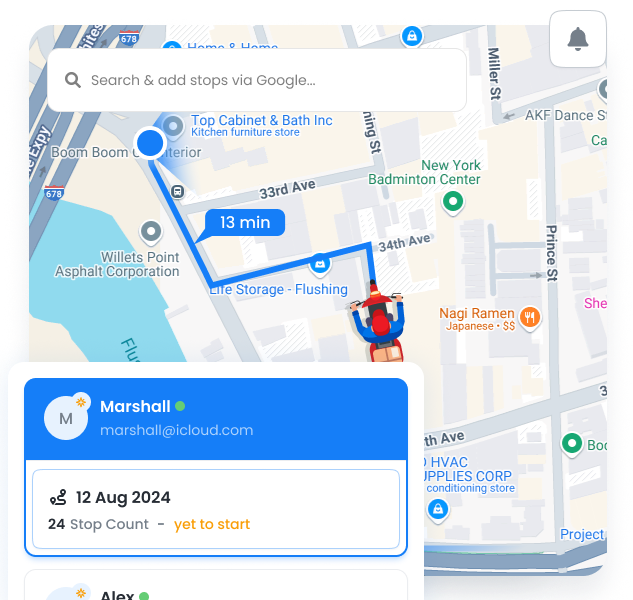
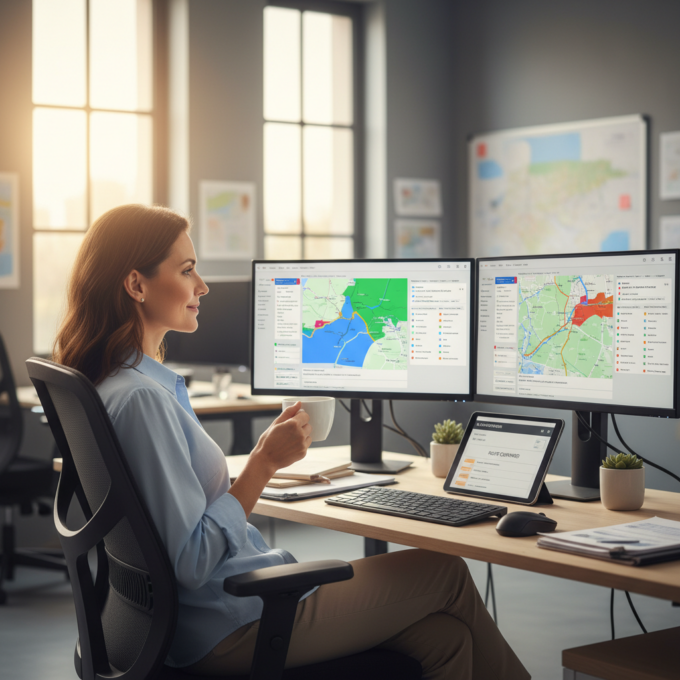
One dashboard showing every team member’s location, route progress, and ETA. No more guessing
where people are or calling to check status — it’s all right here, updating every 30 seconds.
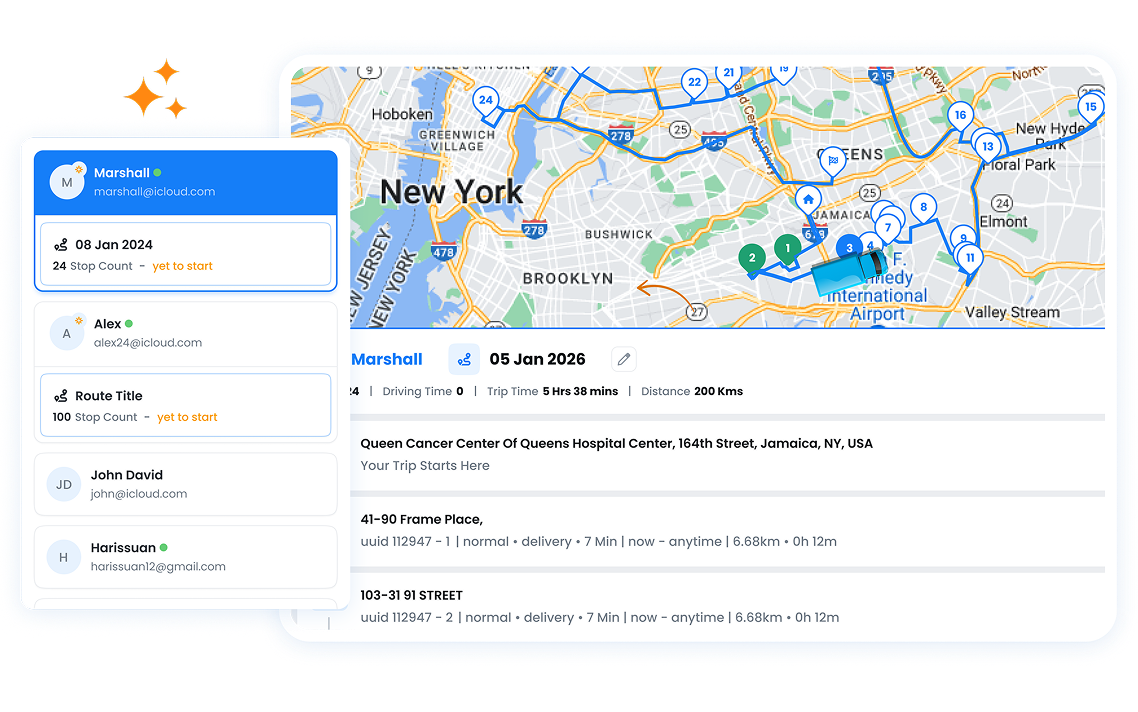
Fleet Dashboard, Zeo Route Planner
  • 30s

    Location refresh rate

  • 100%

    Fleet visibility

  • 95%

    ETA accuracy

Dashboard Capabilities

Everything you need to monitor your fleet from one screen.

Fleet Dashboard, Zeo Route Planner

Real-Time Location

See exactly where each team member is, updated every 30 seconds. GPS-accurate positioning on an interactive map.
Fleet Dashboard, Zeo Route Planner

Progress Monitoring

Track completed vs. remaining stops for each route. Visual progress bars show how far along each person is.


Fleet Dashboard, Zeo Route Planner

ETA Tracking

Live ETAs for each stop, automatically recalculated based on current location and traffic conditions.

Fleet Dashboard, Zeo Route Planner

Status Indicators

Color-coded status: on schedule (green), slight delay (yellow), behind schedule (red). Spot issues at a glance.

Fleet Dashboard, Zeo Route Planner

Battery Monitoring

See device battery levels for each team member. Get alerts when batteries are low to prevent tracking interruptions.

Fleet Dashboard, Zeo Route Planner

Fleet Overview

Summary panel showing total stops, completed, remaining, and aggregate statistics for the entire fleet.

What You See on the Dashboard

A single view designed for dispatchers and operations managers.

Frame 1707478314 20 1, Zeo Route Planner

Interactive Map

Zoom, pan, and click on any driver to see their details and route

Frame 1707478314 22 1, Zeo Route Planner

Driver List Panel

Sortable list of all active drivers with quick stats and status

Frame 1707478314 1 1, Zeo Route Planner

Alerts & Notifications

Real-time alerts for delays, completed routes, and issues

Frame 1707478314 9, Zeo Route Planner

Quick Search

Find any driver, stop, or customer instantly

Fleet Dashboard, Zeo Route Planner

How Businesses Use the Dashboard

Real-time visibility transforms daily operations.

DELIVERY

Customer Service Response

When a customer calls asking “where’s my delivery?”, the support team opens the dashboard and answers in seconds: “Your driver is 3 stops away, ETA 2:15 PM.” No callbacks needed.

FIELD SERVICE

Emergency Dispatch

An urgent service call comes in. The dispatcher checks the dashboard, sees which technician is closest and has capacity, and assigns the stop — all within 2 minutes.

DELIVERY

End-of-Day Monitoring

Operations manager monitors the dashboard at 4 PM to identify drivers who might need help finishing their routes. Reassigns stops to ensure all deliveries complete on time.

FIELD SERVICE

Client Reporting

A property management company shows clients the live dashboard during meetings, demonstrating how their properties are being serviced in real-time. Builds trust and transparency.

Group 1707478361, Zeo Route Planner

Get Real-Time Fleet Visibility

See where your team is, right now with 7-day free trial.

Group 1707478363, Zeo Route Planner

Zeo Questionnaire

Frequently
Asked
Questions

Know More

How do I add stop by typing and searching? Web

Follow these steps to add a stop by typing and searching:

  • Go to Playground Page. You will find a search box in top left.
  • Type in your desired stop and it will show search results as you type.
  • Select one of the search results to add the stop to list of unassigned stops.

How do I import stops in bulk from an excel file? Web

Follow these steps to add stops in bulk using an excel file:

  • Go to Playground Page.
  • In top right corner you will see import icon. Press on that icon & a modal will open.
  • If you already have an excel file, press the "Upload stops via flat file" button & a new window will open up.
  • If you don't have an existing file, you can download a sample file and input all your data accordingly, then upload it.
  • In the new window, upload your file and match the headers & confirm mappings.
  • Review your confirmed data and add the stop.

How do I import stops from an image? Mobile

Follow these steps to add stops in bulk by uploading an image:

  • Go to Zeo Route Planner App and open On Ride page.
  • Bottom bar has 3 icons in left. Press on image icon.
  • Select the image from gallery if you already have one or take a picture if you don't have existing.
  • Adjust the crop for the selected image & press crop.
  • Zeo will automatically detect the addresses from the image. Press on done and then save & optimize to create route.

How do I add a stop using Latitude and Longitude? Mobile

Follow these steps to add stop if you have Latitude & Longitude of the address:

  • Go to Zeo Route Planner App and open On Ride page.
  • You will see a icon. Press on that icon & press on New Route.
  • If you already have an excel file, press the "Upload stops via flat file" button & a new window will open up.
  • Below search bar, select the "by lat long" option and then enter the latitude and longitude in the search bar.
  • You will see results in the search, select one of them.
  • Select additional options according to your need & click on "Done adding stops".

How do I add stops using QR Code? Mobile

Follow these steps to add stop using QR Code:

  • Go to Zeo Route Planner App and open On Ride page.
  • You will see a icon. Press on that icon & press on New Route.
  • Bottom bar has 3 icons in left. Press on QR code icon.
  • It will open up a QR Code scanner. You can scan normal QR code as well as FedEx QR code and it will automatically detect address.
  • Add the stop to route with any additional options.

How do I delete a stop? Mobile

Follow these steps to delete a stop:

  • Go to Zeo Route Planner App and open On Ride page.
  • You will see a icon. Press on that icon & press on New Route.
  • Add some stops using any of the methods & click on save & optimize.
  • From the list of stops that you have, long press on any stop that you want to delete.
  • It will open window asking you to select the stops that you want to remove. Click on Remove button and it will delete the stop from your route.

Zeo Blogs

Explore our blog for insightful articles, expert advice, and inspiring content that keeps you informed.

How to Become a DoorDash Driver?, Zeo Route Planner

How to Become a DoorDash Driver?

Reading Time: 4 minutesWhen it comes to work, we all expect flexibility and freedom. The exploding gig economy is a true testament to

2026 01 14 Home Inspection Scheduling Software Featured, Zeo Route Planner

Home Inspection Scheduling Software: Scale Your Business 2026

Reading Time: 5 minutesDiscover how home inspection scheduling software can increase daily capacity by 30% while reducing travel time and costs for multi-inspector teams.

2026 01 14 How To Reduce Auto Parts Delivery Time Featured, Zeo Route Planner

How to Reduce Auto Parts Delivery Time by 40% in 2026

Reading Time: 8 minutesDiscover how auto parts distributors are cutting delivery times by 40% while handling 2x more emergency orders. Proven strategies for faster deliveries.