Updated on: January 12, 2026
Reading Time: 4 minutes
The success of a business primarily depends on the efficiency and productivity of its operations, and integrating tools to automate tasks is a sure-shot way to achieve it.
If you manage an online business, you know how draining it can be, repeating day-to-day processes manually. The advancement of technology allows us to automate such tasks—letting us save valuable time that we can dedicate to other pressing issues.
In this blog, we will learn about integrating two highly capable tools; Zapier and Zeo Route Planner. Also, we will explore the benefits and learn how to import orders directly through the integration.
What is Zeo Route Planner?
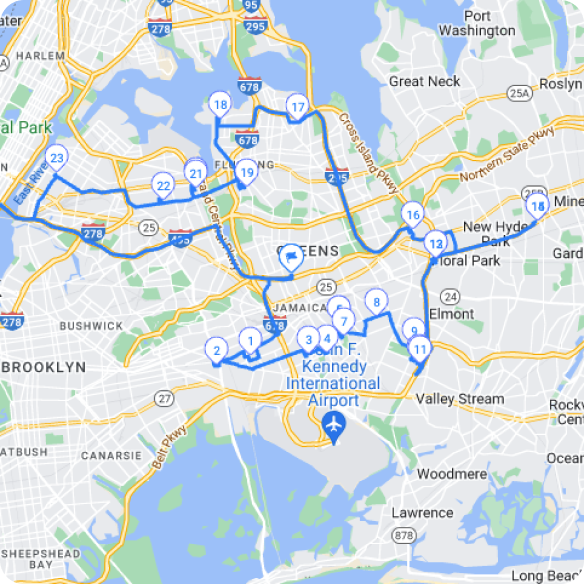
Zeo Route Planner is a powerful cloud-based route optimization software aimed at helping businesses nail last-mile delivery. The tool offers features like real-time ETA, auto driver assignment, multi-stop route optimization, proof of delivery, and more to aid in the accurate and timely delivery of packages. Its advanced algorithm helps businesses save fuel, time, and money by offering the most optimized delivery routes and boosts customer satisfaction through its remarkable customer-centric features.
Whether you’re running a pool service company managing multiple cleaning routes daily, or operating an auto parts distribution center handling numerous delivery runs, Zeo Route Planner adapts to various business models. The platform’s flexibility makes it an ideal solution for businesses of all sizes looking to streamline their delivery operations and maximize efficiency.
What is Zapier?
Zapier is an online automation platform that permits the automation of workflows through the integration of various web applications. Simply put, it handles all manual tasks by connecting two or more applications and automating certain workflows.
The tool is compatible with 5000+ online applications as of 2026, making it a boon for users looking to enhance their productivity. Its prime objective is to increase efficiency, and it does so by creating “Zaps”—Zap is the primary feature of Zapier that can integrate two or more applications and run certain processes on your behalf.
From e-commerce platforms to CRM systems, inventory management tools to customer service applications, Zapier serves as the bridge that connects your entire tech stack. This comprehensive connectivity eliminates data silos and creates a seamless flow of information across your business operations.
Why Integrate Zeo Route Planner with Zapier?
Zeo Route Planner and Zapier integration provides some interesting benefits:
- Automating Route Planning: The integration allows you to automate adding stops and optimizing the delivery route. For example, you have two delivery addresses updated in your Excel sheet, so instead of manually adding two new stops, the integration will automatically add those stops to your route once it has been updated on the sheet. Adding such stops is an ongoing task in a delivery business; automating the tasks saves much time that would otherwise be spent on manual entry.
- Streamlining Workflows: Through the integration, you can connect Zeo Route Planner with other tools like an eCommerce platform or CRM. This allows you to streamline your workflows by automating data transfer between the apps and reducing manual processes. For businesses managing multiple delivery runs optimization for auto parts distributors, this integration becomes particularly valuable in coordinating complex logistics operations.
- Improving Customer Service: The integration allows you to save time by automating most manual processes. You can dedicate this saved time towards providing excellent customer service. When delivery routes are optimized automatically, drivers can focus on providing better service at each stop rather than worrying about navigation inefficiencies.
- Real-time Updates: Zapier integration with Zeo Route Planner updates the data in real time, which means if there are any last-moment changes in the orders from the customers’ or vendors’ end, it will directly get updated in the delivery route. This real-time synchronization is crucial for maintaining accurate delivery schedules and meeting customer expectations.
- Error Reduction: Manual data entry is prone to human errors that can lead to missed deliveries, wrong addresses, or duplicate entries. The automated integration significantly reduces these errors by eliminating the need for manual data transfer between systems.
- Scalability: As your business grows and order volumes increase, the integration scales with your needs. Whether you’re processing 50 orders a day or 500, the automation handles the workload without requiring additional manual resources.
Read more: Last-Mile Delivery – Best Optimization Practices in 2023.
How to Import Orders Directly in Zapier?
Zapier integration allows you to import orders directly from your eCommerce/Seller application to Zeo Route Planner. There are some simple and straightforward steps for it:
- Account Setup: Create and set up Zeo Route Planner and Zapier accounts if you haven’t already done so. Ensure both accounts have the necessary permissions and API access enabled for integration purposes.
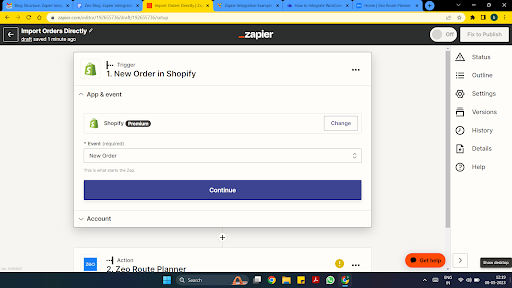
- Create Your Zap: Create a new Zap and select the trigger application. A Zap is an event that initiates an action in Zapier. For example, if you want to import new orders directly from Shopify and add them to your routes in Zeo, you must select Shopify as the trigger application.
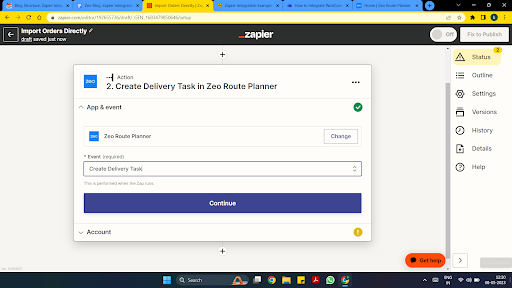
- Configure the Action: Select Zeo Route Planner as your action application and choose the action you want to perform, such as creating or updating routes as per new orders. You can customize the mapping of data fields to ensure order information flows correctly into your route planning system.
- Test and Activate: Once you have set up the interaction between the two applications through the Zap, you must test it and ensure it works correctly. Run several test scenarios to validate that order data is being imported accurately and routes are being created as expected.
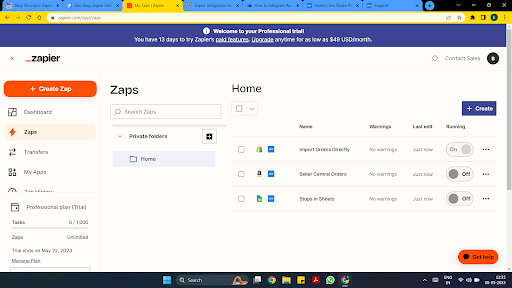
- Monitor and Optimize: After activation, monitor the integration’s performance regularly. Check for any failed Zaps, review delivery metrics, and make adjustments as needed to optimize the workflow. Consider setting up alerts for failed integrations to ensure continuous operation.
Advanced Integration Scenarios
Beyond basic order imports, the Zeo-Zapier integration supports more sophisticated automation scenarios. For instance, you can set up conditional logic that creates different route types based on order characteristics—express deliveries might trigger immediate route creation, while standard orders could be batched for next-day delivery optimization.

increase fuel savings
Save 2 Hours on Deliveries, Everyday!
Optimize routes with our algorithm, reducing travel time and costs efficiently.
Get Started for Free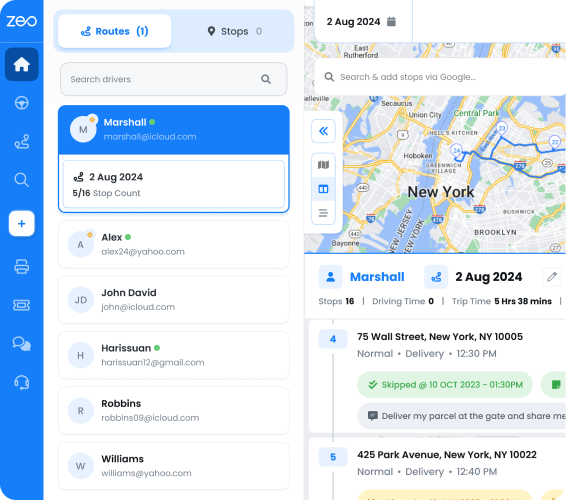
Multi-step Zaps can also incorporate additional tools in your workflow. You might connect your inventory management system to automatically check stock levels when orders are imported, or integrate with your dispatch system software to automatically assign drivers based on availability and location. This creates a fully automated logistics pipeline that requires minimal manual intervention.
Boost Productivity with Zeo & Zapier Integration!
Zapier integration with Zeo Route Planner is a big step forward for businesses operating the manual way. Such integration can help companies optimize logistics operations, improve productivity and customer satisfaction.
Integrating Zeo Route Planner with Zapier is simple, and once you get the hang of automating tasks through Zapier, there is no going back. You will be saving a huge chunk of time daily, this additional time will help you focus on other major aspects of your business to stay ahead of the competition.
The integration is particularly beneficial for service-based businesses that need to optimize their daily routes. Whether you’re managing pool cleaning routes in 2026 or coordinating complex delivery schedules, the automation capabilities provide the flexibility and efficiency needed to scale operations effectively.
New to Zeo? Try our free product demo today!
Read more: Latest Delivery Tech Stack for 2023.
Frequently Asked Questions (FAQs)
1. How much does it cost to integrate Zeo Route Planner with Zapier?
The cost depends on your Zapier plan and the number of Zaps (automated workflows) you need. Zapier offers free plans with limited Zaps, while paid plans start from around $20/month for more extensive automation needs. Zeo Route Planner’s integration is available through Zapier’s standard connectivity without additional integration fees.
2. Can I import orders from multiple e-commerce platforms simultaneously?
Yes, you can create multiple Zaps to import orders from different platforms like Shopify, WooCommerce, Amazon, and others. Each platform will require its own Zap configuration, but all orders will flow into your Zeo Route Planner account for unified route optimization.
3. What happens if the integration fails or stops working?
Zapier provides monitoring and error notifications for failed Zaps. If an integration fails, you’ll receive alerts via email, and you can review the error logs to identify the issue. Most failures are temporary and resolve automatically, but you can also manually retry failed Zaps or contact support for assistance.
4. How long does it take to set up the Zeo-Zapier integration?
The basic integration setup typically takes 15-30 minutes for users familiar with both platforms. This includes creating the Zap, mapping data fields, and running test scenarios. More complex integrations with conditional logic or multi-step workflows may take longer to configure and optimize.
5. Can I customize which order information gets imported into Zeo Route Planner?
Absolutely. During the Zap configuration, you can map specific data fields from your source application to corresponding fields in Zeo Route Planner. You can choose to import customer addresses, delivery instructions, order priorities, time windows, and other relevant information while excluding unnecessary data to keep your routes clean and focused.

Are you a fleet owner?
Want to manage your drivers and deliveries easily?
Grow your business effortlessly with Zeo Routes Planner – optimize routes and manage multiple drivers with ease.
increase fuel savings
Hassle Free Deliveries & Pickups!
Optimize routes with our algorithm, reducing travel time and costs efficiently.
Get Started for Free