
Updated on: June 8, 2026
Managing over 16 million packages on a day-to-day basis, FedEx’s shipment scale has some complexity and occasional delays. It’s because even a minor disruption in the normal delivery flow gets flagged as a shipment exception.
Some of the standard shipment exceptions are weather events, incomplete addresses, access issues, or mechanical delays. All these factors trigger a temporary hold on your package.
Whether for business or individual shippers, it’s essential to understand the distinction between a shipment exception and a delivery exception. What follows is how to respond to such exceptions so as to avoid customer frustration and prevent delivery failures.
Below, we’ll unfold major FedEx shipment exceptions, what they mean, and how to navigate those.
What Does a FedEx Shipment Exception Mean?
FedEx marks a shipment exception when something disrupts the package mid-route. It can flag those exceptions early in transit, or even just before the delivery. The goal is to communicate that the package is still moving, just not in the way or timeline it was supposed to.
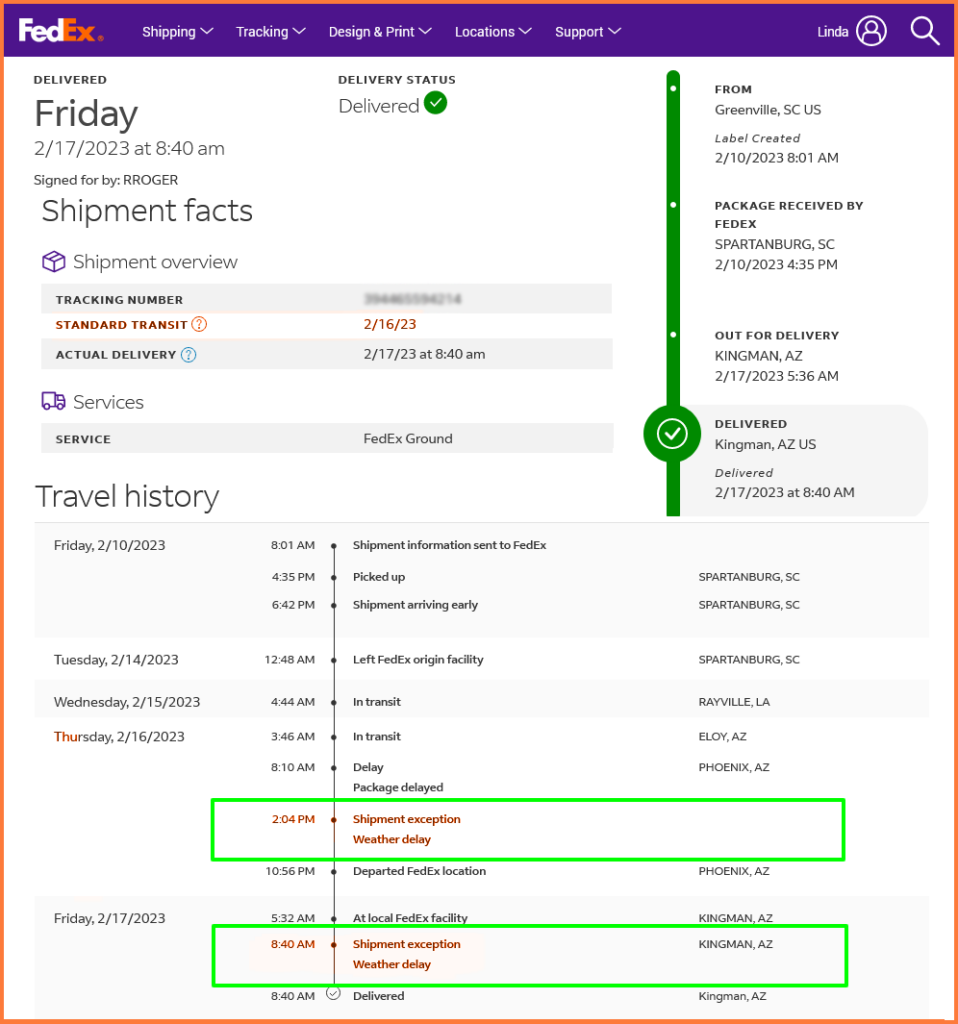
FedEx Shipment Exception
The system automatically flags such delays. The tracking updates reflect that shift, often with a revised ETA and a short description of what caused the exception.
Here’s how FedEx typically categorizes those disruptions:
- Delivery exception OR recipient not available Suggests that the driver did attempt a delivery, but there was no one to receive the package.
- Shipment exception OR weather delay This exception indicates that the severe weather has disrupted air and ground transport routes.
- Barcode unreadable It indicates that there was damage to the shipping label, which caused a scanning failure at a FedEx hub.
- Damaged in transit OR package under inspection This is the FedEx shipment exception, highlighting that the item was visibly damaged and flagged by FedEx staff for review.
5 Tips To Avoid FedEx Shipment Exceptions
Shipment exceptions occur. But these occur due to issues that can be controlled, and are possible to prevent with tighter control over packaging, labeling, and transit choices.
Some delays happen outside your control, such as weather or road closures. And then, some disruptions are possible to avoid with clearer systems and cleaner handoffs.
Verify shipping details before dispatch
There are a number of reasons that could lead to last-mile confusion or failed delivery attempts, such as names, street numbers, or ZIP codes.
Also, barcodes that are smudged or carrying a loosely attached label can prevent the package from being scanned at hubs or on trucks.
Use Durable, Transit-Proof Packaging
Packages that fall apart mid-route often trigger damage holds or reprocessing delays. Fragile or poorly sealed parcels are more likely to hit exception status before reaching the customer.
Plan Shipping Around Conditions
Timing plays a huge role in delivering the package successfully. There can be backlogs in peak season, or even weather issues like storms, plus the local holidays, which derail even express shipments. That’s why choosing the correct method matters more than choosing the cheapest.

increase fuel savings
Save $200 on fuel, Monthly!
Optimize routes with our algorithm, reducing travel time and costs efficiently.
Get Started for Free
Include Specific Delivery Instructions Upfront
Due to a lack of access to information, there could be exceptions, even if the address is correct. Gate codes, building access restrictions, or business hours all play a part in last-mile success.
Track Actively and Step In When Needed
Tracking can notify about delays in the package. Proactively tracking the parcel helps resolve exceptions faster, especially when the issue involves incomplete data or a missed delivery attempt.
Understanding Delivery Exception in FedEx
Delivery exceptions are different from shipment exceptions. The delivery exception indicates that the package has reached the final delivery phase but it failed to reach the hands of a recipient.
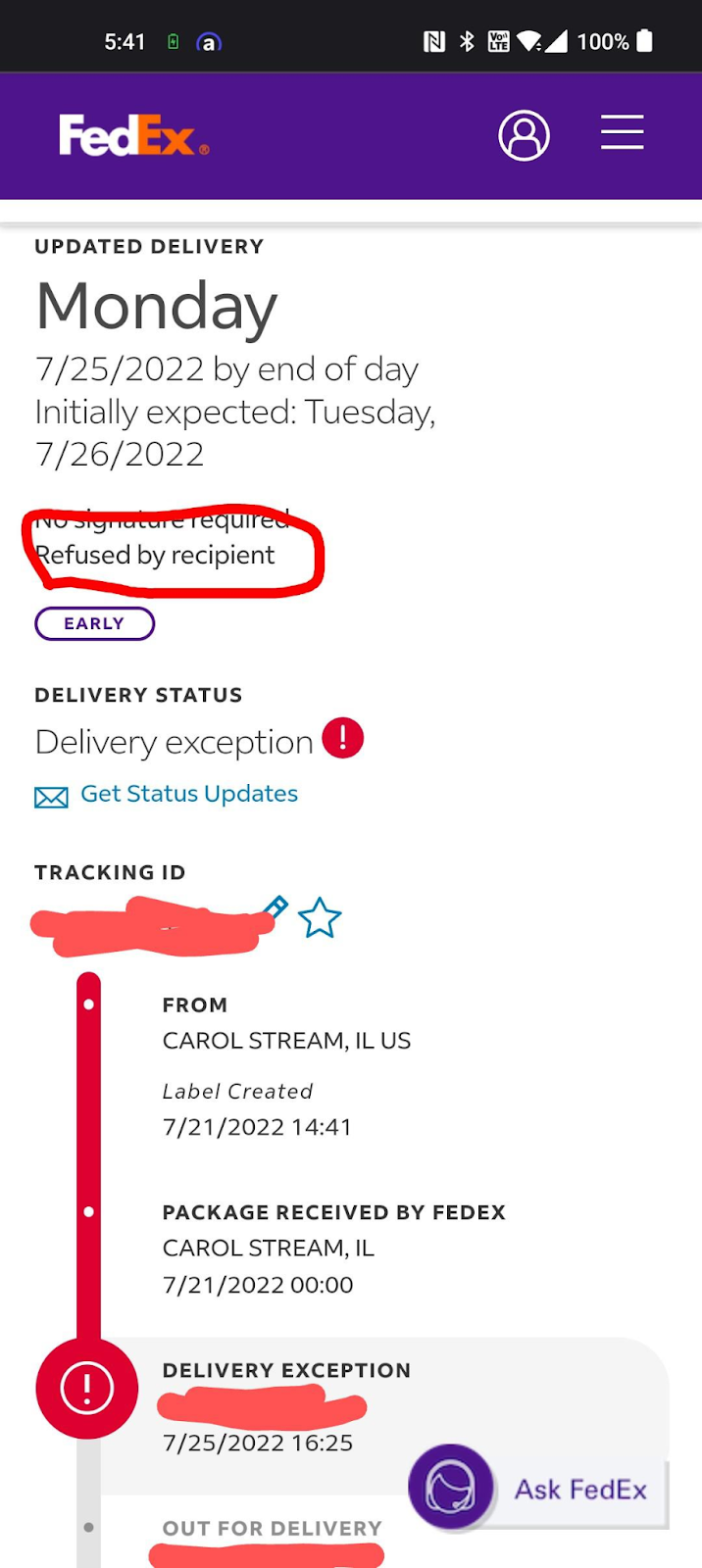
FedEx Delivery Exception
There can be multiple reasons for such a delivery exception: wrong address, limited access to area, recipient unavailable, etc
The “shipment exception” is the initial level, meaning, it suggests that the disruption has occurred prior to the package’s journey from pickup to delivery. But, the delivery exception refers specifically to issues that occur at the last mile, just before or during the actual delivery attempt.
| Type | When It Happens | Examples | Action Required |
| Shipment Exception | During transit or routing | Weather delay, customs hold, package misrouted | Usually, automated rerouting or delay |
| Delivery Exception | At the final delivery stage | Recipient not available, address error, building access | May require recipient follow-up |
FAQs on FedEx Shipment Exceptions
What should I do if my FedEx tracking shows a shipment exception?
Check the reason listed in the tracking update. If the issue relates to weather or routing, FedEx usually resolves it automatically. If it involves incorrect info or damage, contact support to update details or request action.
Can a delivery exception be resolved without my input?
Only in certain cases. If the driver can reattempt delivery without needing more details, it may clear on its own. If access is restricted, the address is incomplete, or a signature is required, you’ll need to follow up.
Will FedEx reattempt delivery after a delivery exception?
Yes, if the route permits it and no extra info is needed. However, missed attempts due to address errors, gated access, or unavailable recipients may require manual rescheduling or address correction.
How long do FedEx exceptions usually last?
Some clear within a day, especially weather or routing delays. Others—like damaged labels, access issues, or recipient errors—may cause multi-day delays unless corrected.
Can I still track a package during an exception?
Absolutely. FedEx continues to update the tracking status during an exception. You’ll see the reason for the delay, the current location, and any adjusted estimated delivery date.
“`

Are you a fleet owner?
Want to manage your drivers and deliveries easily?
Grow your business effortlessly with Zeo Routes Planner – optimize routes and manage multiple drivers with ease.

increase fuel savings
Save 2 Hours on Deliveries, Everyday!
Optimize routes with our algorithm, reducing travel time and costs efficiently.
Get Started for Free