Are you managing last-mile delivery, running a field team, or scaling a D2C logistics workflow? Then, you’d know that getting from “order confirmed” to “route dispatched” needs to be fast, easy, and mistake-proof.
Statista suggests that the last-mile delivery industry will grow at 9.19% CAGR through 2027 (vs 2020). Moreover, route planning is where a lot of delays still occur.
Thankfully, you can have Zeo to back control. How?
Well, Zeo Route Planner is built to reduce planning time, improve accuracy, and simplify dispatch be on routing on the web or via mobile.
Zeo has a unified interface to create a route. Dispatchers and drivers can create, modify, and optimize delivery routes in just a few clicks with the route planner.
Next up, we’ll help you understand how to create a route in Zeo Route Planner.
Adding Stops to Your Route Manually
Once you create a route, you’ll need to add stops too. Zeo makes it flexible, as you can do it manually, in bulk, from favorites, or by drawing on the map.
For this article, we’ll focus on how you can add stops to your routes manually when using Zeo Route Planner.
Manual Entry of Stops in Zeo Route Planner
If you’re working with a small number of stops or adding addresses one by one, manual entry is the fastest way to go. Just begin typing an address.
Below, we’ll explore key steps involved in manually adding addresses in Zeo Route Planner.
Step 1
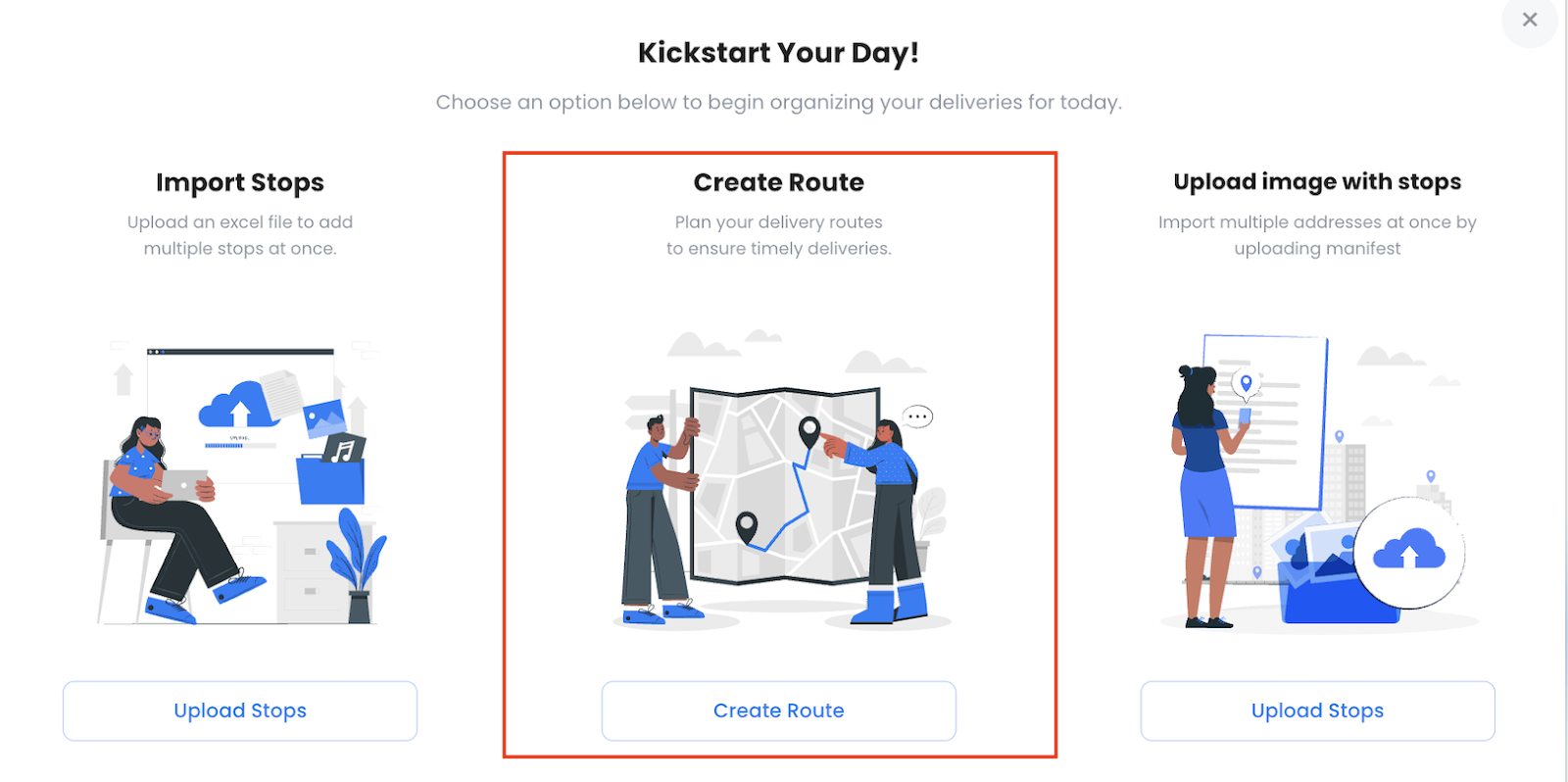
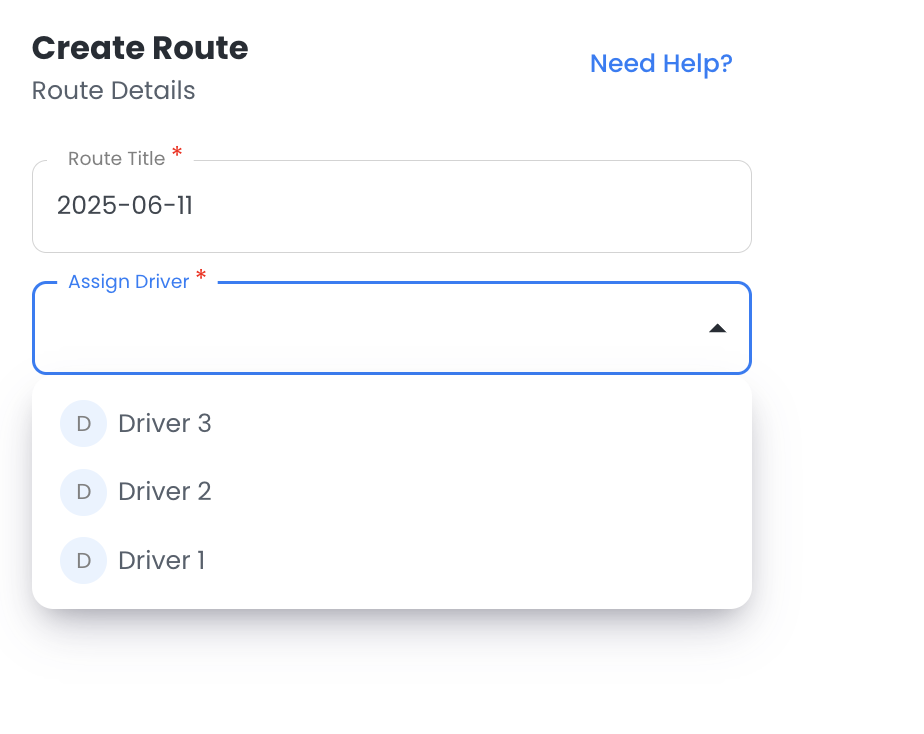
When you choose the Create Route option, you’ll first be asked to add a route title and then assign a driver.
Step 2
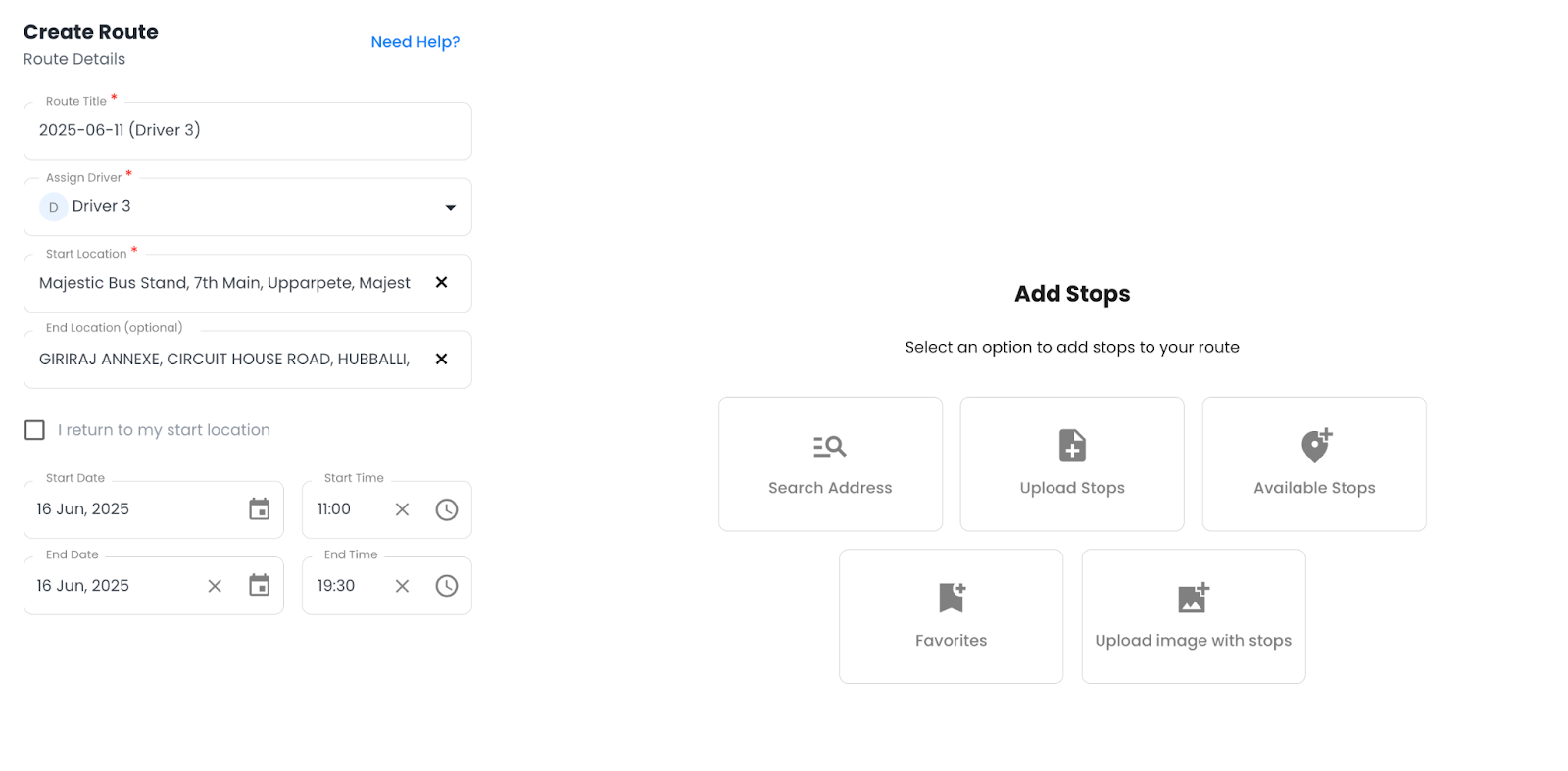
When you assign a driver, you’ll get to see a route planner where you are required to enter the start location and the end location (optional).
Also, you can add:
- start date — end date
- start time — end time
Step 3
This is where you’ll add stops. For manually adding the addresses, you need to click on the ‘Search Address’ button
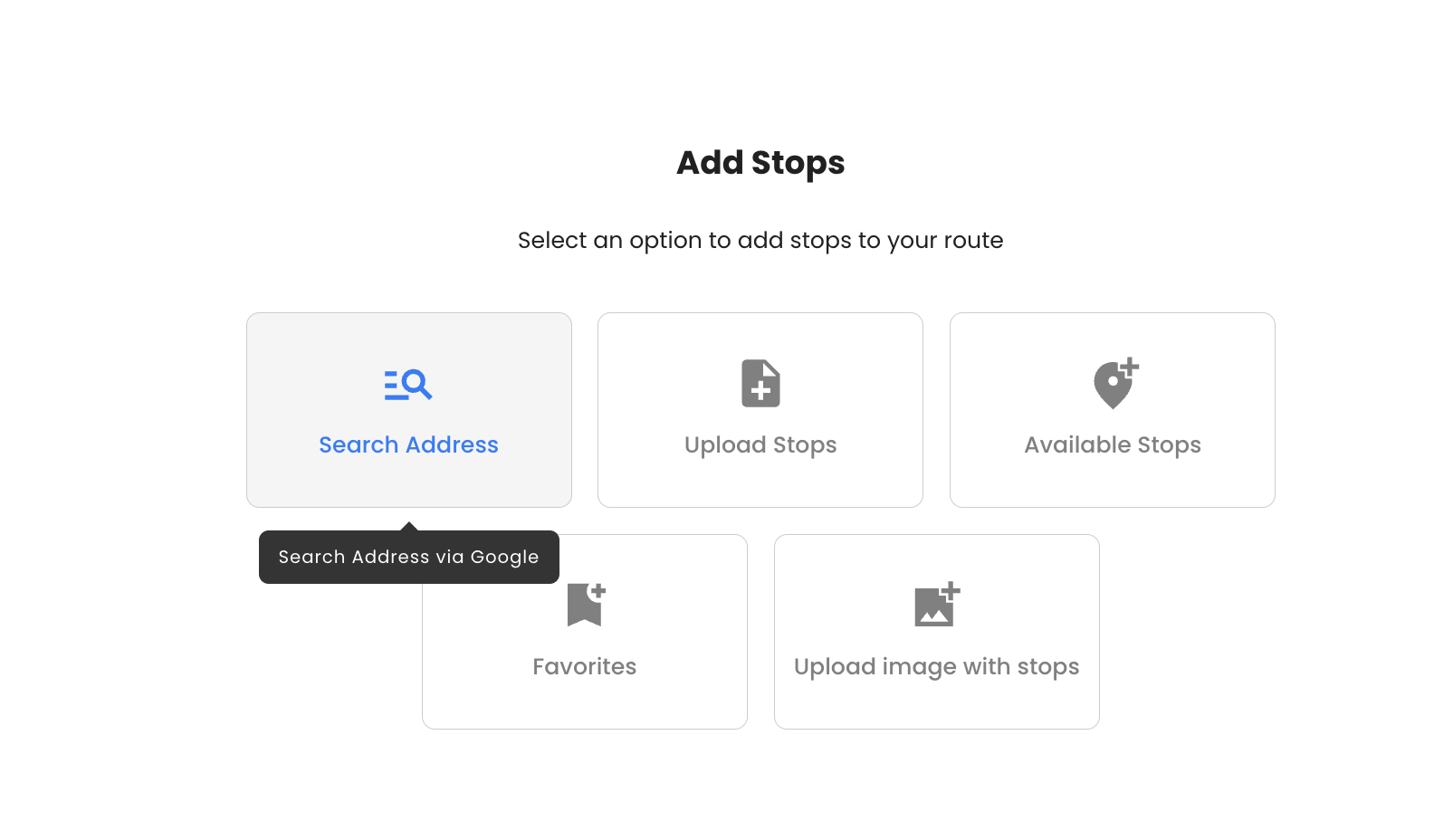
This will open an interface with an address bar where Zeo instantly suggests matching locations using the places autocomplete feature.
It works with PIN codes (India), ZIP codes (US), and even Eircodes (Ireland), so you’re covered across geographies.
Best for:
- Smaller routes
- Ad-hoc stop additions
- On-the-go edits to an existing route
For more, you can check out our elaborated piece on adding stops manually by typing.
Step 4
Type the address that you need to assign as a stop. You can choose the best suitable address that defines your intended address.
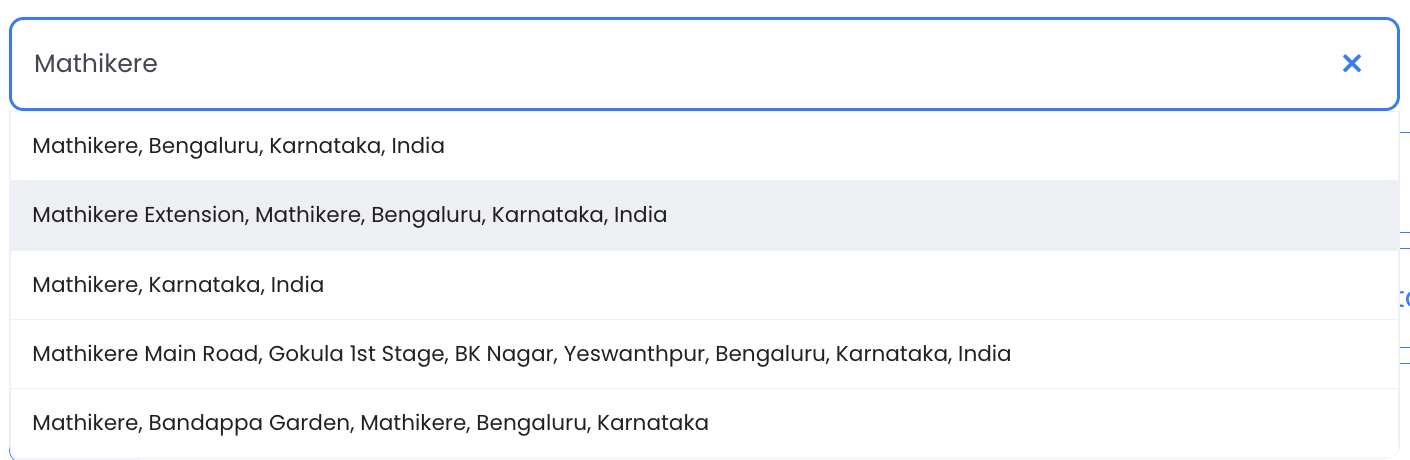
Choose and it will be added to the list of addresses.
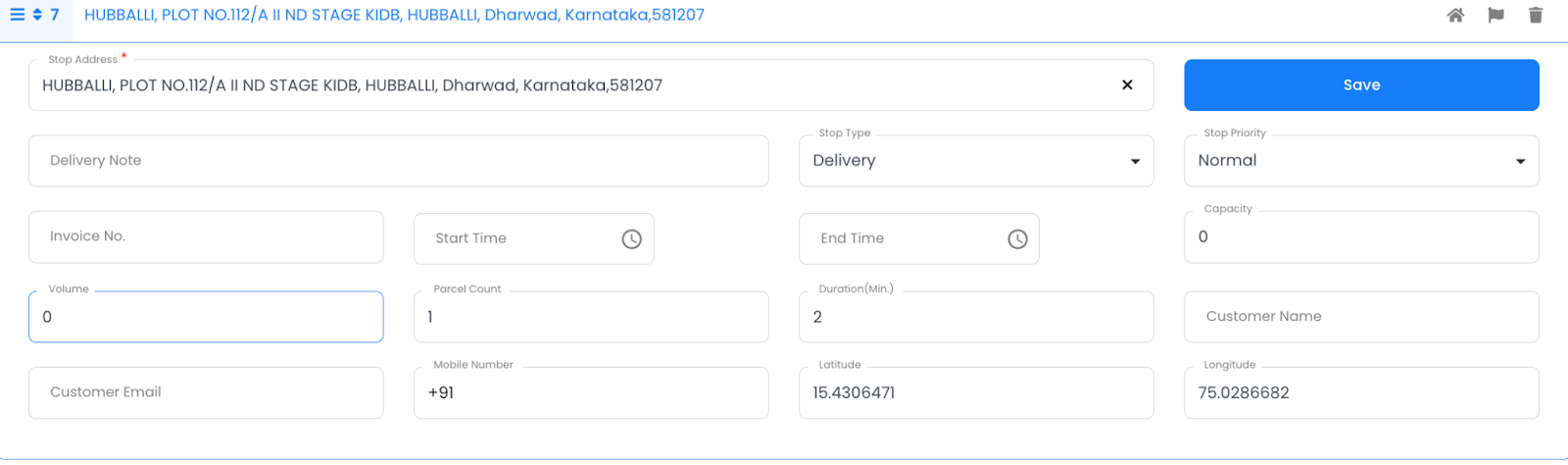
You’ll then see all addresses stacked up chronologically, with numbers signifying the delivery point, where “1” will be delivered first. Again, you can move them up and down and arrange based on your requirements.
You can also add stop details as mentioned below by clicking on the stop.
Step 5
Click on Save & Optimize to let Zeo plan the best, effective routes optimized for time-bound deliveries.

increase fuel savings
Save $200 on fuel, Monthly!
Optimize routes with our algorithm, reducing travel time and costs efficiently.
Get Started for Free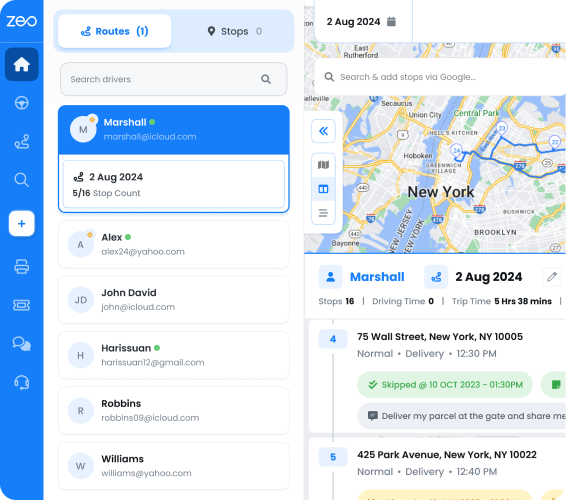
Manual Entry Using Zeo’s Built-In Sheet
Another option to manually add a route is by using the ‘upload stops’ option, where you can use Zeo’s in-built spreadsheet to manually enter the addresses by typing in a database sheet.
It’s useful if you have a lot of addresses and need linked deliveries by way of clubbing the Group IDs. In such cases, Zeo clubs all the similar Group IDs under a single linked delivery for batched routes.
Here’s how you can do it:
Step 1
Just after you assign a driver, instead of Search Address, you’ll choose the “Upload Stops” option.
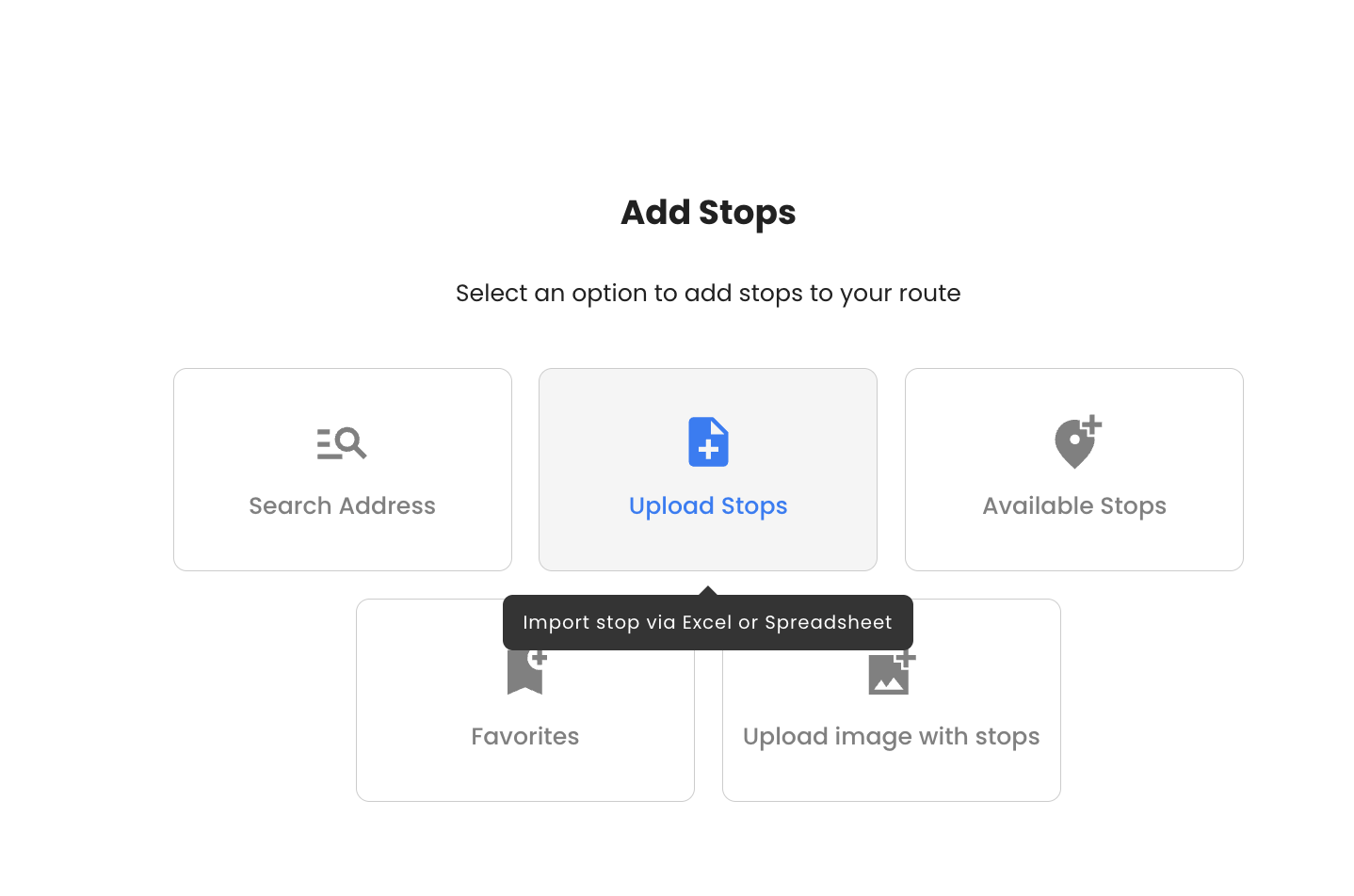
This will show three options.
Step 2
Choose the last option — Manual Entry.
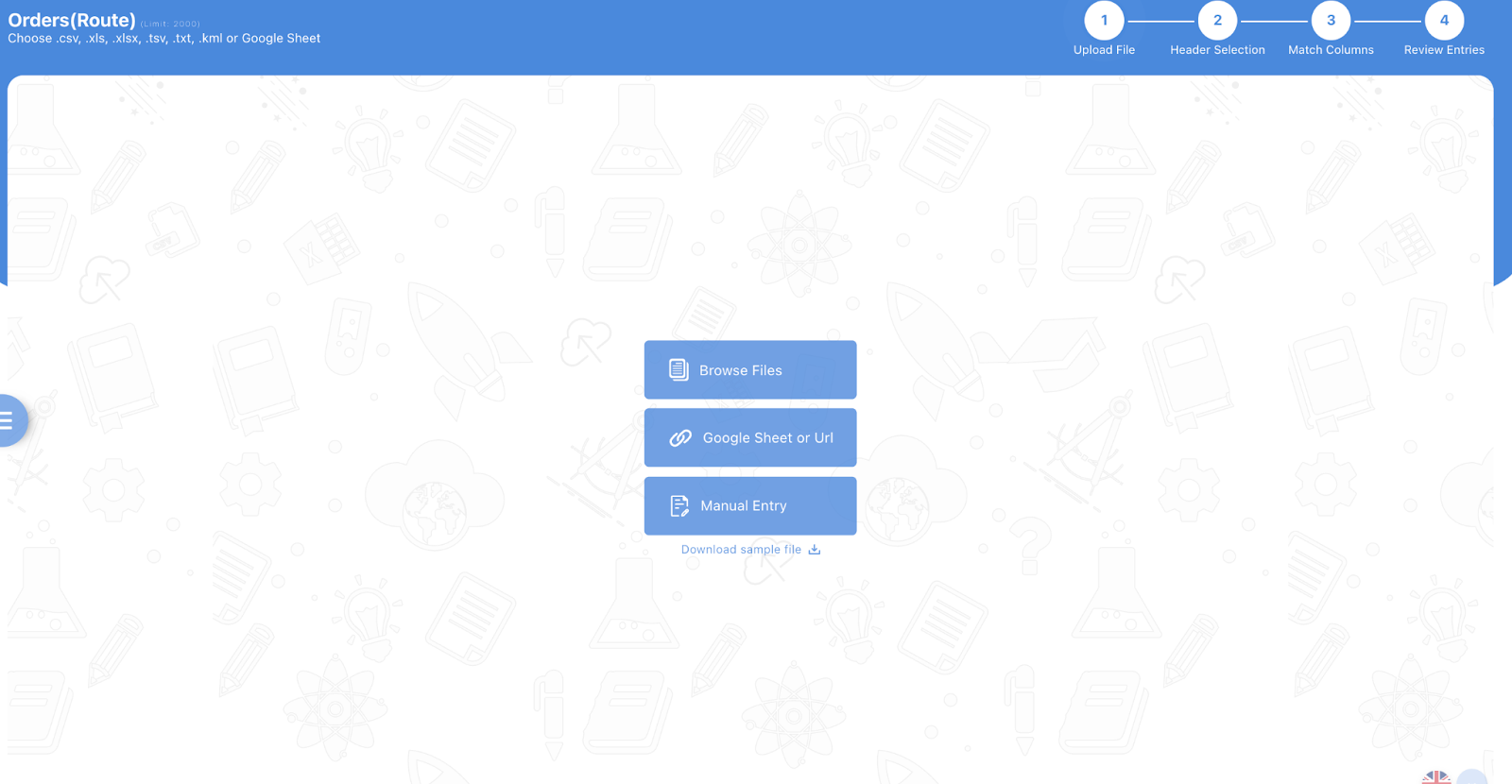
Step 3
You’ll now see an in-built datasheet by Zeo Route planner with multiple columns.
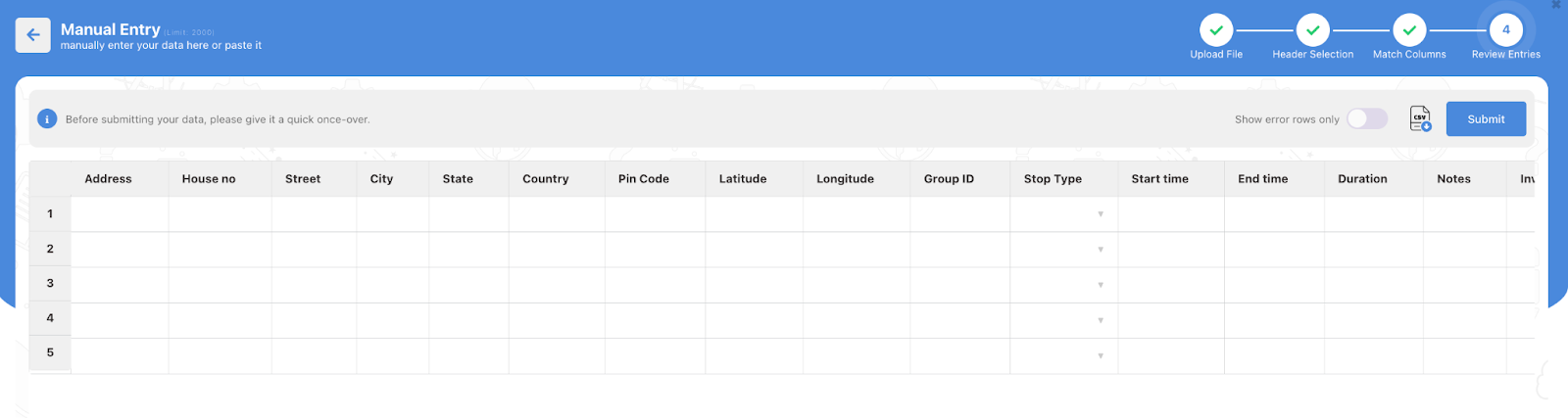
Use this sheet to manually enter the addresses, and they’ll eventually show up in a route.
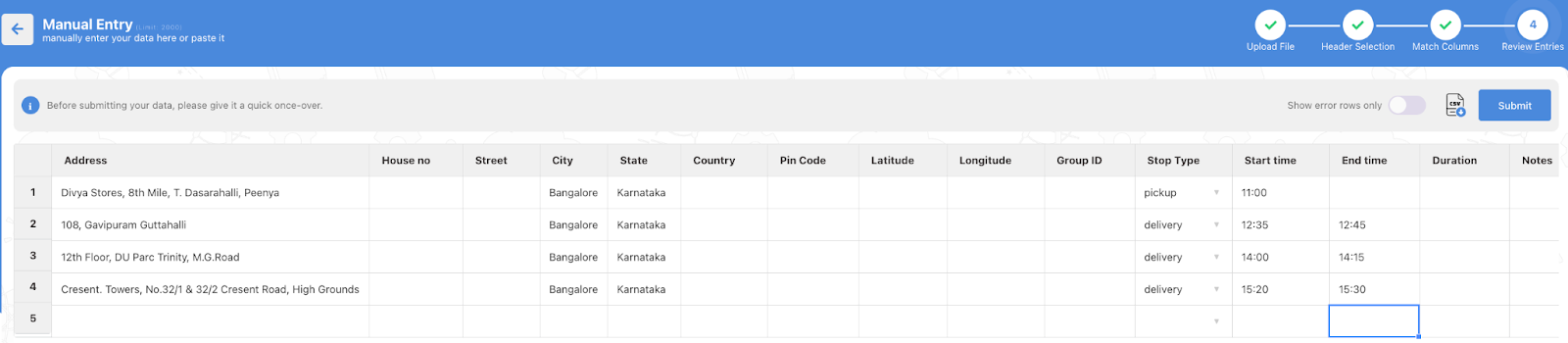
Click on the Submit button.
Step 4
Next, you’ll map columns with stop information and click on Confirm Mapping.
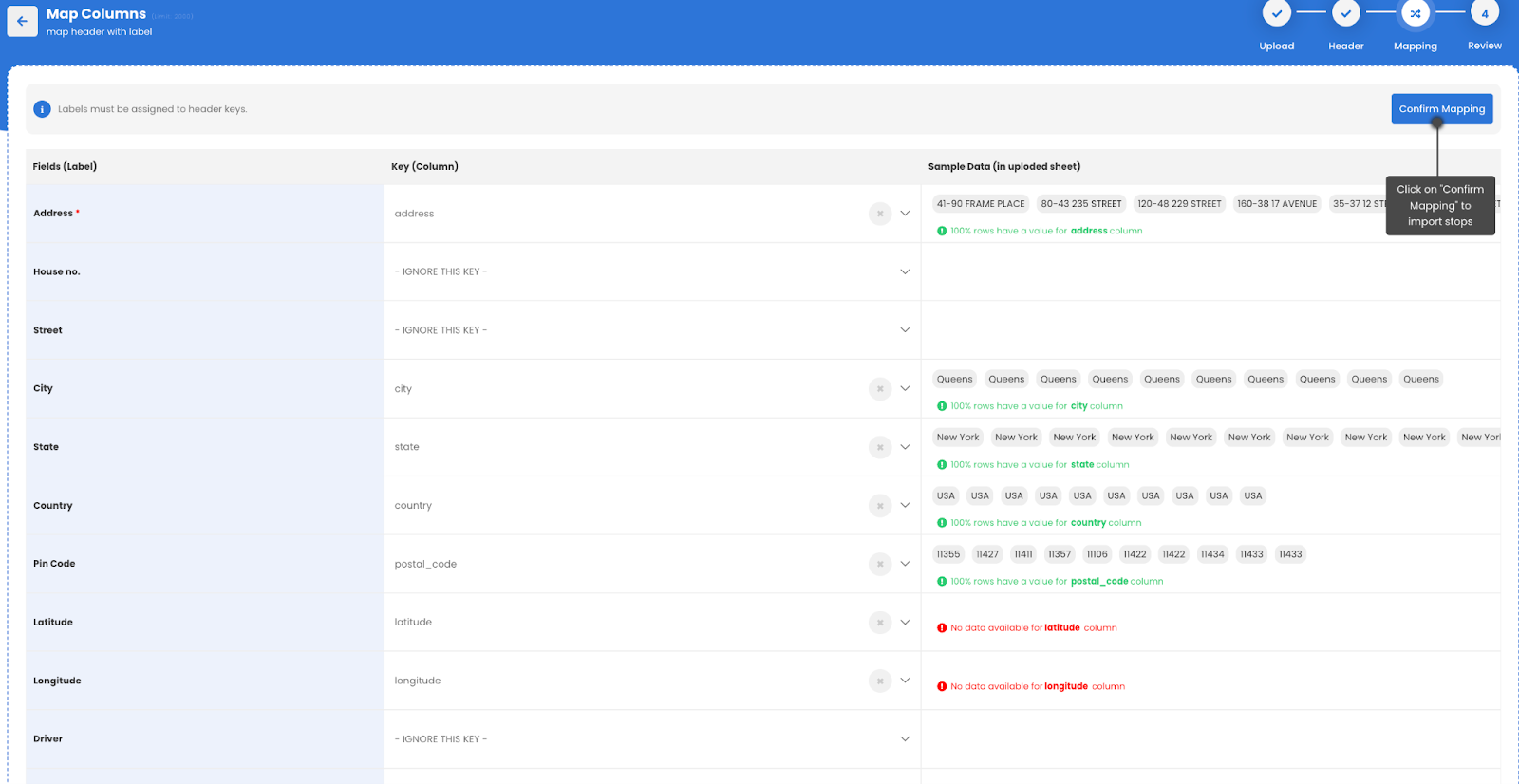
Once confirmed and mapped, it is recommended to review the same.

At last, click on the Submit button.
Step 5
That’s it. You can now save and optimize your route.
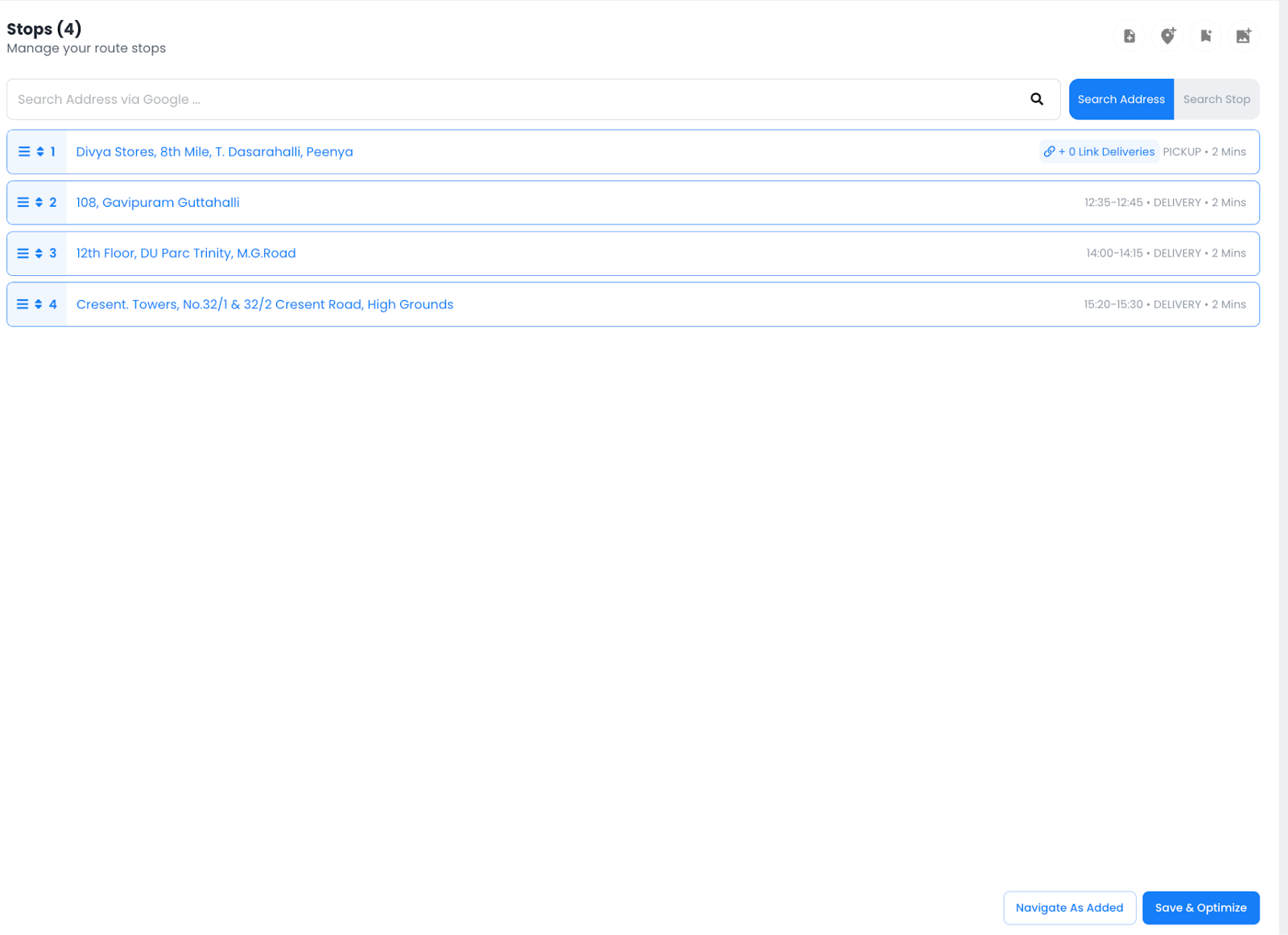
You can see the Link Delivery icon in the first address because we added it as a ‘Pickup’ location.
Alternatively, you could also try the other two options for uploading a stop, that is, via marketing them as favorites or an image upload.
Conclusion
Zeo Route Planner helps you move from idea to execution without delay. You can build a route using a spreadsheet, scan stops from a delivery sheet, or select addresses directly on the map.
Everything stays connected across both Web and Mobile platforms so that there’s a coherent flow where:
Dispatchers create routes and assign drivers, who, in turn, follow those routes, which are monitored. This way, routes remain clean, accurate, and fast to deploy.
No back-and-forth. No wasted time. Just smooth handoffs from planning to delivery.
Start Routing Smarter with Zeo

Are you a fleet owner?
Want to manage your drivers and deliveries easily?
Grow your business effortlessly with Zeo Routes Planner – optimize routes and manage multiple drivers with ease.

increase fuel savings
Save 2 Hours on Deliveries, Everyday!
Optimize routes with our algorithm, reducing travel time and costs efficiently.
Get Started for Free