...

How to Plan Routes with Upload Stops Option in Zeo

How To Plan Routes With Upload Stops Option, Zeo Route Planner
Reading Time: 4 minutes

Planning routes one stop at a time works until your team scales. The moment you handle dozens or hundreds of deliveries a day, speed matters. Manual data entry slows your dispatch team and increases the risk of errors.

That’s where you’ll benefit from Zeo’s Upload Stops options. You could be running your delivery lists from spreadsheets, images, or recurring routes. Zeo gives you flexible ways to add stops in bulk. You skip the busywork and move straight to optimizing the route.

In this guide, you’ll see exactly how to use each upload method, so your next route is ready to dispatch in minutes, not hours.

Upload Stops Option in Zeo to Plan Your Routes

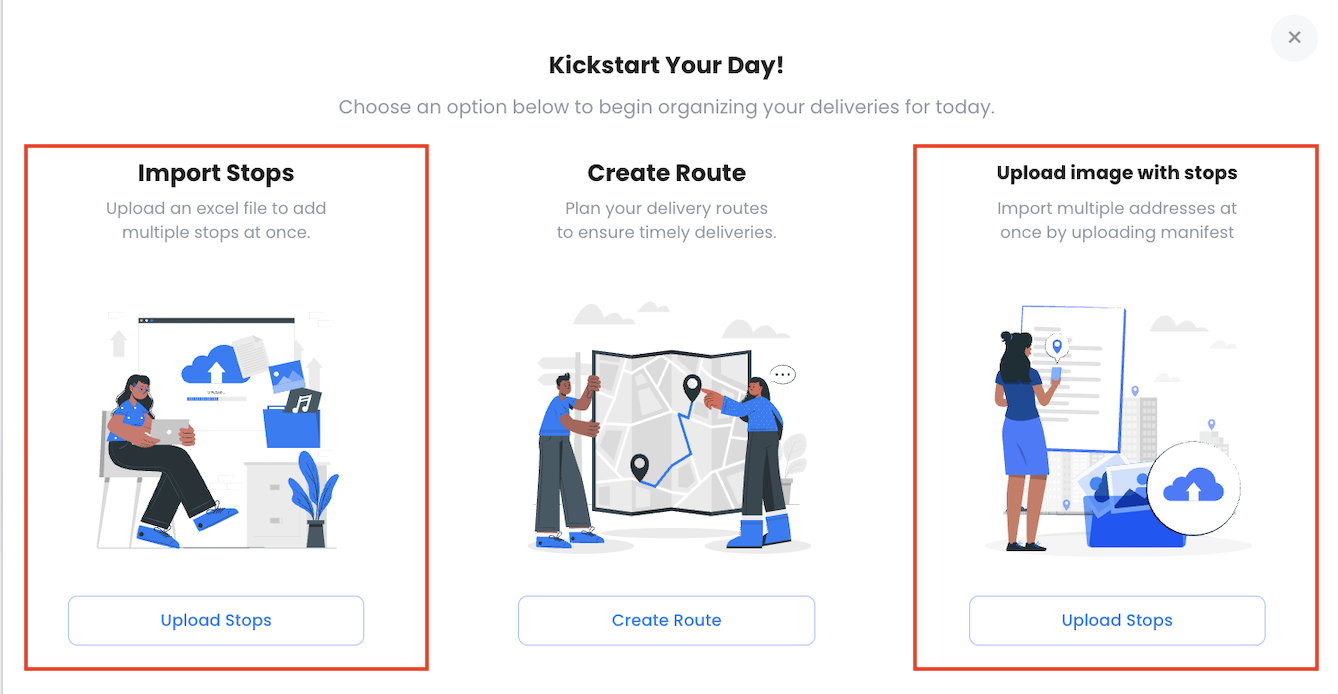
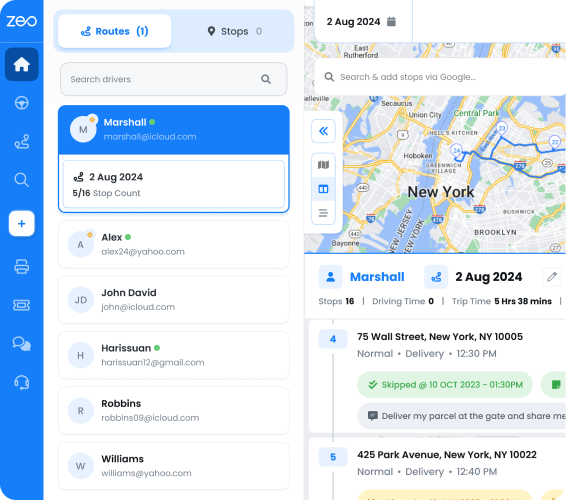
Apart from manually creating a route by typing in addresses, Zeo Route Planner offers multiple options for you to upload stops.
How to Plan Routes with Upload Stops Option in Zeo, Zeo Route Planner

Below, we’ll explore those options

1. Bulk Upload via Excel

For logistics teams working off spreadsheets, Zeo’s Excel import makes it simple to build routes at scale.

Here’s how it works:

  • On the Zeo Route Planner App or Web,
  • Click the Import icon (top-right).
  • Choose “Upload stops.”How to Plan Routes with Upload Stops Option in Zeo, Zeo Route Planner

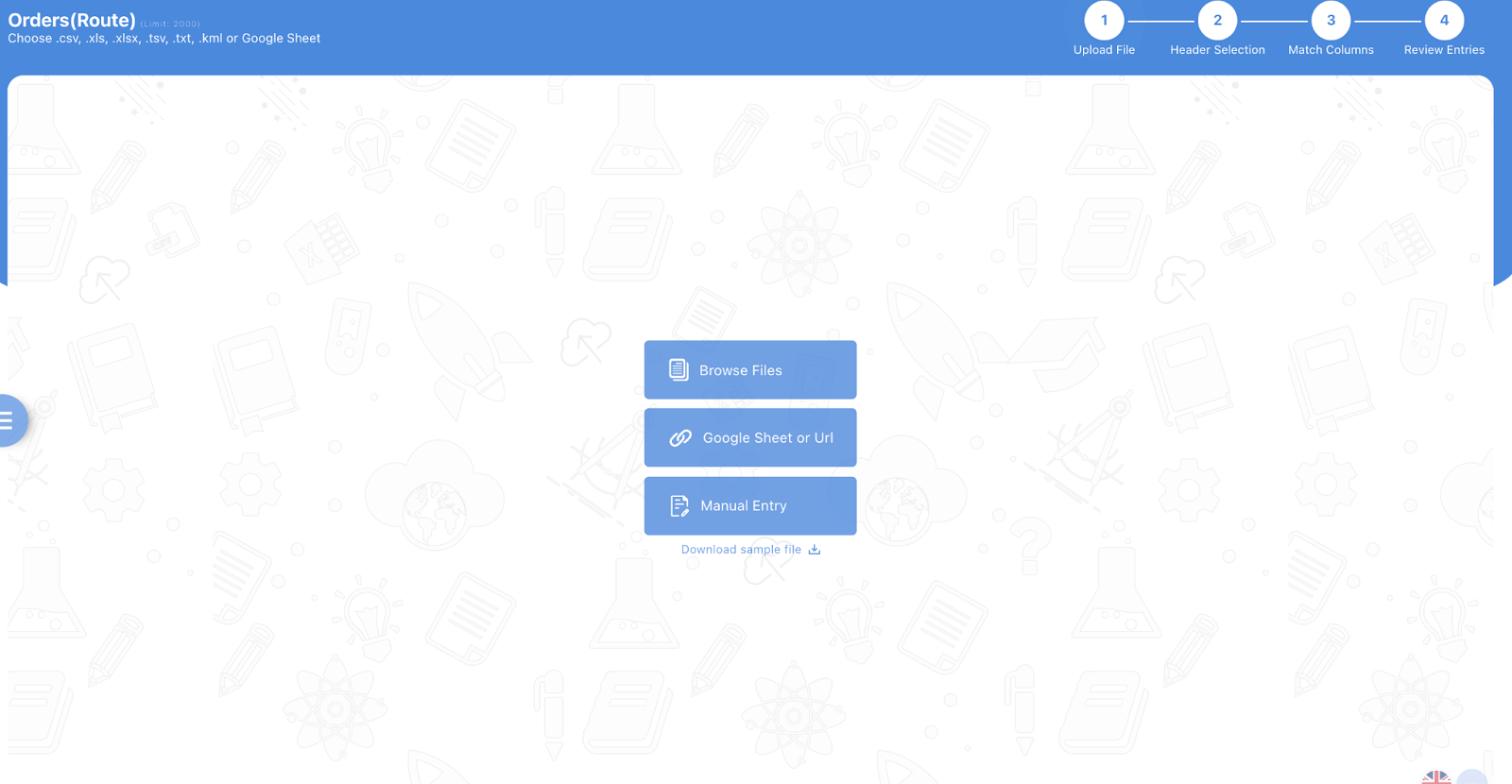
A new window opens, asking you to add files via multiple options as mentioned below.
How to Plan Routes with Upload Stops Option in Zeo, Zeo Route Planner

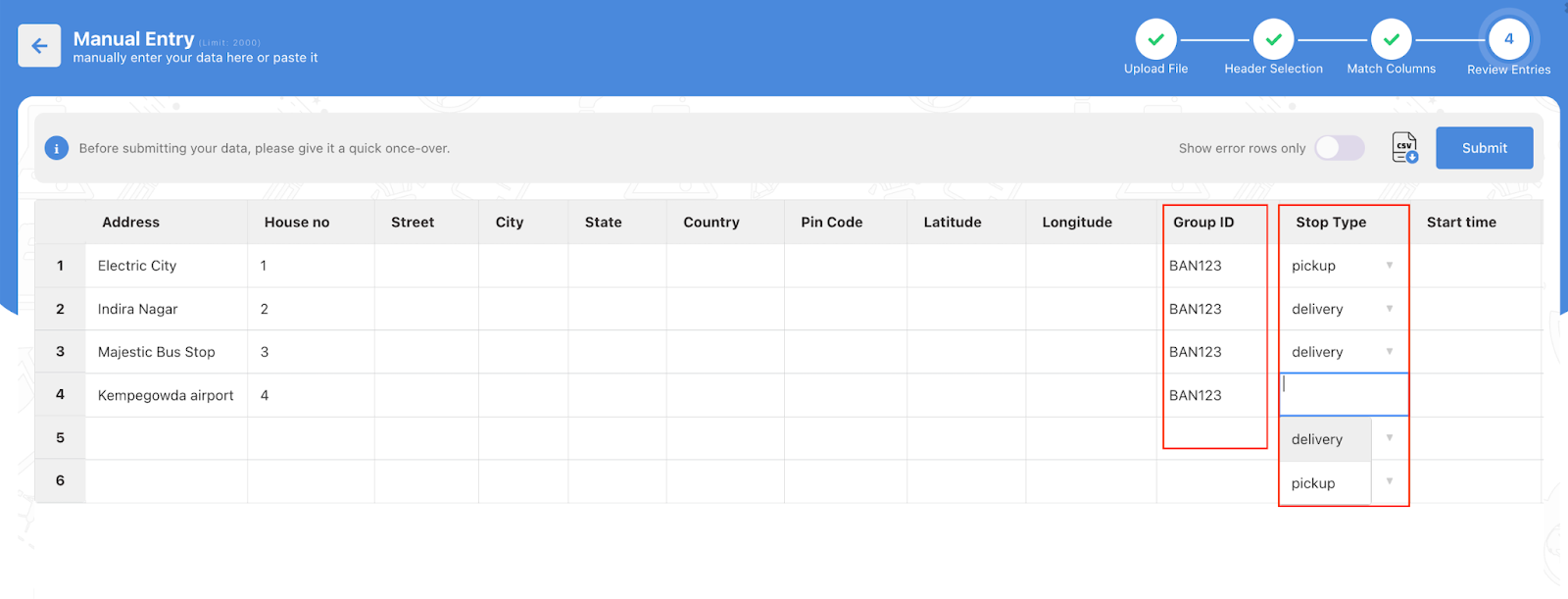
  • If you don’t have a ready file, download Zeo’s sample template and fill in your stop details.
    How to Plan Routes with Upload Stops Option in Zeo, Zeo Route Planner

Click here to download a sample template.

  • Upload the file and match the headers (like address, contact name, time slots, etc.).
  • Review your mapped data and confirm. Your stops will be added instantly.

Tip: If any columns are misaligned, Zeo prompts you to fix them during mapping so you don’t lose data or add the wrong addresses.

2. Add Stops from an Image

Let’s say you’ve received a printed delivery list or a WhatsApp image of handwritten addresses.

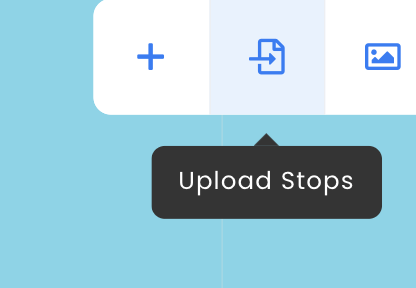
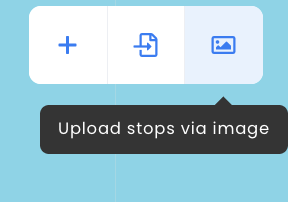
Instead of typing each one, you can just take a picture and choose the option ‘Upload stops via image.’.

How to Plan Routes with Upload Stops Option in Zeo, Zeo Route Planner
increase fuel savings

Save $200 on fuel, Monthly!

Optimize routes with our algorithm, reducing travel time and costs efficiently.

Get Started for Free
How to Plan Routes with Upload Stops Option in Zeo, Zeo Route Planner

How to Plan Routes with Upload Stops Option in Zeo, Zeo Route Planner

Here’s how:

  • Open Zeo Route Planner App
  • Tap the image icon as demonstrated above
  • Choose a photo from your gallery or click one instantly
  • Crop the image to focus on the addresses
  • Zeo will detect the addresses and convert them into route-ready stops

✅ Suitable for:

  • Teams receiving printed delivery lists
  • Last-minute routes built from quick snapshots

3. Using Favorites

You can also mark frequently-used stops as favorites. It’s something that could be useful for repeat customers, recurring pickups, or priority locations.

Here’s how to use favorites during route creation:

  • Tap the + icon to create a new route
  • Assign a driver
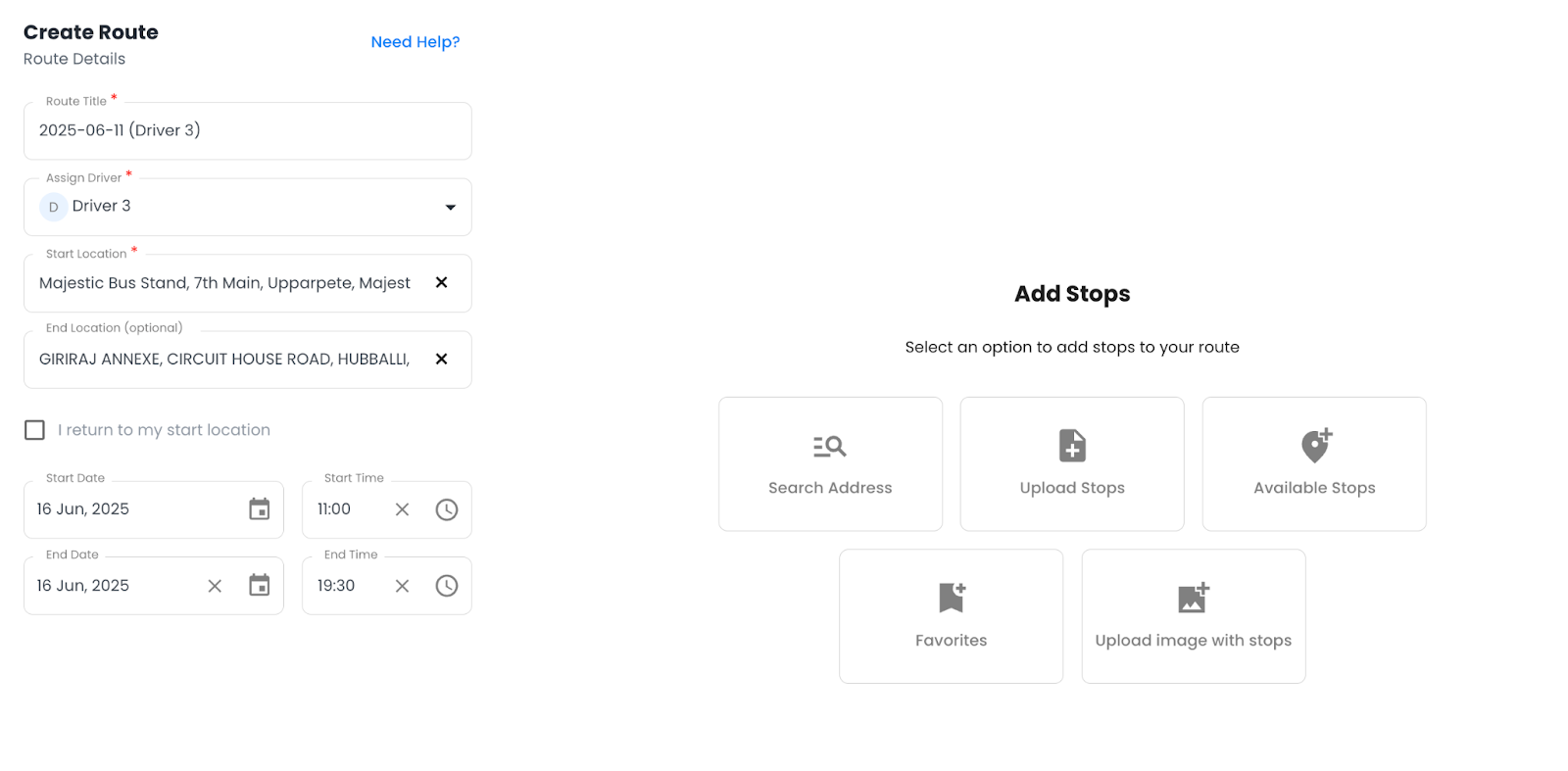
  • Open the Favorites tab
    How to Plan Routes with Upload Stops Option in Zeo, Zeo Route Planner
  • Select the required stops and hit Add to Route
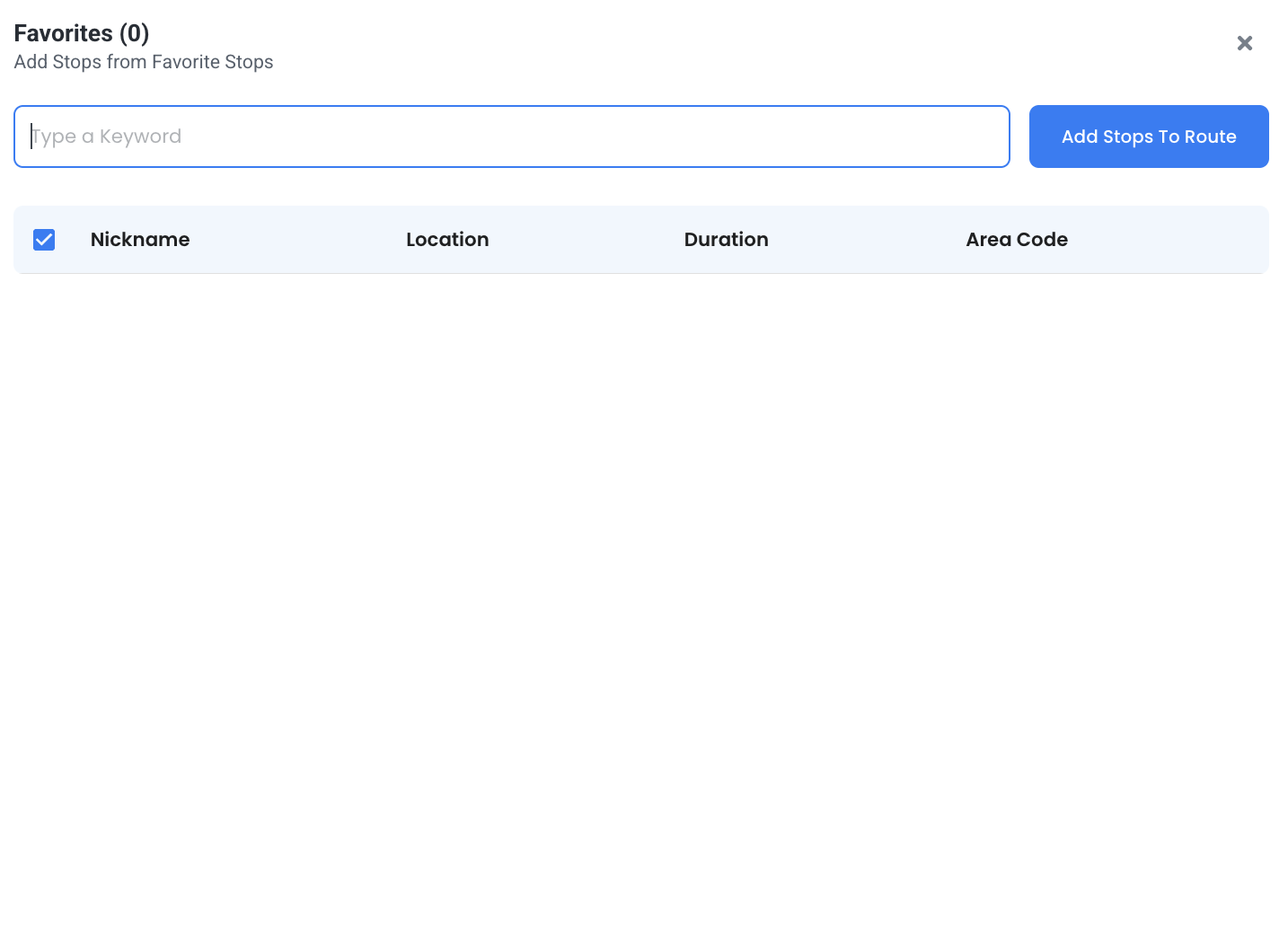
    How to Plan Routes with Upload Stops Option in Zeo, Zeo Route Planner
  • Choose a starting location, then click Save and Optimize
  • Open the Favorites tab (Inside, Create a Route option)
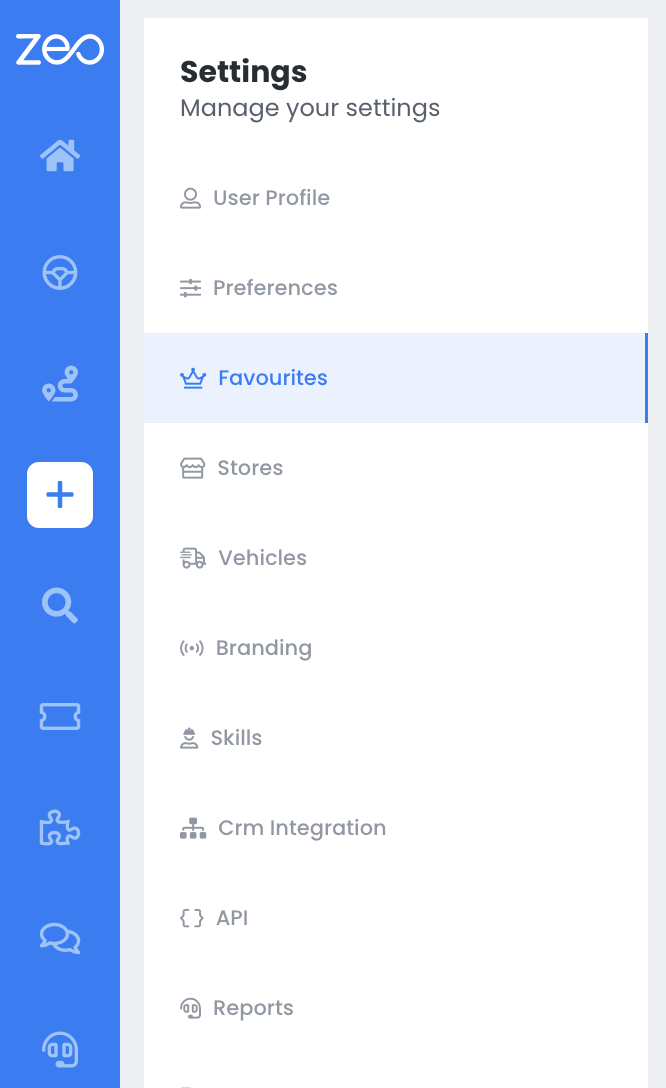
    How to Plan Routes with Upload Stops Option in Zeo, Zeo Route Planner
  • You can start adding favorite stops here
  • Select the required stops and hit Add to Route
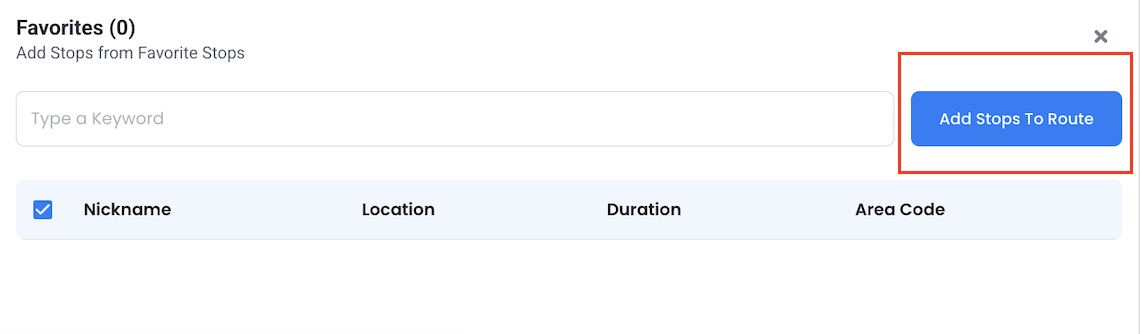
    How to Plan Routes with Upload Stops Option in Zeo, Zeo Route Planner
  • Choose a starting location, then click Save and Optimize

✅ Best for:

  • Subscription-based deliveries
  • Regular supplier or client visits
  • Teams managing repeat dispatch patterns

For more, you can check this video to add stops to favorites on Zeo Route Planner

Conclusion

Uploading stops into Zeo is simple, with multiple options to choose from for uploading bulk addresses automatically. It’s one way to run your entire route planning process faster. Spreadsheets give you full control over structured lists. Image uploads help when dealing with handwritten or last-minute sources. Favorites keep your repeat routes lean and efficient.

Eventually, you’d choose the method that helps you spend less time on setup and more on delivering.

And Zeo gives you that flexibility, right inside your dashboard.

Ready to plan your next route faster?

Book a demo and see the difference in your team’s workflow.

Rate this post:

😡 0😐 0😊 0❤️ 0
In This Article
increase fuel savings

Save $200 on fuel, Monthly!

Optimize routes with our algorithm, reducing travel time and costs efficiently.

Get Started for Free
Join our newsletter

Get our latest updates, expert articles, guides and much more in your inbox!

    By subscribing, you agree to receive emails from Zeo and to our privacy policy.

    Zeo Questionnaire

    Frequently
    Asked
    Questions

    Know More

    How do I add stop by typing and searching? Web

    Follow these steps to add a stop by typing and searching:

    • Go to Playground Page. You will find a search box in top left.
    • Type in your desired stop and it will show search results as you type.
    • Select one of the search results to add the stop to list of unassigned stops.

    How do I import stops in bulk from an excel file? Web

    Follow these steps to add stops in bulk using an excel file:

    • Go to Playground Page.
    • In top right corner you will see import icon. Press on that icon & a modal will open.
    • If you already have an excel file, press the "Upload stops via flat file" button & a new window will open up.
    • If you don't have an existing file, you can download a sample file and input all your data accordingly, then upload it.
    • In the new window, upload your file and match the headers & confirm mappings.
    • Review your confirmed data and add the stop.

    How do I import stops from an image? Mobile

    Follow these steps to add stops in bulk by uploading an image:

    • Go to Zeo Route Planner App and open On Ride page.
    • Bottom bar has 3 icons in left. Press on image icon.
    • Select the image from gallery if you already have one or take a picture if you don't have existing.
    • Adjust the crop for the selected image & press crop.
    • Zeo will automatically detect the addresses from the image. Press on done and then save & optimize to create route.

    How do I add a stop using Latitude and Longitude? Mobile

    Follow these steps to add stop if you have Latitude & Longitude of the address:

    • Go to Zeo Route Planner App and open On Ride page.
    • You will see a icon. Press on that icon & press on New Route.
    • If you already have an excel file, press the "Upload stops via flat file" button & a new window will open up.
    • Below search bar, select the "by lat long" option and then enter the latitude and longitude in the search bar.
    • You will see results in the search, select one of them.
    • Select additional options according to your need & click on "Done adding stops".

    How do I add stops using QR Code? Mobile

    Follow these steps to add stop using QR Code:

    • Go to Zeo Route Planner App and open On Ride page.
    • You will see a icon. Press on that icon & press on New Route.
    • Bottom bar has 3 icons in left. Press on QR code icon.
    • It will open up a QR Code scanner. You can scan normal QR code as well as FedEx QR code and it will automatically detect address.
    • Add the stop to route with any additional options.

    How do I delete a stop? Mobile

    Follow these steps to delete a stop:

    • Go to Zeo Route Planner App and open On Ride page.
    • You will see a icon. Press on that icon & press on New Route.
    • Add some stops using any of the methods & click on save & optimize.
    • From the list of stops that you have, long press on any stop that you want to delete.
    • It will open window asking you to select the stops that you want to remove. Click on Remove button and it will delete the stop from your route.

    Xlork is a developer-first data import platform. It lets you embed CSV, Excel, and Google Sheets import into any app with AI-powered column mapping and schema validation. Explore free developer tools like JSON-to-CSV converters and color palette generators. No more building import flows from scratch — just drop in the Xlork SDK, sign up free, and ship clean data in minutes.