# How to Schedule Pool Routes Efficiently: Cut Drive Time by 30% and Stop the Scheduling Chaos
Running a pool service company means juggling dozens of weekly routes while dealing with emergency chemical calls and equipment breakdowns. If you’re still scheduling pool routes manually, you’re likely watching profits evaporate in excessive drive time and unbalanced technician workloads. Learning how to schedule pool routes efficiently is essential for any growing pool service business.
Smart pool service owners are transforming their chaotic scheduling into systematic operations that reduce drive time by 30% while keeping customers happy. Here’s how you can do the same.
The Hidden Costs of Poor Pool Route Scheduling: Why Manual Planning is Killing Your Profits
Manual scheduling costs you more than you realize. Every inefficient route adds 30-60 minutes of drive time per technician daily. With 10 technicians, that’s 5-10 hours of wasted labor costs every single day.
Poor scheduling creates unbalanced workloads too. One technician finishes their route by 2 PM while another works until 7 PM covering the same number of pools. This leads to burnout, turnover, and customer service issues when late technicians rush through cleanings.
Emergency calls become route-killers when you don’t have a system. A single urgent chemical balance issue can destroy an entire day’s schedule if you’re shuffling appointments manually.
Consider this real scenario: ABC Pool Service had one technician driving 45 minutes between two pools in opposite directions while another technician was working in both those same neighborhoods on different days. They were paying for 90 minutes of unnecessary drive time daily just between those four stops.
Pre-Planning Your Pool Service Territory: Geographic Clustering and Customer Mapping Strategies
Start by mapping every customer location on your service area. Use different colors for service frequency – weekly customers in blue, bi-weekly in green, monthly in red.
Look for natural geographic clusters. Group customers within 2-3 mile radiuses together. This forms your route foundations. Don’t worry about perfect circles – follow neighborhood boundaries and major roads.
Identify your anchor customers next. These are large commercial accounts or loyal residential customers who generate significant revenue. Build routes around these anchors, filling in smaller stops nearby.
Consider drive time between clusters, not just distance. A route that looks compact on paper might cross traffic-heavy areas during rush hour. Factor in real-world driving conditions when mapping territories.
Plan for growth zones too. Leave room in each territory for new customers without disrupting established routes. This prevents having to completely rebuild schedules when you expand.
Building Efficient Recurring Routes: Balancing Customer Preferences with Operational Efficiency
Start with your most constrained customers – those who require specific days or narrow time windows. Place these appointments first, then build around them.
Group customers by service type when possible. Pool cleaning equipment stays organized when technicians handle similar services consecutively. Chemical-heavy jobs followed by basic cleaning require extra equipment switches.
Create consistent day-of-week patterns for recurring customers. Mrs. Johnson gets service every Tuesday, always in the morning before her pool parties. This predictability improves customer satisfaction and simplifies scheduling.
Balance route density across the week. Avoid cramming all premium customers into Fridays while leaving Mondays light. Aim for similar revenue and stop counts across all service days.
Set realistic time buffers between appointments. Pool cleaning might take 30 minutes, but allow 45 minutes including travel and potential equipment issues. Rushed technicians provide poor service and make costly mistakes. Effective recurring routes scheduling ensures consistency while maintaining flexibility for customer needs.
Seasonal Route Optimization: Adapting Schedules for Peak Summer vs Off-Season Demands
Summer demand typically doubles your service frequency. Weekly customers might want twice-weekly service, while seasonal customers reactivate after months off.
Plan summer routes differently than off-season schedules. Shorter routes with more frequent stops work better in peak season when pools need intensive maintenance. Off-season allows longer routes with extended service intervals.
Start transitioning routes 4-6 weeks before peak season hits. Gradually increase frequencies and add seasonal customers to existing routes rather than scrambling when summer arrives.
Create flexible capacity in each route. Reserve 20% of each technician’s schedule for seasonal additions rather than fully booking off-season routes. This prevents overwhelming core routes when demand spikes.
Consider split shifts during peak season. Some technicians start early for chemical-heavy work, others handle afternoon cleanings when UV levels drop chemicals faster.
Managing Emergency Calls and Route Changes: Dynamic Scheduling Without Chaos
Emergency calls don’t have to destroy your carefully planned routes. Build emergency capacity into your system by keeping one technician’s schedule 25% lighter than others.
When emergencies hit, your office team can instantly update route assignments through your scheduling system. Your technicians receive optimized routes directly on their phones via the Zeo app, complete with turn-by-turn navigation and customer details. This eliminates confusion and ensures emergency stops integrate smoothly into existing routes.
Create priority levels for different emergencies. Green pool calls get same-day service, equipment repairs get next-day service, and routine chemical adjustments can wait for the next scheduled visit.

increase fuel savings
Save 2 Hours on Deliveries, Everyday!
Optimize routes with our algorithm, reducing travel time and costs efficiently.
Get Started for Free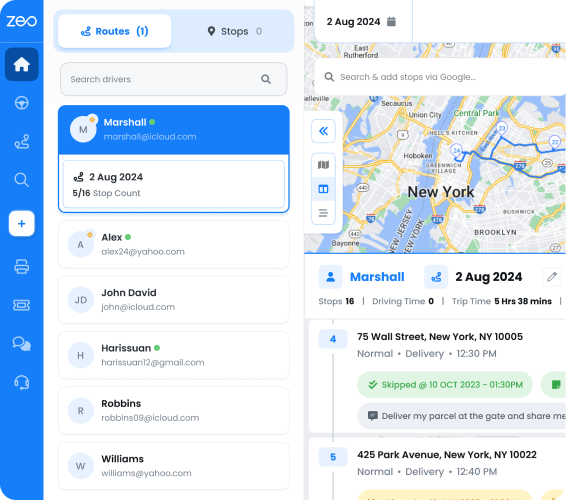
Establish clear communication protocols with customers about emergency pricing and timeframes. Set expectations upfront rather than managing disappointed customers later.
Train technicians to identify and report potential emergencies during routine visits. Catching chemical imbalances early prevents urgent callbacks later.
Technology Solutions: How Route Optimization Software Handles Pool Service Complexities
Route optimization software transforms pool scheduling from guesswork into science. Modern platforms analyze customer locations, service requirements, technician skills, and time windows to create optimal routes automatically.
Look for software that handles recurring appointments with seasonal variations. Your routes should adapt automatically as customers change from weekly to bi-weekly service or pause for winter.
GPS tracking shows actual drive times between stops, not just estimated distances. This data improves route accuracy over time as the system learns your service area’s traffic patterns.
Customer communication features reduce office workload too. Automated notifications tell customers when technicians are arriving, and proof-of-service photos confirm work completion without callbacks.
Zeo Route Planner handles these pool service complexities by learning from your historical data. The system recognizes that certain neighborhoods have parking challenges or that specific customers require longer service times, automatically adjusting routes accordingly. This AI route optimization approach ensures continuous improvement in efficiency.
Integration capabilities matter for growing companies. Your route optimization should connect with your billing software, customer management system, and field service management tools rather than creating data silos.
Frequently Asked Questions
Q: What is the best way to schedule pool routes efficiently?
The most effective approach combines geographic clustering with route optimization software. Group customers within 2-3 mile radiuses and use tools like Zeo Route Planner to automatically optimize the sequence, considering factors like traffic patterns, time windows, and service requirements.
Q: How much time can efficient pool route scheduling save?
Well-optimized pool routes typically reduce drive time by 30% or more. For a technician who normally spends 2 hours driving daily, this means saving 36+ minutes per day, which adds up to over 150 hours annually per technician.
Q: How do you handle emergency pool service calls without disrupting scheduled routes?
Build emergency capacity by keeping one technician’s schedule 25% lighter than others, and use route optimization software to dynamically re-route other technicians. Zeo Route Planner can instantly recalculate routes when emergencies arise, sending updated instructions directly to technicians’ phones.
Q: Should pool service routes be different in summer vs off-season?
Yes, seasonal route optimization is crucial. Summer routes should be shorter with more frequent stops due to increased demand and chemical usage. Start transitioning routes 4-6 weeks before peak season and reserve 20% capacity in each route for seasonal customers.
Q: What features should I look for in pool service routing software?
Essential features include recurring appointment management, seasonal scheduling variations, GPS tracking for accurate drive times, customer communication tools, and proof-of-service capabilities. Integration with billing and CRM systems is also important for growing pool service companies.
Start Optimizing Your Pool Routes Today
Efficient pool route scheduling isn’t magic – it’s systematic planning combined with the right tools. Start by mapping your service territory and identifying natural customer clusters. Build recurring routes around anchor customers while leaving flexibility for seasonal changes and emergencies.
The pool companies seeing 30% reductions in drive time aren’t doing anything revolutionary. They’re simply applying proven optimization strategies consistently rather than scrambling with manual scheduling chaos.
Start your free trial of Zeo Route Planner and see how pool service companies are reducing drive time by 30% while keeping customers happy. Transform your scheduling from daily stress into competitive advantage.

Are you a fleet owner?
Want to manage your drivers and deliveries easily?
Grow your business effortlessly with Zeo Routes Planner – optimize routes and manage multiple drivers with ease.
increase fuel savings
Hassle Free Deliveries & Pickups!
Optimize routes with our algorithm, reducing travel time and costs efficiently.
Get Started for Free