

Updated on: December 15, 2025
Time is money. And this makes literal sense for delivery operations. When you lose time in delivery operations, you risk delayed or missed deliveries and, most importantly, dissatisfied customers who might never return to your business.
When you are handling multiple deliveries at the same time, the process only gets messier. You either fail to complete all deliveries or spend more time and fuel doing the same. When you don’t optimize your route for multiple stops, you can end up backtracking the same routes.
Many tools, like MapQuest Route Planner, allow easy route optimization for multi-stop routes. It’s crucial to understand the need for multi-stop route optimization and the simple steps to do so.
Why Route Optimization Matters for Multi-Stop Deliveries
Managing multiple deliveries manually slows operations and increases costs. Every extra mile wastes time and resources. Smart route optimization for multi-stop routes ensures faster, reliable, and profitable deliveries. It helps businesses save money, improve service quality, and reduce stress for drivers.
- Save Time and Complete More Deliveries
Efficient route planning lets drivers finish more stops each day. Less backtracking reduces wasted hours on the road. Optimized multi-stop routes sequence stops logically for maximum efficiency. Completing deliveries faster increases daily revenue potential. Time savings allow teams to focus on additional tasks and growth. - Reduce Fuel and Operational Costs
Poorly planned routes increase fuel consumption and vehicle wear. Optimized multi-stop routes minimize unnecessary driving and idle time. Lower fuel and maintenance expenses improve overall profit margins. Businesses can reinvest these savings into expansion or improving customer service. Efficient routing ensures resources are used effectively and consistently. - Improve Reliability and Customer Satisfaction
Late or missed deliveries frustrate clients and harm your reputation. Optimized routes ensure shipments arrive on time consistently. Customers trust businesses that deliver reliably and maintain transparency with automated delivery updates. Efficient multi-stop routes help maintain high service standards. Better service quality encourages repeat business and client referrals. - Streamline Driver Management
Coordinating multiple drivers without planning creates confusion and inefficiency. Route optimization assigns stops clearly and fairly to each driver. Teams complete more deliveries with fewer mistakes. Drivers experience less stress and work more productively. Efficient driver management supports business growth and smoother daily operations. - Support Business Growth
Optimized routes allow businesses to handle higher delivery volumes without extra resources. Efficient multi-stop routes prevent operational chaos during expansion. More deliveries can be completed daily while maintaining service quality. Businesses can expand service areas or client base profitably. Route optimization ensures growth is sustainable and efficient.
Step-by-Step Guide: How to Optimize Multi-Stop Routes
Planning routes on MapQuest is simple. However, optimizing deliveries with multiple stops requires a clear, step-by-step approach. The MapQuest route planner simplifies this process for efficient route management. Following the steps below ensures your multi-stop routes are organized, fast, and cost-effective.

increase fuel savings
Save 2 Hours on Deliveries, Everyday!
Optimize routes with our algorithm, reducing travel time and costs efficiently.
Get Started for Free
- Step : Open MapQuest
Go to the MapQuest website or open the mobile app to start planning routes.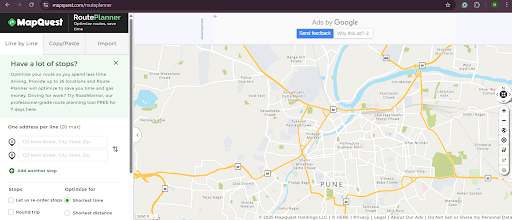
- Step : Enter All Delivery Addresses
Enter all the stops in your route. To add a new stop, click on the Add another stop button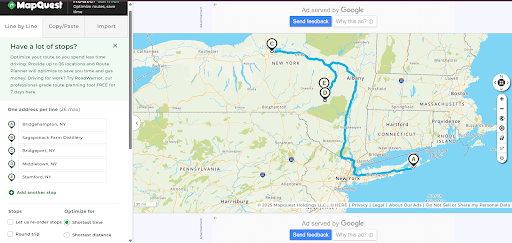
- Step : Select Route Optimization Preferences
Choose the options for the Optimize For section. You can either choose to optimize for the shortest time or the shortest distance.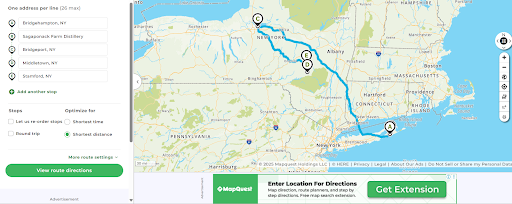
- Step : Adjust Stops Based on Priority
Drag and drop stops in the list to prioritize urgent deliveries or time-sensitive shipments.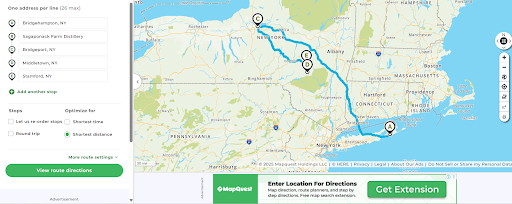
- Step : Review and Save the Route
Check the route for accuracy, then click the View Route Directions button to understand the route better.
- Step : Start Navigation and Follow the Route
Your route is optimized for the multiple stops you have entered.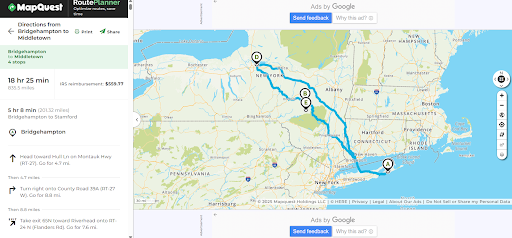
Tips to Get the Most Out of MapQuest Route Planner
Using the MapQuest route planner effectively goes beyond just entering stops. Small adjustments can save time, reduce costs, and improve delivery reliability. These tips help you get the maximum benefit from multi-stop route optimization.
- Group Stops by Area
Organize deliveries in the same neighborhood together. This reduces unnecessary travel and wasted time. Grouping stops makes routes more efficient and easier for drivers to follow. - Prioritize Urgent Deliveries
Identify high-priority or time-sensitive stops before optimizing. Adjust the route to ensure these deliveries are completed first. This improves client satisfaction and strengthens your service reputation. - Save Frequent Routes
For recurring deliveries, save optimized routes for future use. This prevents re-entering addresses and ensures consistent efficiency. Saved routes reduce planning time and streamline daily operations. - Check Address Accuracy
Verify that every stop has the correct address before finalizing the route. Accurate addresses prevent missed deliveries and wasted trips. This simple step ensures your multi-stop routes run smoothly. - Review and Adjust Regularly
Even optimized routes can be improved with small adjustments. Reordering stops based on delivery windows or client priorities increases efficiency. Regular review ensures your deliveries stay fast and reliable.
Conclusion
Optimizing multi-stop routes is essential for saving time, reducing costs, and improving delivery reliability. The
MapQuest route planner is a trusted tool for planning and executing efficient routes for small-scale operations.
For businesses ready to scale or handle higher delivery volumes, Zeo Route Planner offers advanced features. Real-time route adjustments, automated driver assignments, and analytics help maximize efficiency and profits. While the MapQuest route planner handles basic routing well, Zeo empowers businesses to grow faster and manage complex delivery operations effortlessly.
Take your delivery efficiency to the next level and sign up for Zeo Route Planner today to start optimizing smarter.

Are you a fleet owner?
Want to manage your drivers and deliveries easily?
Grow your business effortlessly with Zeo Routes Planner – optimize routes and manage multiple drivers with ease.
increase fuel savings
Save 2 Hours on Deliveries, Everyday!
Optimize routes with our algorithm, reducing travel time and costs efficiently.
Get Started for Free