Updated on: September 2, 2026
Reading Time: 6 minutes
TL;DR: Drivers can alter their delivery settings directly from the road by adding or deleting stops, skipping unavailable customers, rearranging routes, and switching navigation order without calling back to the office. Field flexibility like this matters because delivery delays and re-routing eat into productivity every single day. Route optimization tools like Zeo Route Planner address this with dynamic route adjustments mid-shift, helping delivery teams save 2+ hours daily.
Zeo Route Planner provides various route settings that the drivers or the delivery partner require while they are out in the field for delivery. We understand that the drivers should also have some features that they can use to ease delivery.
Let’s look into a few of such settings/features that are tailored for drivers.
Add/Delete new stops on the go
While delivering the drivers can add or delete the stops, let’s see how to do that.
Adding New Stops
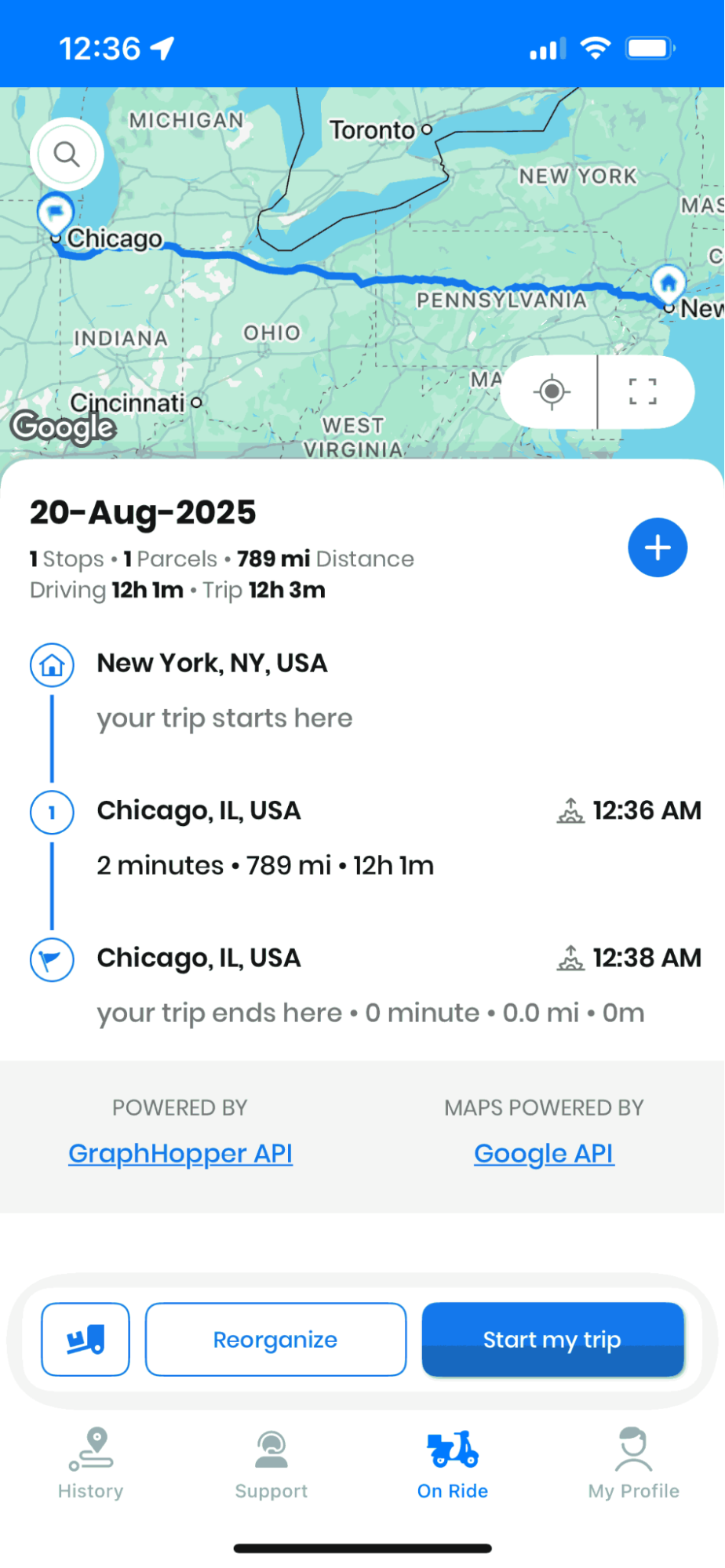
Navigate to the “On Ride” section, and you can see all the routes entered. If there are no routes, then you can create your routes.
You can see a “+” button. Click on the button, and you will see a list of options.
Click on the “Edit Route” and then click on the “+Add more stops” button.
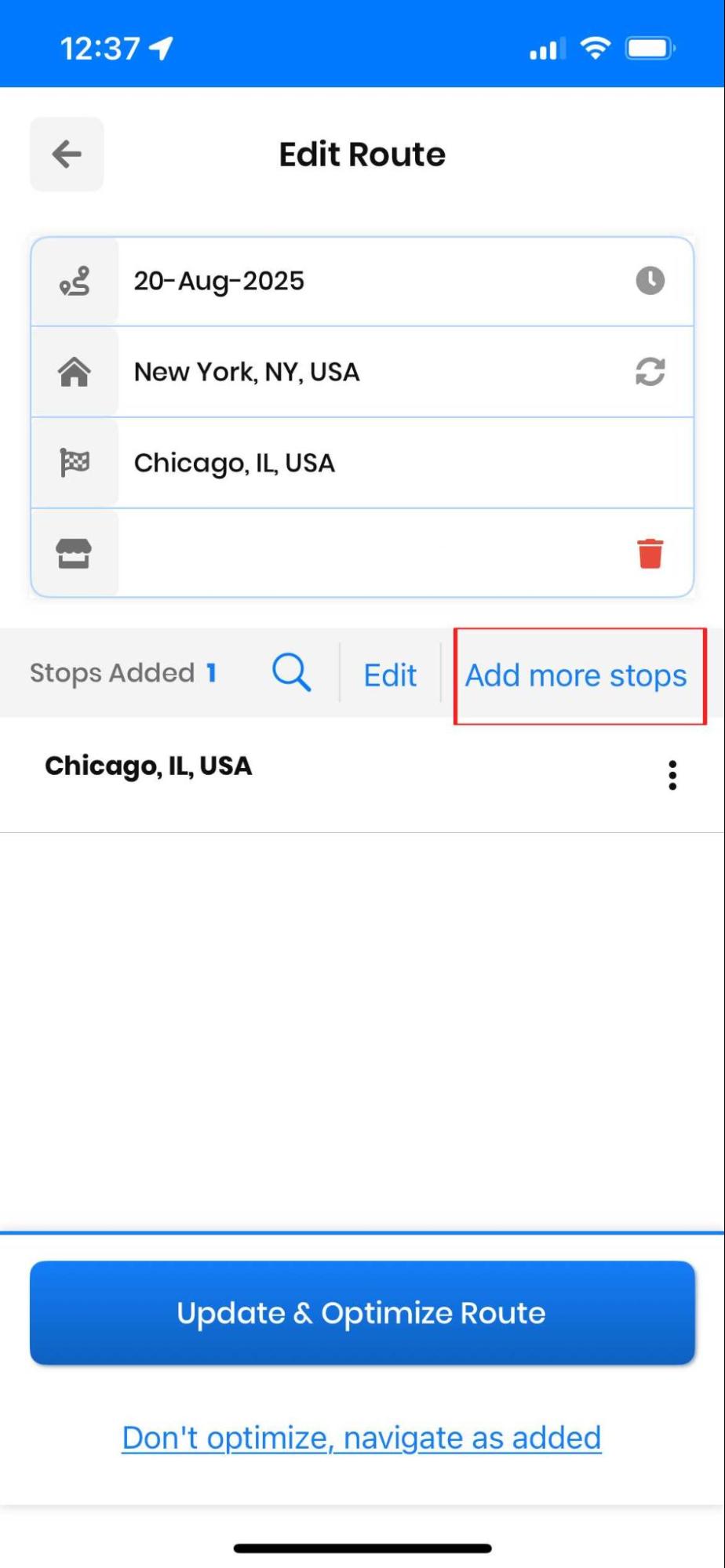
In the search box, type the address you want, and then click on the “Done adding stops” button.
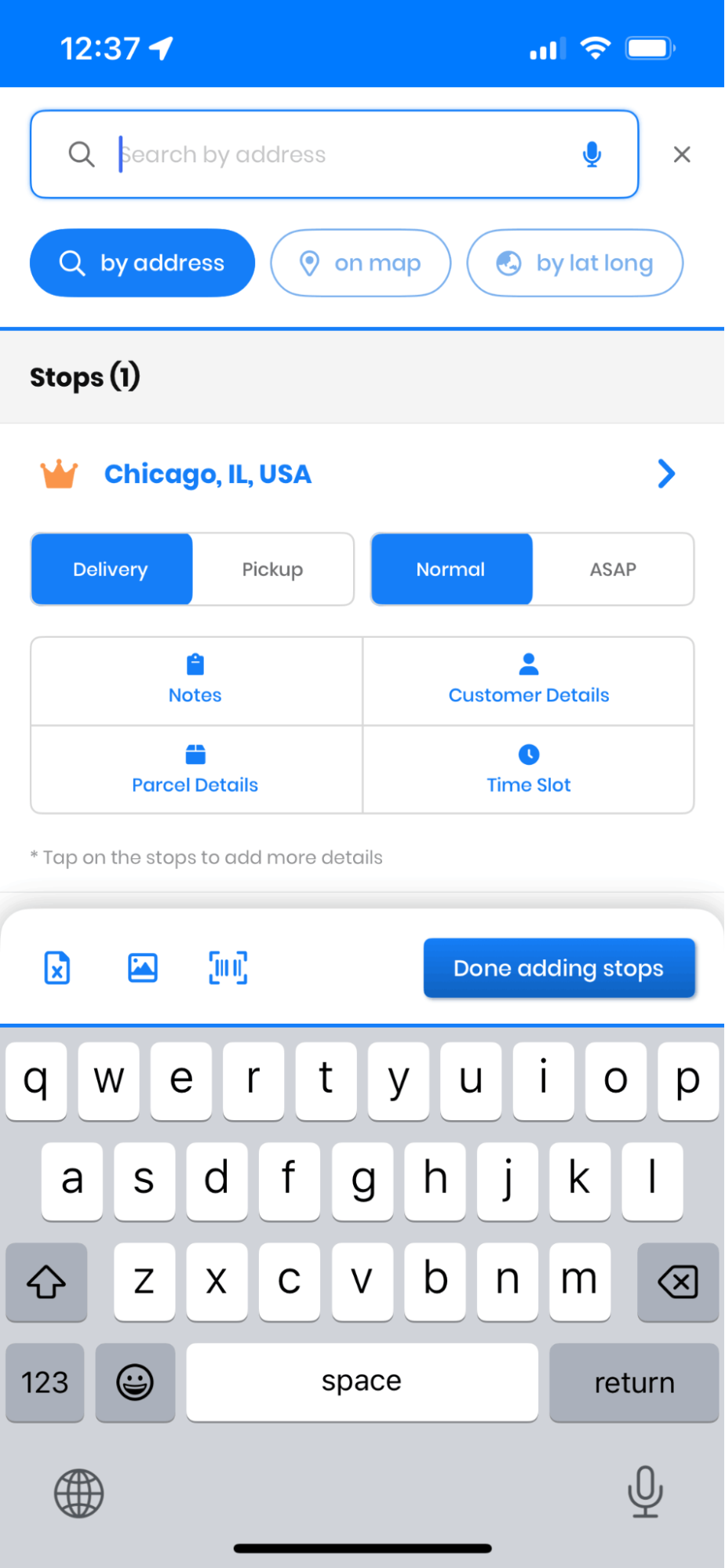
Then click on the “Update Route” button, and the route will be updated.
Deleting Stops on the Go
Suppose one needs to delete the stop while delivering the products; let’s see how one can delete the stops.
Navigate to the “On Ride” section, and you can see all the routes that have been entered. If there are no routes, then you can create your routes.

You can see a “+” button. Click on the button and you will see a list of options. Click on the “Edit Route” button, and you will see a list of routes you have created.
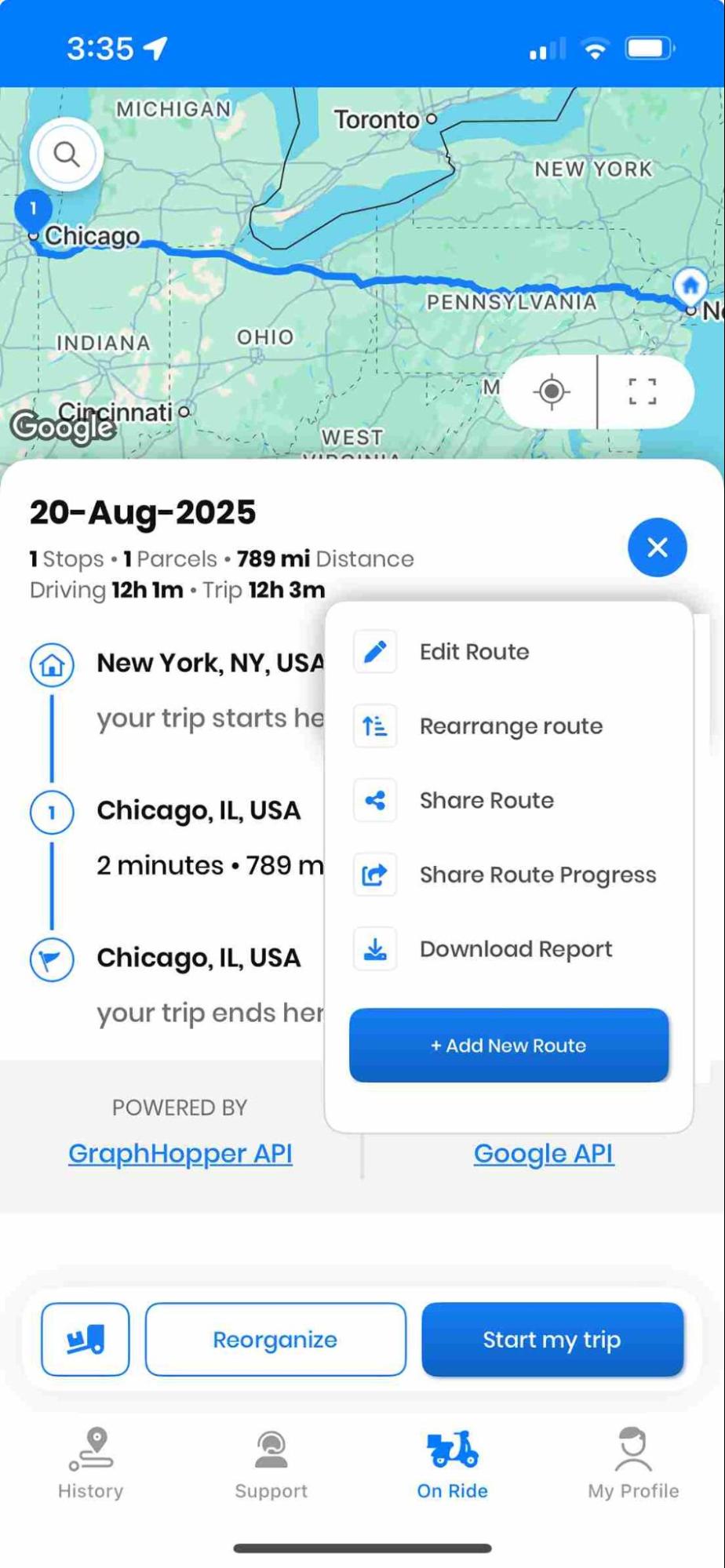
Click on the dots in front of the route that you want to delete.
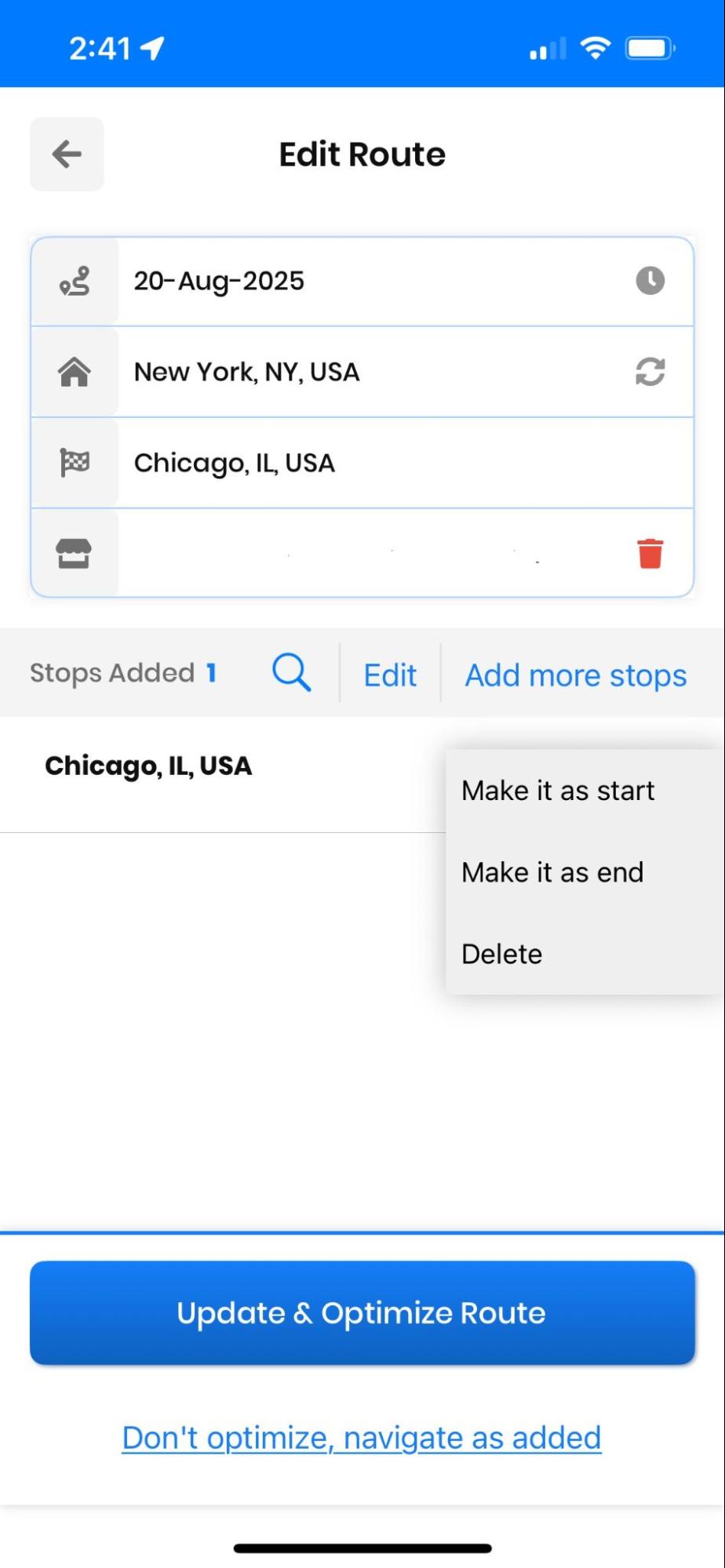
You will get the option “Delete.” After the option, click on the “Update Route” to finalize the changes.
Skip Stops and Re-arrange Routes
A driver can skip a stop if the customer is not available, and it helps the driver keep their work on with the delivery of other customers; let’s see how you can do that.
Go on to the “On Ride” tab, and there you can see a “Skip” button just before the “Navigation” button.
Optimize routes with our algorithm, reducing travel time and costs efficiently.
increase fuel savings
Save $200 on fuel, Monthly!
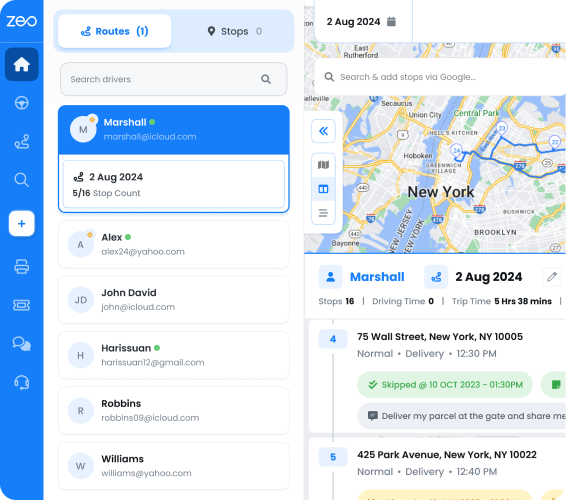
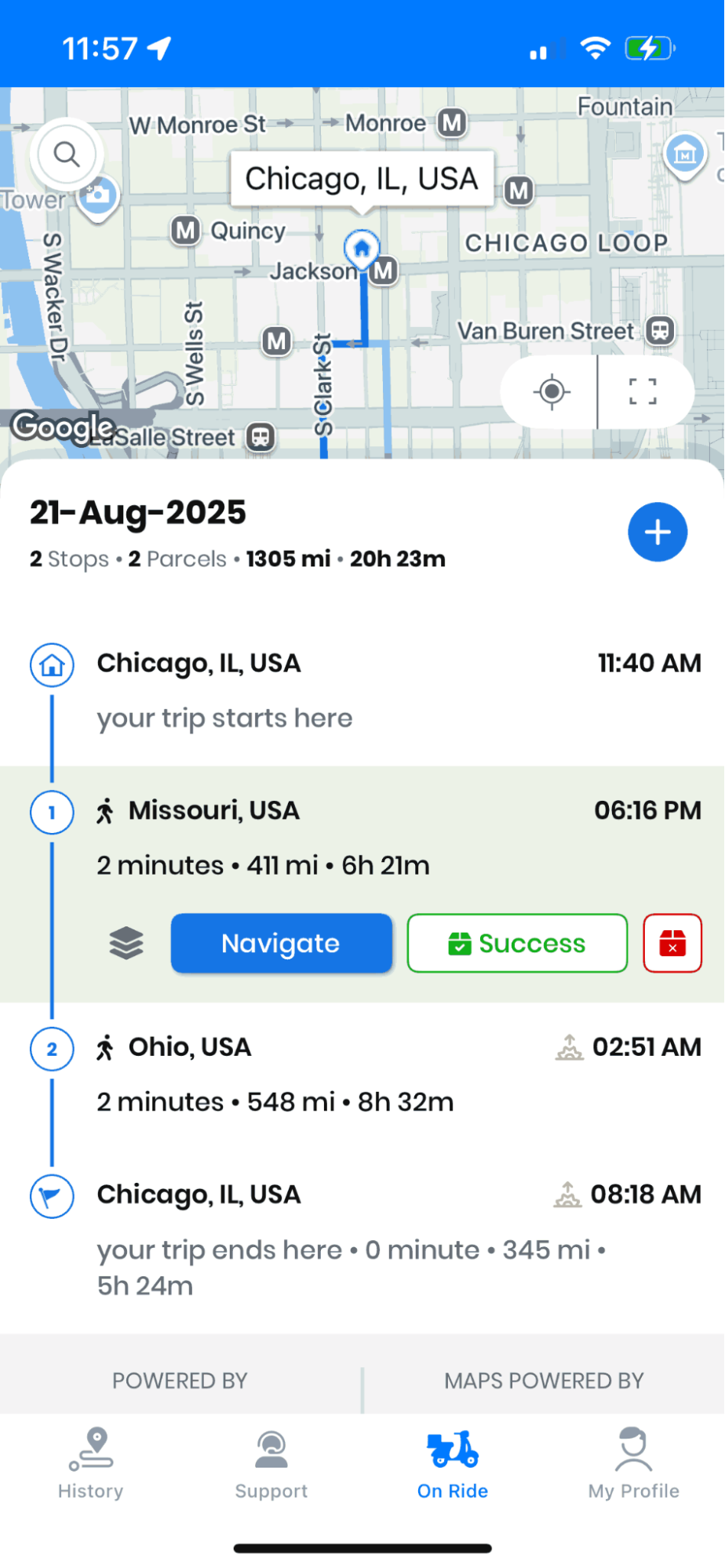
By pressing the button, the stop action list will appear, and from the list select “Skip Stop”. Now the stop will be skipped.
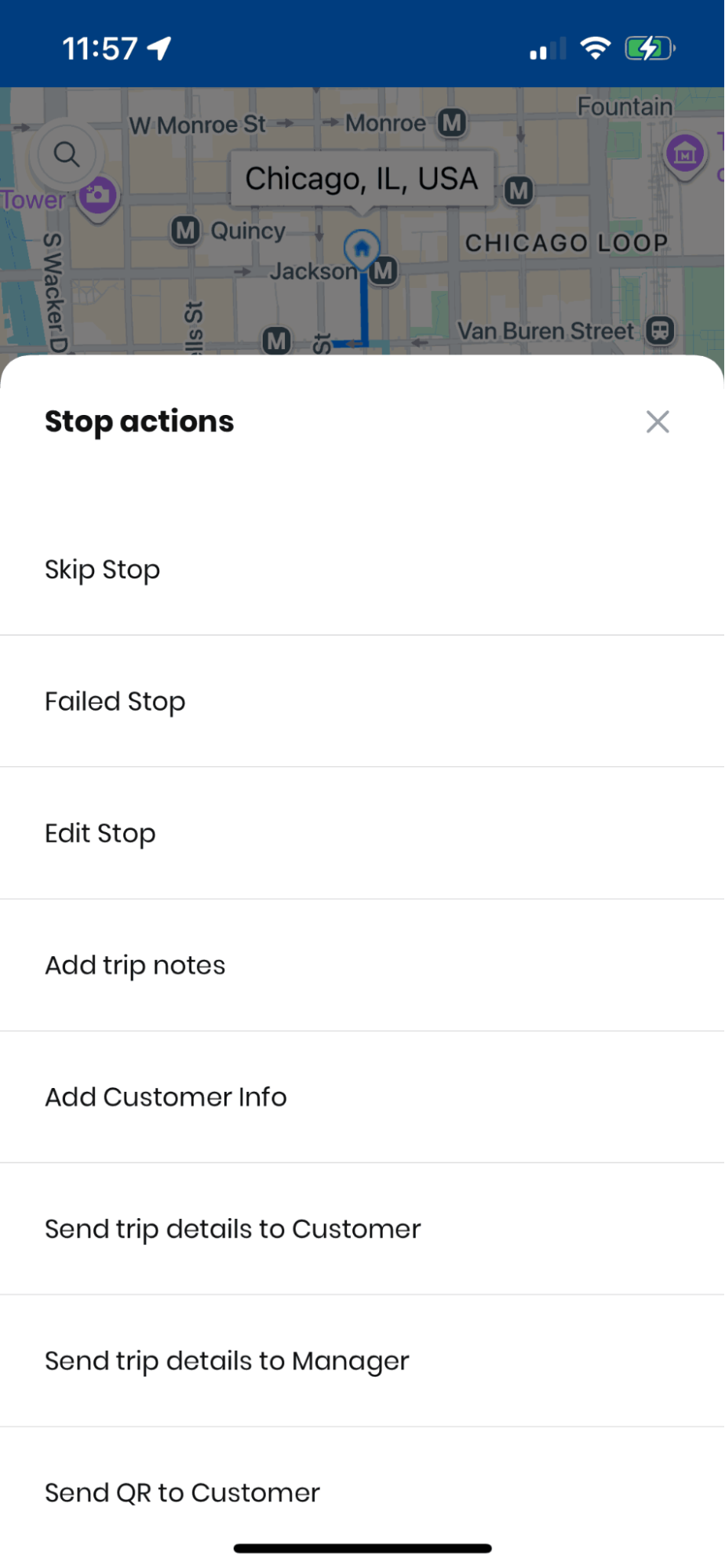
Re-arrange the route, press the “+” button, and press the “Re-Arrange Route” button.
Then you can rearrange the route and press the “Save and Re-Route” button to save the changes.
These kinds of mid-shift adjustments matter more than they might seem. A missed customer, a locked gate, or a last-minute add-on from dispatch shouldn’t mean the driver has to stop, call the office, and wait for new instructions. Being able to skip, delete, add, or reorder stops directly from the driver’s screen keeps the whole route moving and prevents small hiccups from snowballing into late deliveries further down the list.
Applying the Navigate as Added Setting
It often happens that drivers want to proceed the way they think will be best or according to the list of addresses from the office. In that case, Zeo Route provides the “Navigate as Added” feature, which navigates you according to the addresses’ list as they are entered in the app.
Follow these simple steps to apply the navigate as entered setting:
- You can check the “Navigate as Added” checkbox while you are adding the stops. This will start the navigation in the way you have entered.
- If you are on the “On Ride” section, then press the “+” button, and a list of details will be displayed.
- After that, press the “Navigate as Entered” option at the bottom, and the navigation will be provided in the order in which you have entered.
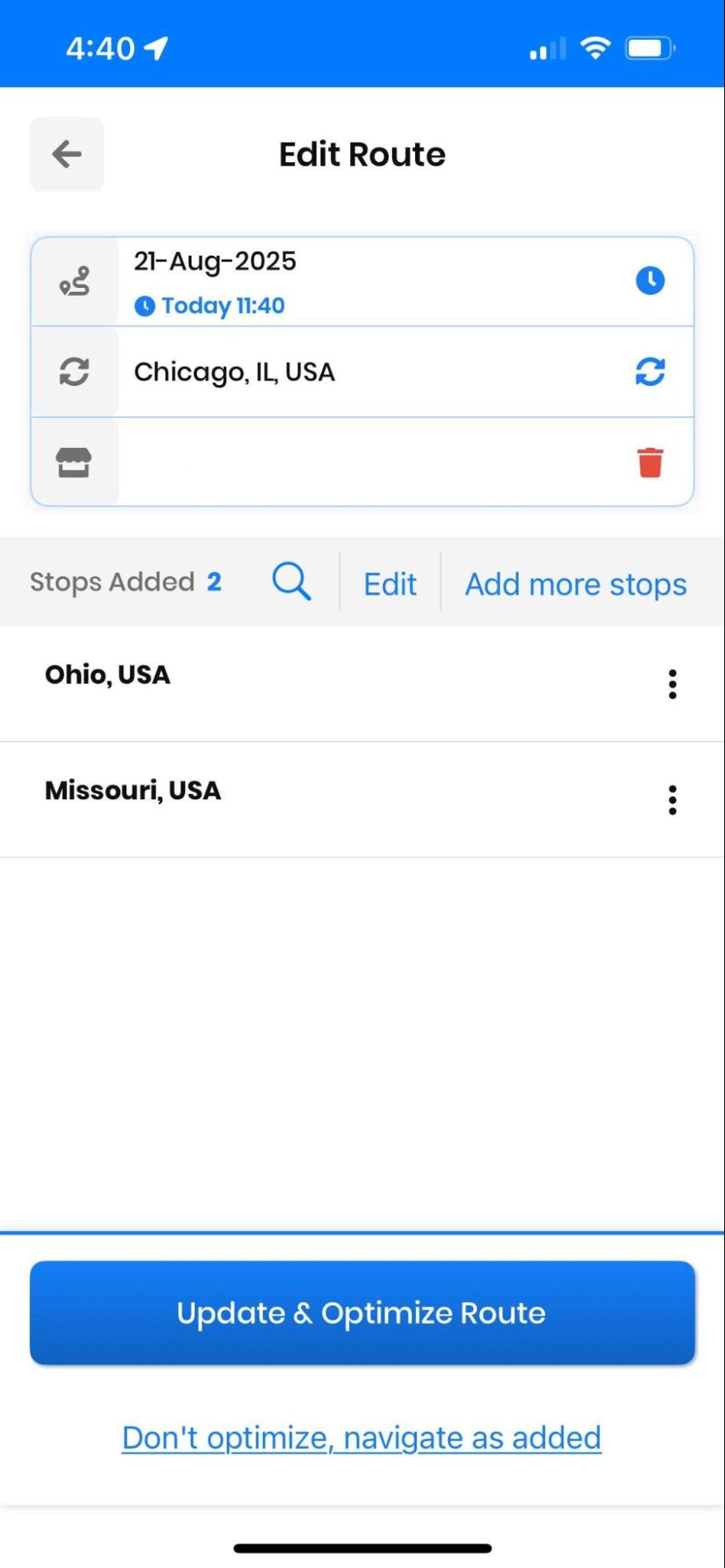
This setting is particularly useful for drivers who know their neighborhood better than any algorithm does, or for routes where local knowledge, one-way streets, or delivery windows make a specific sequence more practical than the suggested order. Giving drivers this kind of control also supports overall route optimization, since the app can still work alongside multiple navigation apps like Google Maps, Waze, and Apple Maps depending on driver preference.
Increase/Decrease the size of the map on the travel page
You can also increase or decrease the size of the map on the travel page. Zeo Route provides a straightforward option to increase or decrease the map size; let’s see how this process can be done.
- Navigate to the “On Ride” section, and you will see a map. At the bottom right of the map screen, you will see a square box.
- Press on the square box to increase the size of the map to full screen. If pressed again, then it will decrease the size of the map.
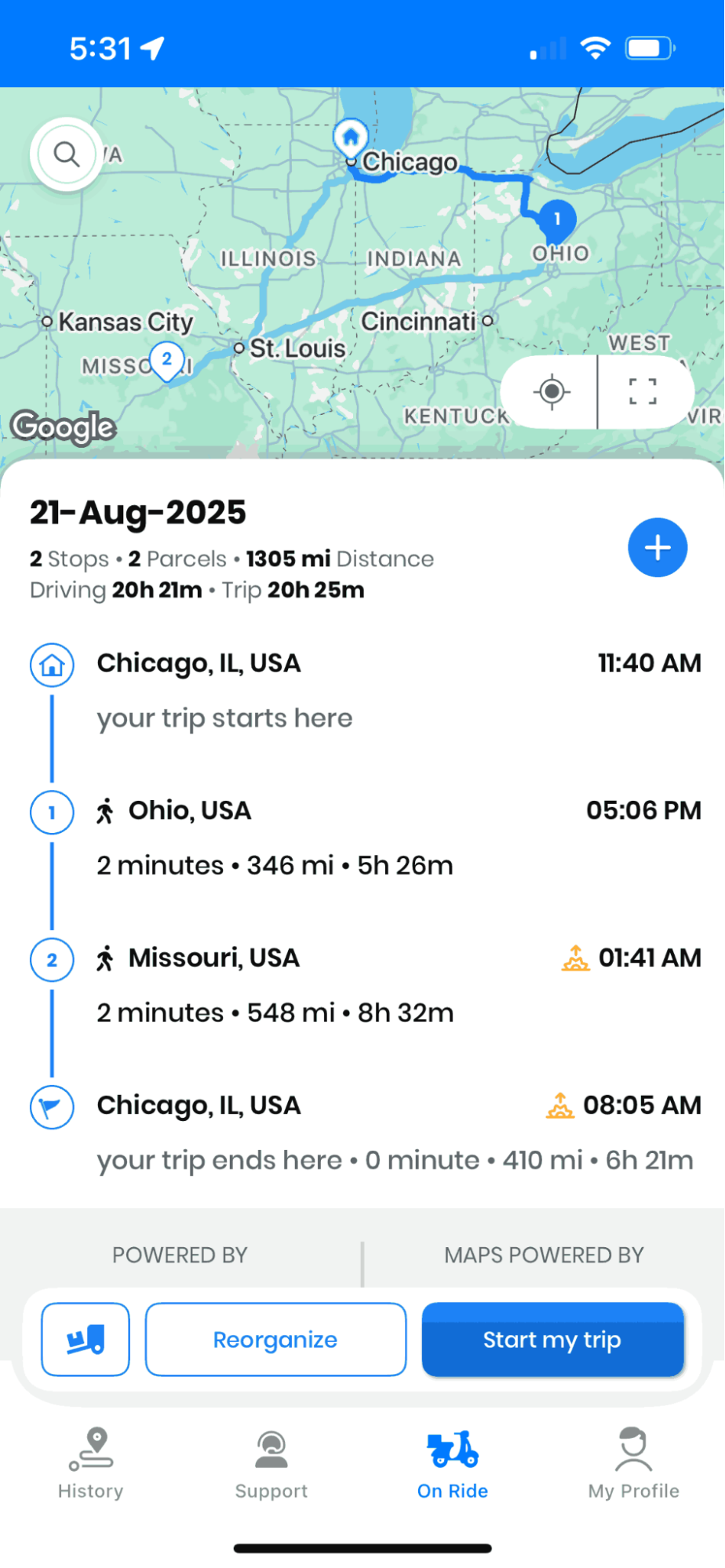
- Press on the square box to increase the size of the map to full screen.
- If pressed again, then it will decrease the size of the map.
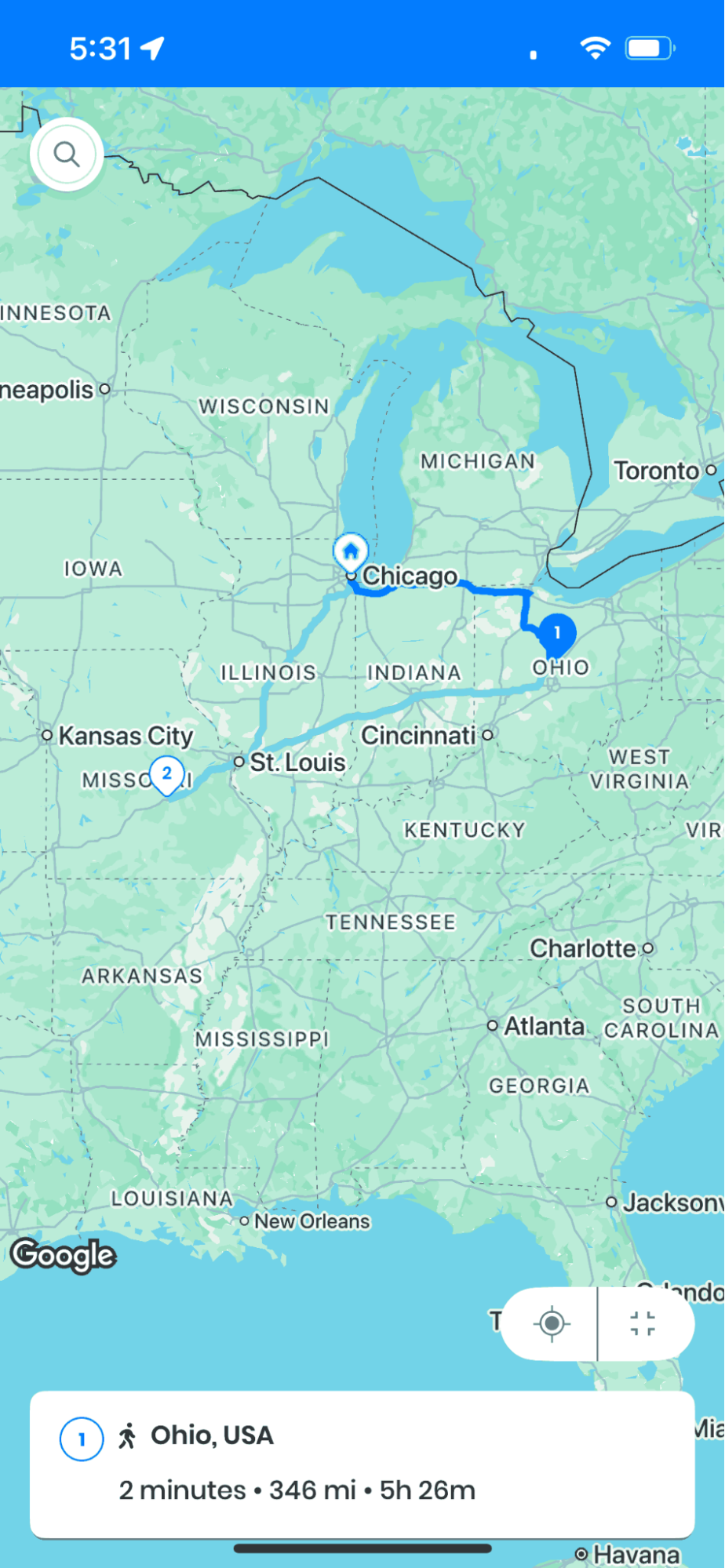
A larger map view can make a real difference for drivers navigating dense urban areas, unfamiliar neighborhoods, or complex apartment complexes with multiple entrances. Being able to toggle between a compact view (to see stop details and delivery notes) and a full-screen map (to focus purely on navigation) means the driver isn’t stuck choosing one or the other for the whole shift.
Why Driver-Level Flexibility Matters for Fleet Operations
Route settings that drivers can adjust in real time aren’t just a convenience feature — they directly affect how efficiently a fleet operates. According to the U.S. Bureau of Transportation Statistics, vehicle miles traveled for freight and delivery vehicles have continued climbing year over year, which means every unnecessary detour, missed stop, or rigid route adds real cost. Giving drivers the ability to skip, reorder, add, or delete stops on the go reduces the back-and-forth between driver and dispatcher, which otherwise eats into delivery windows.
Fuel and time efficiency are also tied closely to how well routes adapt to real-world conditions. The EPA’s guidance on fuel-efficient driving notes that reducing idle time and unnecessary mileage has a measurable effect on operating costs, which is exactly what dynamic, driver-adjustable routes are designed to support. When drivers aren’t forced to follow a fixed sequence regardless of real-world conditions, fleets see fewer wasted miles and fewer late deliveries.
This is also where dynamic route adjustments mid-shift become valuable at the fleet level, not just for individual drivers. When a manager reassigns a stop or a customer reschedules, the change reflects on the driver’s app without a phone call, and Zeo Route Planner’s live tracking keeps the office updated on the driver’s actual progress in real time.
Still Need Help?
Altering driver settings in Zeo is a very easy and straightforward process that can save time and money. It can improve delivery operations with a few clicks and can keep drivers informed with accurate and optimized routes. If you’re setting up routes for the first time, check out our guide on how to plan a route, and if you manage a team, see how driver management settings work alongside these on-the-go tools. For businesses looking to cut manual work, our bulk address import guide is also worth a look.
Frequently Asked Questions
Can a delivery driver change their route after it’s already been assigned?
Yes, most modern route planning apps allow drivers to add, delete, skip, or rearrange stops directly from their phone without contacting dispatch. This flexibility helps drivers adapt to closed businesses, unavailable customers, or last-minute changes without derailing the rest of the day’s schedule. Zeo Route Planner supports dynamic route adjustments mid-shift, so drivers can update their route in real time while managers still see live progress.
What should a driver do if a customer isn’t available at their delivery window?
Drivers should typically skip the stop and move to the next one rather than waiting, since idle time compounds delays across the rest of the route. Many route planning tools let drivers mark a stop as skipped, come back to it later, or document the attempted delivery with a photo or note for the customer’s record. Documenting the attempt also protects against disputes over whether the delivery was actually attempted.
How do delivery drivers decide the best order to visit stops?
Most drivers rely on route optimization software that factors in distance, traffic, time windows, and stop priority to suggest the most efficient sequence automatically. However, drivers with strong local knowledge sometimes prefer to follow their own order based on traffic patterns or one-way streets. Zeo Route Planner’s “Navigate as Added” setting lets drivers follow the exact sequence they entered instead of the app’s suggested order, giving experienced drivers control when they need it.
Why do delivery routes change throughout the day?
Routes change because real-world conditions rarely match the original plan — traffic incidents, canceled orders, new same-day requests, and customer availability all shift throughout a shift. According to the U.S. Bureau of Labor Statistics, delivery driver schedules are inherently variable due to demand fluctuations and last-minute customer needs. Fleets that use software capable of dynamic route adjustments mid-shift are better positioned to absorb these changes without falling behind.
What information should a driver capture at each delivery stop?
At minimum, drivers should capture proof that the delivery happened as expected — typically a photo of the package at the doorstep, a customer signature, or a delivery note describing the drop-off location. This documentation protects both the driver and the business if a customer later disputes receiving an order. Zeo Route Planner’s proof of delivery tools, including photo capture and digital signature collection, are used by delivery teams across 150+ countries to create a verifiable record for every stop.
Are you a fleet owner?
Want to manage your drivers and deliveries easily?
Grow your business effortlessly with Zeo Routes Planner – optimize routes and manage multiple drivers with ease.
increase fuel savings
Save $200 on fuel, Monthly!
Optimize routes with our algorithm, reducing travel time and costs efficiently.
Get Started for Free