Updated on: April 14, 2026
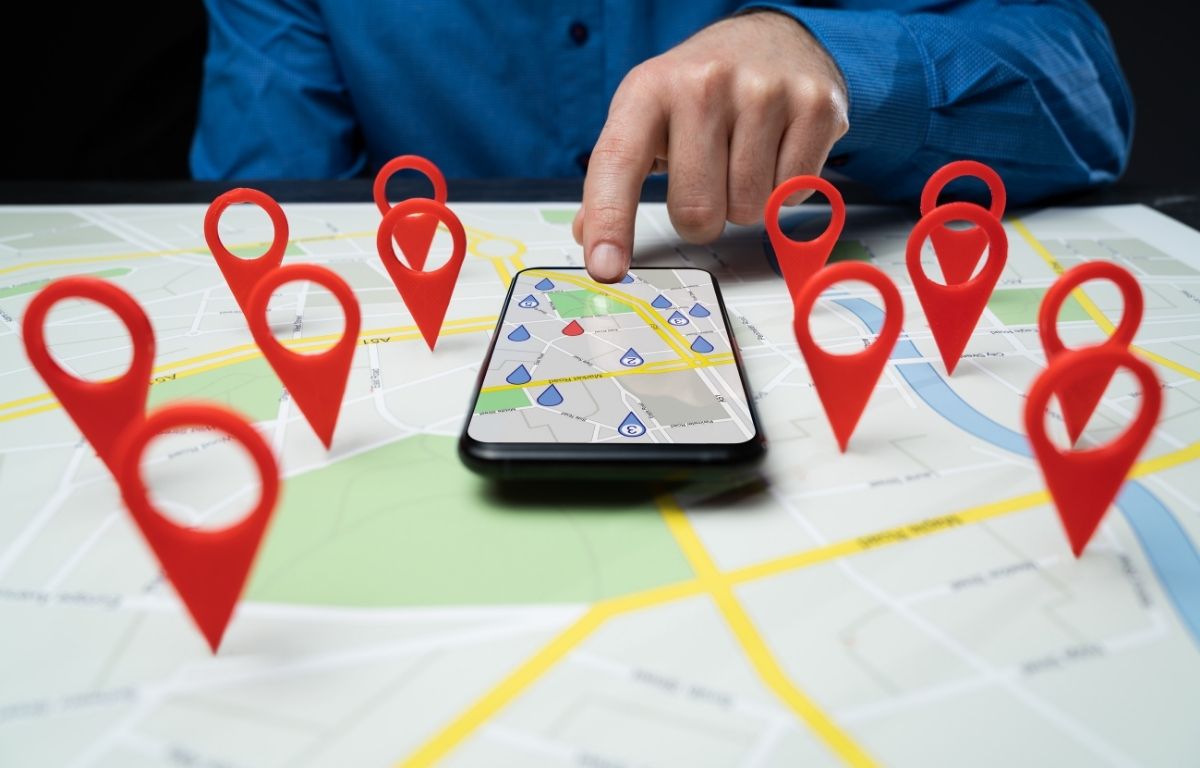
Google Maps is a vital resource for many types of businesses. It is a flexible, easy-to-use solution for company planning and navigation that works on both computers and mobile devices. Although it has many functions, it must be improved for better functionality. This blog offers instructions on using Circle Plot and Google My Maps to draw a radius on a map. It enables users to visualise and analyse certain regions.
Why Do You Need a Map Radius?
A map radius is a tool that creates a radius circle around a specific location on a map, enabling the creation of a proximity analysis on a segment of data. This allows for the analysis of distances, points on the map, and the number of points within different distance increments. It is used in various ways, including distance analysis, locating points, and determining the number of points within different distance increments.
Here are some ways to use a map radius:
- Concentrate in particular regions: The Map radius may be used to find places where coverage overlaps and possible openings for additional sites.
- Find trends and patterns: By analysing data in small segments, Map radius makes it possible to identify high-risk locations.
- Strengthen customer relationships: Map radius is used to determine the denser places of customers which allow for more effective customer visits.
- Minimize transport and distribution costs: Map radius can help determine the distance of distribution centers from delivery locations. It optimize staff activity reduces fuel costs.
Use Google My Maps and Circle Plot to Create a Map Radius
Creating a map radius using My Maps and Circle Plot is a simple and effective way. The following steps will guide you through the process:
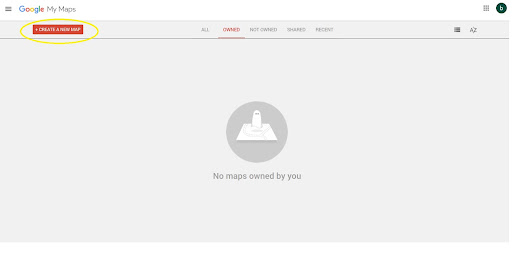
- Click create a new map on the Google My Maps website.
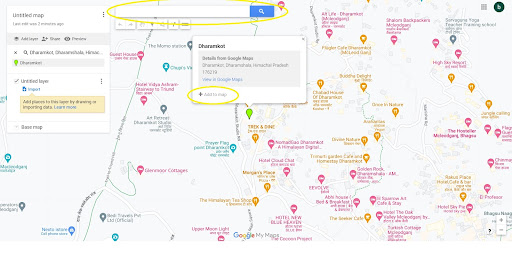
- Search the required address and click on Add to map.
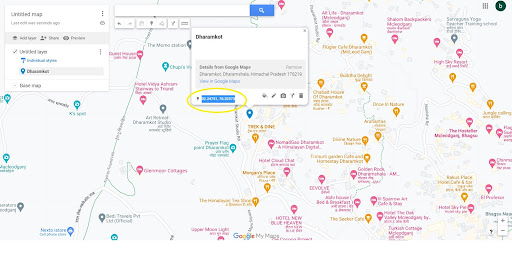
- Copy the latitude and longitude of the address.
- Visit the website of Circle Plot.
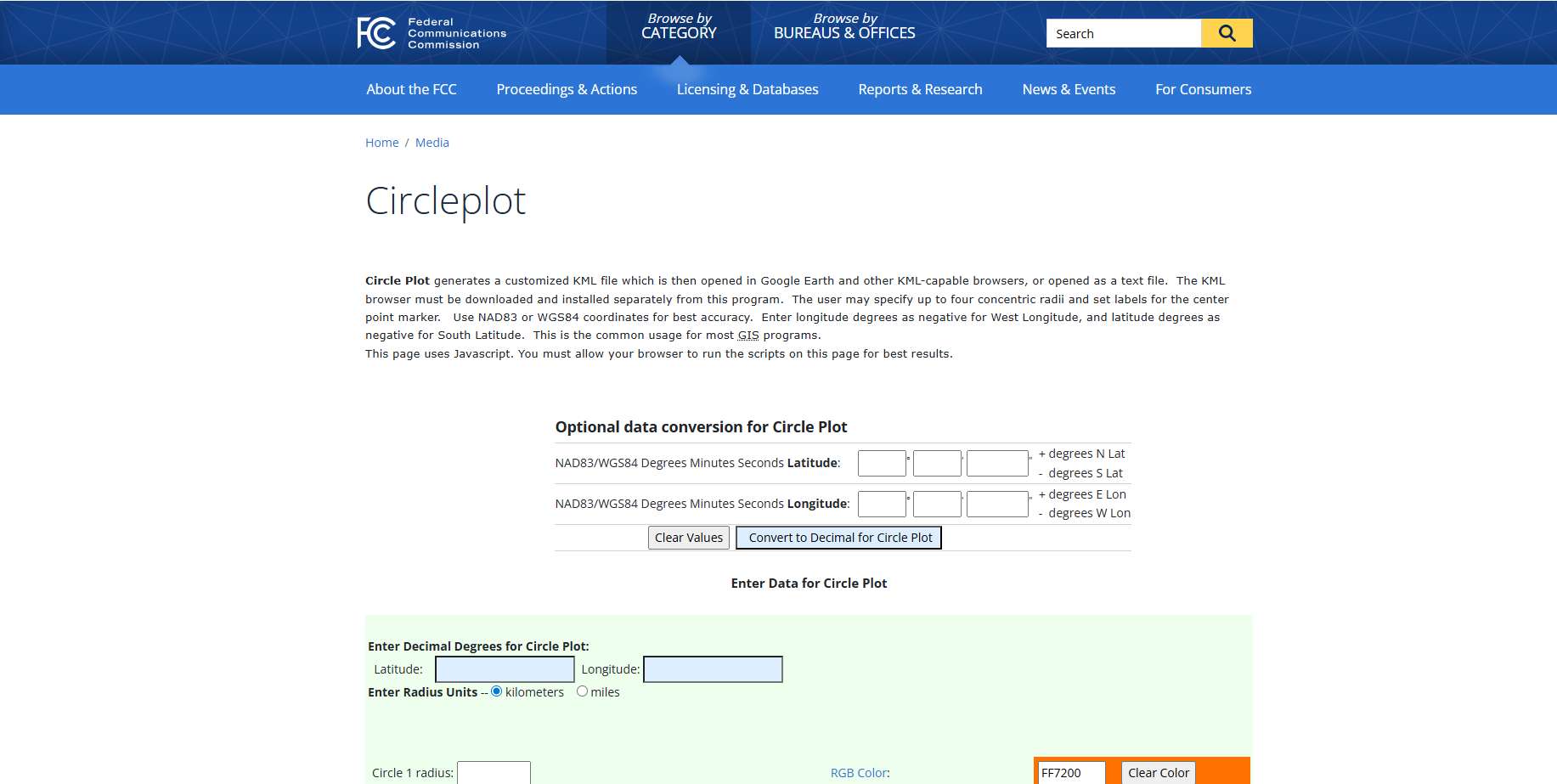
- Scroll down and enter the latitude and longitude.
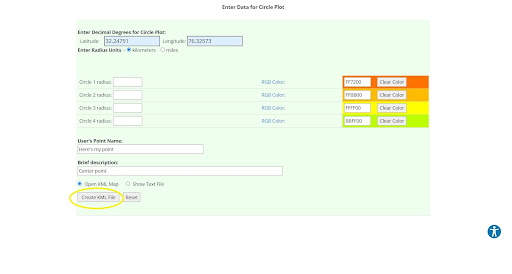
- Enter the radius and required details, then click Create KML File.
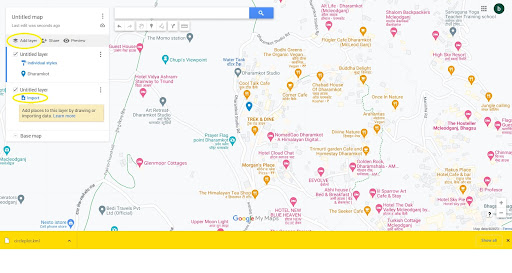
- A KML file will then be downloaded. Go to My Maps, click Add layer, then click Import.
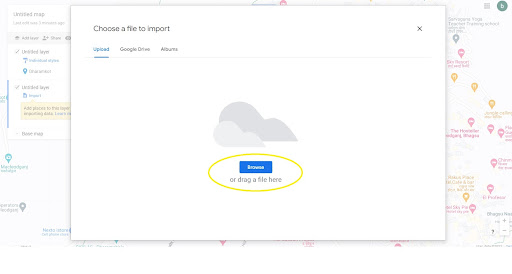
- Browse and choose the KML file, and click Open.
- The radius will appear on the map; you can export it if required.
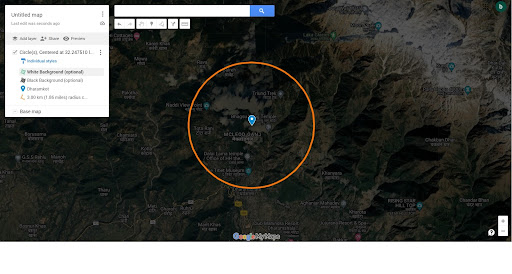
Now you learned how to draw a radius on Google Maps with the help of My Maps and Circle Plot to define your service area, then you can use Zeo Route Planner for efficient route management and delivery optimization.
How Zeo Route Planner Can help in your Delivery Operations
Every feature of Zeo is designed to help you perform better, deliver faster, and reduce operational costs. With Zeo’s Mobile Route Planner and Route Planner for Fleets, you don’t have to compromise on service quality and customer satisfaction to cut costs.
Zeo Mobile Route Planner
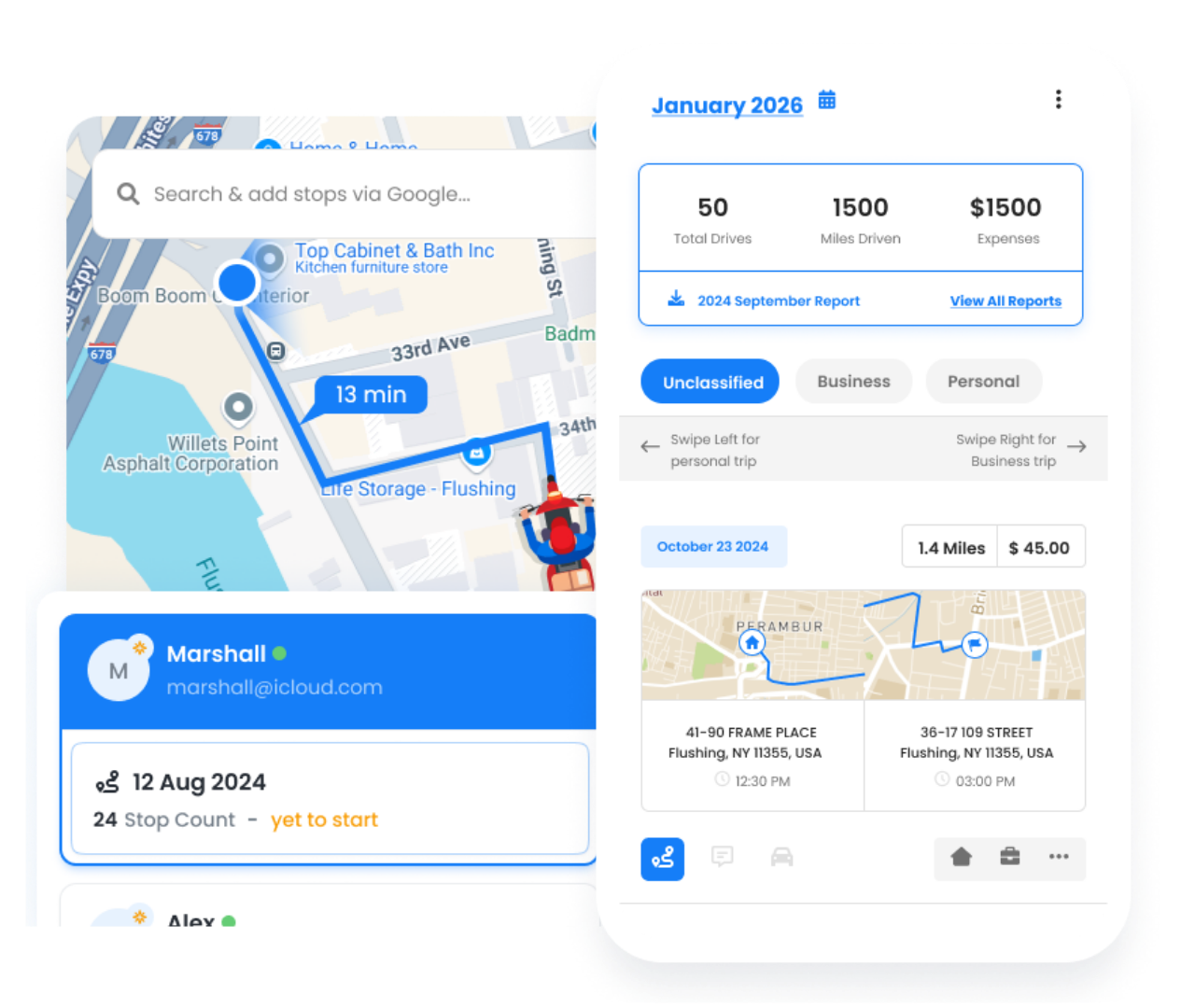
With Zeo’s Mobile Route Planner, delivery drivers can easily optimise their routes. By optimising routes, the delivery business can increase productivity, save time, and reduce operating expenses.

increase fuel savings
Save $200 on fuel, Monthly!
Optimize routes with our algorithm, reducing travel time and costs efficiently.
Get Started for Free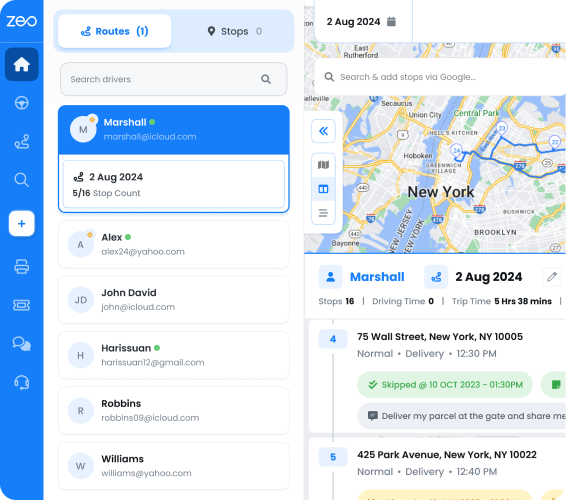
- Zeo Route optimization uses advanced algorithms to calculate the most efficient routes for your business.
- Zeo’s Proof of Delivery also offers proof of delivery digitally to eliminate manual efforts and errors.
- The Parcel Management feature of Zeo helps you manage your parcels within the app results in more deliveries completed in less time.
- Real-time ETA another feature of Zeo, allow you to share live locations and delivery progress with your customers. Accurate ETAs build trust with customers and help maintain a reputation for reliability.
Zeo Route Planner is a seamless navigation tool that integrates with popular navigation tools like Google Maps, Apple Maps, TomTom Go, Baidu Maps, Here We Go, Waze, and Sygic. It provides single-view access to navigation details, allowing drivers to focus on performance growth and avoid confusion while navigating delivery routes.
Route Planner For Fleets
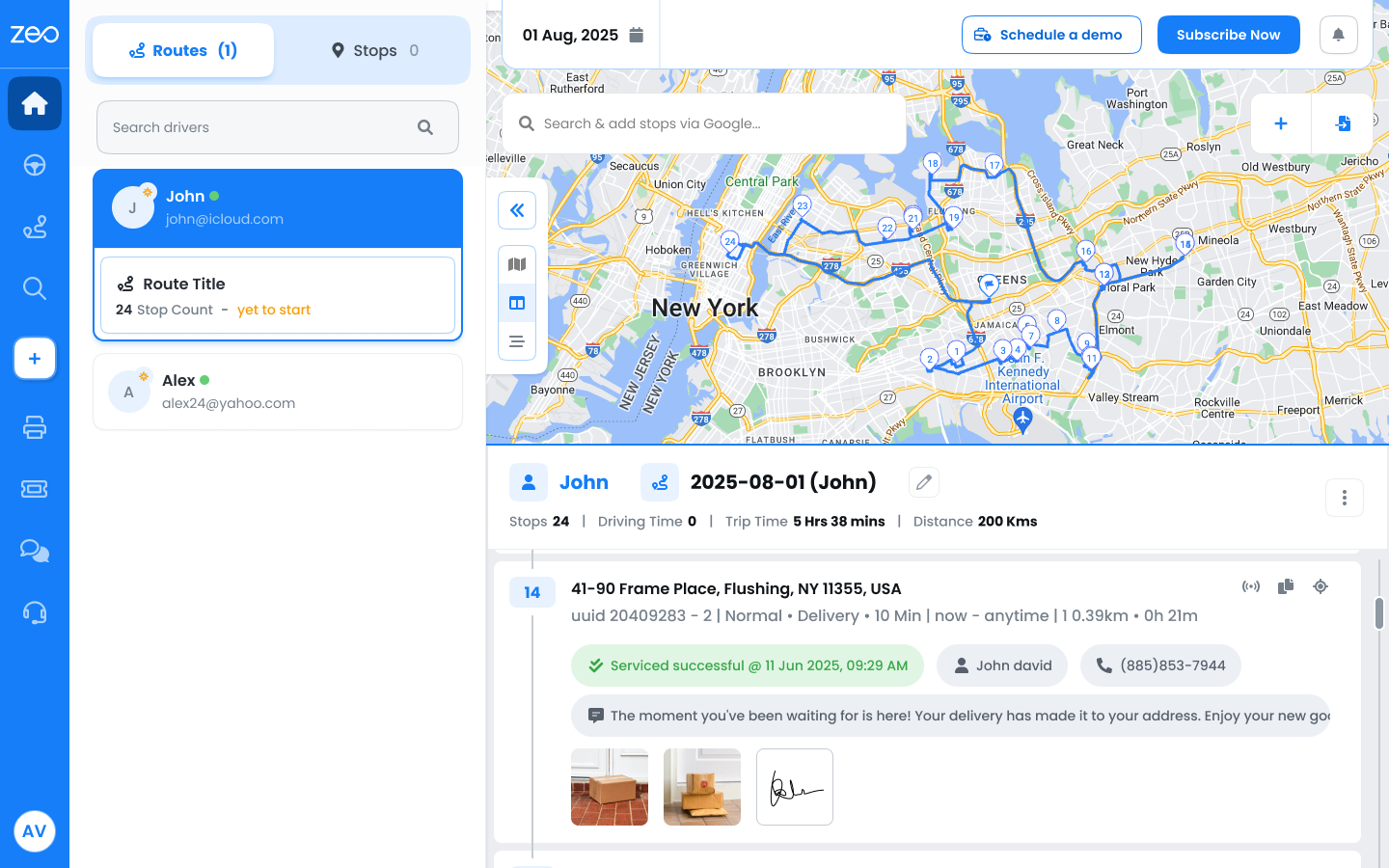
Zeo Fleet Platform is designed for delivery drivers and fleet managers. Key features of Zeo Fleet Route Planner are discussed below:
- Zeo’s Live location tracking feature provide fleet managers and customers to track the live locations of drivers gaining enhanced visibility.
- The platform automatically assigns and optimizes routes, which can save money and time.
- Skill-Based Assignment of Zeo tailor to the diverse needs of delivery operations and each task assigned based on specific driver skills.
- The Zeo Proof of Delivery fleet platform increase accountability with clear and verifiable records.
Wrapping Up
For easy planning and navigation, drawing a radius on Google Maps using Google My Maps and Circle Plot is crucial. This tool provide a available insights for a delivery business owner. If your business comprises delivery operations, consider Zeo Route Planner.
Zeo’s Live route tracking allows real-time communication and route optimization, reduces travel time, and operational costs. Driver management monitors driving patterns, assigns skilled drivers for delivery, automated delivery updates enhance communication between fleet managers, drivers, and customers.
For more sign in to Zeo for free!

Are you a fleet owner?
Want to manage your drivers and deliveries easily?
Grow your business effortlessly with Zeo Routes Planner – optimize routes and manage multiple drivers with ease.

increase fuel savings
Save 2 Hours on Deliveries, Everyday!
Optimize routes with our algorithm, reducing travel time and costs efficiently.
Get Started for Free