Updated on: May 7, 2026
For commercial purposes, automatically tracking your miles can be useful for tasks such as keeping track of expenses, planning the most efficient travel routes, and filing tax deductions. The automatic mileage tracking software can be used to track your miles automatically. It helps to determine the vehicle’s mileage based on the distance it has been driven.
Different programs offer unique capabilities that improve business operations and reduce the need for manual labor in your delivery process. This blog post will teach you how to track your miles automatically.
What is an Automatic Mileage Tracker?
You can track the distance you travel for work, transportation, and other personal purposes with the help of a mileage tracker. It might be a piece of software, most frequently a mileage tracker smartphone application, or a real gadget, usually GPS-based.
Mileage trackers operate differently depending on the tool you choose. But the general concept remains the same, and it tracks location and distance travelled. The majority of mileage monitoring apps available now offer automated tracking, which is wonderful if it’s not the only recording mode.
Why is Automatic Mileage Tracking Important for Your Business?
Companies have traditionally tracked employee mileage for a variety of purposes. Some benefits of tracking mileage are as follows:
#1. Tax Deductions
Maintaining an accurate mileage record is essential for filing taxes. Every business journey may be easily recorded using tools like a mileage tracker for taxes or a mileage app for taxes, ensuring you don’t miss out on any tax deductions.
#2. Optimize Expenses
By providing information about your company’s operational expenditures, a mileage and expense tracker aids in financial planning and budgeting. You can incorporate mileage tracking into your entire spending plan. Businesses can make more informed judgments about how best to spend resources by knowing how much is spent on travel.
#3. Accountability and Transparency
Employee accountability is increased when automated tracking systems offer comprehensive data that includes the time, route, and speed. In addition to being helpful for performance evaluations, this information can discourage false mileage claims.
Read More: Why You Need To Know Your Cost Per Mile?
How Does Zeo Mileage Tracking Software Help Small Delivery Business Owners?
Zeo’s mileage tracking facilitates improved financial planning and gives business owners insightful information about their travel expenses. It analyzes mileage data records, and it can identify opportunities for cost reduction, thereby allowing for more efficient resource allocation.
Follow these easy steps to track your mileage using Zeo
Step 1: Go to the Zeo Route Planner App and click on ‘My Profile’.
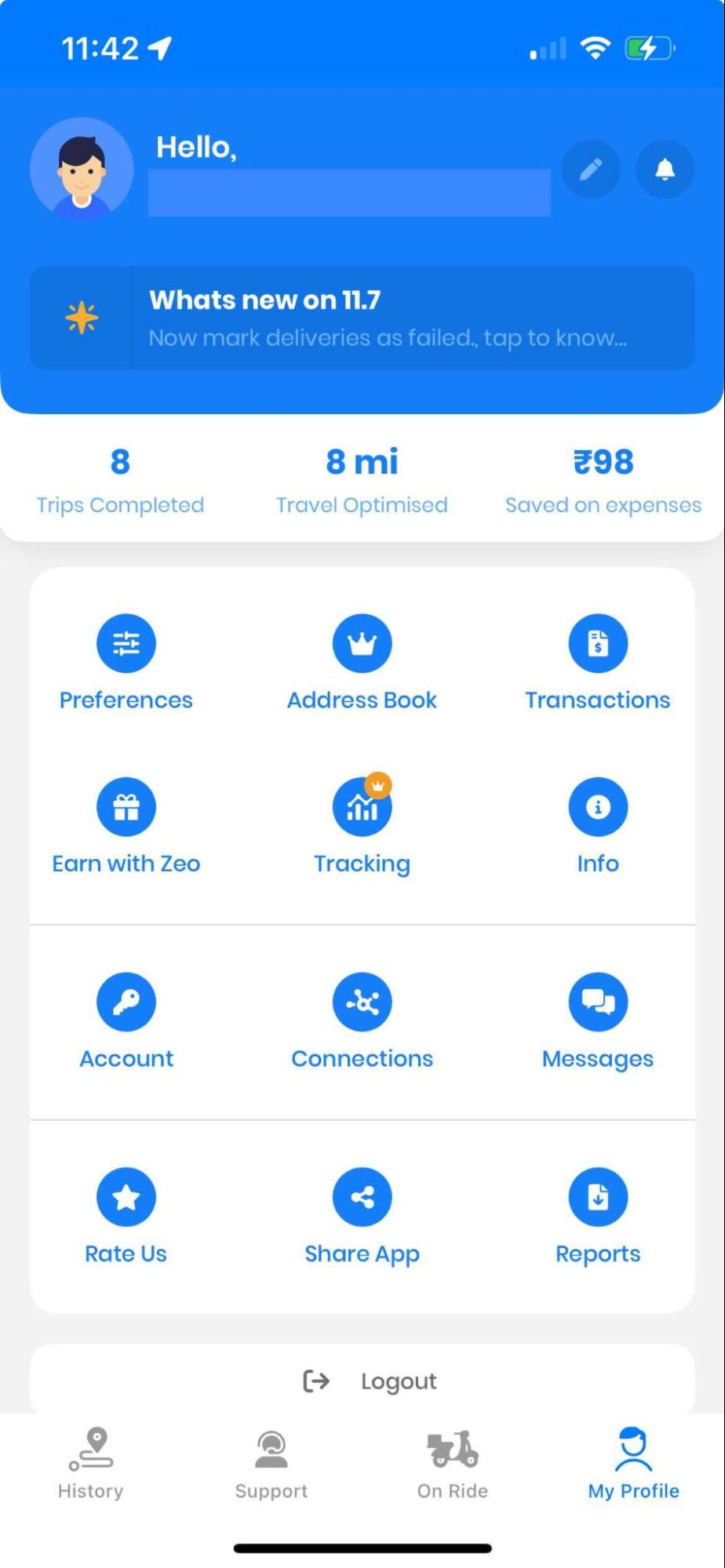
Step 2: Click on ‘Tracking’ from the displayed menu.

increase fuel savings
Hassle Free Deliveries & Pickups!
Optimize routes with our algorithm, reducing travel time and costs efficiently.
Get Started for Free
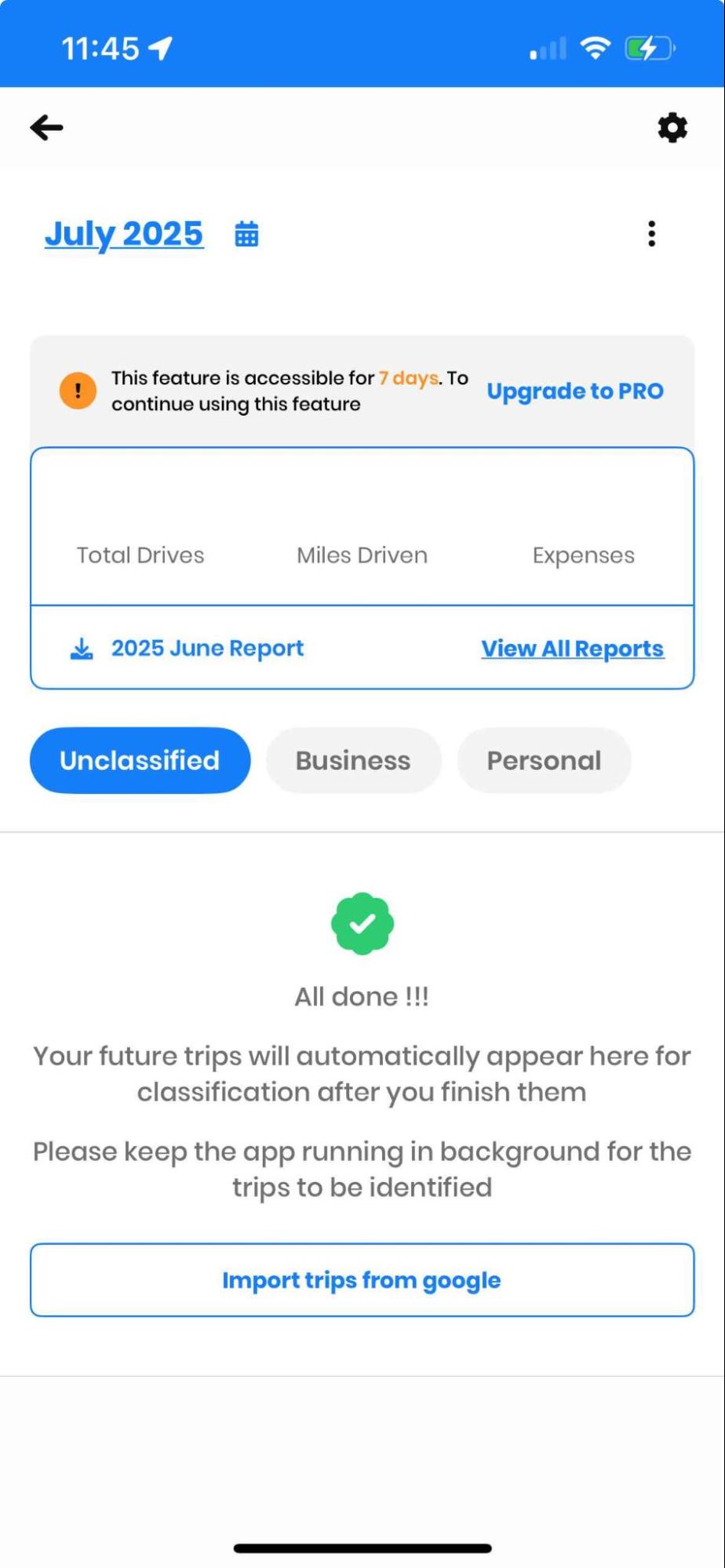
Step 3: The number of drivers, the ‘Expense’ report, and the total ‘Miles Driven’ in a month will now be shown on the app. Depending on your needs, you can monitor the mileage for every month.
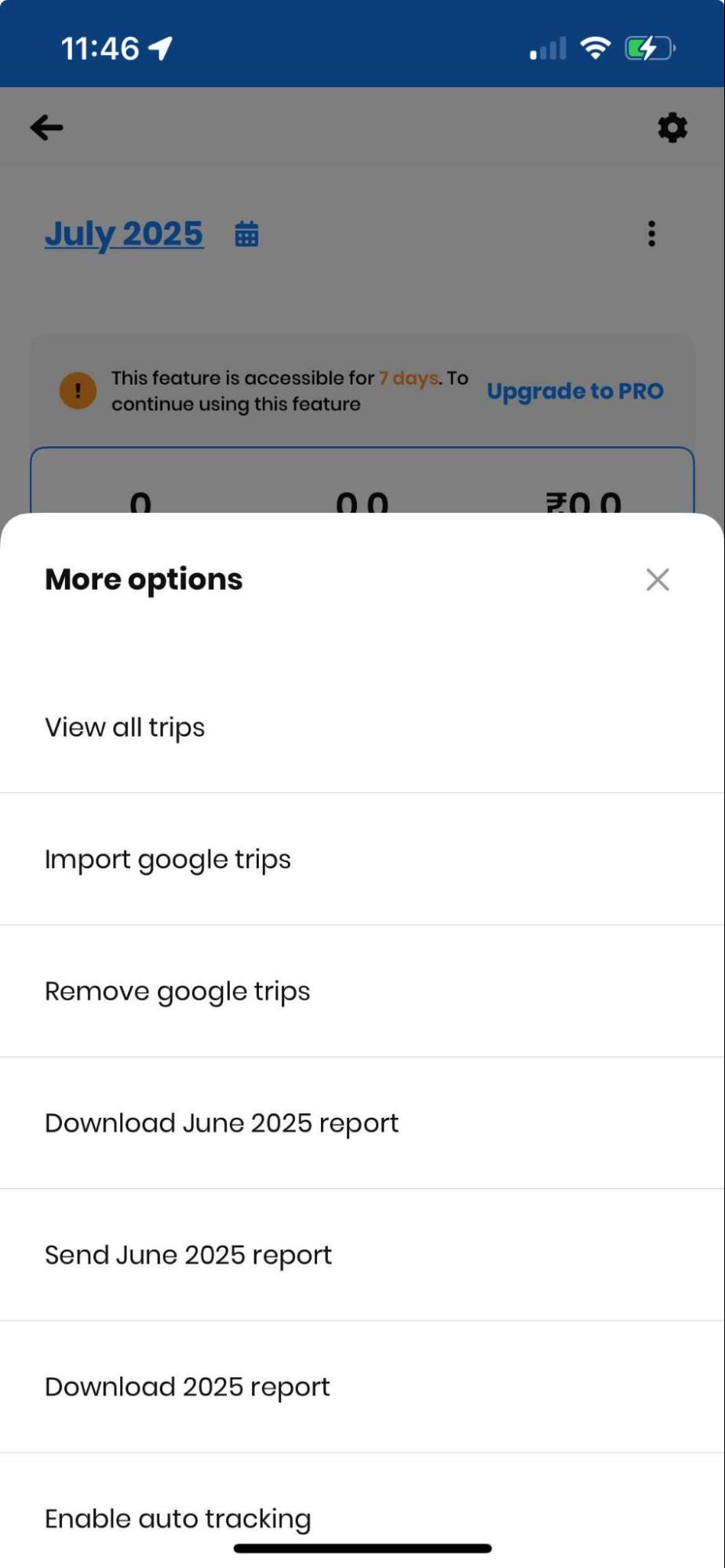
Step 4: To explore more options in the Miles Tracking Feature, click on the three dots in the top right corner.
Benefits of Zeo’s Miles Tracking Feature
Zeo’s paid-for miles tracking feature provides drivers with a comprehensive view of their driving habits, allowing them to understand the distance traveled, the reasons behind it, and how it affects their financial situation, making manual tracking less painful and error-prone. Now let’s see some of the benefits of Zeo’s mileage tracking feature.
- Autodrive Detection: Zeo Route Planner automatically tracks routes and miles travelled in the background, eliminating the need for manual tracking.
- Tracking Data: The feature provides daily, weekly, and monthly total miles covered, a full history of every drive, and clear records of when and where you traveled.
- Insights: Consistent tracking of miles can reveal patterns, enabling drivers to set benchmarks, monitor workload, and communicate their value better.
- Fuel Saving: Clear miles tracking data can help identify routes that consume excessive fuel, eliminate unnecessary detours, and reduce total drive time.
- Business or Personal Classification: Zeo allows users to tag each drive as Business or Personal, providing a cleaner, more accurate record of driving activity.
- Report Generation: The feature provides clear reports with your miles tracking data, including date and time of each trip, total distance covered, costs and savings, stop address details, and route classification (business or personal).
This feature is especially beneficial for gig drivers or independent contractors who need to track their business miles closely and separate them from personal drives for regional tax deductions.
Read More: Every Mile Matters: Benefits of Zeo’s Miles Tracking Feature
Tips for Using Phones with Accurate GPS
The following elements should be considered while accurately using a phone’s GPS:
- Signal Blockages: The accuracy of GPS signals can be reduced by obstructions from tall buildings, deep forests, and even severe cloud cover. GPS signals have trouble entering buildings, which makes indoor location data less precise.
- Battery Life Power Consumption: Using a phone with GPS can rapidly deplete its battery. Controlling energy usage is crucial, particularly when traveling long distances.
- Device Quality GPS Chip: Accuracy may be impacted by the sensitivity and quality of a phone’s GPS chip. Better GPS performance is often found in higher-end phones.
- Environmental Elements: GPS signal strength may be affected by severe weather.
Streamlining Automated Mile Monitoring for Delivery Companies
Mileage tracking is a complete tool that may enhance many elements of a business, not just a way to save money during tax season. The numerous advantages include raising employee accountability to improving operational efficiency. A dependable mileage tracking system is essential for any company that travels frequently since the long-term benefits can greatly exceed the upfront expenses.
Incorporating Zeo’s mileage monitoring into your company’s operations helps you become a more effective, transparent, and ecologically conscious enterprise while maintaining compliance with tax regulations.
For more, schedule a demo with us!
Are you a fleet owner?
Want to manage your drivers and deliveries easily?
Grow your business effortlessly with Zeo Routes Planner – optimize routes and manage multiple drivers with ease.
increase fuel savings
Hassle Free Deliveries & Pickups!
Optimize routes with our algorithm, reducing travel time and costs efficiently.
Get Started for Free