
Updated on: January 6, 2026
Reading Time: 4 minutes
For people who are constantly on the move, for those who need to get from one point to another in the shortest possible time, we can recommend the Zeo Route Planner application. Whether you’re a delivery driver navigating busy city streets, a service technician managing multiple client visits, or a business owner looking to optimize your team’s efficiency, having the right route planning tool can make all the difference in 2026.
The application supports about fifty languages, you can choose the desired language at the first launch or in the settings later. This multilingual support makes Zeo accessible to users worldwide, ensuring that language barriers don’t prevent efficient route planning. Also, when opening it, you need to grant the program access to geolocation, since this is the main criterion for correctly displaying your position on the map. The GPS integration is seamless and provides real-time location tracking for accurate route calculations.
If desired, you can create your account, which will allow you to view the offered vacancies and earn money with Zeo, as well as set a password for your profile, link payment cards and create favorites lists. The account creation process is straightforward and opens up additional features that enhance the overall user experience. For businesses looking to monetize their delivery operations, this feature provides valuable opportunities to connect with potential clients and expand service offerings.
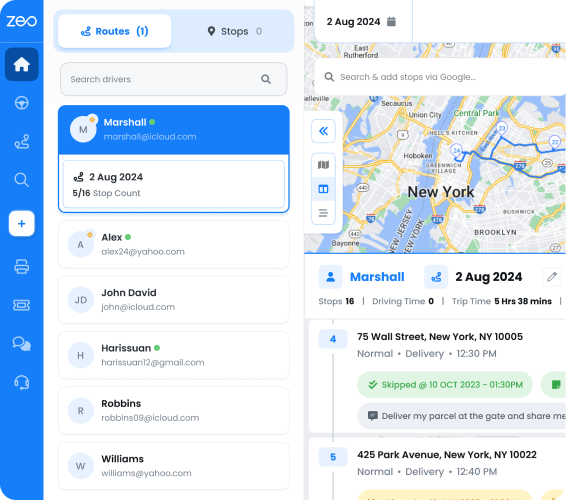
On the main screen, you can set a new route. To do this, you need to select the departure and destination points, add stops along the way and select the most important ones. The interface is intuitive, allowing users to drag and drop stops to reorder them or mark certain locations as priority visits. You can also attach photos to stop points and scan barcodes and qr codes of various places, making it perfect for delivery services that need to document completed deliveries or service calls. Your routes are recorded in history under a certain date, so you can remember in detail where you were even a very long time ago. This historical data proves invaluable for businesses that need to track service patterns, analyze efficiency trends, or provide proof of service completion to clients.
For service-based businesses, route optimization can lead to significant cost savings. Field service companies using efficient route planning often see substantial reductions in fuel costs and travel time. Electricians can reduce travel time by 30% and save thousands monthly with proper route optimization, while HVAC businesses can cut fuel costs by 30% through strategic route planning.
The design of the application meets the requirements of the modern world – nothing distracts you from creating a route, only two colors (white and blue) make up the palette of the application. This minimalist approach ensures that users can focus on what matters most: creating efficient routes without unnecessary visual clutter. The clean interface loads quickly and performs well even on older mobile devices, making it accessible to a wide range of users regardless of their hardware specifications. Technical support can be provided through communication in the application chat, or you can write to the developers by email. The responsive support team typically addresses user concerns within 24 hours, ensuring minimal disruption to business operations.
In general, we can say that the application is ideal for travelers and deliverers of food and goods from online stores! The app serves various industries effectively, from DoorDash drivers optimizing their delivery routes to pest control companies managing recurring treatments across multiple properties. To be able to create routes with more than 500 stop points, you need to purchase the pro version. It is inexpensive, but saving your nerves and time is priceless! The pro version also includes advanced features like real-time traffic updates, weather integration, and priority customer notifications that can significantly enhance operational efficiency.
The versatility of Zeo Route Planner extends beyond simple delivery applications. Service businesses across various sectors have found success using the platform to streamline their operations. Pool maintenance companies use it to manage weekly cleaning schedules, while landscaping businesses optimize their seasonal service routes. The flexibility to handle both one-time trips and recurring service patterns makes it an invaluable tool for businesses of all sizes.
Optimize routes with our algorithm, reducing travel time and costs efficiently.
increase fuel savings
Save $200 on fuel, Monthly!
You can read the full review here –
https://freeappsforme.com/zeo-route-planner-app-review/
Try it now
Our motive is to make life easier and comfortable for small and medium businesses. So now you are only one step away to import your excel and start away.
Frequently Asked Questions
Q: Can I use Zeo Route Planner for my small business delivery service?
A: Absolutely! Zeo Route Planner is designed specifically with small and medium businesses in mind. You can easily import your customer addresses from Excel, create optimized routes for multiple stops, and track your delivery history. The app supports businesses ranging from food delivery services to field service technicians.
Q: How many stops can I add to a single route?
A: The free version allows you to create routes with multiple stops, while the pro version supports routes with more than 500 stop points. For most small businesses, the free version provides sufficient functionality, but larger operations may benefit from upgrading to the pro version for enhanced capacity and features.
Q: Does the app work offline?
A: While Zeo Route Planner requires internet connectivity for initial route planning and real-time traffic updates, basic navigation features can function with limited connectivity. However, for optimal performance and access to live traffic data, a stable internet connection is recommended.
Q: Can I share routes with my team members?
A: Yes, the app includes team collaboration features that allow you to share routes and coordinate with team members. This is particularly useful for businesses with multiple drivers or service technicians who need to coordinate their schedules and coverage areas.
Q: Is my business data secure in the app?
A: Zeo Route Planner takes data security seriously, implementing industry-standard encryption and security measures to protect your business information and customer data. Your route history, customer addresses, and other sensitive information are stored securely and are only accessible through your authenticated account.

Are you a fleet owner?
Want to manage your drivers and deliveries easily?
Grow your business effortlessly with Zeo Routes Planner – optimize routes and manage multiple drivers with ease.
increase fuel savings
Save $200 on fuel, Monthly!
Optimize routes with our algorithm, reducing travel time and costs efficiently.
Get Started for Free