Aktualisiert am: May 18, 2026
Lieferungen verlaufen nicht immer reibungslos. Es kommt zu Störungen wie verspäteten Stopps, Wetteränderungen, Straßensperren, Anrufen von Kunden wegen Nichtverfügbarkeit und vielem mehr.
Erschwerend kommt hinzu, dass eine Flotte ohne vollständige Echtzeit-Aktualisierung betrieben wird.
Deshalb ist es notwendig zu wissen, wo sich Ihre Fahrzeuge befinden oder womit Ihre Fahrer zu tun haben, damit es nicht zu viel Rätselraten gibt und die Disponenten stets mit dem Straßenverkehr im Einklang stehen.
Die Echtzeit-Flottenverfolgung hebt Verzögerungen sofort hervor, leitet Fahrer um, bevor es zu Engpässen kommt, und hält die Kunden auf dem Laufenden.
Darüber hinaus werden wir untersuchen, wie reibungslos die Lieferprozesse mit Live-Flottenverfolgung ablaufen können.
Was ist Echtzeit-Flottenverfolgung?
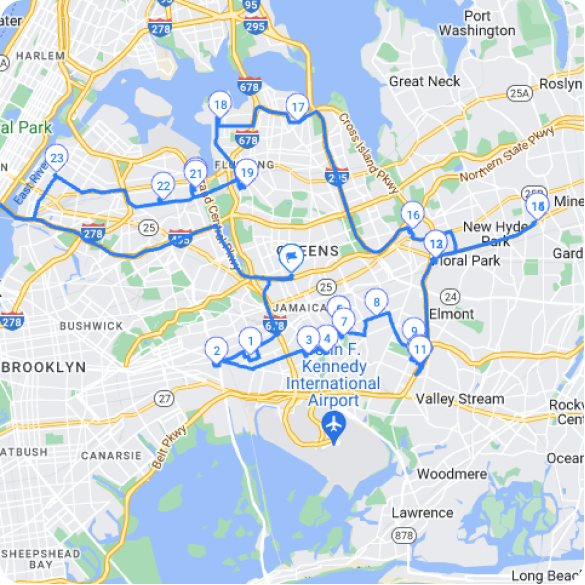
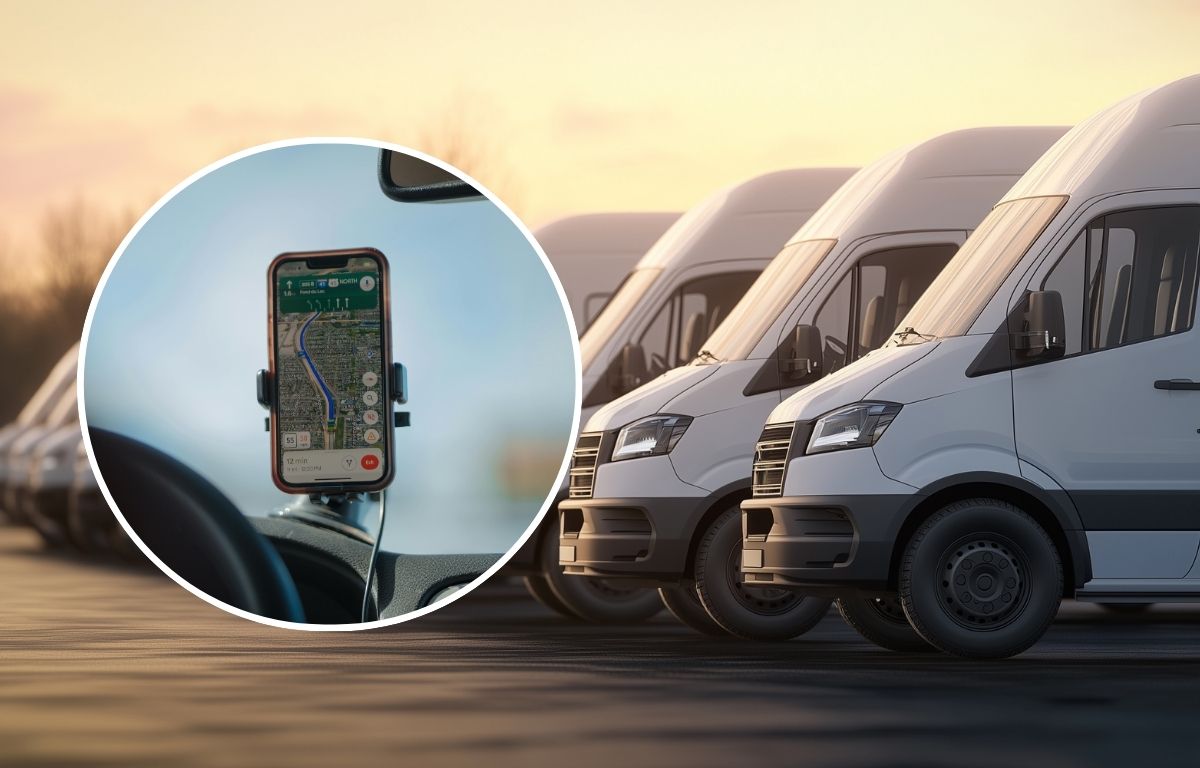
Die Echtzeit-Flottenverfolgung ermöglicht es Ihnen, den Standort Ihrer Fahrzeuge jederzeit auf einer Live-Karte zu verfolgen. Disponenten erhalten einen umfassenden Überblick über die aktuelle Situation vor Ort, einschließlich Verspätungen, Umleitungen, vorzeitiger Ankünfte und zu langer Haltezeiten.

Echtzeit-Tracking funktioniert typischerweise mit:
- Ein GPS-Gerät, das kontinuierlich Standortdaten sendet.
- Integration von mobilen Apps, bei der Fahrer-Apps Aktualisierungen zu Ankunft, Verspätungen oder Problemen austauschen.
- Live-Dashboard für Disponenten zur Anzeige aller fahrenden Fahrzeuge, des Haltestatus usw.
- Ein Benachrichtigungssystem, das automatisch Routenabweichungen, Verspätungen oder längere Haltezeiten meldet.
Routenoptimierung im Live-Flottenmanagement
Sobald die Fahrer unterwegs sind, ändern sich die Umstände. Eine Verzögerung an einer Haltestelle, Stau oder eine kurzfristige Änderung durch einen Kunden. Intelligente Systeme passen die Routen im Hintergrund kontinuierlich an, sodass die Fahrer nicht auf Anrufe oder Anweisungen warten müssen.
Wie die Echtzeit-Routenoptimierung funktioniert
Für Flotten, die täglich mehrere Einsätze haben, kann das Wissen um die Funktionsweise der Echtzeit-Routenoptimierung eine bessere Kontrolle in jeder Phase ermöglichen.
Routenerstellung
Die ersten Routen werden aus Clustern von Haltestellen auf Basis von Priorität und Nähe zusammengestellt, wodurch eine logische Lieferreihenfolge entsteht, um die zurückzulegende Strecke zu minimieren.
Live-Feed
Sobald die Fahrer ihre Fahrt antreten, werden die Live-Standortdaten in das System zurückgesendet, sodass jede Bewegung des Fahrers in Echtzeit verfolgt werden kann.
Treiber-Updates
Die überarbeiteten Anweisungen werden sofort an die Fahrer-App gesendet, damit der Fahrer zum nächsten, effizientesten Halt fährt.
Wie Zeo Routenplaner dies unterstützt
Für Flottenbetreiber ermöglicht Zeo eine effiziente Routenplanung und optimierte Stoppreihenfolgen auf Basis von voraussichtlichen Ankunftszeiten und Entfernungen.
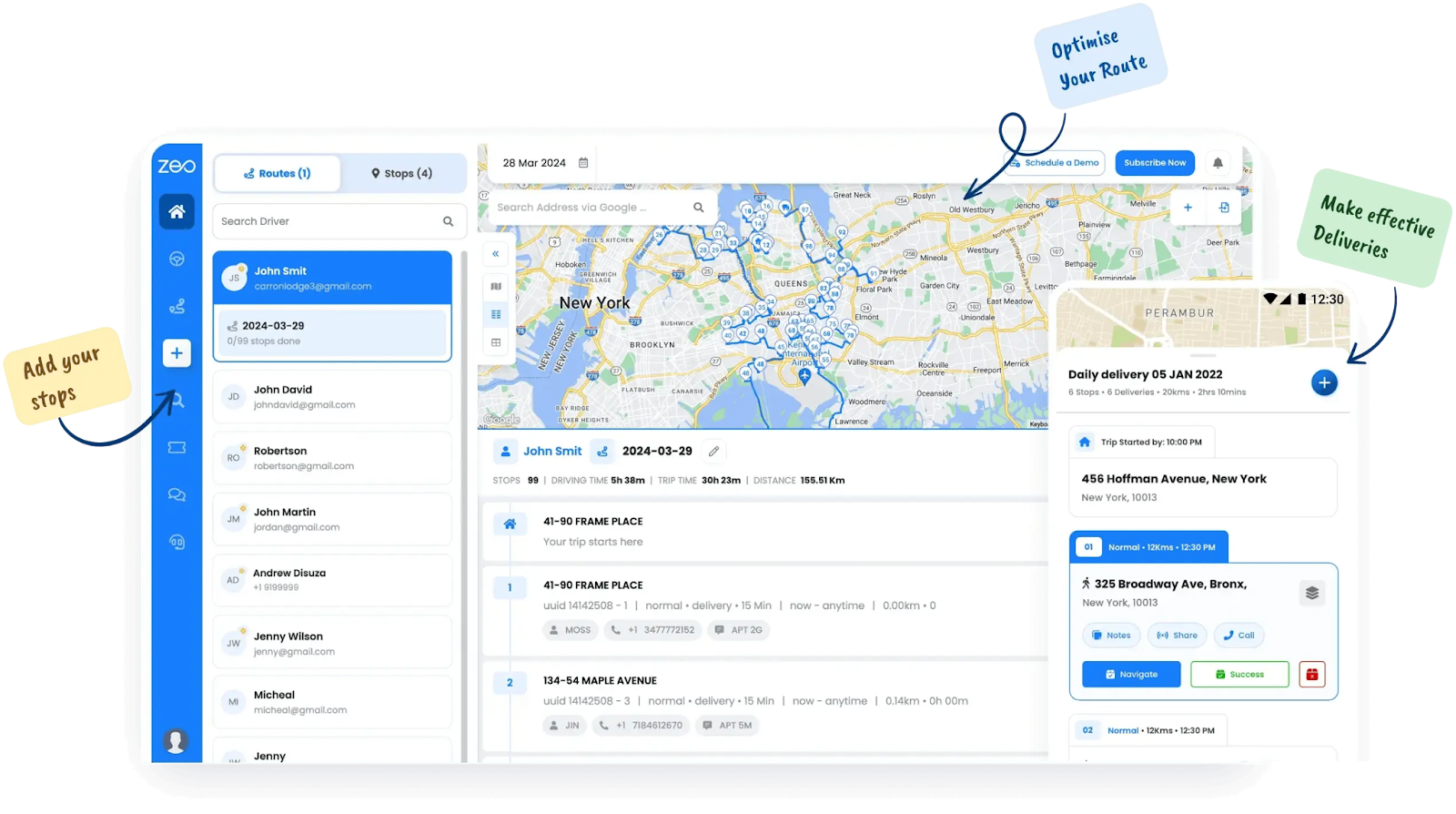
Das Routenoptimierungsfunktion hilft dabei, eine Route so zu planen, dass die Fahrer dem kürzesten und logischsten Weg folgen müssen, basierend auf aktualisierten Lieferbeschränkungen.
Zeitfenstergenauigkeit
Jede Lieferung weckt Erwartungen, und präzise Zeitfenster helfen Ihnen, diese Erwartungen mit einer Genauigkeit zu erfüllen, die sich dem Tagesablauf anpasst. Wenn Sie genau wissen, wann ein Fahrzeug einen bestimmten Ort erreicht, können Sie die Stopps mit der Verfügbarkeit der Kunden abstimmen, Engpässe vermeiden und Rückfahrten reduzieren.
Zeitfensterpräzision für die Live-Flottenverfolgung
Um diese Zeitfenster zuverlässig einzuhalten, müssen Flottenmanager den Zeitpunkt jedes einzelnen Stopps genau verstehen.
So ermöglicht Live-Tracking diese Präzision in großem Umfang:
Markierte Zeitfenster
Jeder Lieferung wird ein Zielzeitfenster zugewiesen, beispielsweise 2 bis 4 Uhr. Diese Vorgaben werden zu Einschränkungen, die das System beim Erstellen oder Anpassen von Routen berücksichtigt.
Live-ETA-Überwachung
Während die Flotte unterwegs ist, werden die voraussichtlichen Ankunftszeiten für jeden Halt kontinuierlich berechnet, sodass das System eine Warnung ausgibt, falls eine Lieferung außerhalb des vereinbarten Zeitfensters liegt.
Echtzeit-Kundenaktualisierungen
Sollten sich während der Fahrt Änderungen ergeben, werden die Kunden automatisch benachrichtigt.
Wie Zeo hilft
Mit Zeo können Teams Lieferzeitfenster präzise definieren und jede Route so gestalten, dass sie in diese Fenster passt.

Kraftstoffeinsparungen erhöhen
Sparen Sie jeden Tag 2 Stunden bei Lieferungen!
Optimieren Sie Routen mit unserem Algorithmus und reduzieren Sie so effizient Reisezeit und -kosten.
Jetzt kostenlos starten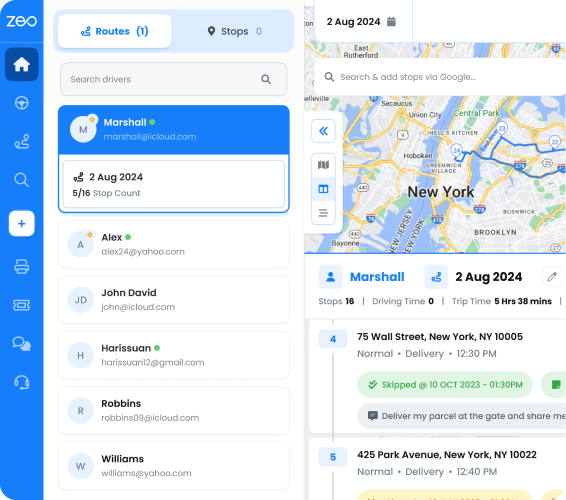
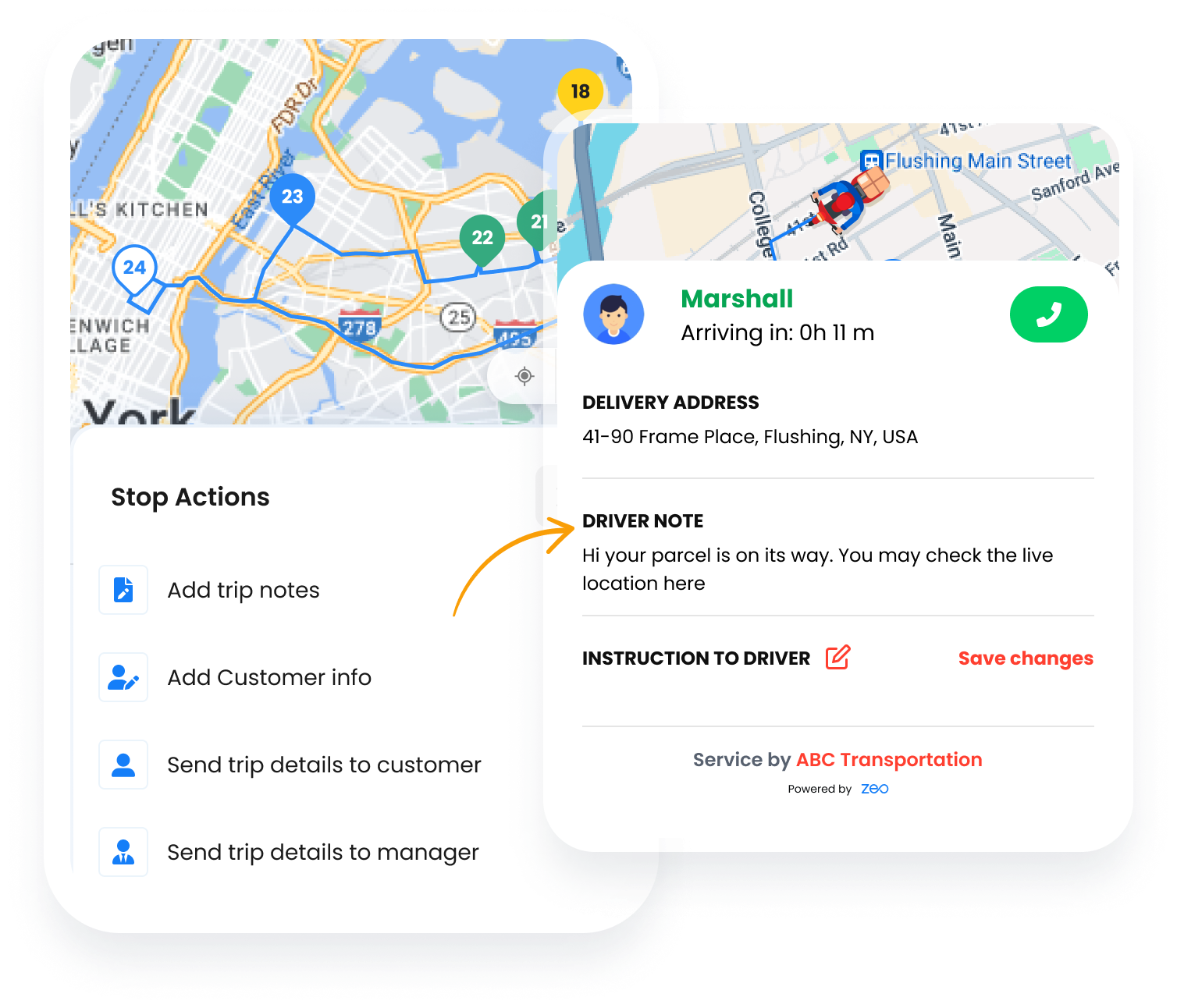
Selbst bei Verzögerungen treibt Zeo die Entwicklung voran. Voraussichtliche Lieferzeitverfolgung Die Routen werden in Echtzeit neu berechnet und die Reihenfolge neu angeordnet.
Detaillierte Stoppanweisungen
Für verschiedene Lieferorte können spezifische Anweisungen gelten. Dies kann den reibungslosen Ablauf der Lieferung beeinflussen. Beispielsweise benötigen manche Standorte Zugangscodes oder Informationen zum jeweiligen Stockwerk. An anderen Standorten befinden sich möglicherweise zerbrechliche Güter, die sorgfältig behandelt werden müssen, oder der Fahrer muss vor der Ankunft anrufen.
Sie können diese Funktion direkt in der Fahrer-App bereitstellen, sodass die Lieferungen schneller, genauer und für das Team unterwegs deutlich weniger stressig werden.
Wie Echtzeitsysteme die Fahrer auf dem richtigen Weg halten
Dank der eingerichteten Echtzeitsysteme können Fahrer auf Folgendes zugreifen:
Haltestellen-Niveau-Notizen
Die Disponenten können jedem Stopp individuelle Anweisungen hinzufügen, wie z. B. Zugangscodes für das Tor, Tipps zum Umgang mit Paketen oder bevorzugte Lieferzeiten.
Sofortige Kursänderungen während der Fahrt
Wenn ein Kunde anruft, um den Abholort zu ändern oder neue Anweisungen hinzuzufügen, können die Disponenten den Stopp in Echtzeit aktualisieren, und die geänderten Details werden sofort in der App angezeigt.
Umplanen oder Ablauf überspringen
Ist der Empfänger nicht erreichbar oder ein Zielort gesperrt, können Fahrer den Halt mit einer kurzen Nachricht überspringen. Das System passt die Route außerdem umgehend an und benachrichtigt die Disposition zur weiteren Bearbeitung.
Zeos Rolle bei reibungslosen Lieferungen
Zeo Route Planner unterstützt die detaillierte Haltestellenverwaltung, indem es Teams ermöglicht, Notizen anzuhängen, benutzerdefinierte Tags hinzuzufügen und Aktualisierungen während der Route vorzunehmen, ohne den Fahrplan zu stören.
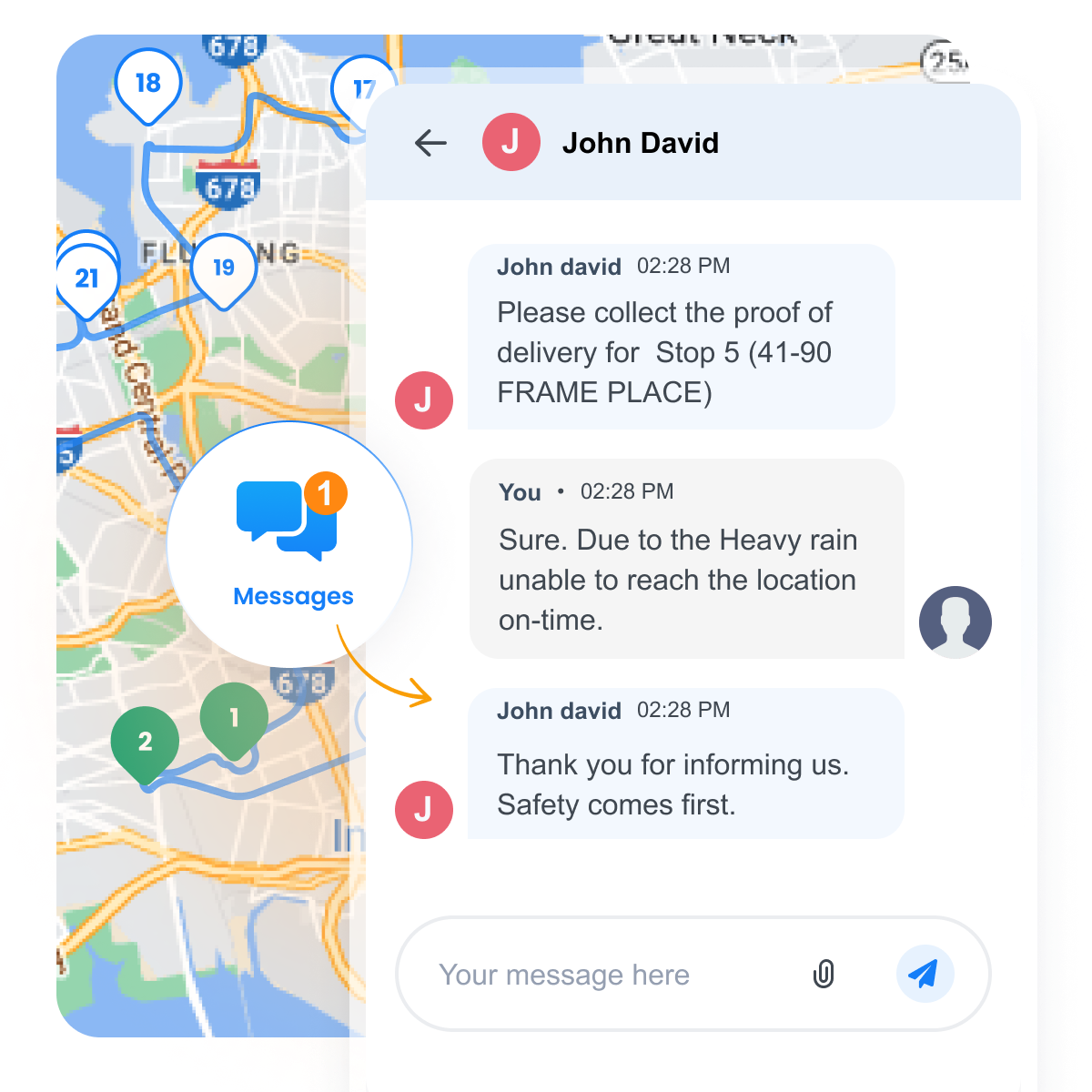
Das Mobile App für Fahrer ermöglicht Echtzeitkommunikation, wodurch diese Aktualisierungen in Echtzeit abgebildet werden, sodass die Fahrer konzentriert und informiert bleiben.
Zustellnachweis (POD)
Nach erfolgter Lieferung ist der Abschluss des Prozesses genauso wichtig wie die Zustellung selbst. Ein Liefernachweis dokumentiert sofort die Fertigstellung des Auftrags. Dies ist besonders wichtig bei der Koordination mehrerer Lieferstopps, enger Zeitpläne und Kundenbeschwerden.
So sieht ein guter POD-Flow aus
Echtzeitsysteme integrieren POD in den Arbeitsablauf, sodass mit den folgenden Maßnahmen nichts übersehen wird:
Automatische Zeit- und Ortsprotokollierung
Jeder Zustellvorgang wird mit einem Zeitstempel und den genauen Ablagekoordinaten erfasst, wodurch ein Prüfprotokoll ohne manuellen Aufwand entsteht.
Mehrere Verifizierungsoptionen
Je nachdem, was zum Geschäftsmodell passt, können die Fahrer Kundenunterschriften erfassen, Fotos von der Zustellung machen oder die Fertigstellung mithilfe sicherer Einmalcodes markieren.
Sofortige Transparenz für Disponenten
Sobald eine Lieferung abgeschlossen ist, wird die Aktualisierung im Backend-Dashboard angezeigt. Dadurch erhält das Team einen Überblick darüber, was erledigt ist, was noch aussteht und wo Nachbearbeitungsbedarf besteht.
Wie Zeo Routenplaner POD nahtlos gestaltet
Die mobile App von Zeo ermöglicht es Fahrern, Lieferungen in einem für den jeweiligen Auftrag passenden Format zu erfassen. Ob Unterschrift, Bild oder OTP-Verifizierung – alles ist möglich.
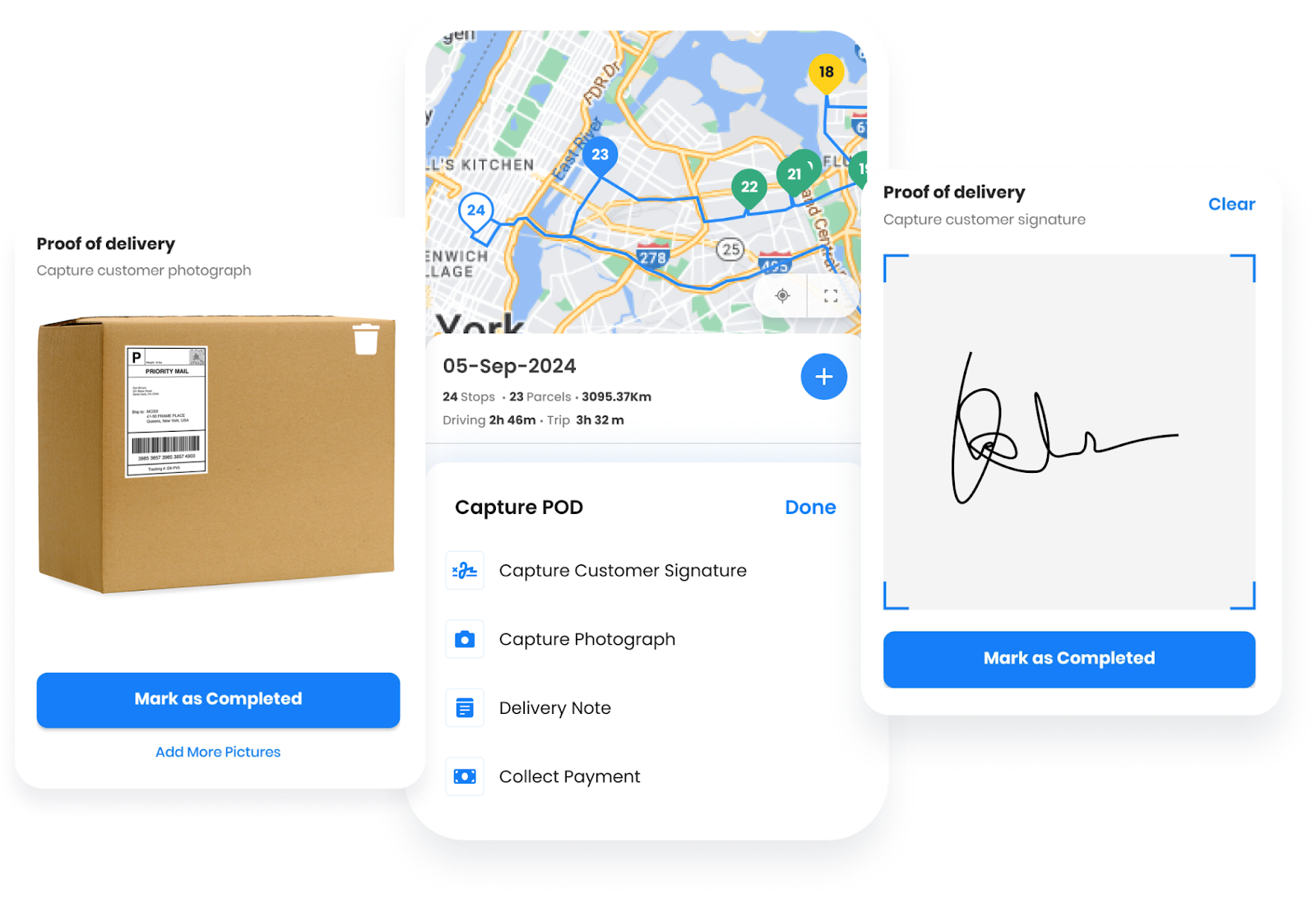
Das Zustellnachweis von Zeo sorgt dafür, dass die Aktualisierungen sofort im System-Dashboard angezeigt werden, was schnellere Bearbeitungszeiten und weniger Supportanrufe ermöglicht.
Fazit
Die Fahrzeugortung sorgt für mehr Transparenz in der Zustellung. Dank Echtzeit-Einblicken wissen die Teams, wo sich jedes Fahrzeug befindet, welche Verzögerungen auftreten könnten und wie sie schneller reagieren können. Jede Funktion, von optimierten Routen über detaillierte Anweisungen bis hin zum Zustellnachweis, trägt maßgeblich zu einer reibungslosen und nachvollziehbaren Zustellung auf der letzten Meile bei.
Zeo Route Planner erleichtert dies, indem es Disponenten und Fahrer durch Live-Updates, automatische Anpassungen und eine einheitliche Straßenansicht aufeinander abstimmt.
Überzeugen Sie sich selbst, wie Zeo Route Planner Ihnen bei der effektiven Verwaltung Ihrer Fahrzeugflotte helfen kann.

Sind Sie Flottenbesitzer?
Möchten Sie Ihre Fahrer und Lieferungen einfach verwalten?
Erweitern Sie Ihr Geschäft mühelos mit dem Zeo Routes Planner – optimieren Sie Routen und verwalten Sie problemlos mehrere Fahrer.
Kraftstoffeinsparungen erhöhen
Problemlose Lieferungen und Abholungen!
Optimieren Sie Routen mit unserem Algorithmus und reduzieren Sie so effizient Reisezeit und -kosten.
Jetzt kostenlos starten